How to manage Geo templates
Short.io provides Geo-targeting feature which redirects users to the relevant web pages depending on their location.
When generating a new short link or editing an existing one, you have the option to include Geo-targeting. However, the process of adding countries or regions individually can be quite tedious. To simplify the task, you can pre-compile lists of countries and regions (templates) for your targeting needs.
Country targeting starts from Hobby plan; Region targeting — from Team plan.
The templates can be customized for each user individually or implemented at once for all members of your team.
Setting up a Geo template
-
Sign in to your Short.io account.
-
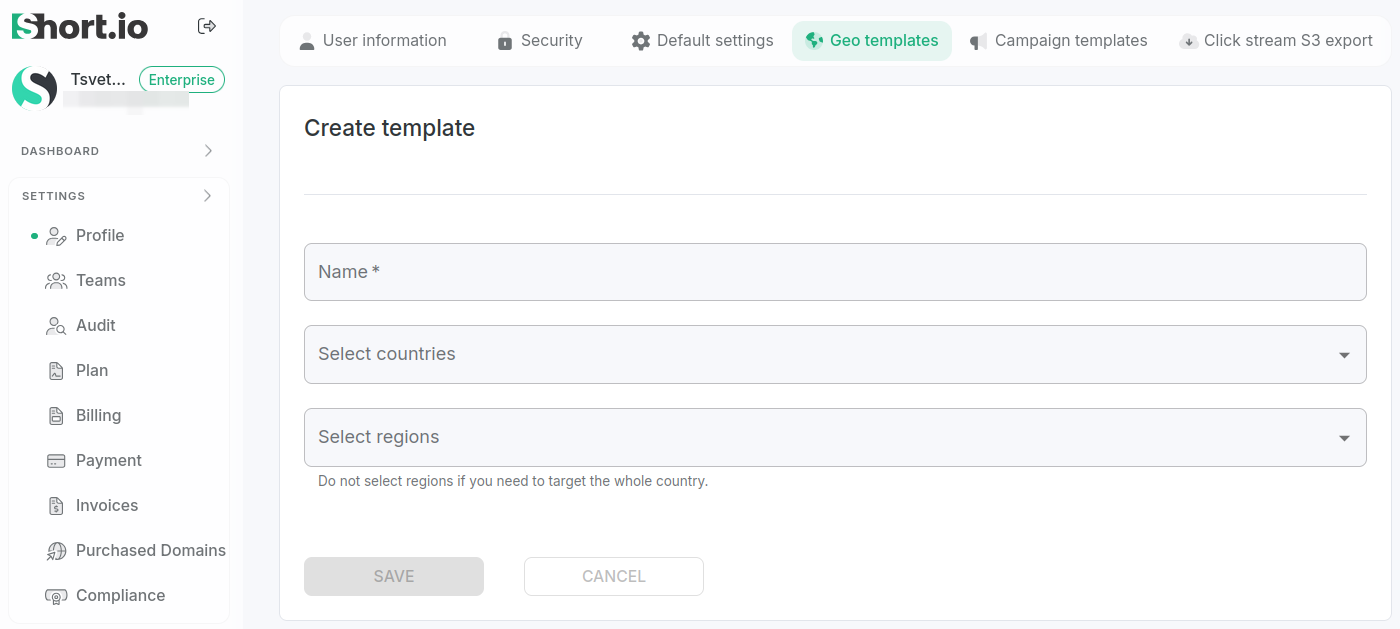
Navigate to Settings->Profile and click on Geo templates:
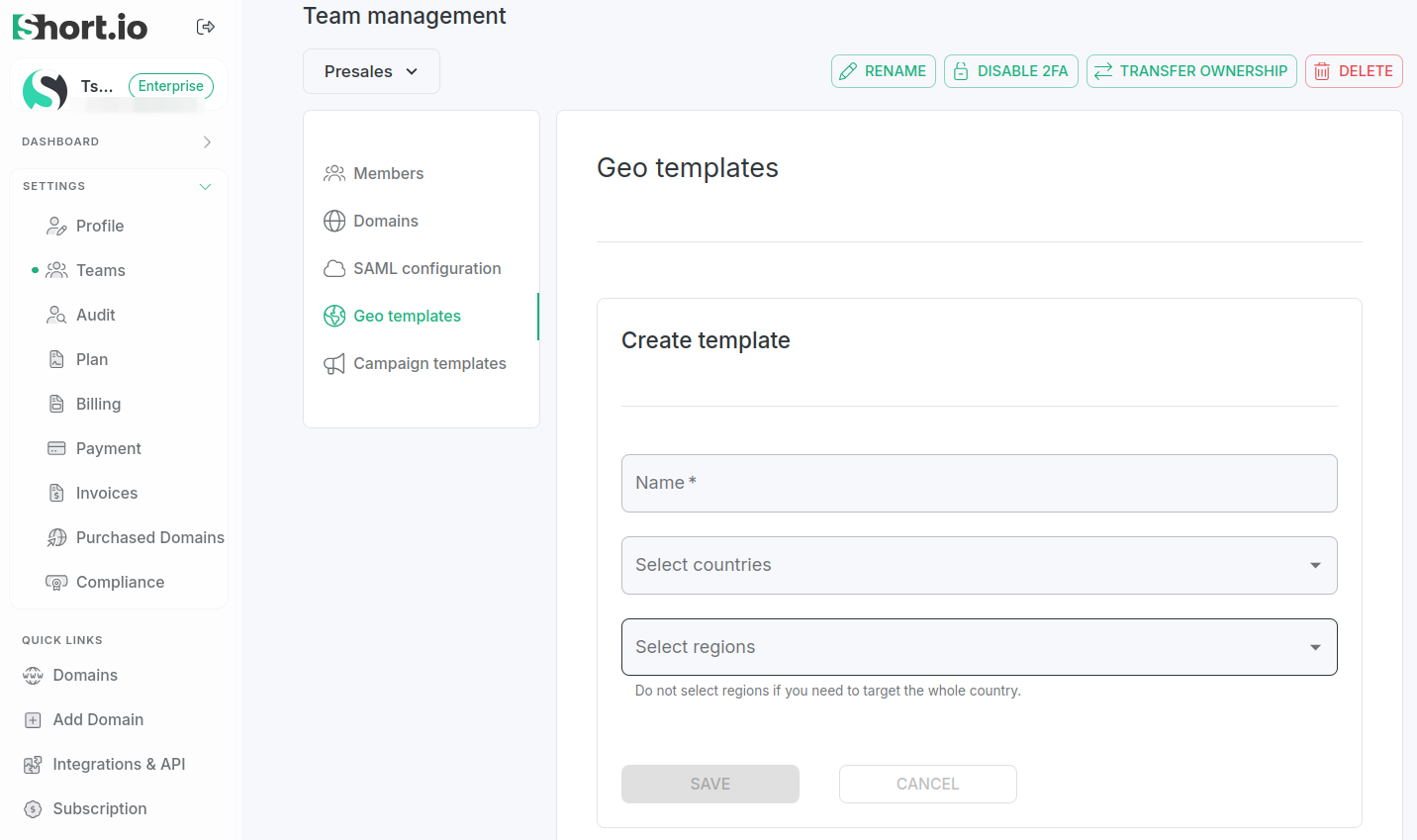
or select a team from Settings->Teams and click on Geo templates:
-
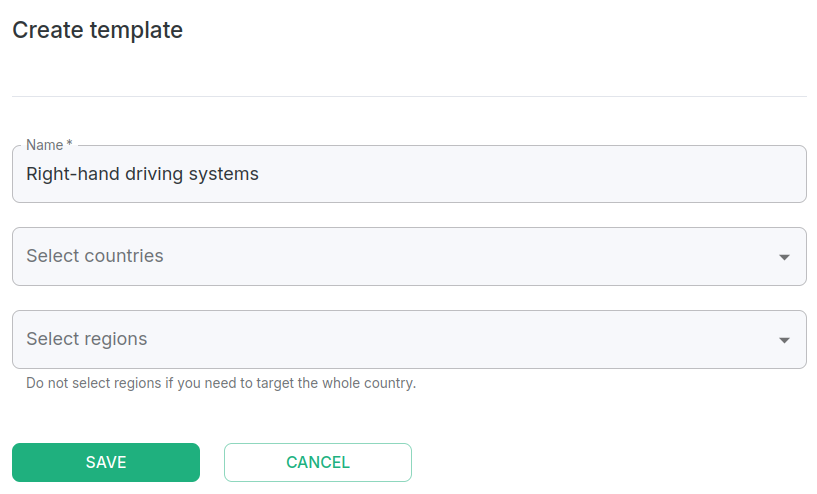
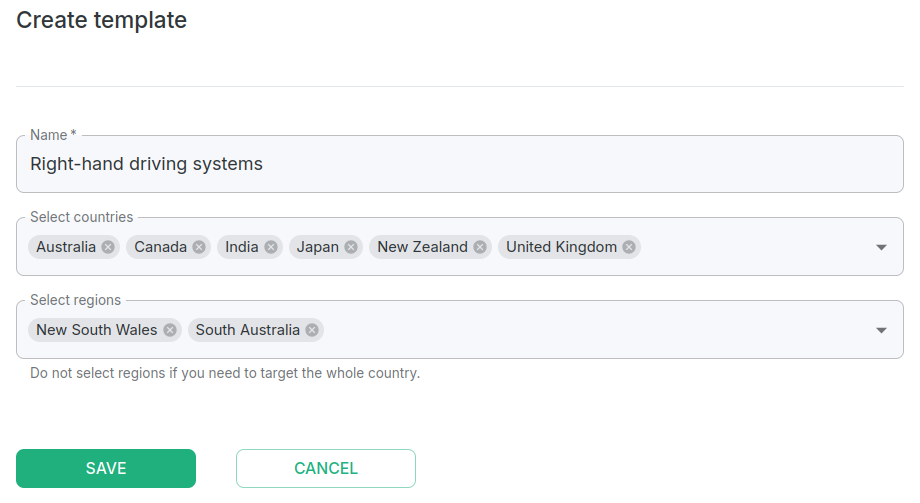
Enter a name for your template:
-
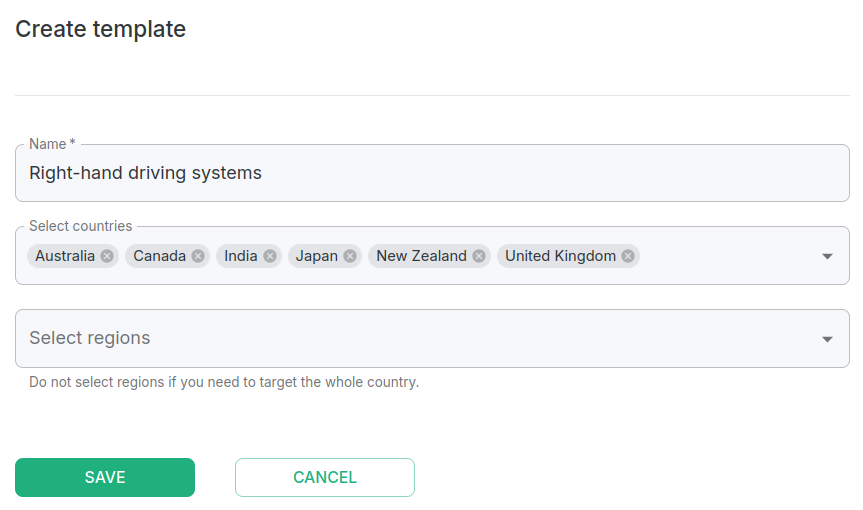
Select one or more countries from the list:
-
You can also specify separate country region(s):
-
Save.
The new template has been added:
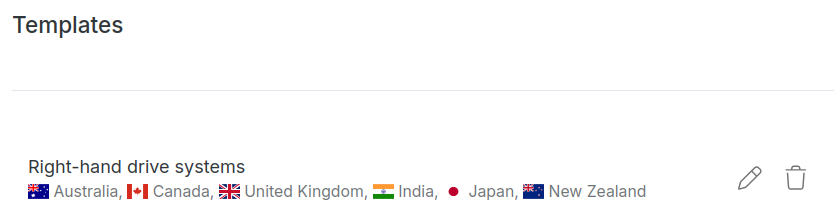
and is available in the Geo-targeting section when you create or edit a short link:
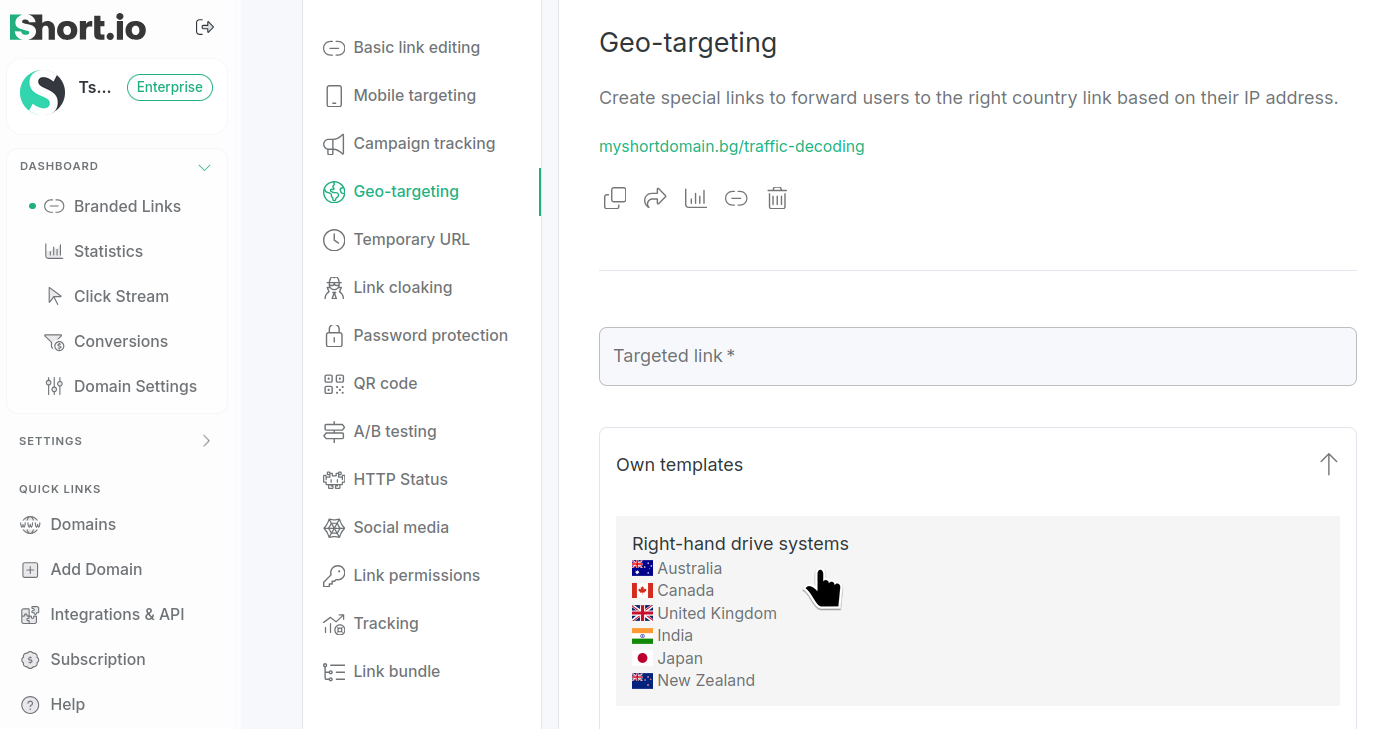
Editing a Geo template
-
Navigate to Settings->Profile (or select a team from Settings->Teams) and click on Geo templates.
-
Click the icon next to the Geo template which you want to edit:
-
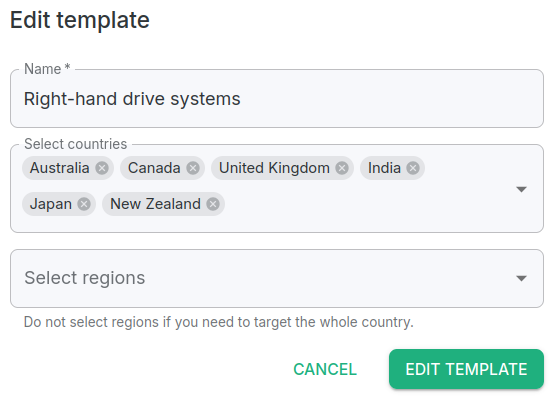
In the next dialog you can make adjustments to the Name, Countries and Regions of the template:
-
Once you have completed the editing process, click Edit template.
The template changes will be saved.
Deleting a Geo template
-
Navigate to Settings->Profile (or select a team from Settings->Teams) and click on Geo templates.
-
Click the icon next to the Geo template which you want to delete:
-
When prompted Are you sure you want to delete
<template-name>template?,
click Confirm: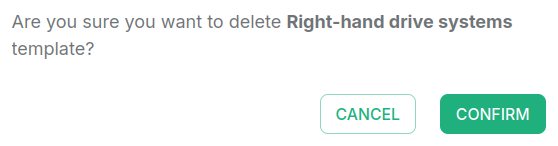
The template will be removed.