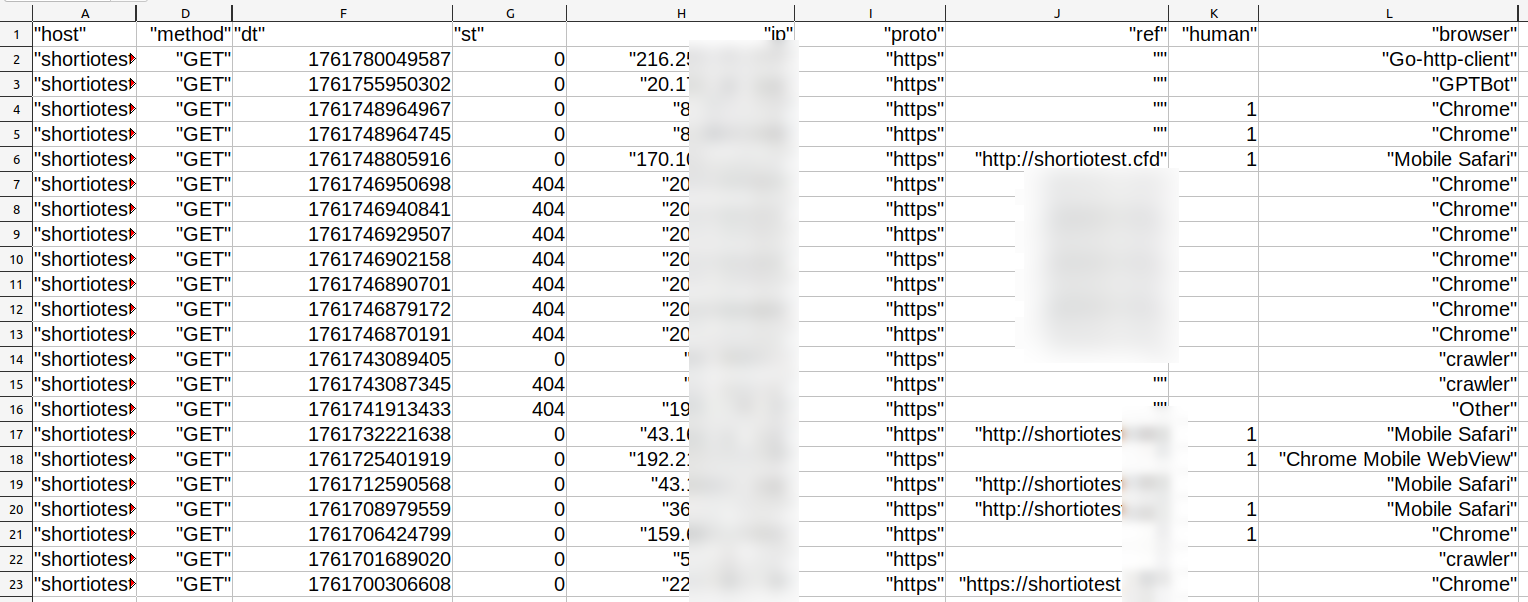
How to enable AWS S3 bucket click stream export and manage your data
AWS general purpose buckets are containers for objects stored in Amazon S3 cloud. In a bucket, you can keep any number of objects, including your short links click stream statistics.
The S3 clicks export feature is available on Short.io Enterprise pricing plan.
To export click stream
AWS prerequisites
-
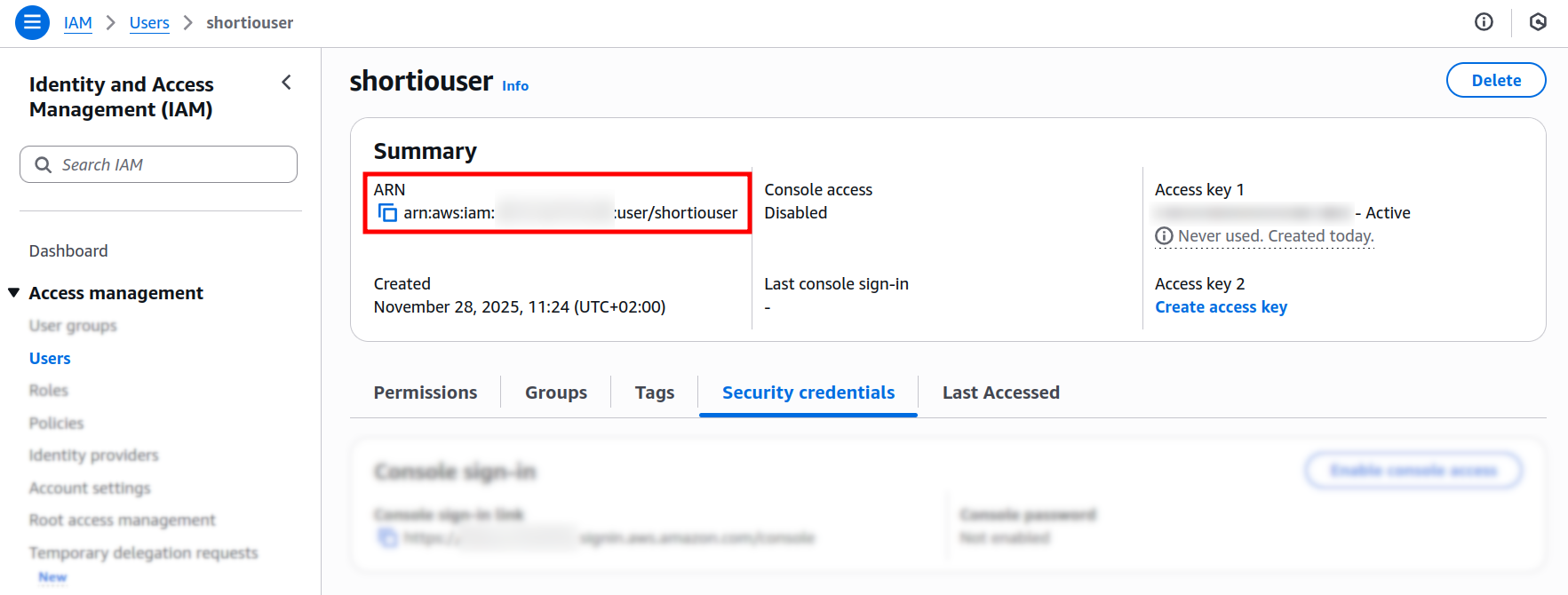
In AWS, set up a distinct user dedicated to the management of the click stream bucket:
-
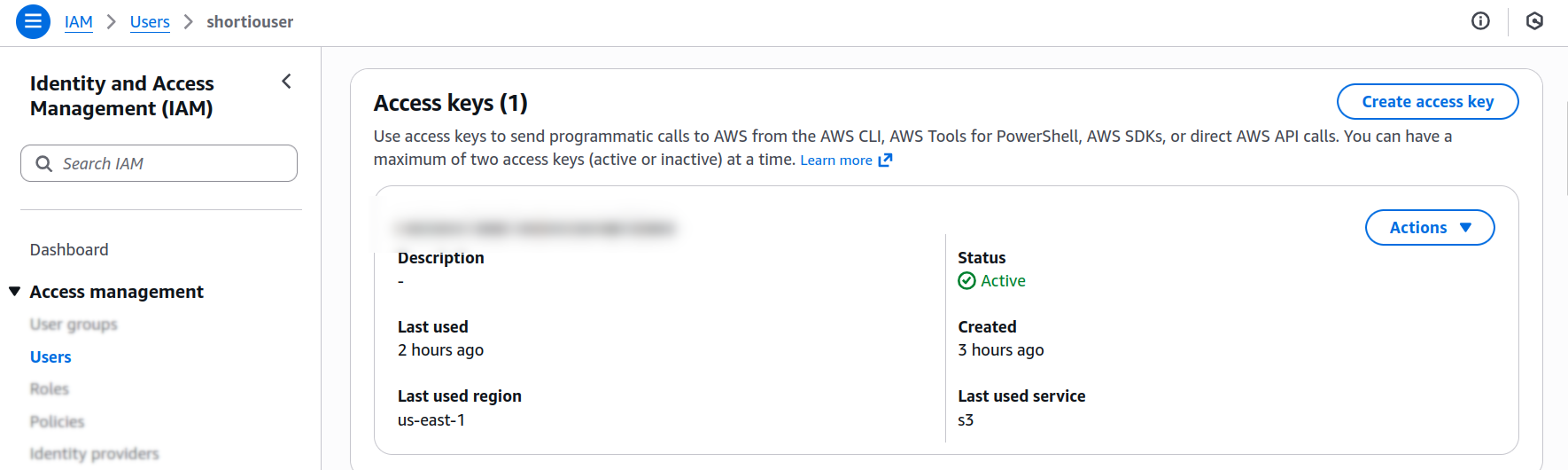
Generate an Access key for this user and store its values in a safe place:
Export configuration
-
Sign in to your Short.io account.
-
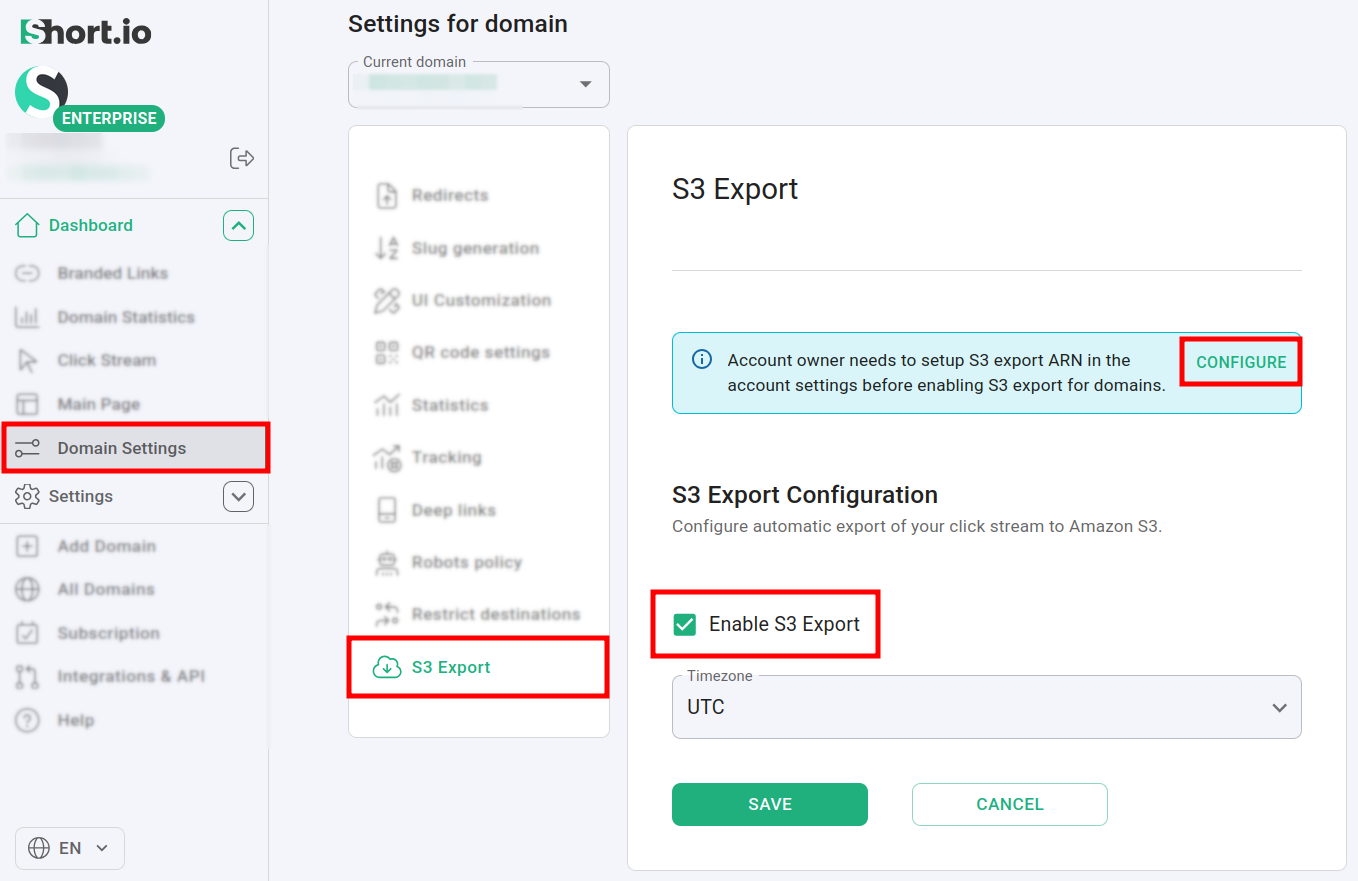
In the Dashboard select a domain for which you want to export links in S3 bucket and navigate to Domain Settings -> S3 export:
-
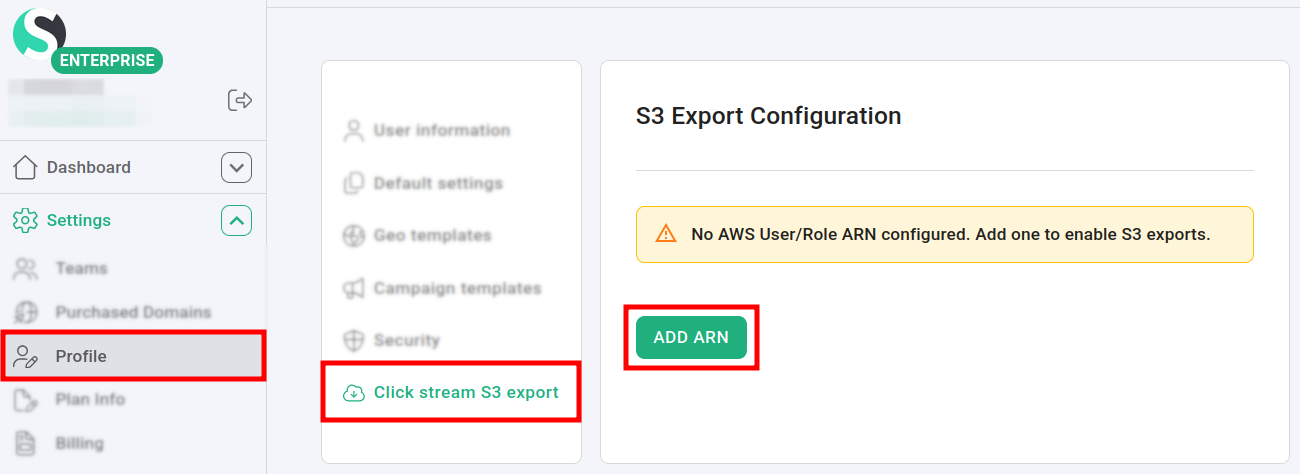
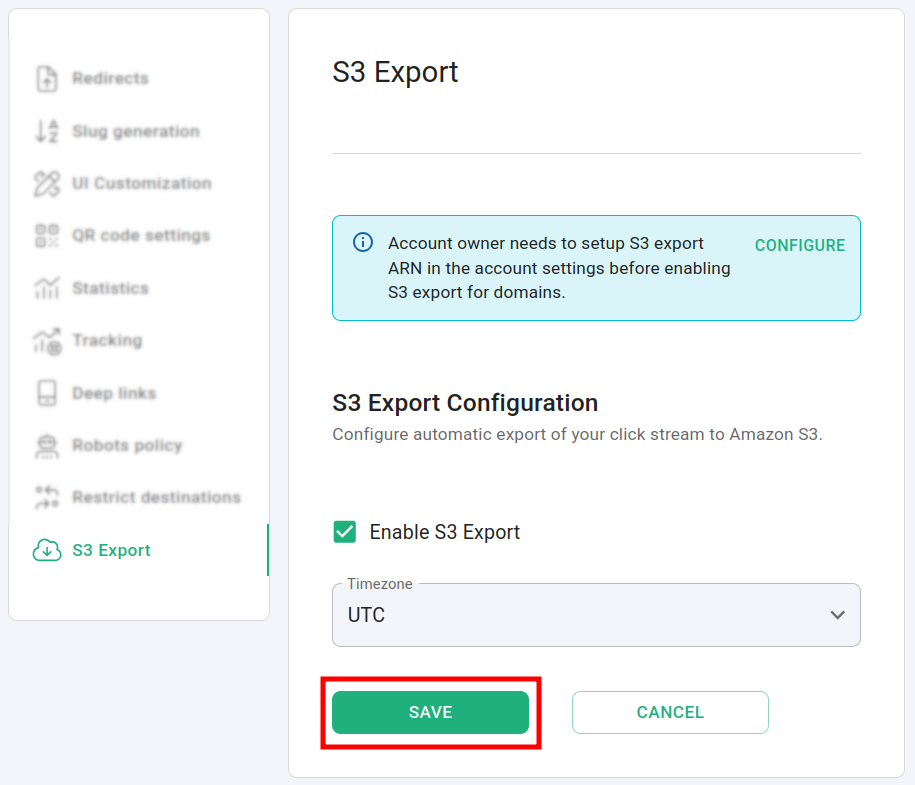
Enable S3 export and click on Configure. You will be redirected to Profile -> Click stream S3 export menu:
-
Click on Add ARN.
-
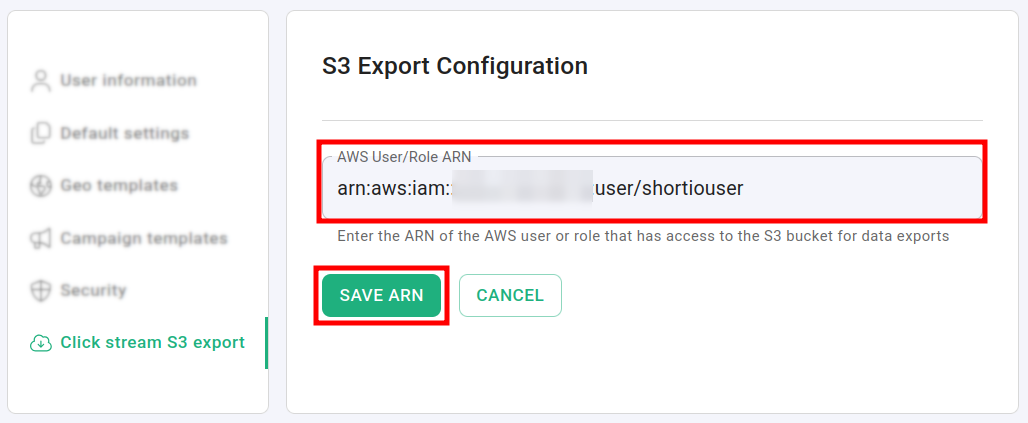
From AWS, copy the unique ARN of the created user and paste it in the AWS User/Role ARN field:
-
Click on Save ARN. The newly created bucket ARNs appear in the following format:
arn:aws:s3:::short-stats-global-
<UNIQUE-NUMBER>arn:aws:s3:::short-stats-eu-
<UNIQUE-NUMBER>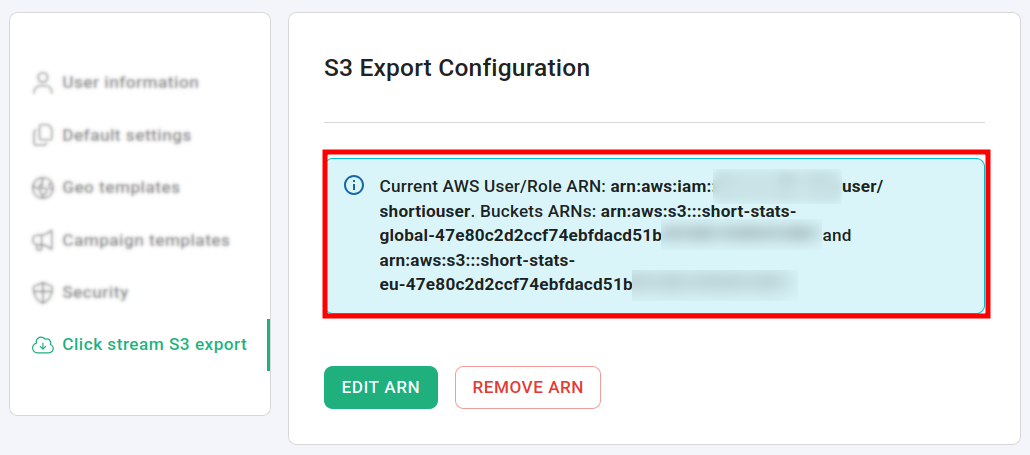
-
In AWS, create an S3 Policy as follows:
List actions allowed - ListBucket
Read actions allowed - GetObject
Resources
Specified resource ARNs for these actions
arn:aws:s3:::short-stats-global-
<UNIQUE-NUMBER>/*arn:aws:s3:::short-stats-global-
<UNIQUE-NUMBER>arn:aws:s3:::short-stats-eu-
<UNIQUE-NUMBER>/*arn:aws:s3:::short-stats-eu-
<UNIQUE-NUMBER>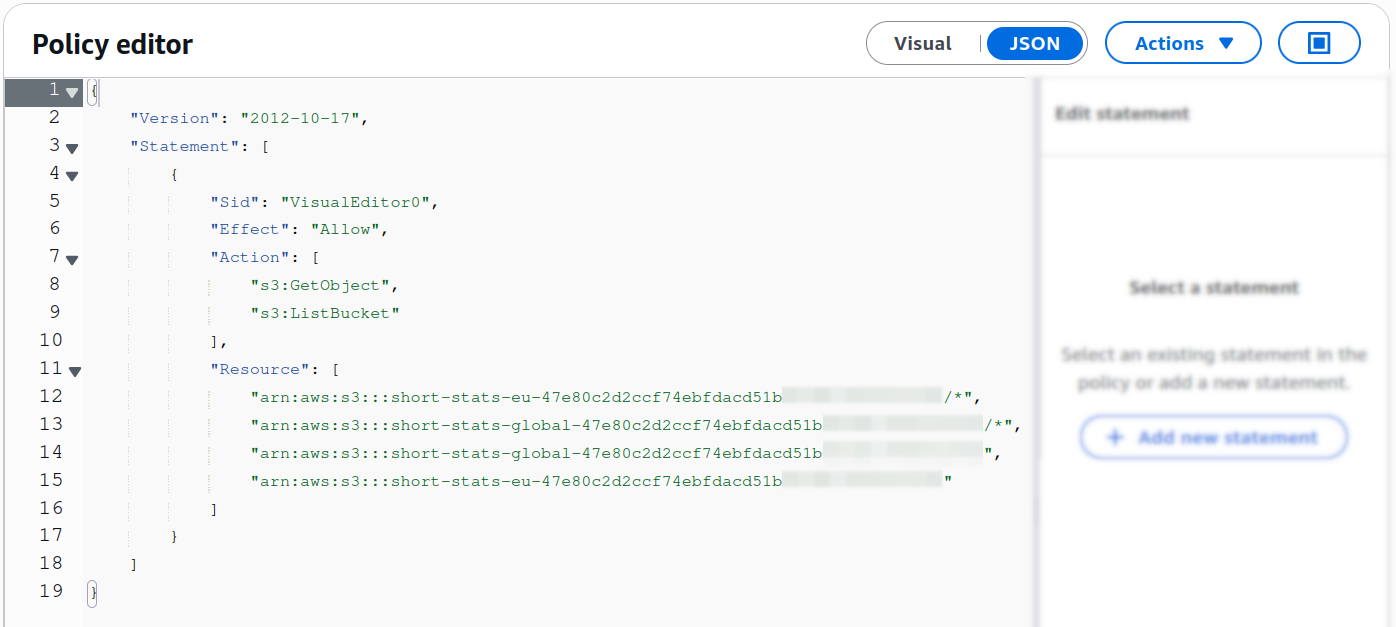
-
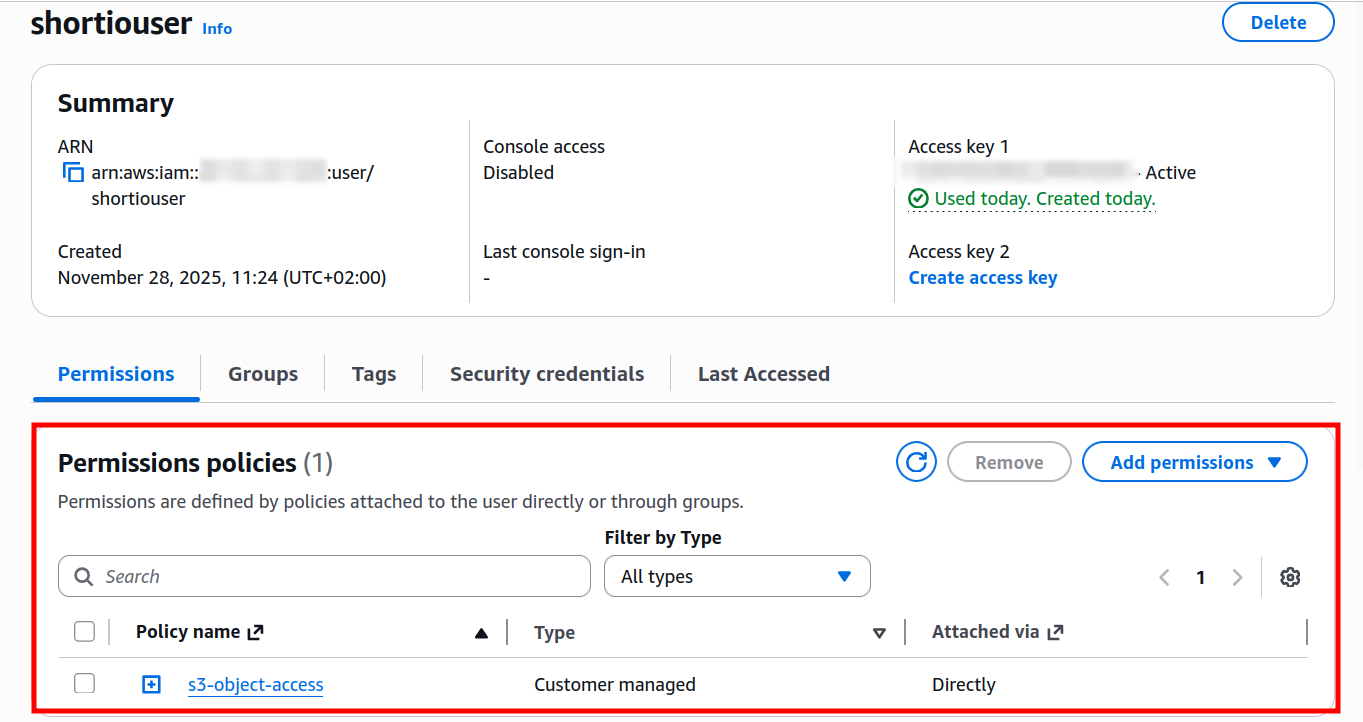
Assign the policy to your user:
-
In Short.io, make sure that you have saved the configuration:
To review and download exported data
You can use the AWS CLI tool to review the generated click stream data and download the archived files on your device.
-
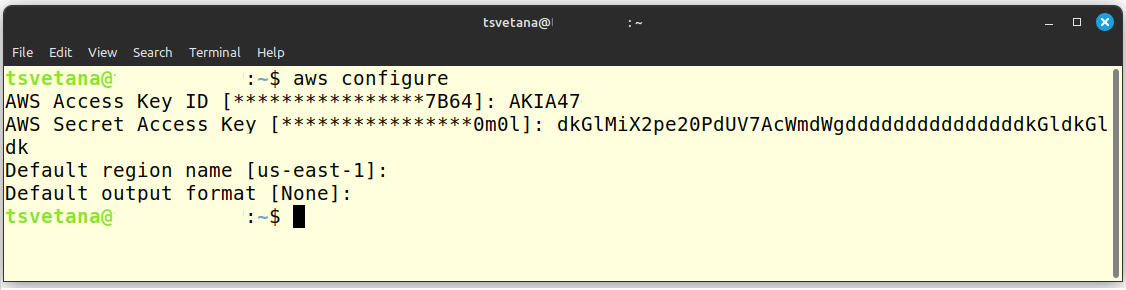
In your command line editor or Terminal type aws configure:
-
Enter the Access key and the Secret access key of your AWS user.
-
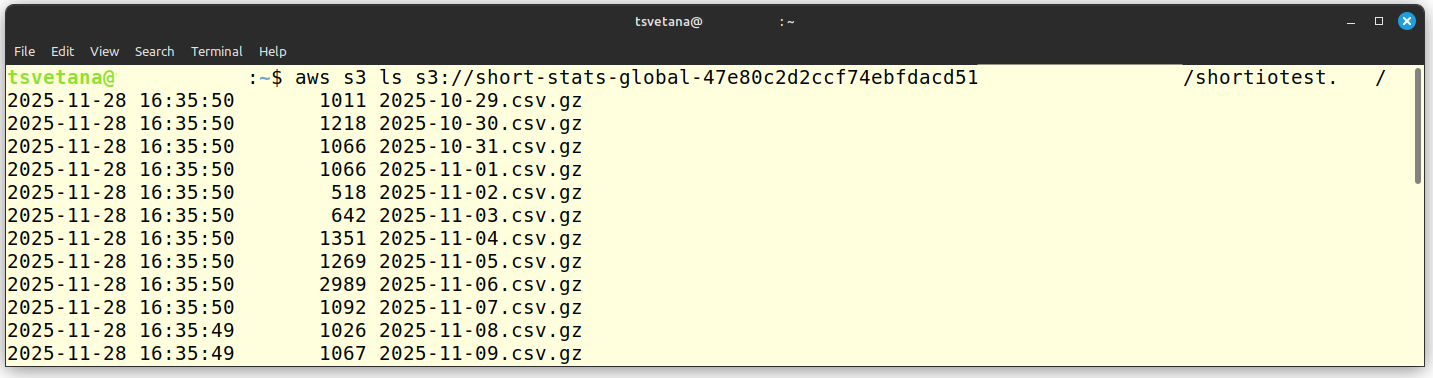
To review the archived links listed by date and time, type the following command:
aws s3 ls s3://short-stats-
<GLOBAL OR EU>-<UNIQUE-NUMBER>/<_DOMAIN-NAME_\>/For example, aws s3 ls s3://short-stats-global-123456/mydomain.com/
-
To download a specific link click stream archive, type the following command:
aws s3 cp s3://short-stats-
<GLOBAL-OR-EU>-<UNIQUE-NUMBER>/<_DOMAIN-NAME_\>/<ARCHIVE-NAME>For example, aws s3 cp s3://short-stats-global-123456/mydomain.com/2025-10-29.csv.gz