Example search queries for link filters
The Short.io filters are based on a lightweight and performant Lucene-like search engine which allows you to look for short links using various fields and applying certain logical combinations among them.
Available searchable fields
Here is a list of the search fields which you can use to filter your short links:
| Field | Description |
|---|---|
| androidURL | Android redirect URL |
| archived | Archive status of the short link (true or false) |
| clicksLimit | Clicks limit setting for temporary links |
| cloaking | Cloaking status (true or false) |
| createdAt | Short link creation timestamp (Unix epoch time format in milliseconds) |
| expiredURL | Redirect URL setting for expired link |
| expiresAt | Short link expiration timestamp (Unix epoch time format in milliseconds) |
| FolderId | Folder assignment of the short link |
| id | Unique identifier of the short link |
| iphoneURL | iOS redirect URL |
| originalURL | Target URL (or original long link) |
| ownerId | Unique identifier of the short link's owner |
| password | Password protection setting (to be used as follows - password:y) |
| path | Short link path |
| redirectType | HTTP redirect code of the short link, for example, 308 |
| source | Short link creation method - API or website |
| splitPercent | A/B (variation) testing redirect percent |
| splitURL | Full URL of the variation page |
| tags | Tags of the short link |
| title | Title of the short link |
| updatedAt | Timestamp of the last short link update (Unix epoch time format in milliseconds) |
Query syntax and examples
Below, we present several examples of how to perform searches accurately.
Basic keyword matching
When you input a keyword (or a portion of it) into the search query field and click on apply, your result list will display all the short links that include this keyword in any of the available search fields.
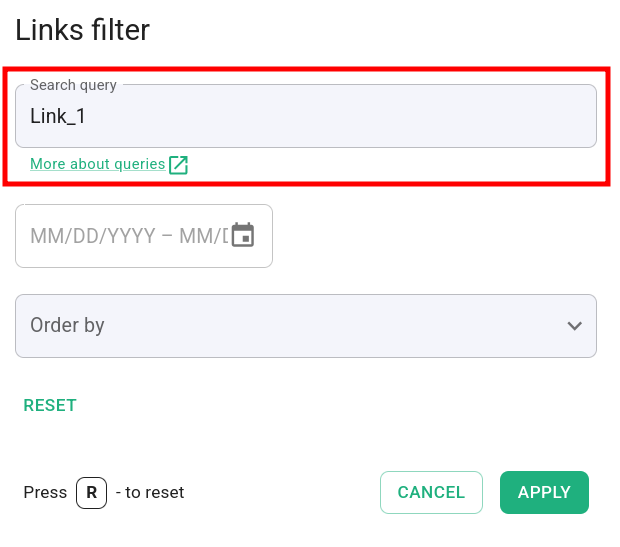
For example, if you search for Link_1:
then the result list might look as follows:
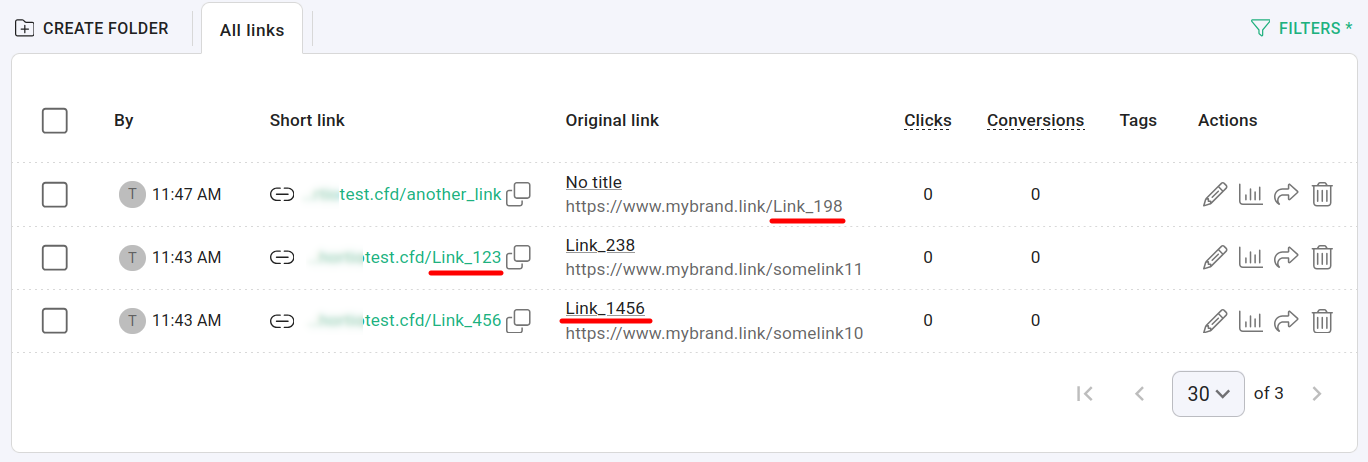
In the first row Link_1 is part of the original URL; in the second row it is contained in the short link, and in the third row we find it in the link title.
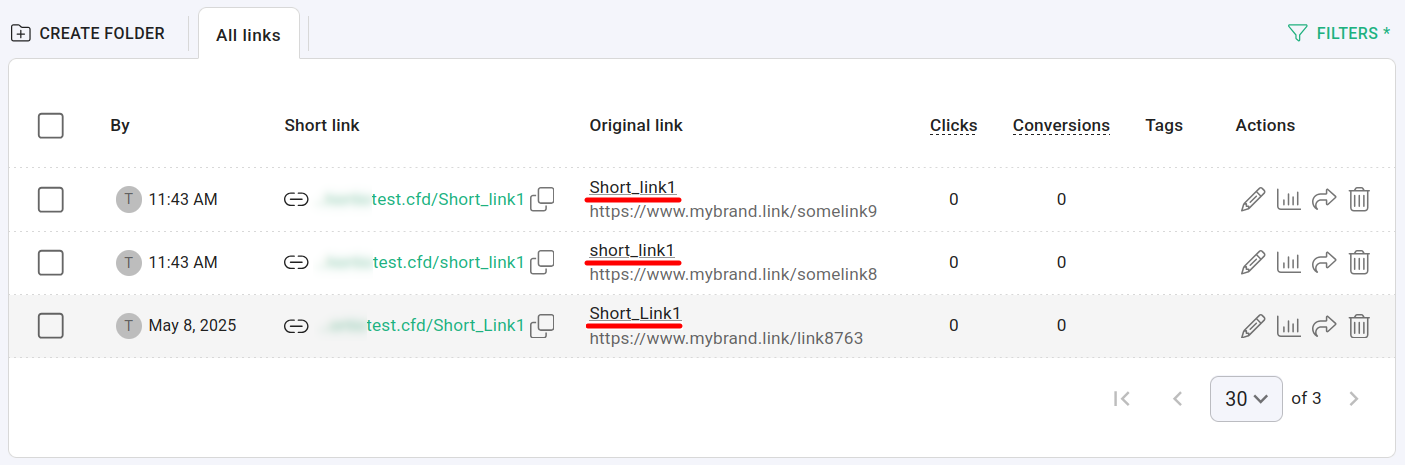
Searching for a given keyword in any field is case insensitive. Therefore, if you enter, for example, short_link1 as your query, it can result in finding not just the short links that fit this criteria, but also those that contain Short_link1, Short_Link1, or any combination of upper and lower case letters.
Using wildcard parameters
Wildcards are special characters that can stand in for unknown characters in a text and are handy for locating multiple items with similar, but not identical data.
You can use the quotation mark (?) and the asterisk sign (*) in your short links filters as follows:
-
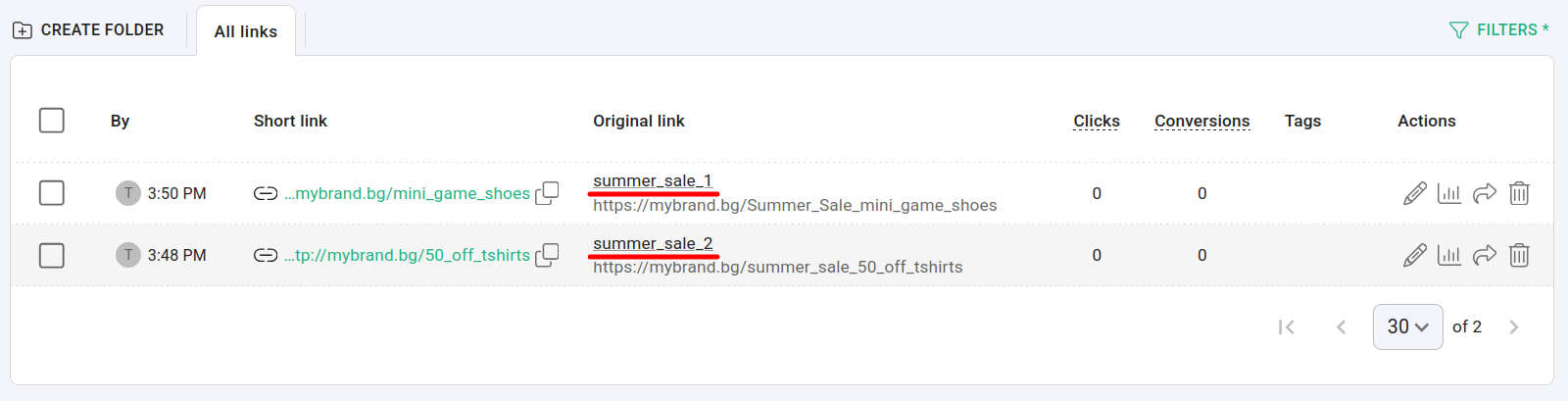
the quotation mark (?) replaces only one character in your keyword. If you search, for example, for any short links which contain in their title "summer_sale_
<number>", you can enter as a query - title: summer_sale_?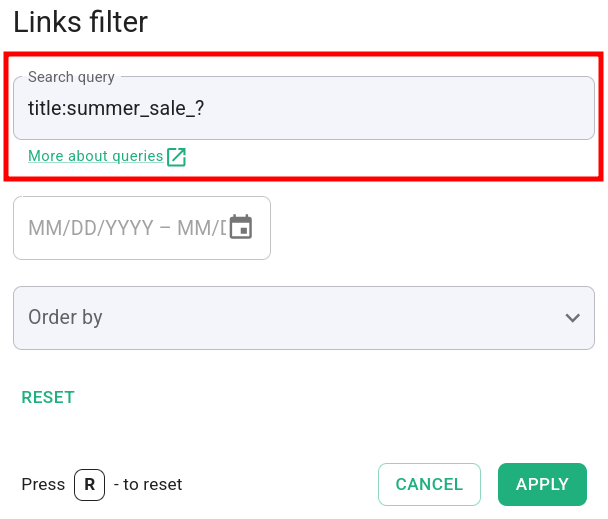
-
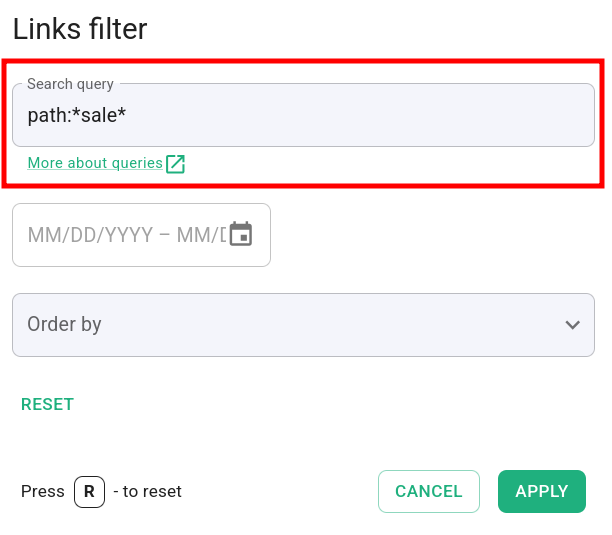
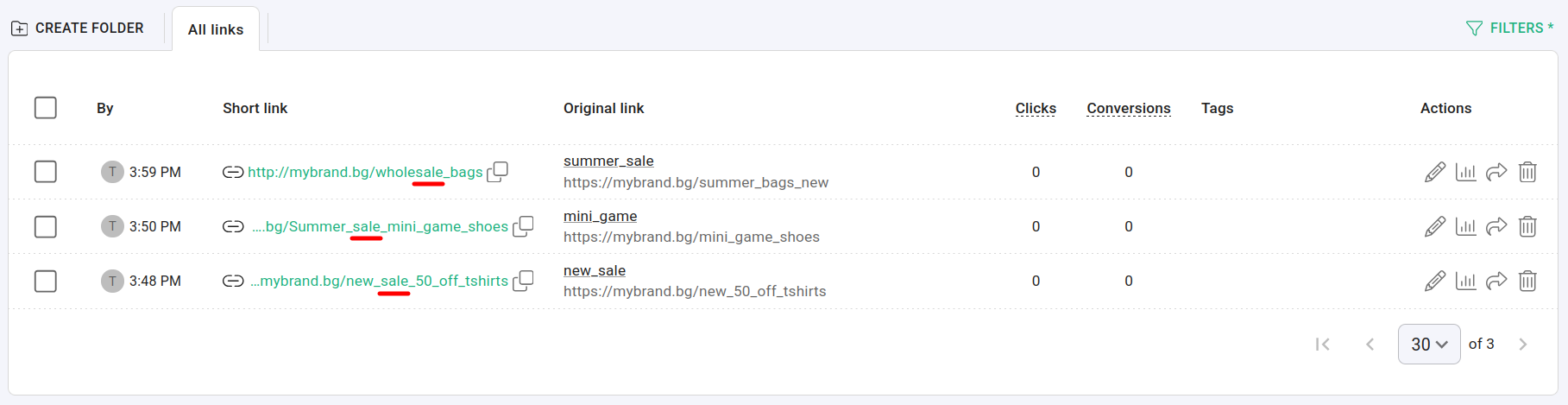
the asterisk sign (*) replaces zero or more characters in your keyword. If you search, for example, for any short links which contain "sale" in their path, you can enter as a query - path: *sale*
Refining your search results
In order to limit the results, you can set more precise filters by:
-
entering the exact keyword in quotation marks, for example - "Link_1456"
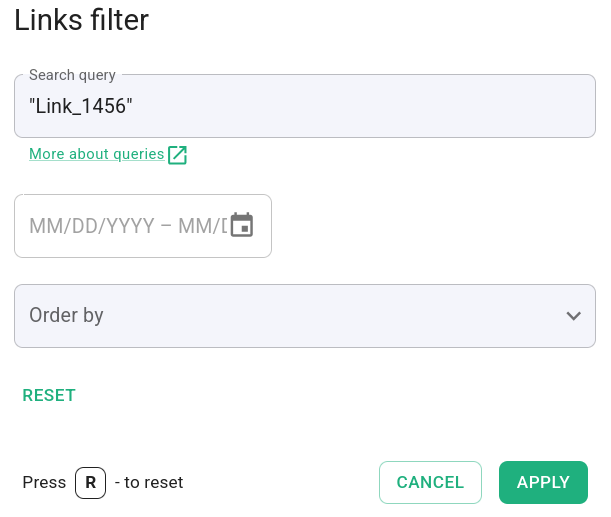
which will result in:
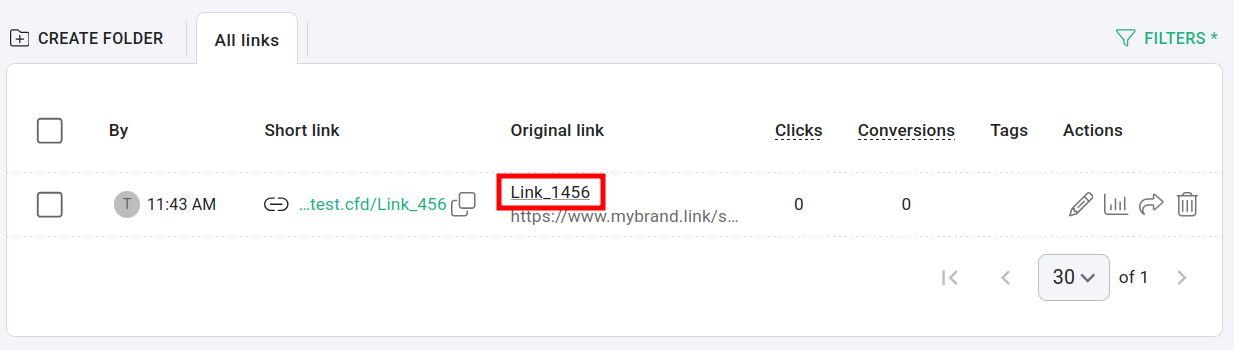
-
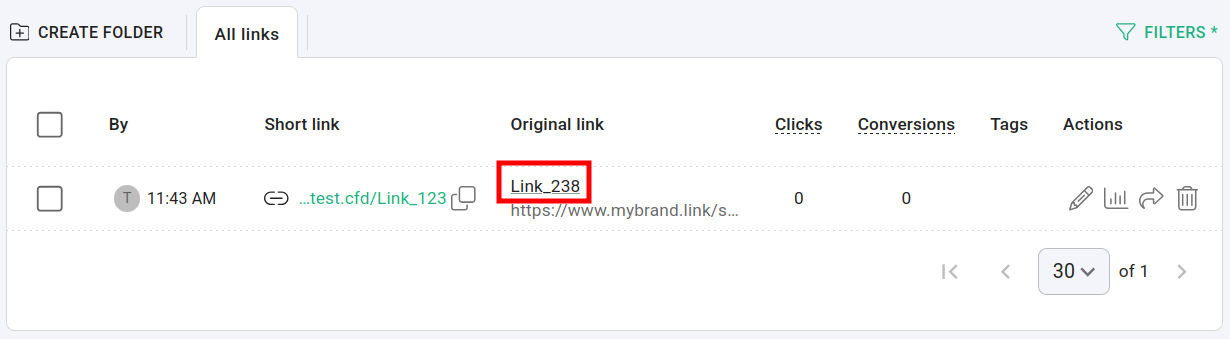
specifying the field where to search for the exact keyword, for example - title:"Link_238"
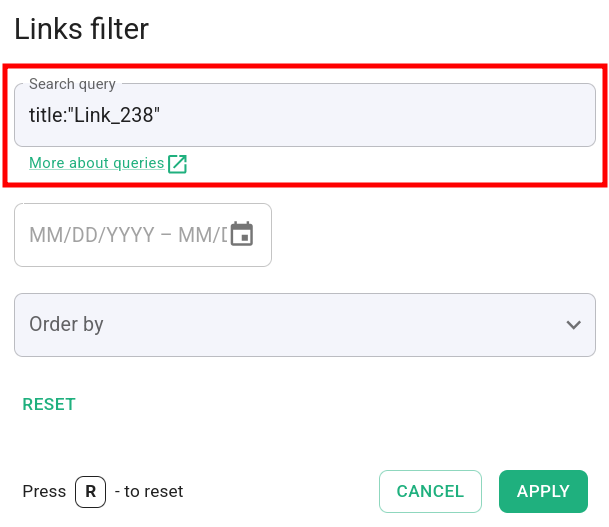
which will produce:
Using timestamp filters
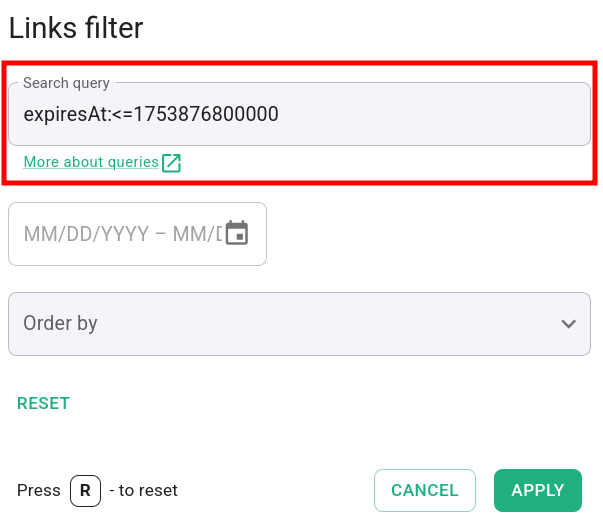
The following search fields require an additional conversion to the Unix epoch time format in milliseconds: createdAt, expiresAt and updatedAt.
For example, if you are looking for all the temporary short links which will expire on July 30, 2025 or before that date:
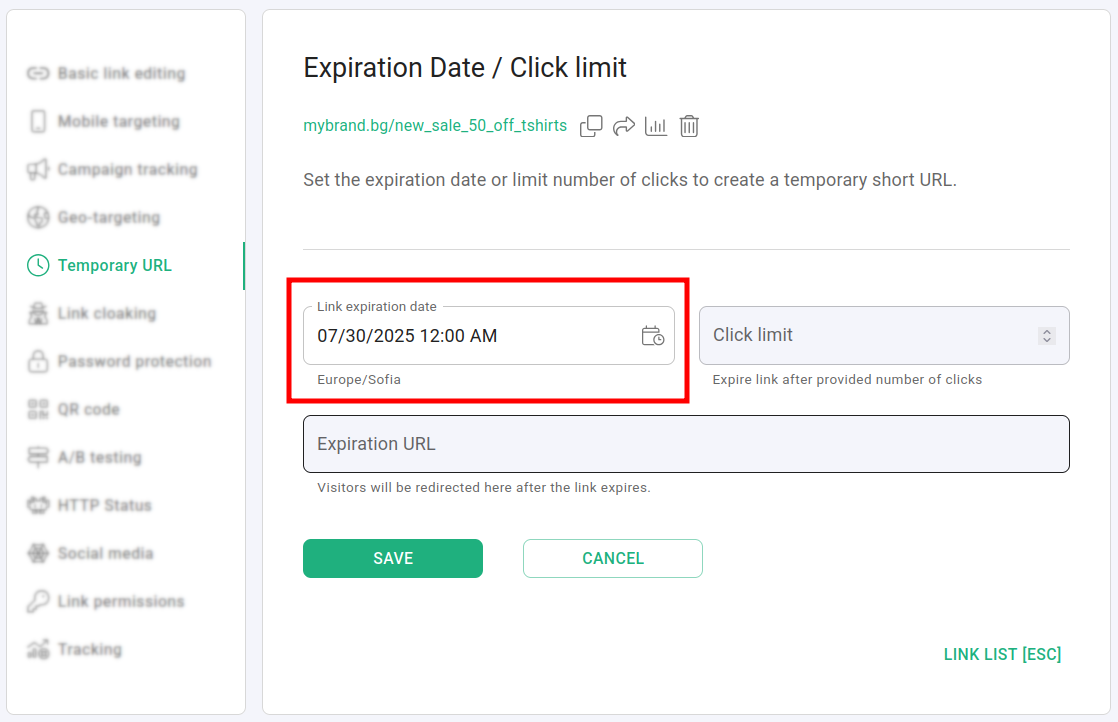
then you need to convert the date in Unix time - 1753876800000 and enter the following query expiresAt:<=1753876800000:
Using Boolean operators and logical NOT
You can combine several search fields in one query by applying the operators AND, OR and by using the logical NOT.
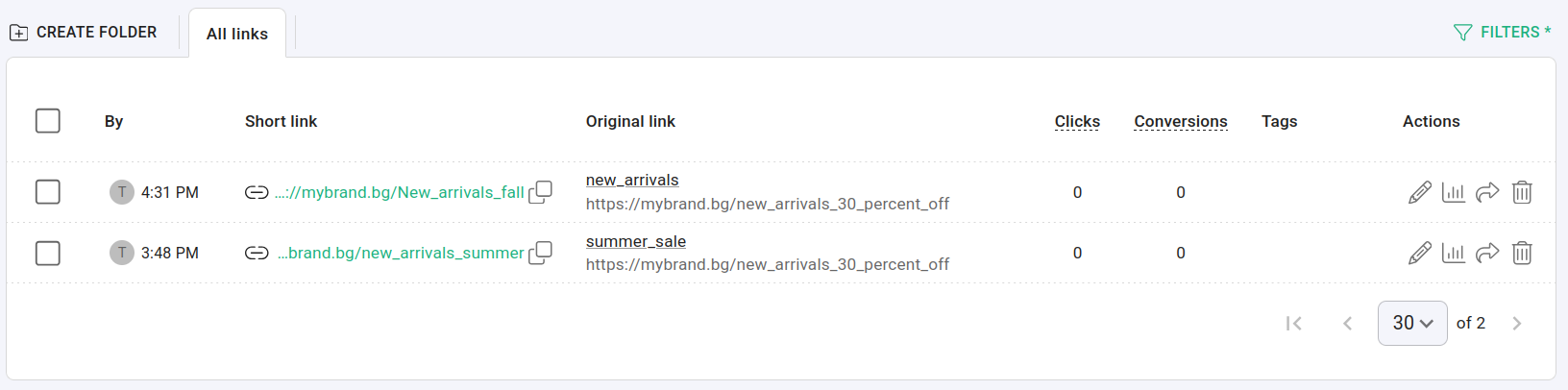
For example, you can search for all the links where path:*ew_arrivals* AND originalURL:" https://mybrand.bg/new_arrivals_30_percent_off". The result will be:
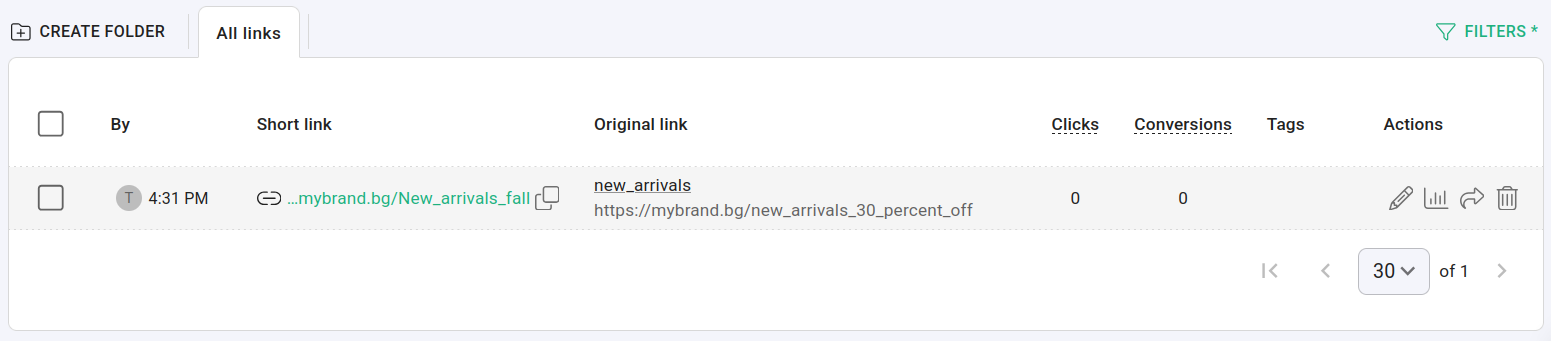
And if your goal is to further filter out the summer_sale results, all you need to do is expand the query with the NOT operator: (path:*ew_arrivals* AND originalURL:"https://mybrand.bg/new_arrivals_30_percent_off") AND NOT title:"summer_sale"
Using unique identifiers
You can search for a specific short link or links in a folder by using their unique identifiers. (More information on retrieving identifiers can be found in the [article](/articles/api-reference/Technical questions/how-to-retrieve-domain-link-and-folder-identifiers-from-the-short.io-urls-and-api)).
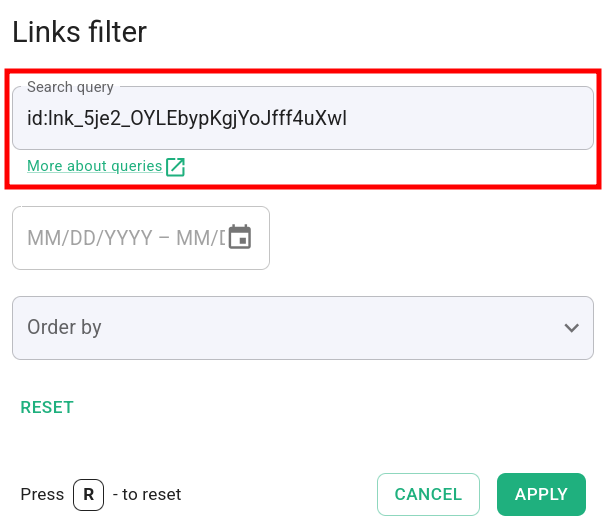
To filter by short link id, your search query should look similar to this one: id:lnk_5je2_OYLEbypKgjYoJfff4uXwl
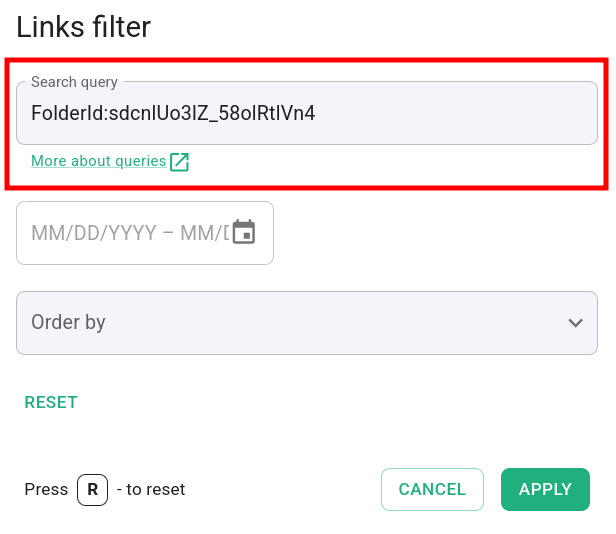
And to filter by folder id, use the following query, for example: FolderId:sdcnlUo3lZ_58olRtlVn4