How to manage posts on Short.io
What are posts
Our posts feature allows you to create customizable Markdown content pages that can be published on your domain. To assist you in editing, we supply a source editor that features syntax highlighting along with a formatting toolbar.
Posts are available on every price plan.
Creating a post
In Short.io's app:
-
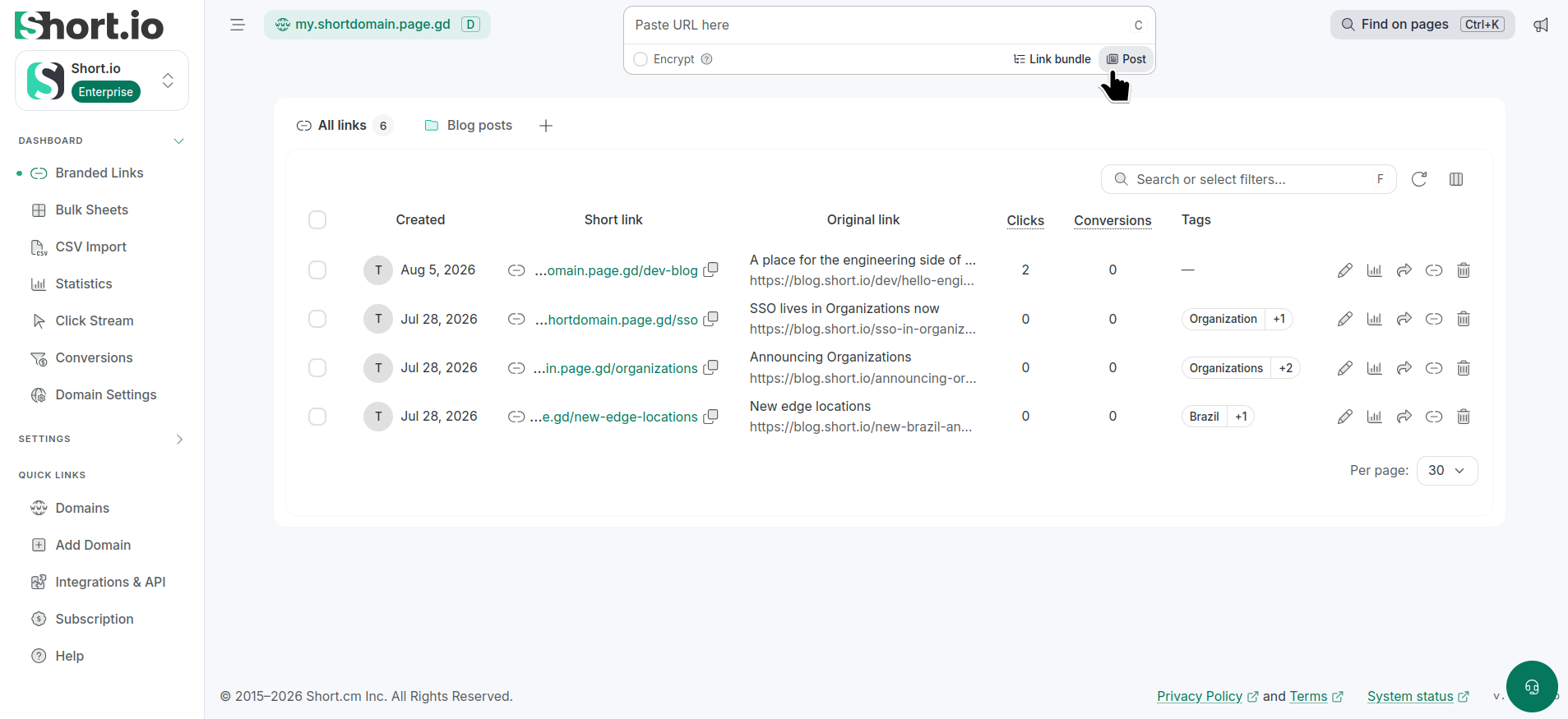
Click Post (under the Paste URL... field):
-
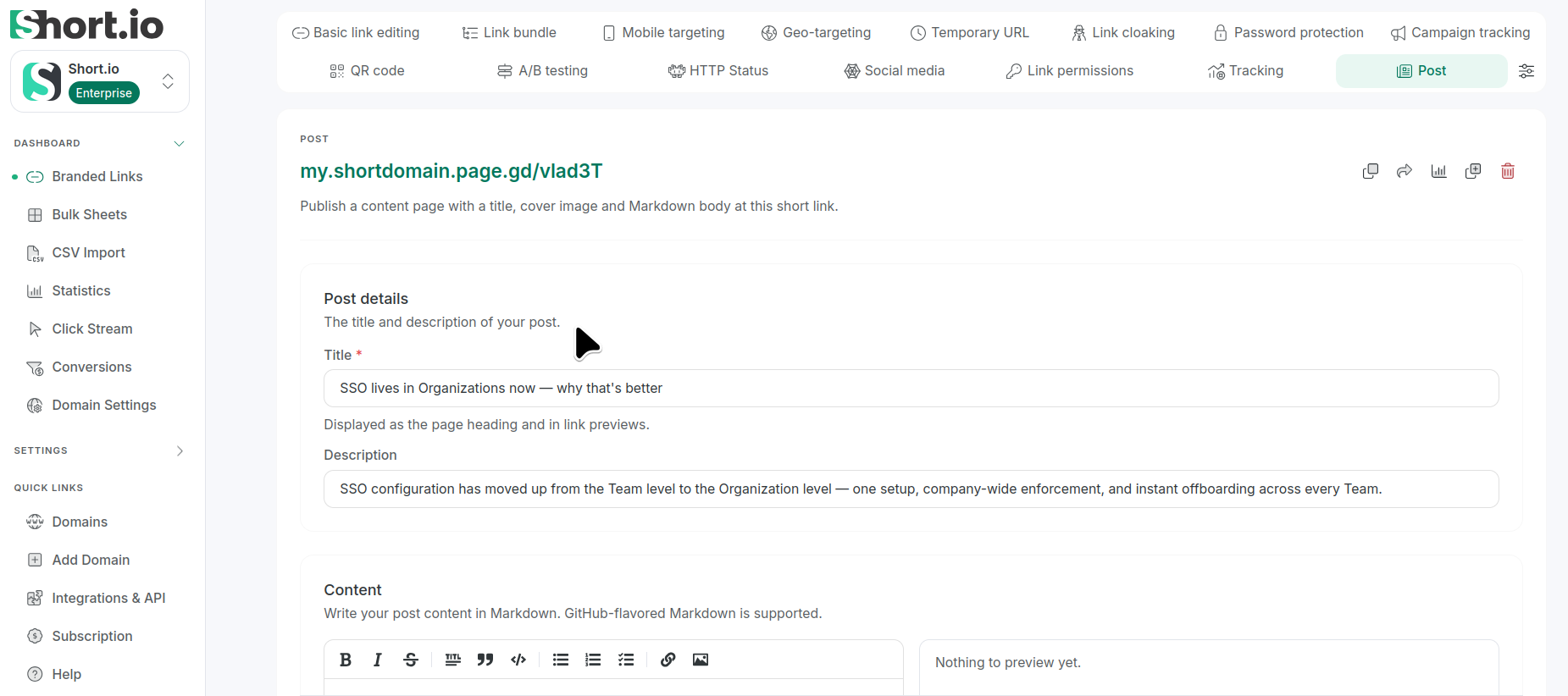
On the next screen, in the Post details section:
-
provide a title for the post
-
(optionally) enter a description
-
-
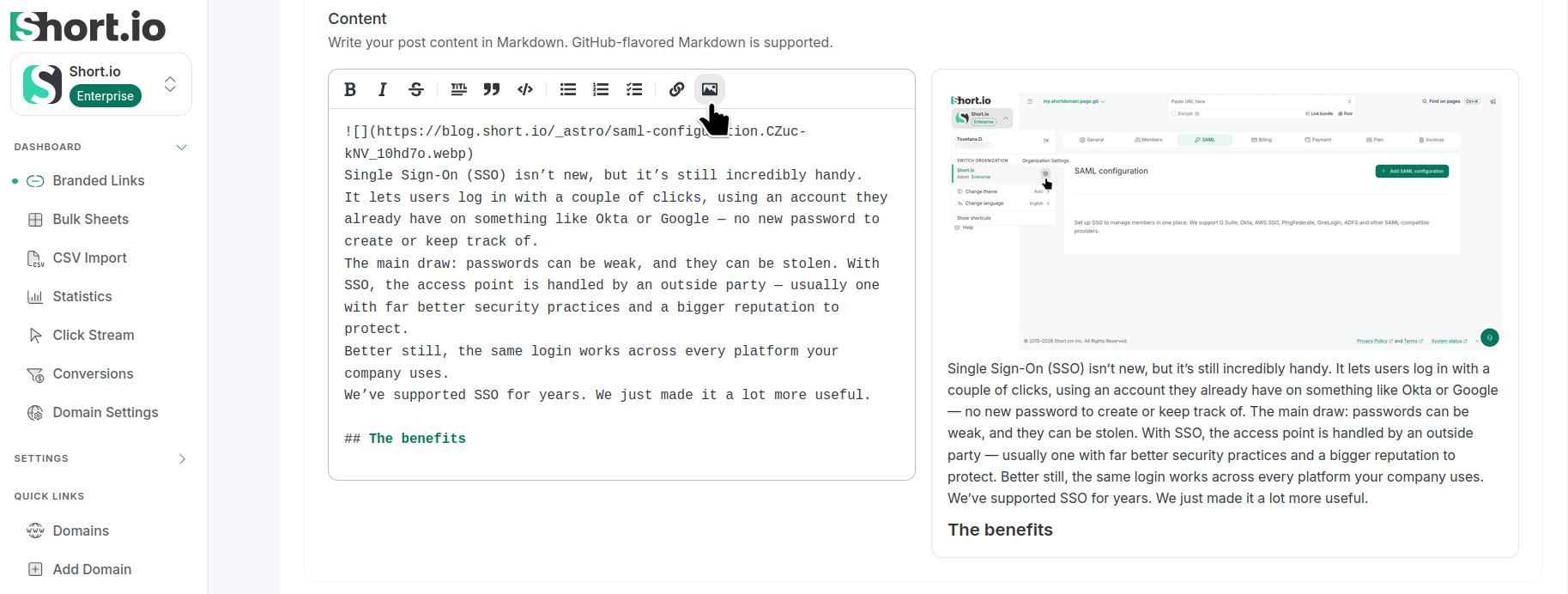
In the Content section fill in your Markdown formatted text. The preview is available on the right side:
 Note
NoteShort.io supports GitHub-flavored Markdown. Please read the following article for more information.
-
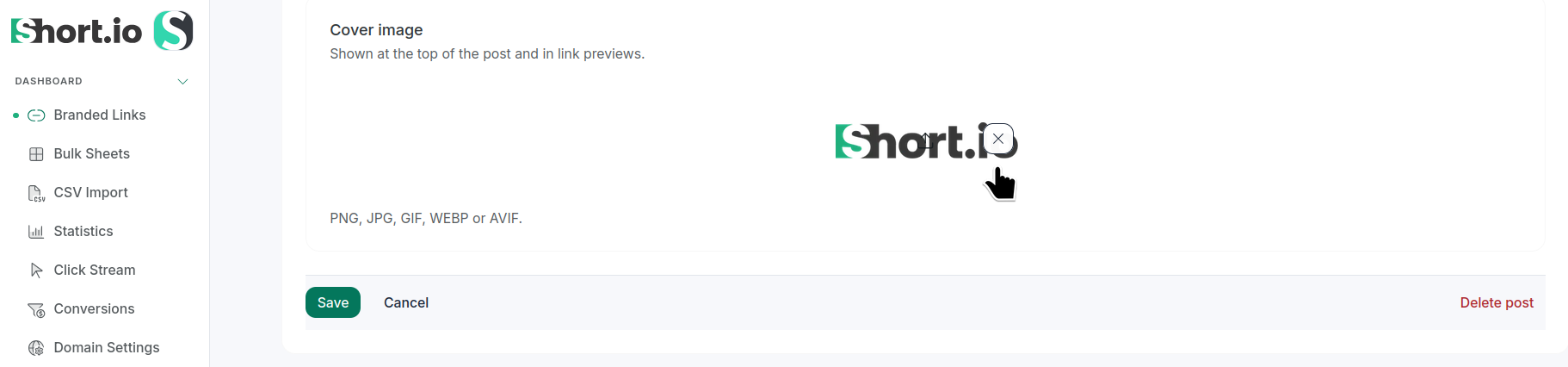
You can add a cover picture for the post by selecting a file from your device. Allowed formats include PNG, JPG, GIF, WEBP and AVIF:
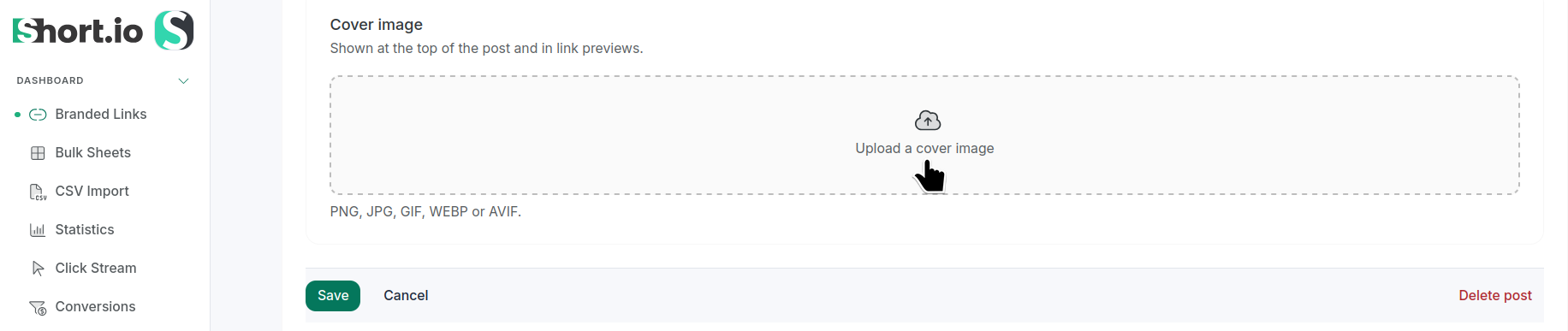
To delete the uploaded image, click the X icon:
-
Click Save to apply.
You can now copy the post's URL and open the link for review.

Changing a post's slug
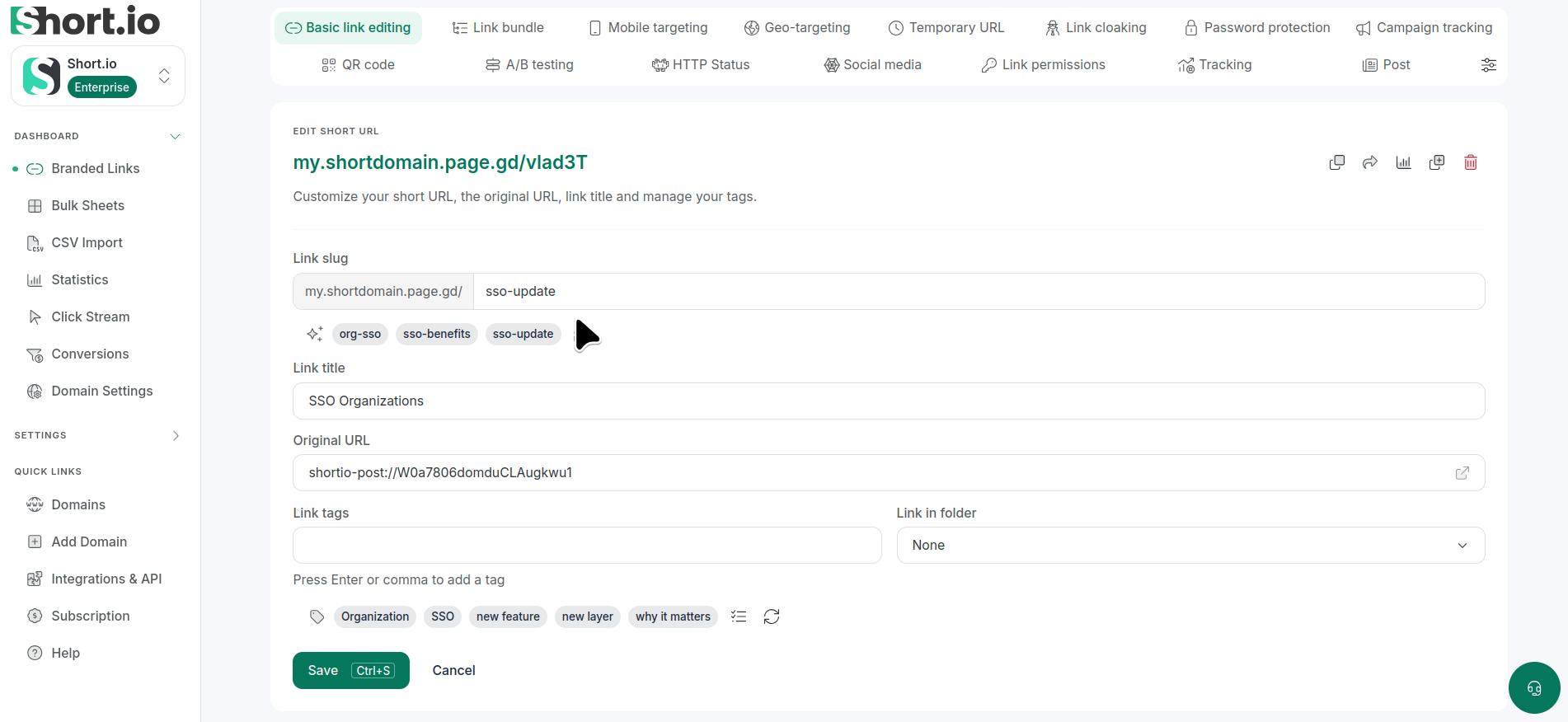
When you create a post link, it comes with an autogenerated path (slug). To change it, follow these steps:
-
Navigate to the post's Basic link editing tab:
-
Enter the needed information.
-
Save.
Editing a post
To make changes to your post, navigate to the Branded links and open the post for editing:

After completing the configurations, please Save.
Deleting a post
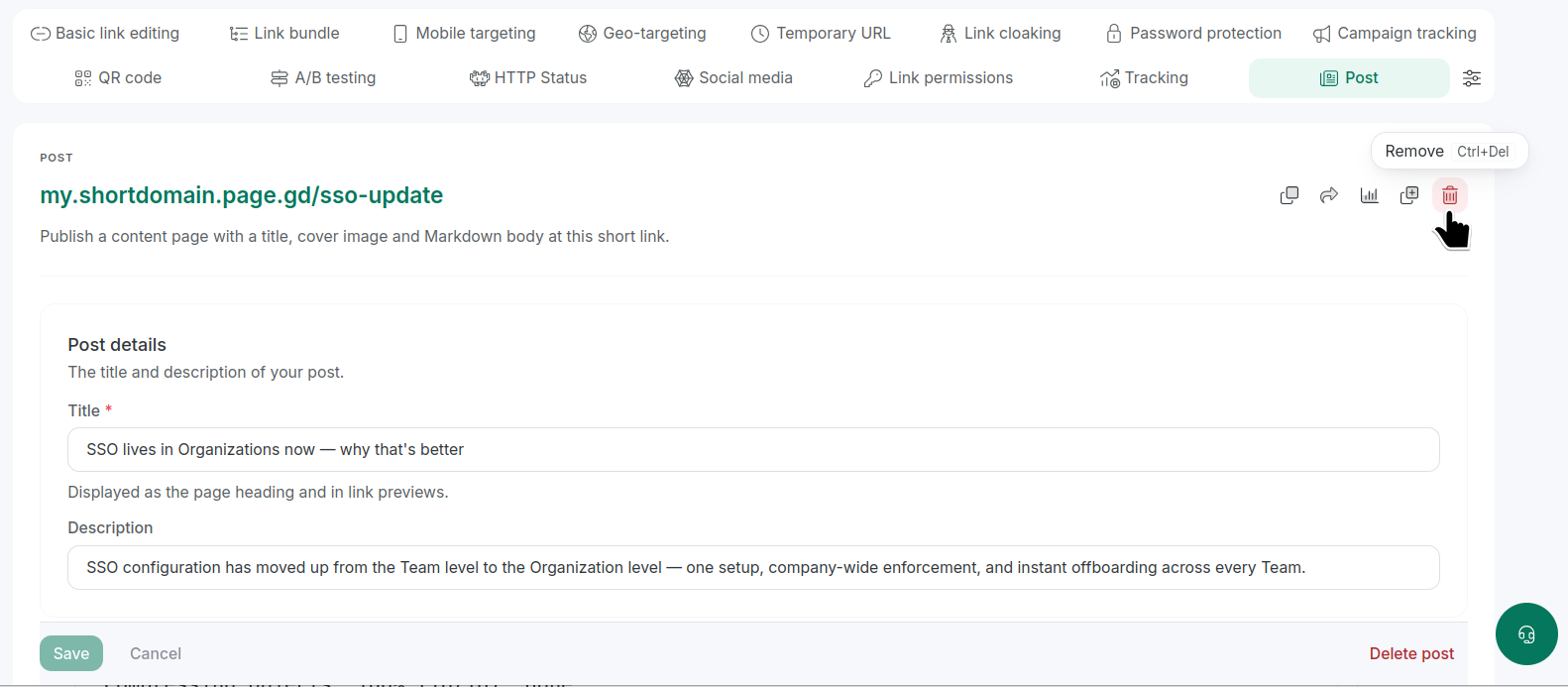
There are several ways to delete a post:
-
from the Branded links section, by clicking the icon next to it

-
from the link's tabs - again, by clicking the icon
or by clicking Delete post (only from the Post tab)
When prompted: "Are you sure you want to delete this post? This cannot be undone." or "Are you sure you want to permanently delete this link?", click Delete (or Permanently delete).
Related article: