How to manage AI pages on Short.io
What are AI pages
The AI page feature uses our AI agent to help you generate and publish content pages (for example, product launch, personal blog, event invitation or other announcements) directly on your domain. The pages are created from your prompts and their HTML code can't be edited directly. To make changes directly to the page, update the prompts and generate the page again. On the other hand, the page’s short link works like any other: you can update its slug or title and, for example, add password protection.
AI page is available on every price plan. But to use it, make sure you have your phone number verified.
Creating a page
-
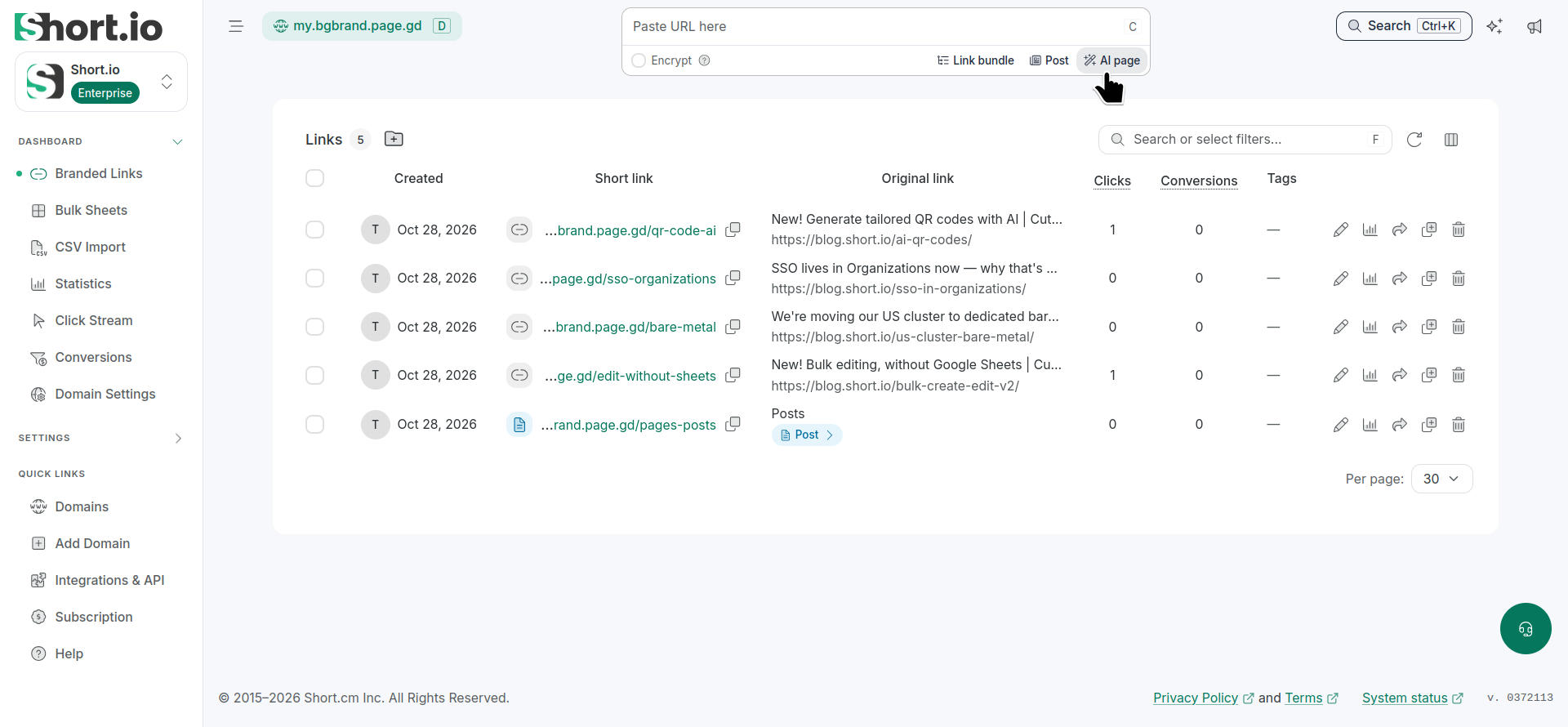
Click AI page (under the Paste URL... field):
-
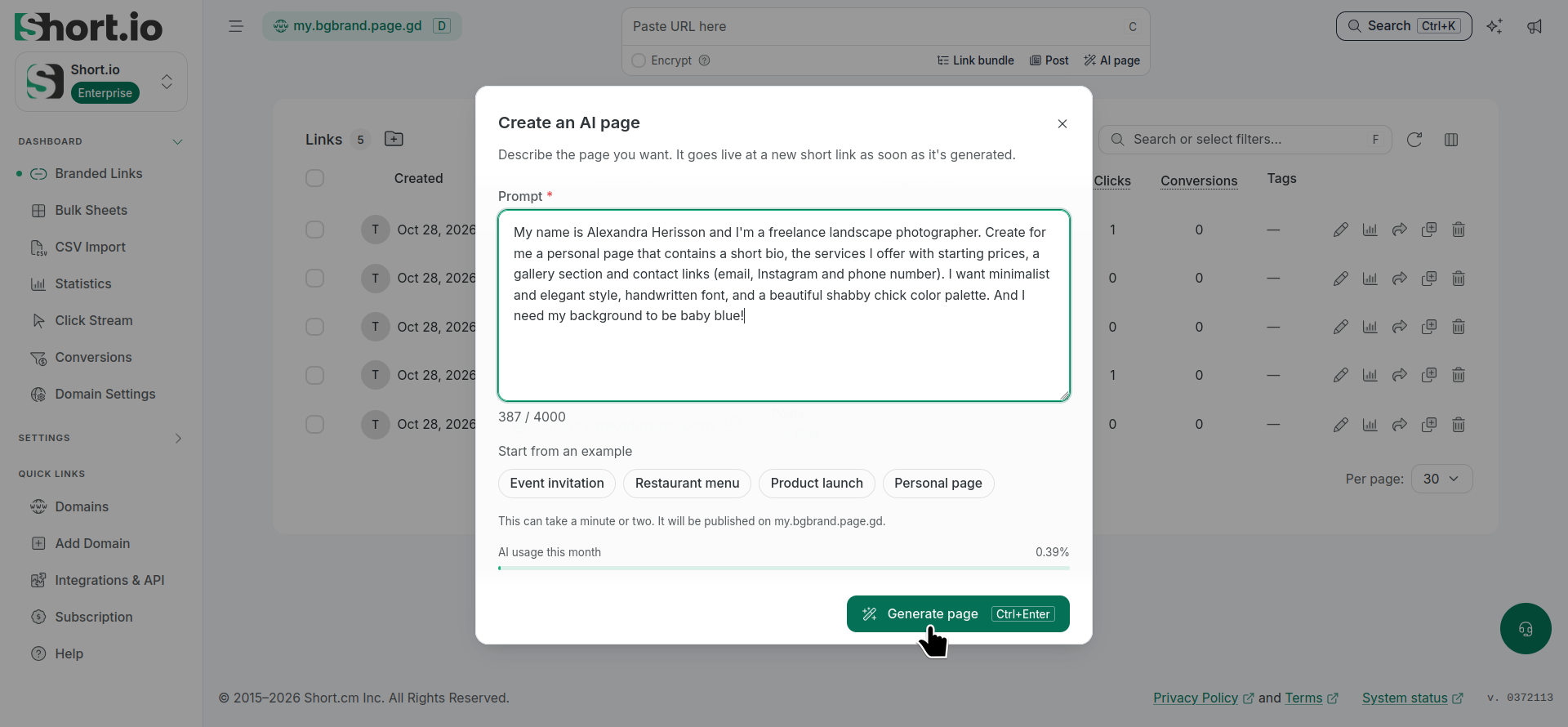
In the next dialog, enter your prompt (or select from the autogenerated options) and click Generate page:
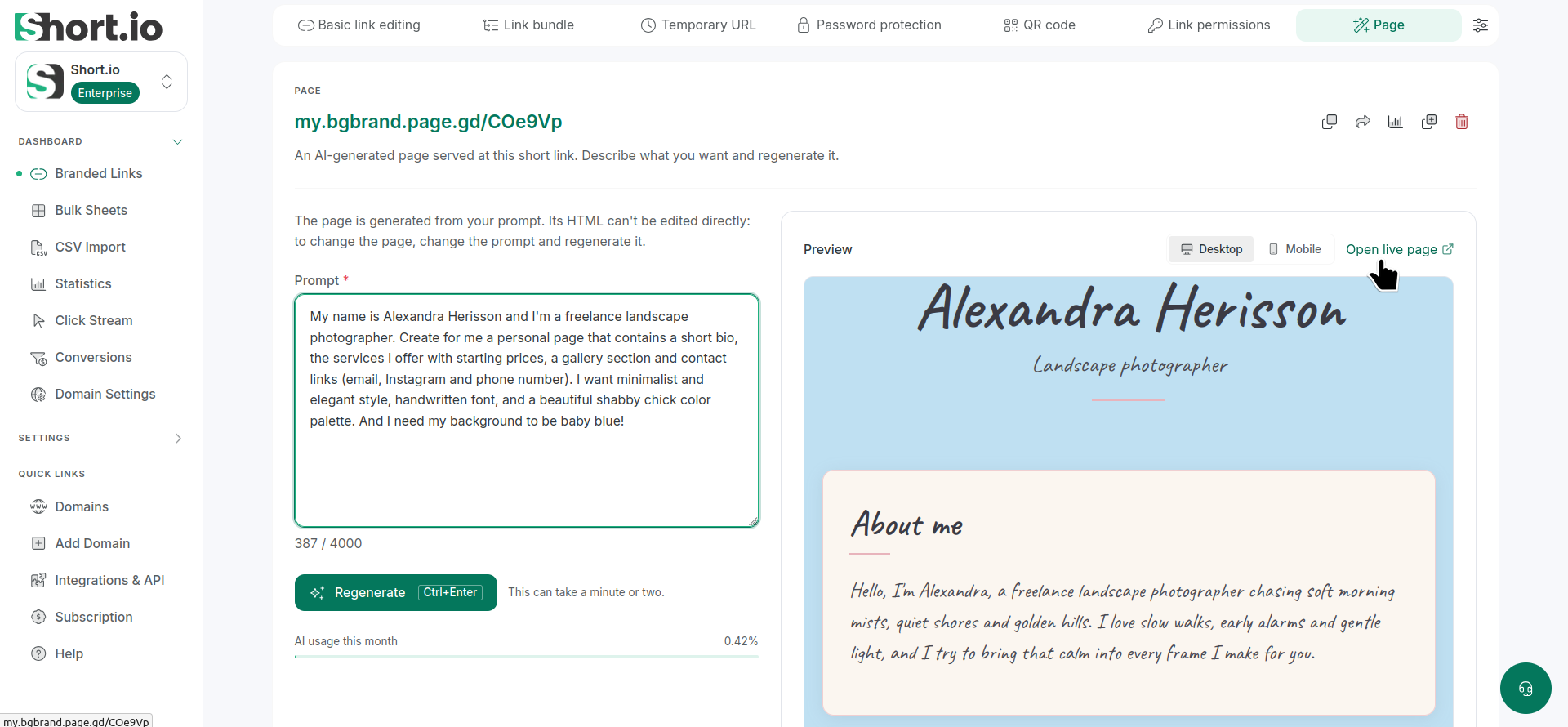
The page and its short link are generated, and the page is opened in preview mode under the tab Page.
You can click Open live page for full review:
Editing/updating a page
You can modify your page by changing its prompt.
As soon as the new page is generated, it goes live at the short link. You can’t restore the current page or any previous version.
To edit the page:
-
In the left sidebar, go to Dashboard -> Branded links and open the short link to which the page belongs.
-
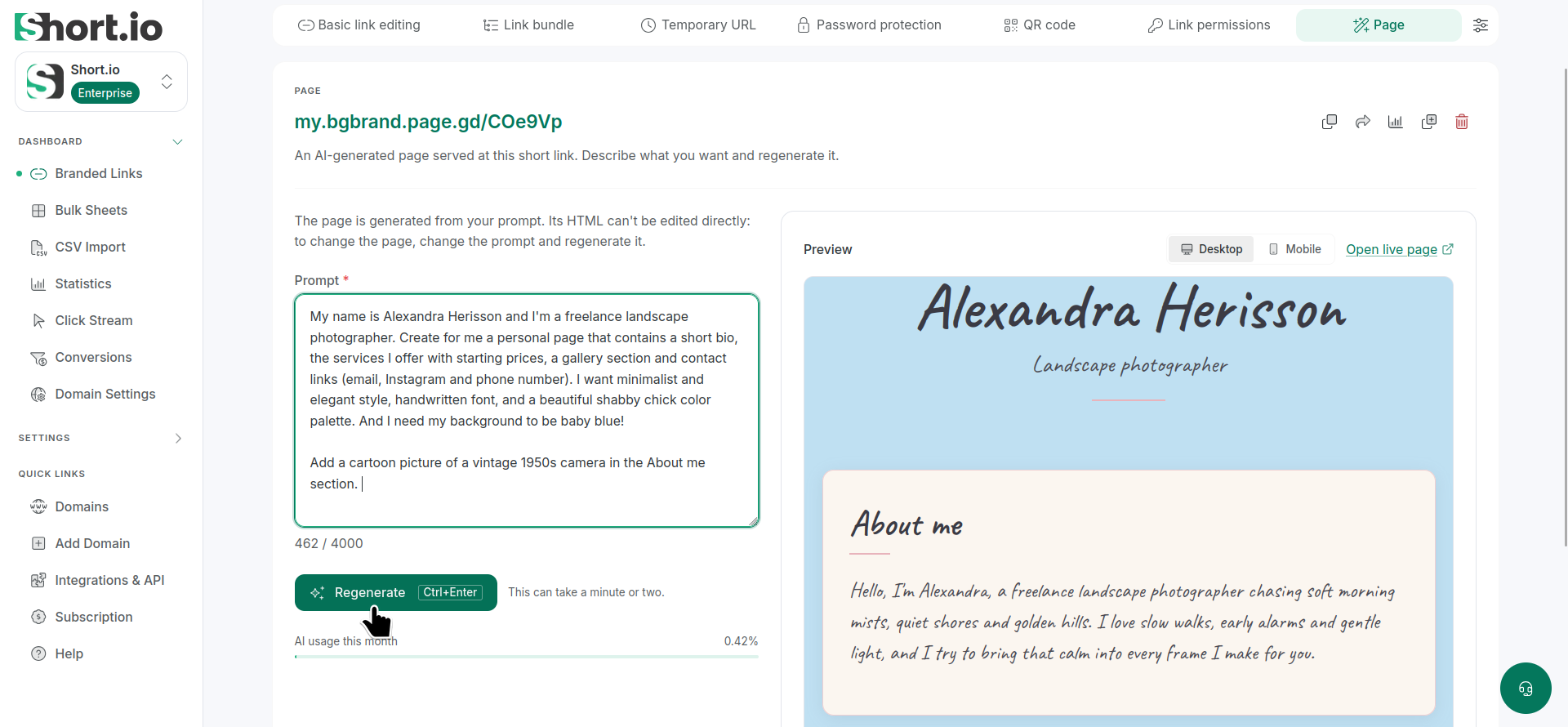
Navigate to the Page tab.
-
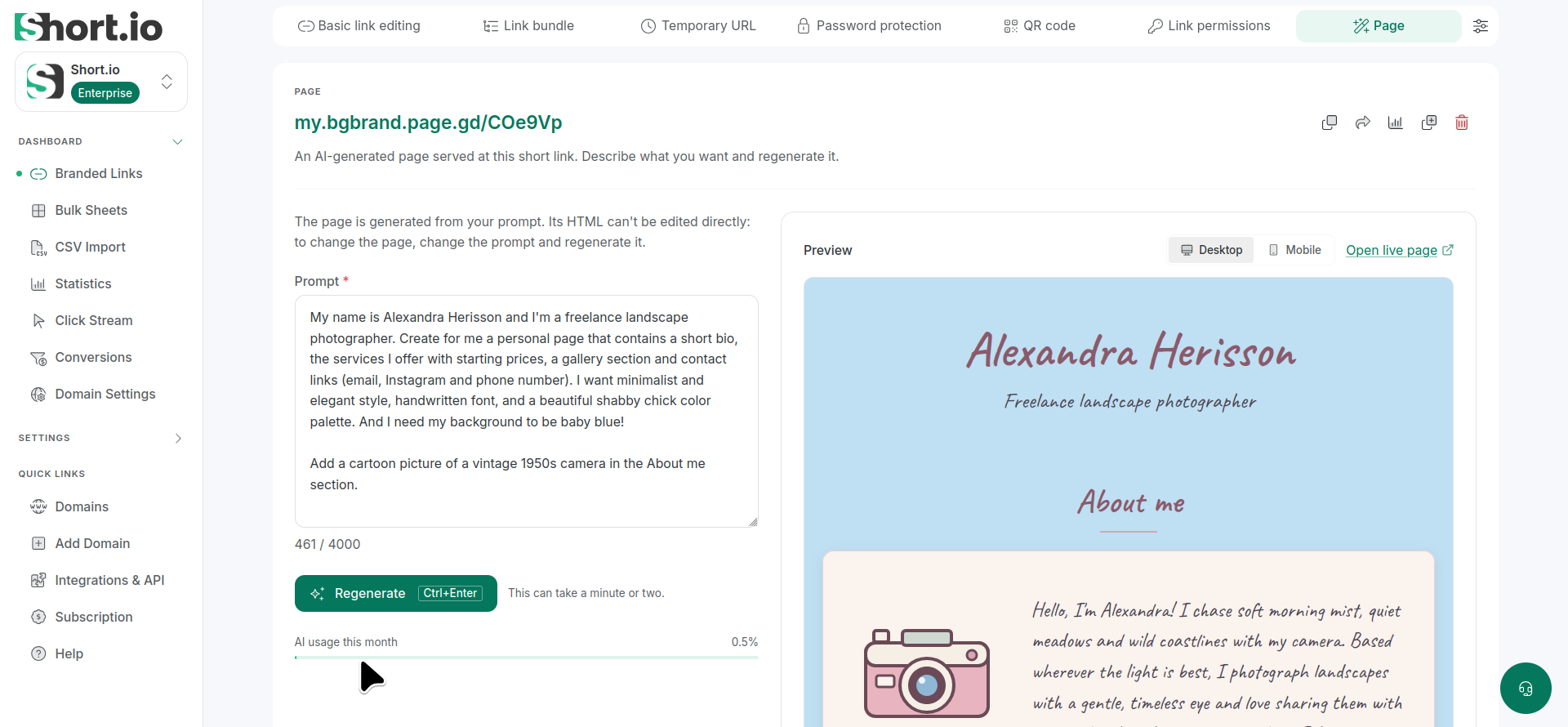
Edit the prompt and click Regenerate:
-
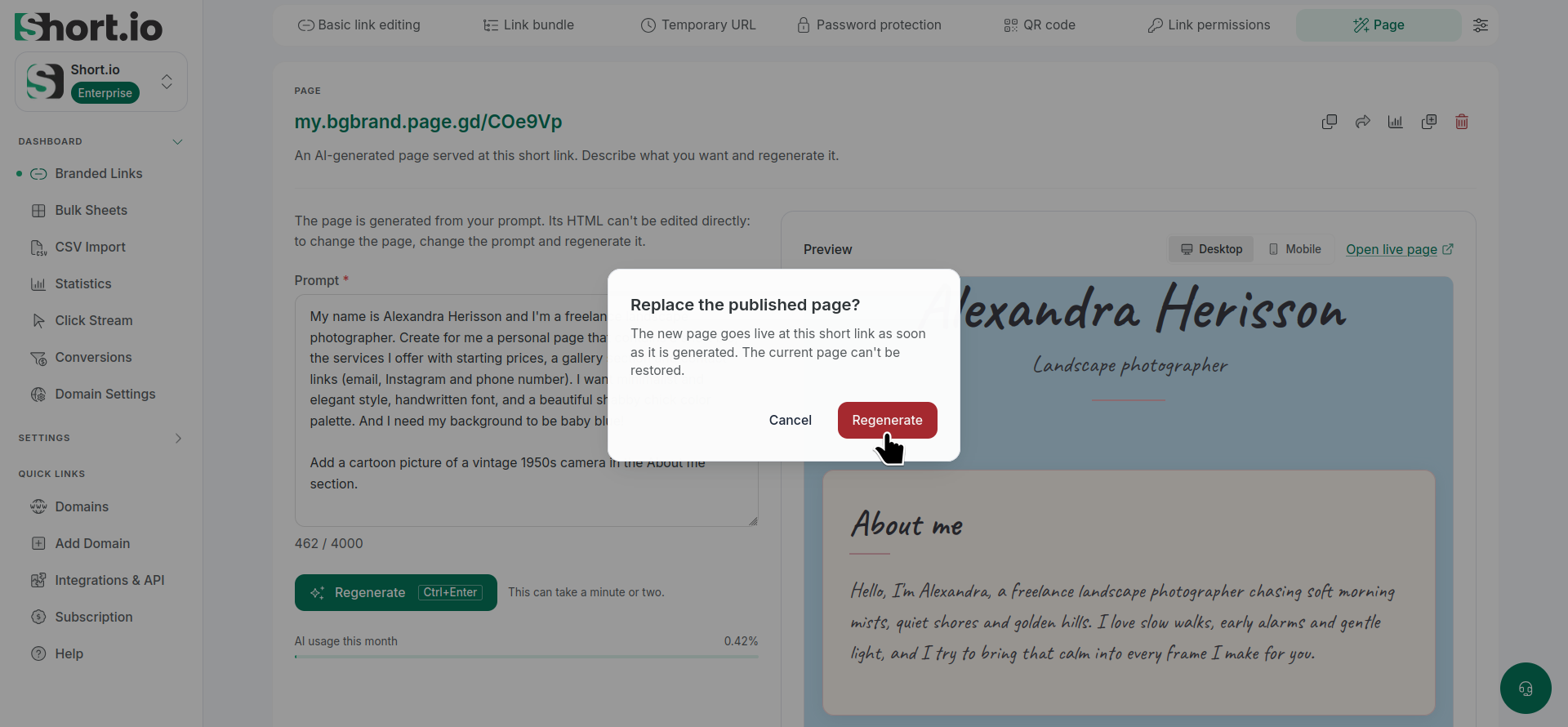
In the next dialog - Replace published page?, click Regenerate:
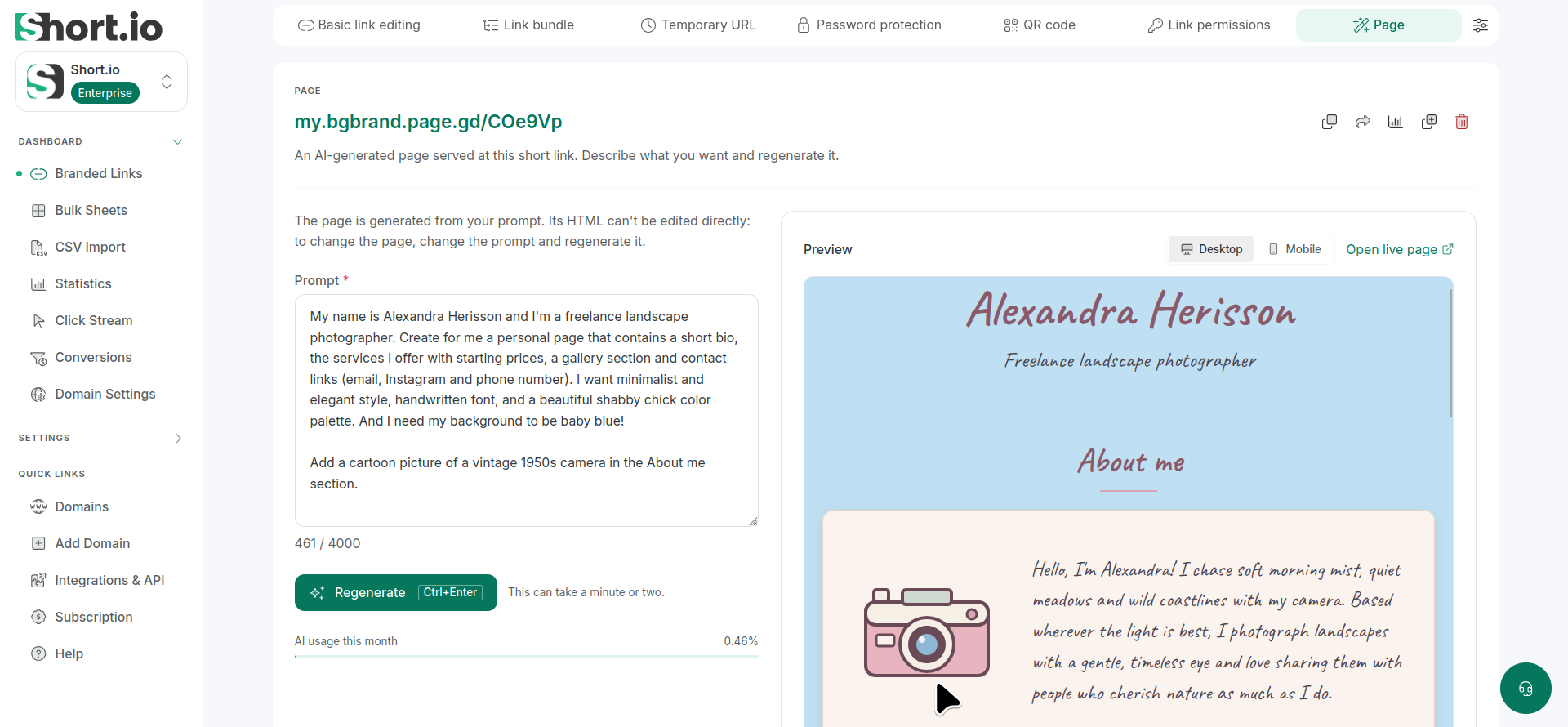
The new version of the page will be displayed:
Converting a page to redirect/bundle
You can convert a page to a regular short link (redirect) or to a link bundle.
The action cannot be undone, and you will not be able to restore your AI page after converting it to redirect or to link bundle.
Converting to redirect:
-
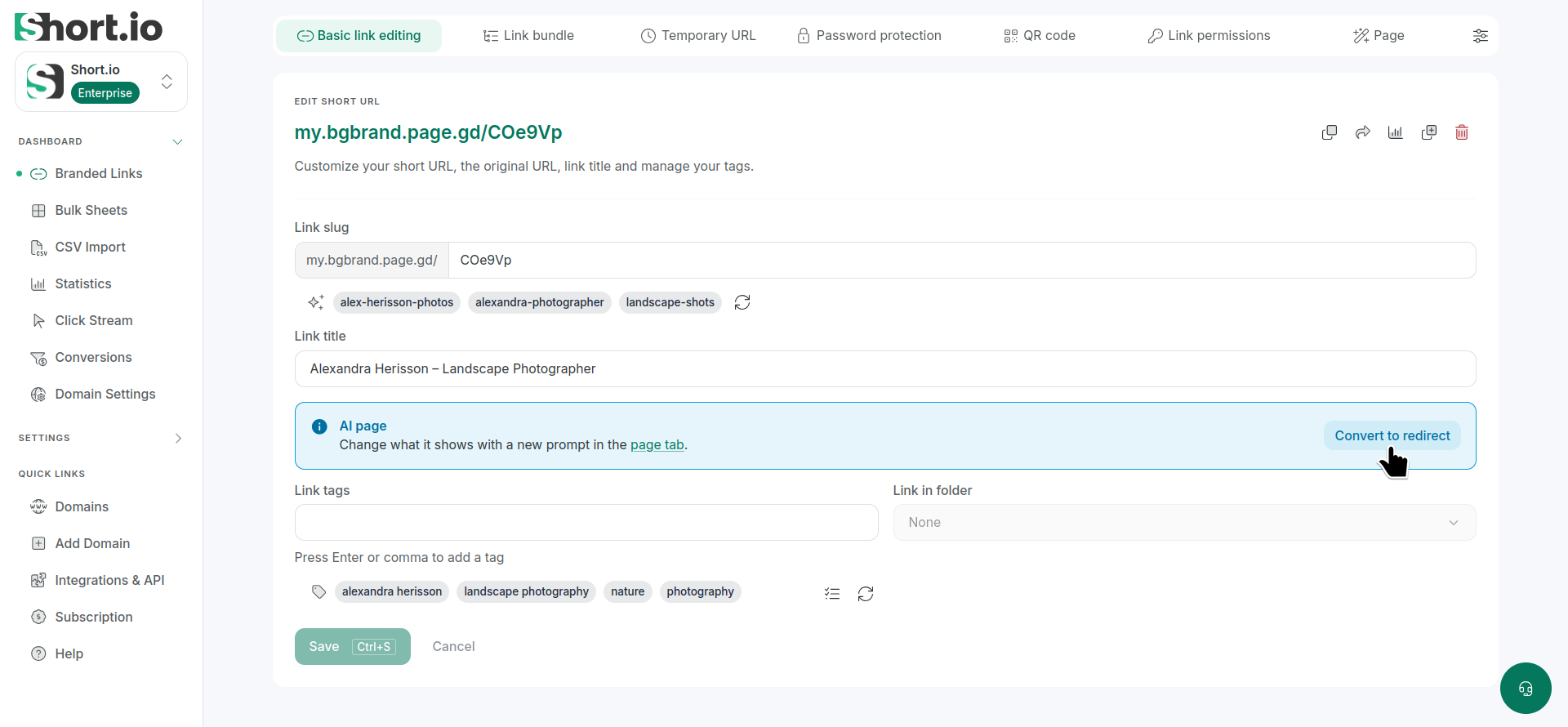
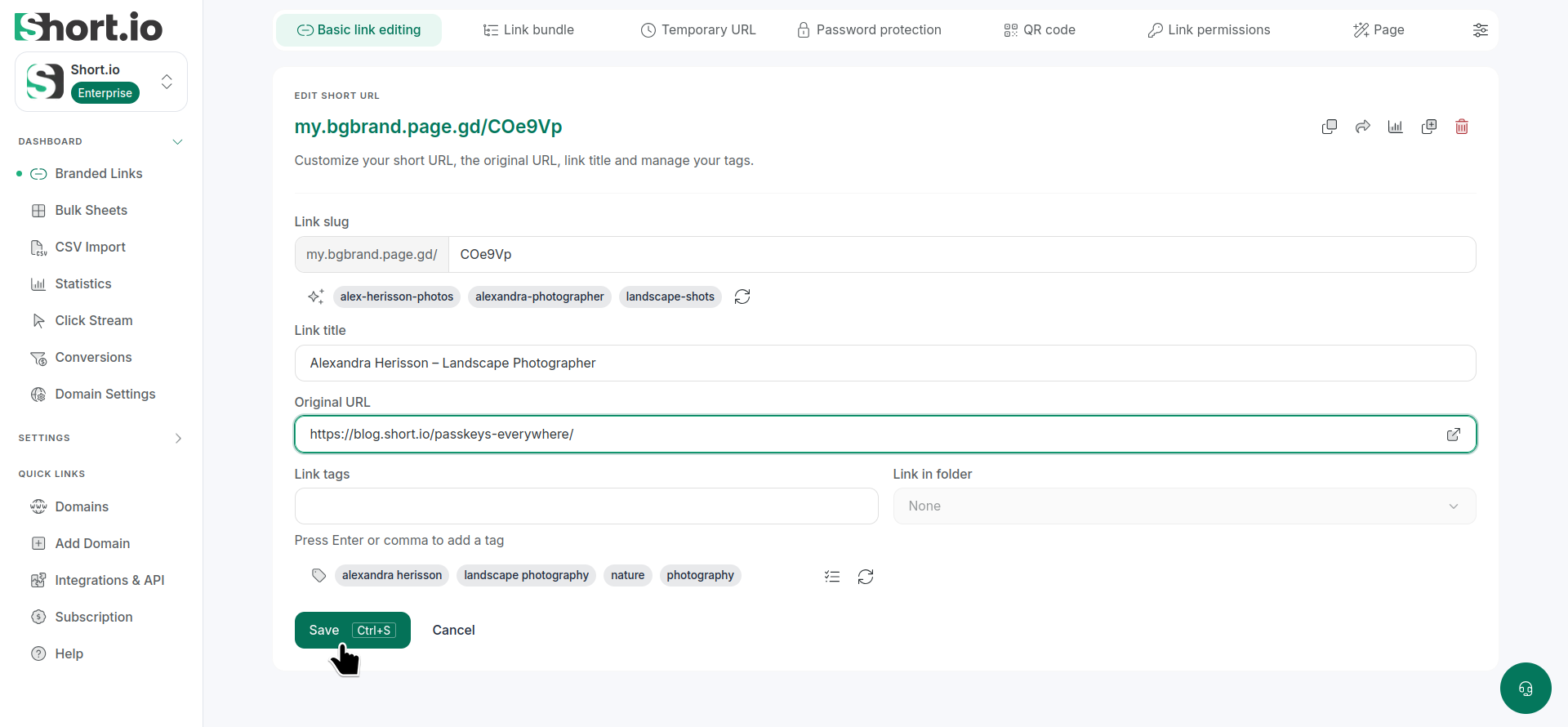
From the Basic link editing tab, click Convert to redirect:
-
Enter the Original URL:
-
Click Save.
Converting to link bundle:
-
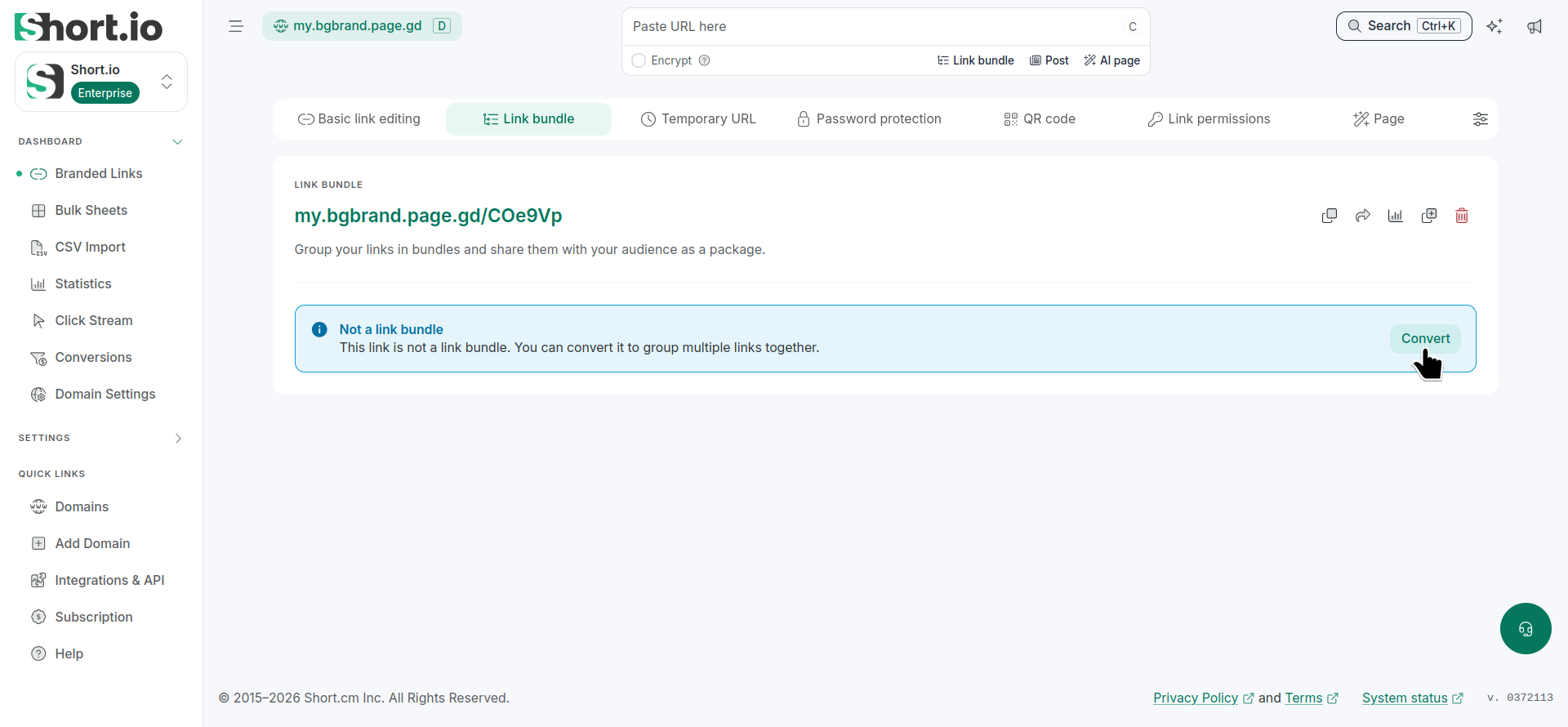
From the Link bundle tab, click Convert:
-
In the next dialog - Convert to link bundle, click Convert:
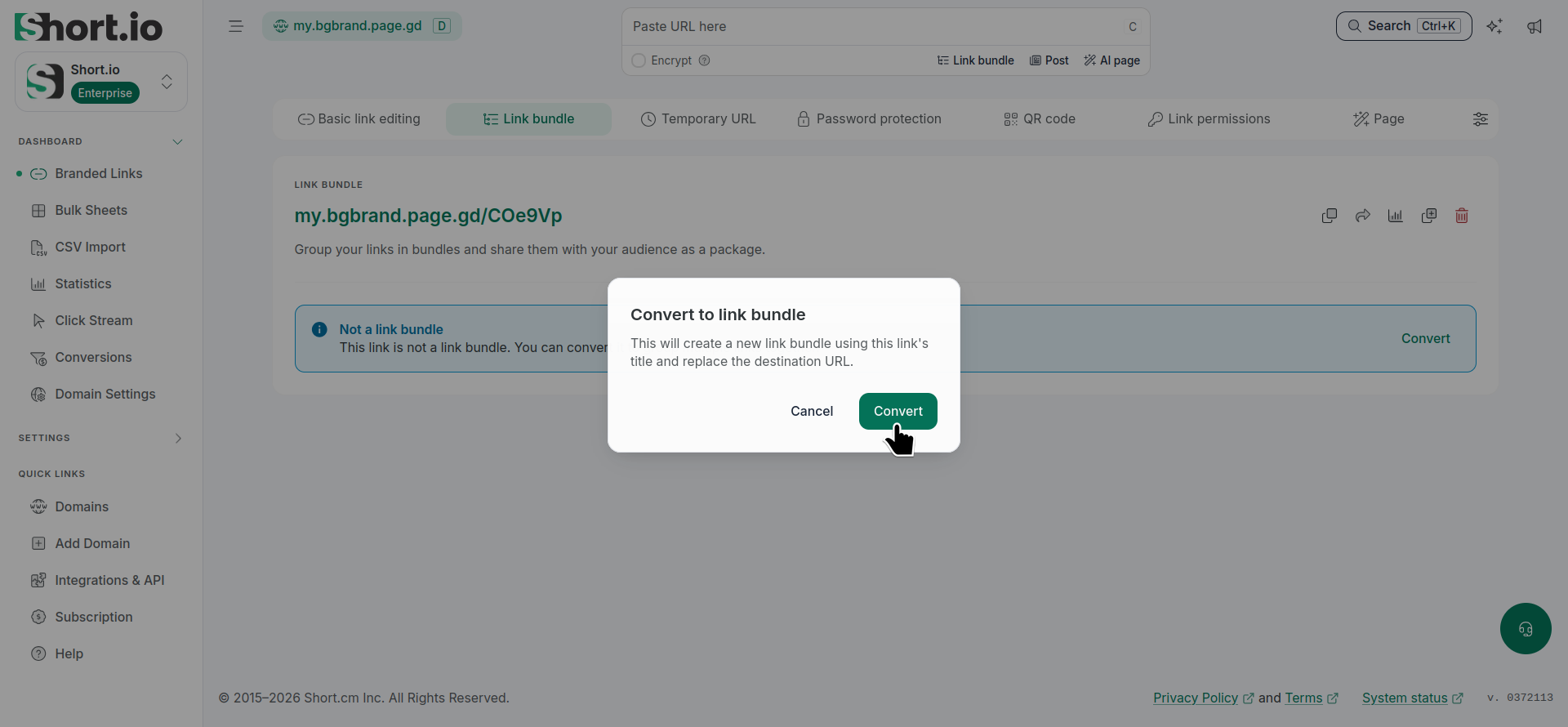
This will create a new link bundle using this link's title and replace the destination URL.
Deleting a page
You can remove a generated page and its short link in either of two ways:
From Branded links
-
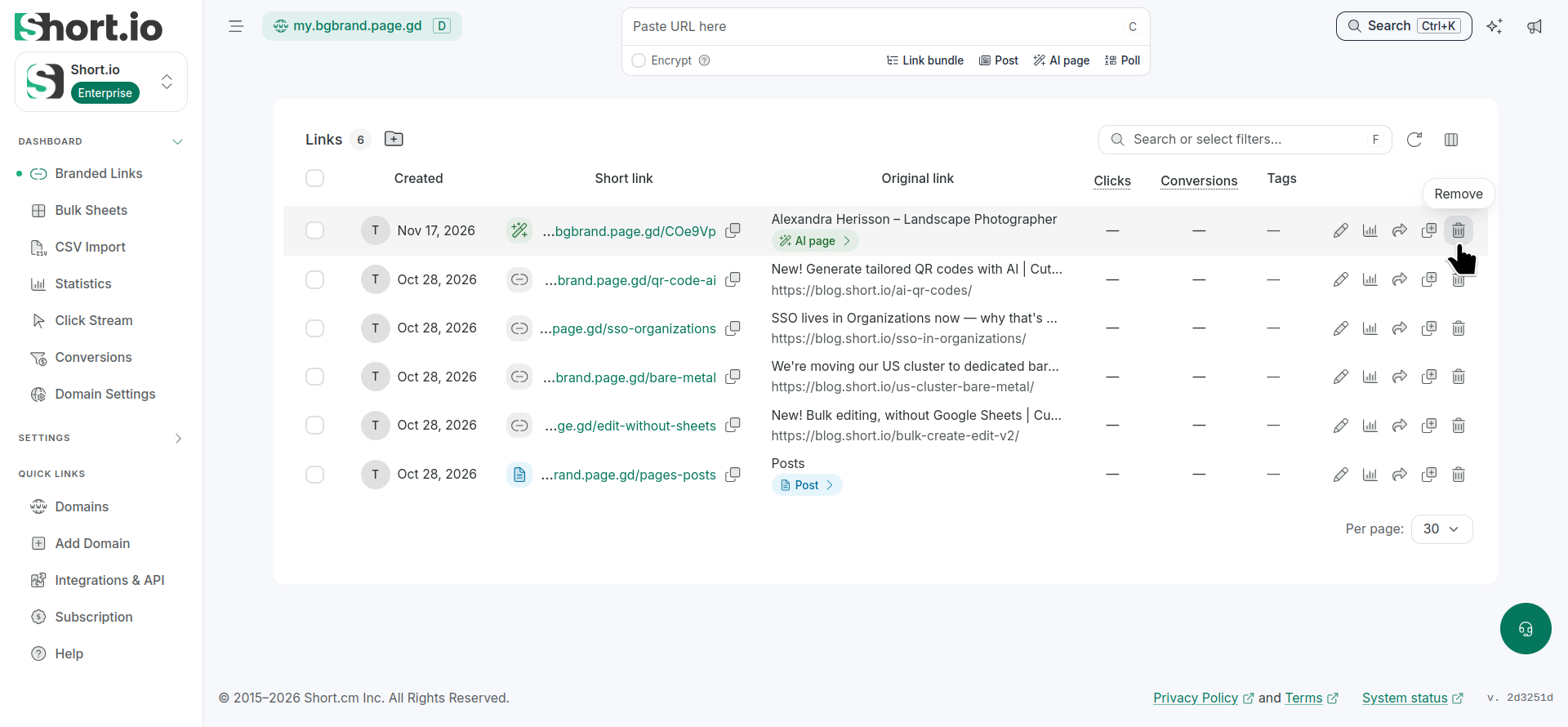
From the Branded links menu, click the icon next to the link/page to be removed:
-
When prompted "Are you sure you want to permanently delete this link?", click Permanently delete:
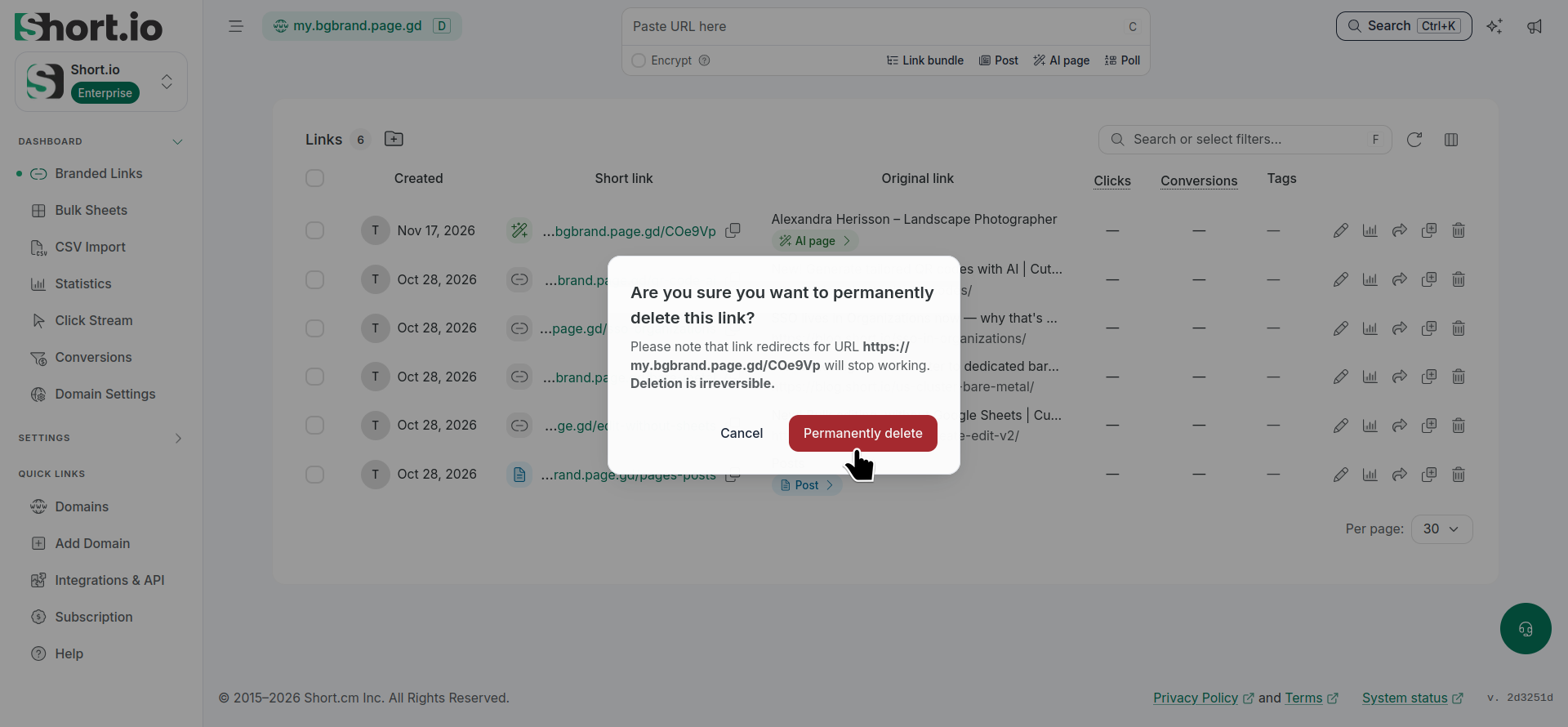
The page and the short link will be removed permanently.
From any of the link's tabs
-
Open the link for editing and from any of its tabs, including the Page tab, click the icon next to the link's URL:
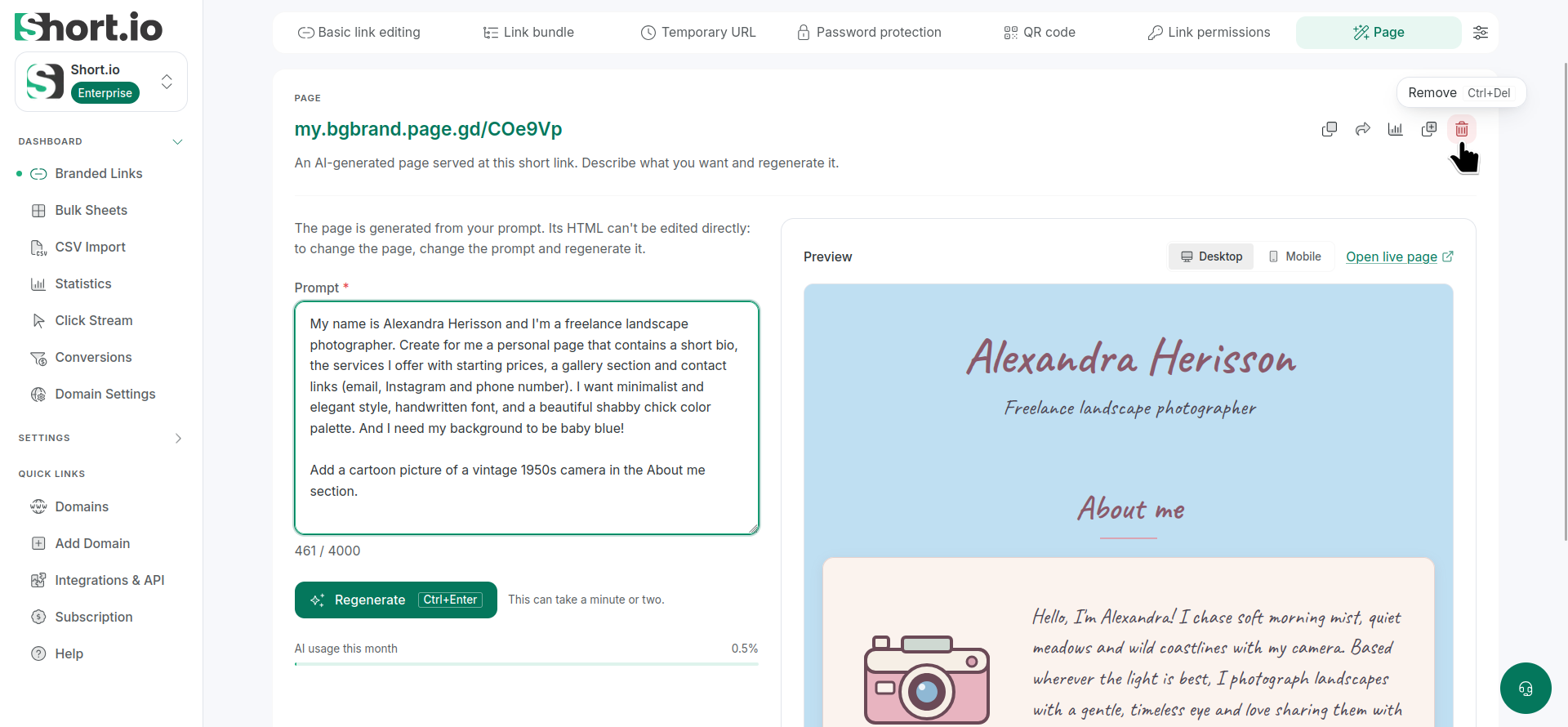
-
When prompted "Are you sure you want to permanently delete this link?", click Permanently delete:
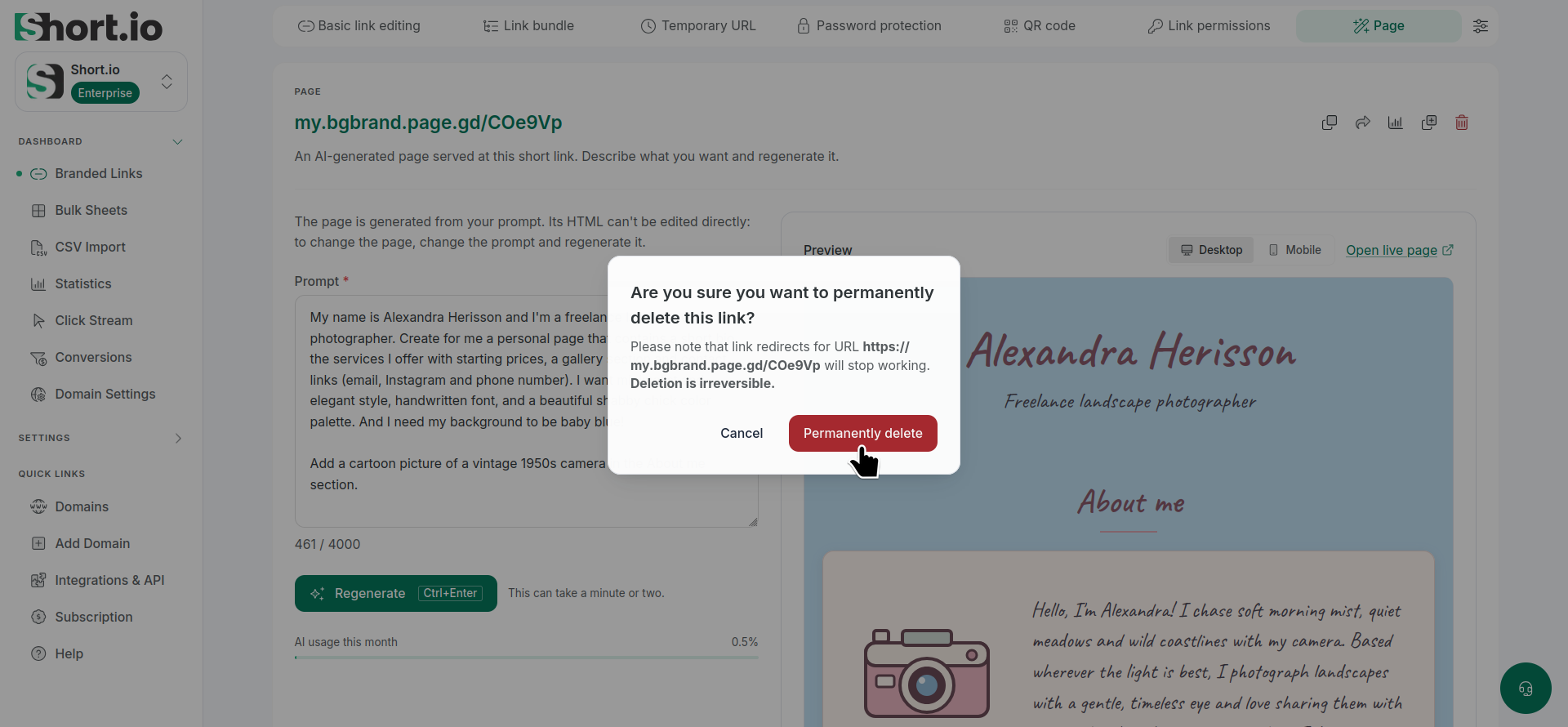
The page and the short link will be removed permanently.
Tracking your AI usage
To see how much of your AI allowance has been used this month, open the short link’s Page tab and review the percentage under the Regenerate button: