How to cloak a link to a PDF file on Google Drive
PDF files are not natively trackable. To collect engagement data, you can create a shortened URL that points to the PDF file. This enables tracking of user interactions, including clicks, views, and downloads.
With the help of our URL cloaking feature you can hide the original PDF address and present a shortened URL instead. This protects the source URL and maintains a consistent link appearance.
Quick video tutorial
Sharing a file on Google Drive
-
Access Google Drive from your personal Google account or from your business Google Workspace account.
-
Upload a PDF file or select a previously uploaded one.
-
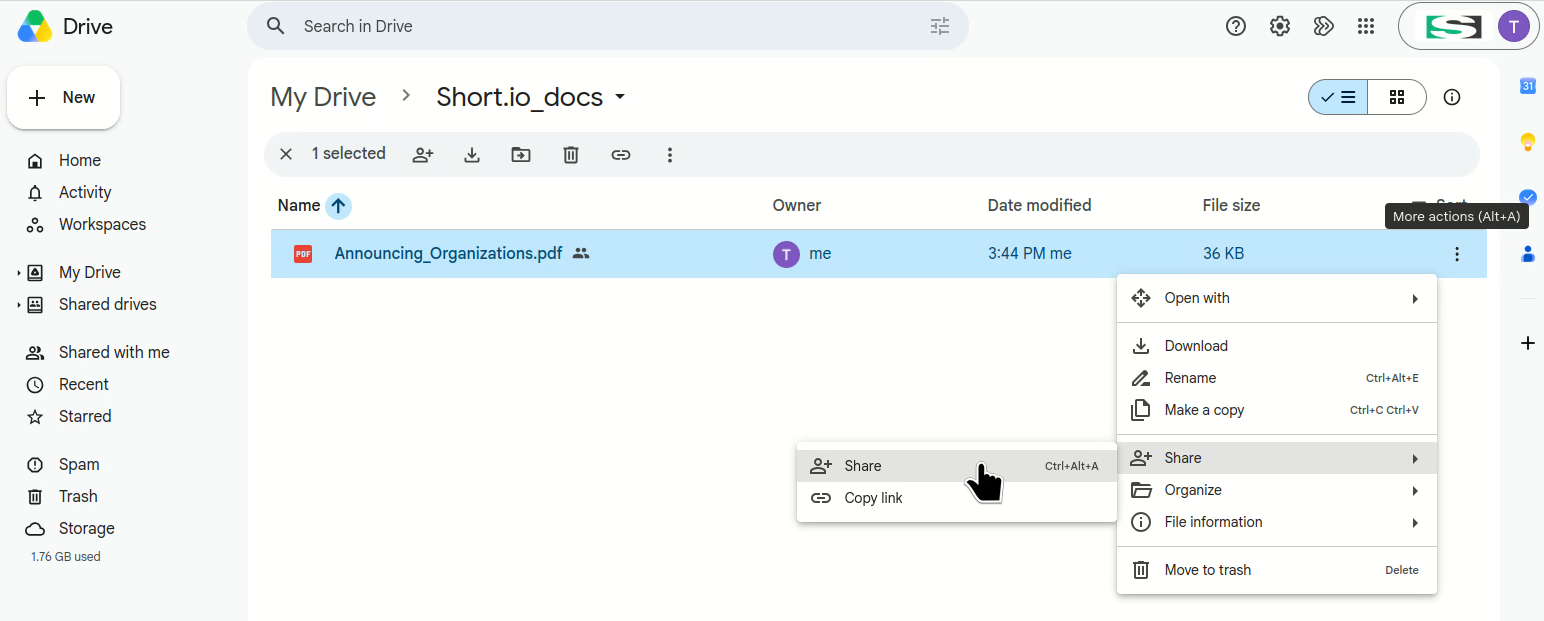
Click to display the additional options:
-
Select Share->Share.
-
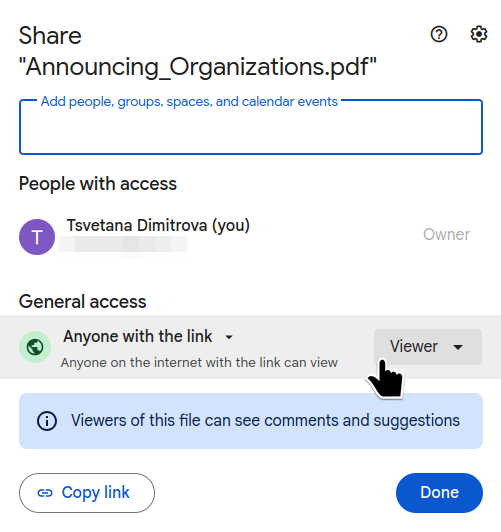
In the Share dialog select Anyone with the link under General access, and the role Viewer:
-
Copy link and close with Done.
The link can now be shortened and cloaked with Short.io.
For more information on the different types of Google Drive file sharing options please visit the following help page.
To cloak a Google Drive PDF link
-
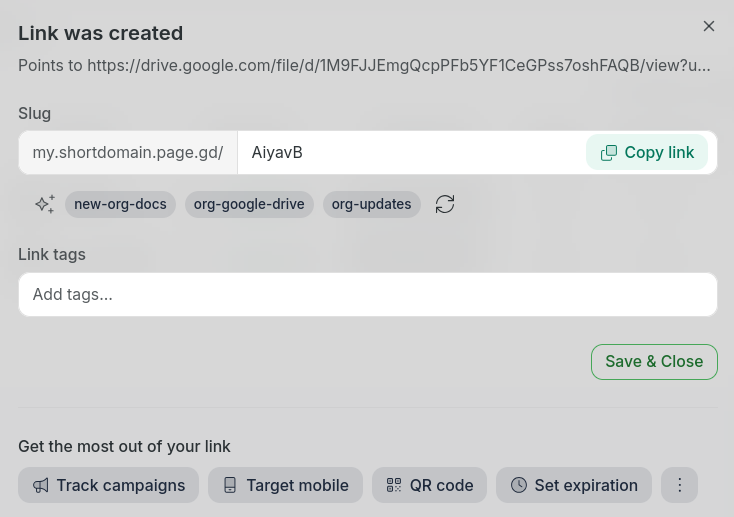
From the Short.io Dashboard, paste the copied Google Drive link of your PDF file in the Paste URL here field.
-
Fill in the needed details in the Link was created dialog:
-
Save & Close.
-
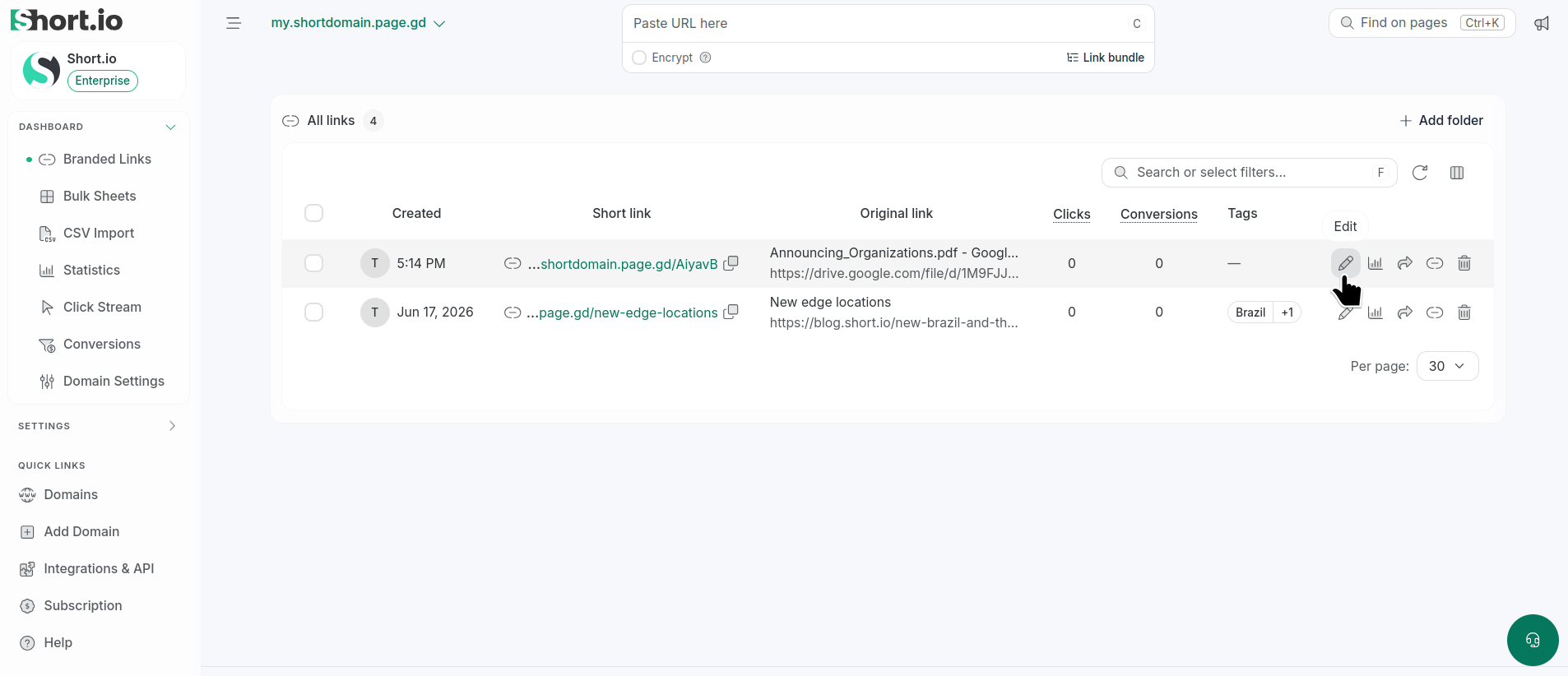
Open the link for editing by clicking :
-
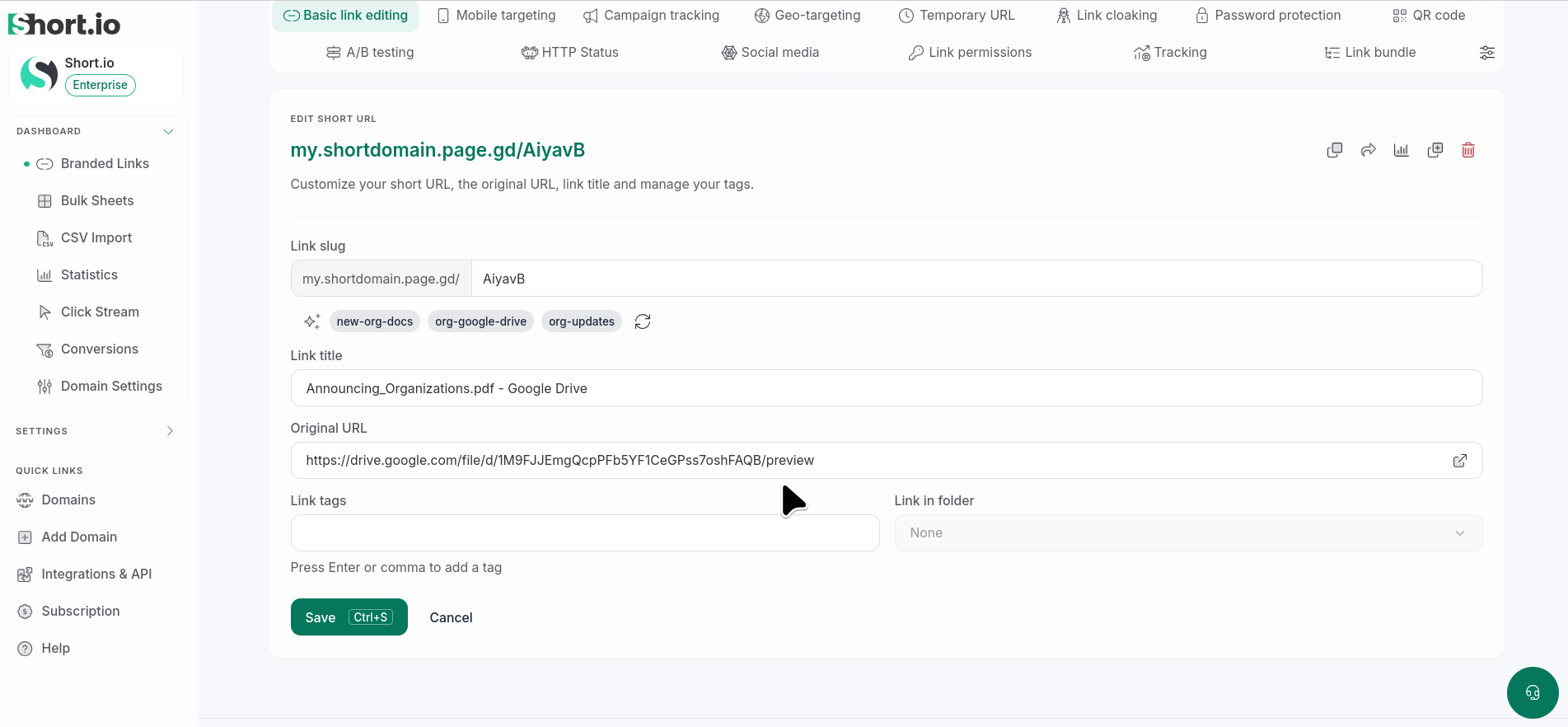
In the Basic link editing tab replace the last part of the Original URL:
view?usp=<option>
with preview:
-
Save.
-
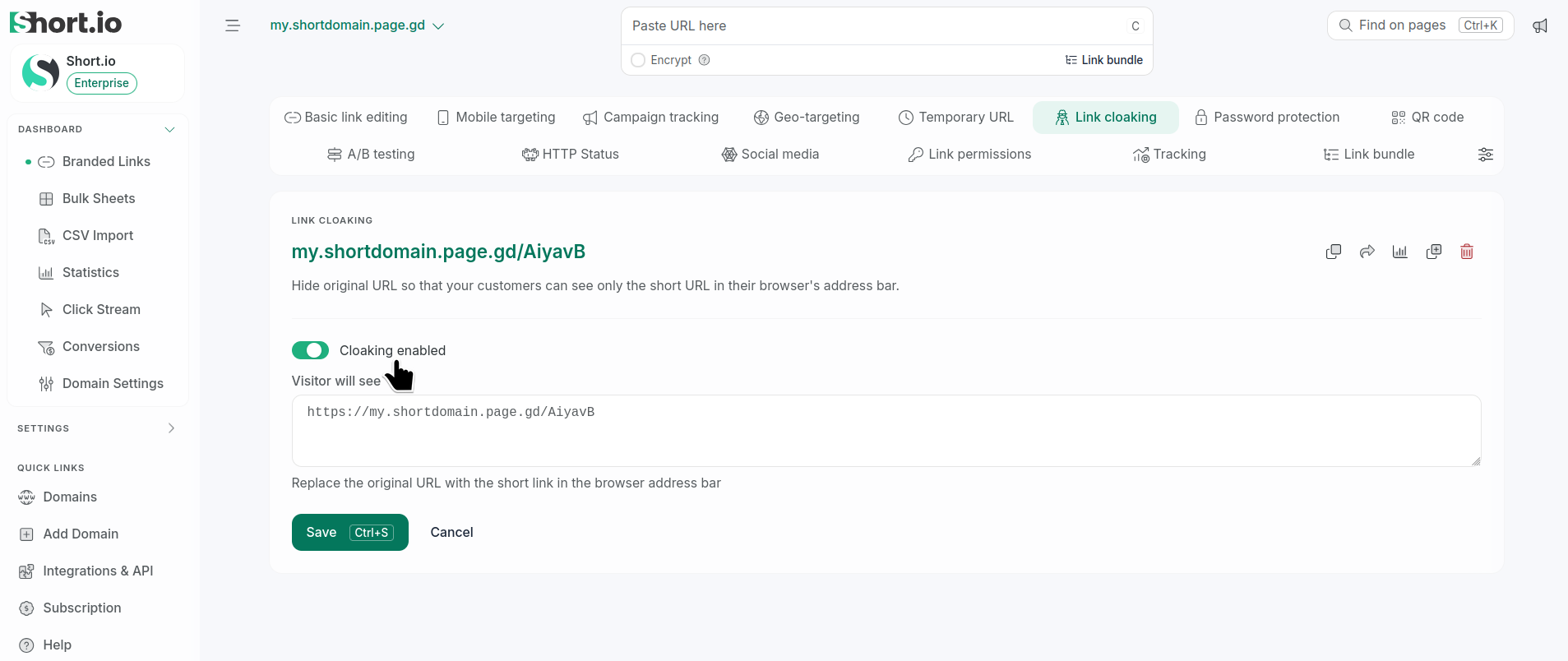
Navigate to Link cloaking and set Cloaking enabled:
-
Save.
-
Copy the cloaked link and paste it in your browser.
The PDF file will be displayed.