How to create link bundles
What are link bundles
The Short.io feature link bundles (link-in-bio pages) are customizable landing pages that allow you to group multiple links in a single place. You can then share them with your audience as a package. Each bundle supports drag-and-drop link ordering, social media link integration and theme customization (including colors and fonts).
Creating a link bundle
To create a bundle:
-
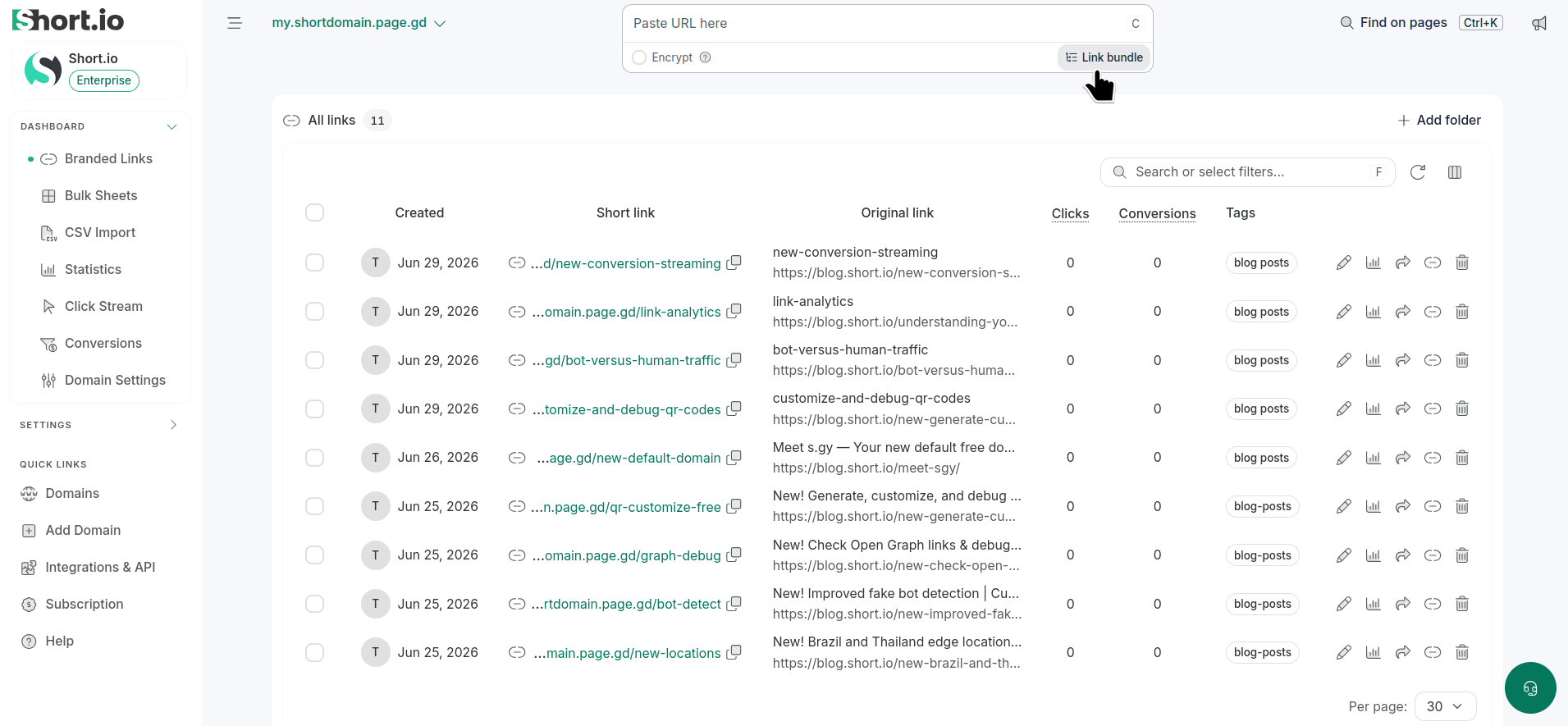
From the Short.io Dashboard, click + Link bundle (under the field Paste URL here):
-
In the Link was created dialog that appears, you can:
-
enter a Slug of your choice (or leave the auto-generated one, or even select one from the AI suggestions)
-
optionally enter descriptive Tags
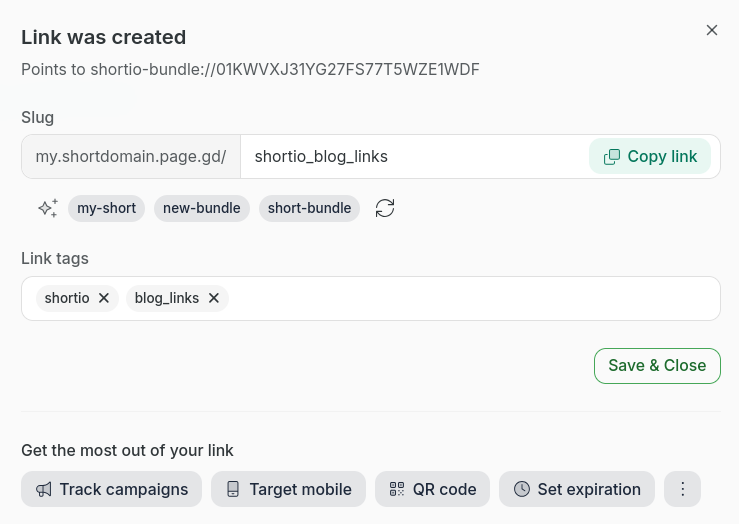
Get the most out of your links by selecting any of the other available options. In this case, you will be redirected to the respective section of the link's settings.
-
-
Click Save & Close.
The Link bundle section appears and you can start configuring your bundle.
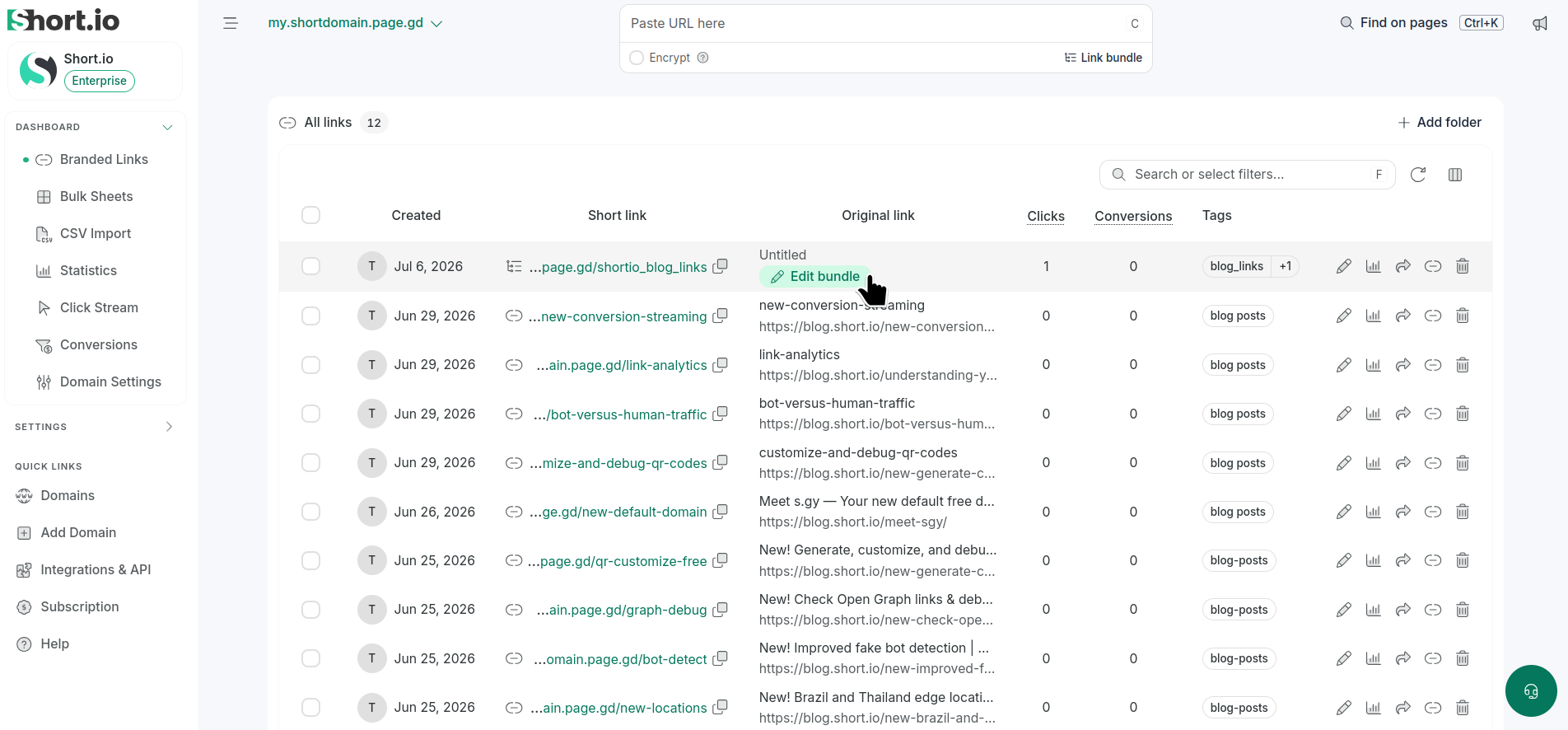
The newly created bundle is also added to the Branded links section of the Dashboard:
Configuring a link bundle
You can configure the following elements of a link bundle:
- Page heading & Description
- Short branded links
- Social media links
- Bundle preview options
- Logo & background image
- Colors
- Fonts
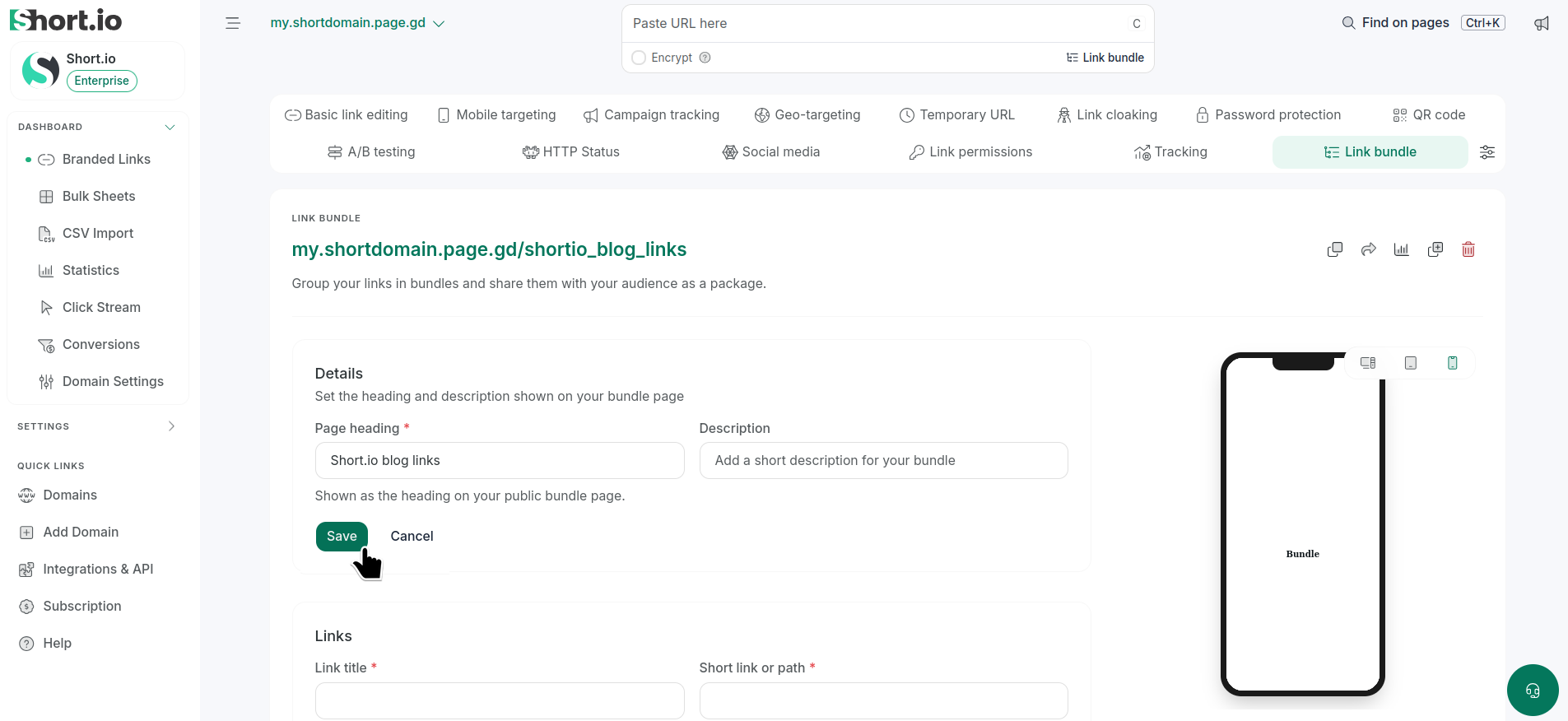
Page heading & Description
You can set a page heading (title) and a description for your bundle. Then click Save to confirm:
Short branded links
Tо add short branded links to your bundle:
-
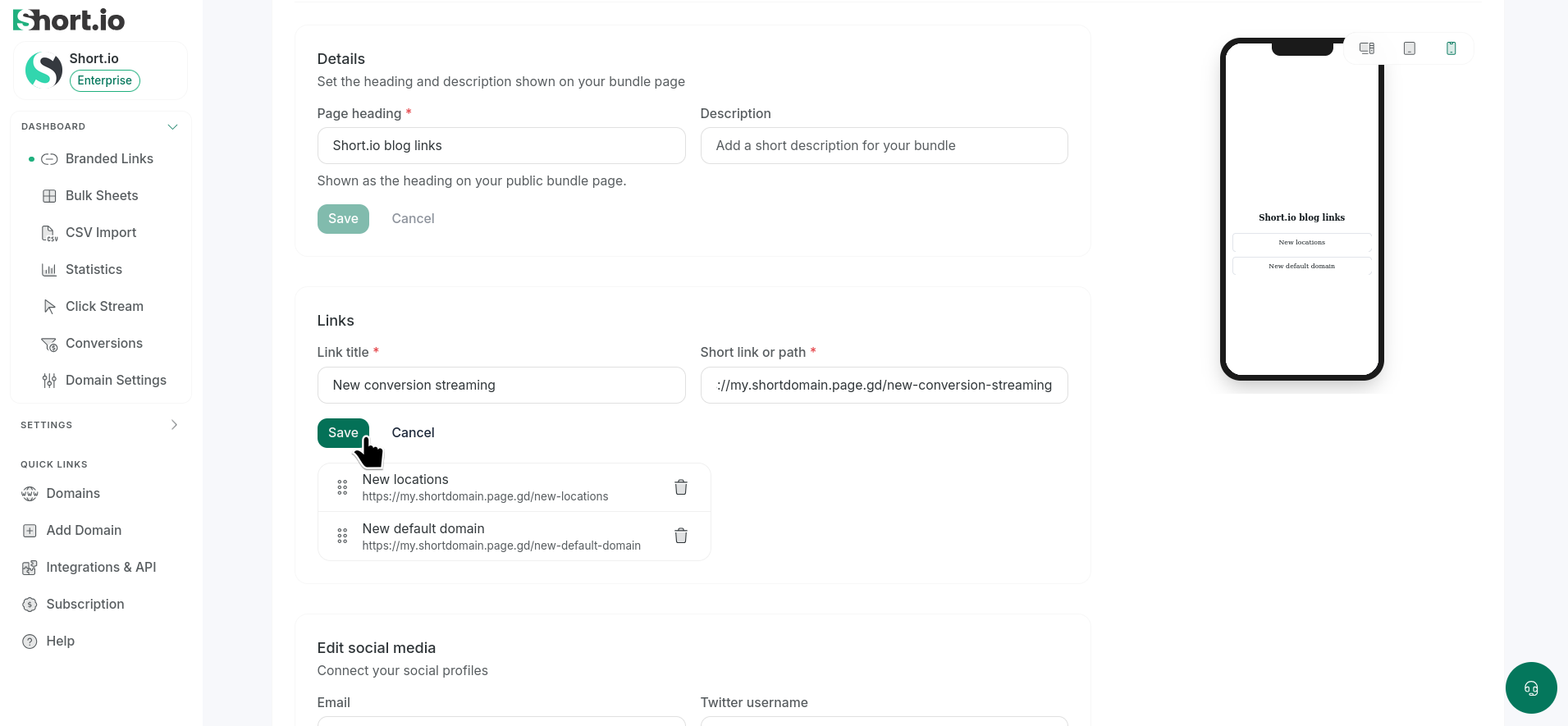
Enter the Link title and the Short link or path in the respective fields:
-
Save.
The link will be added to the bundle.
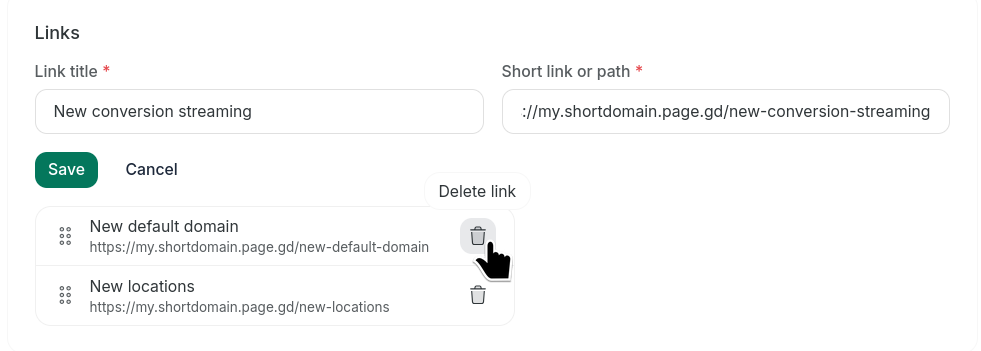
To remove a link, click the icon next to it:
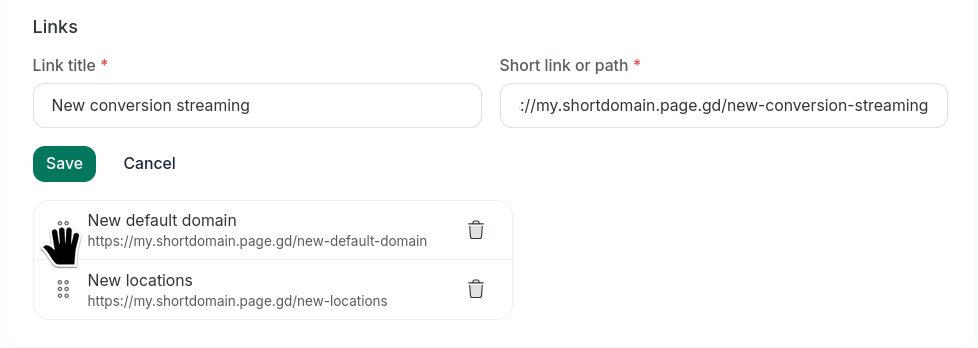
You can also rearrange the added links by dragging and dropping them in the desired order:
Social media links
To add social media links to your bundle:
-
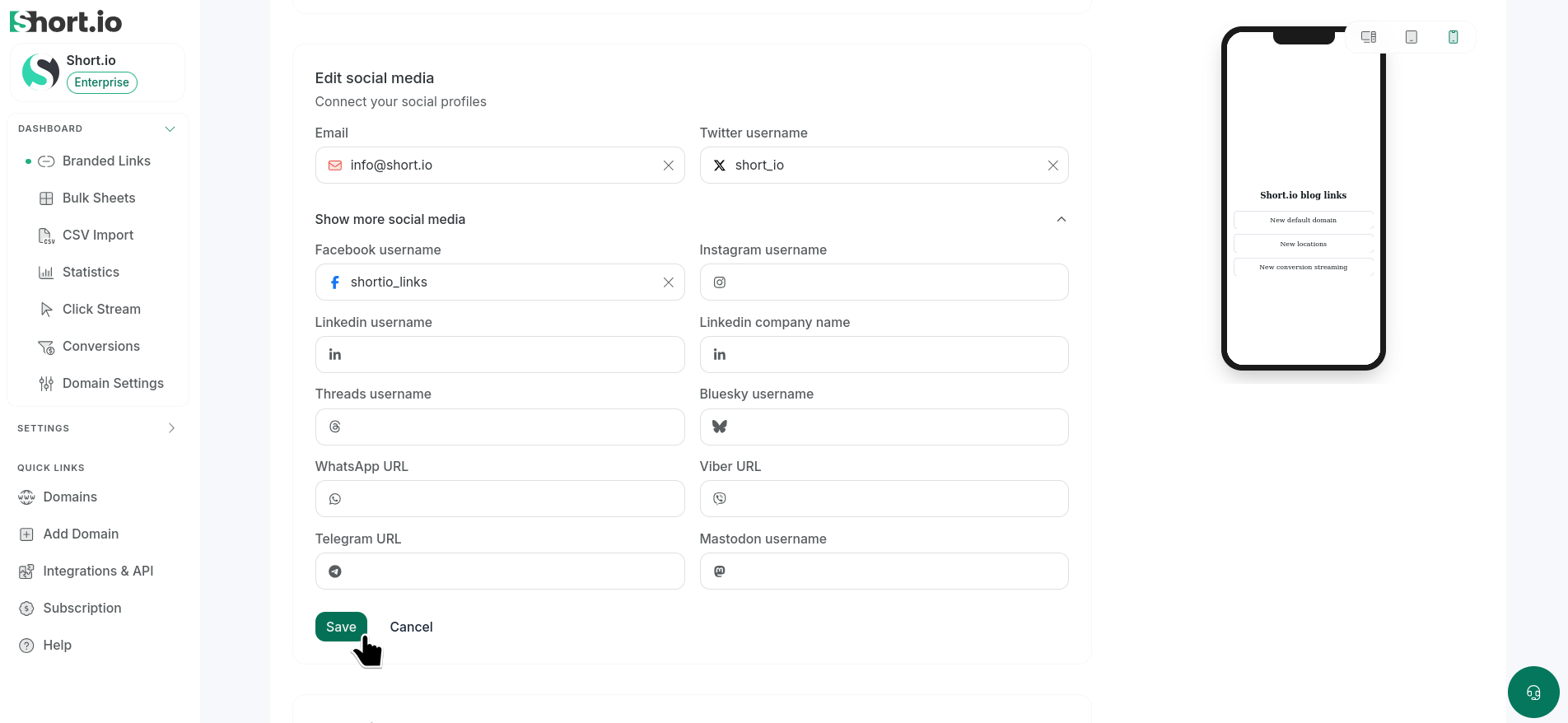
Enter your social media profile names in the respective fields:
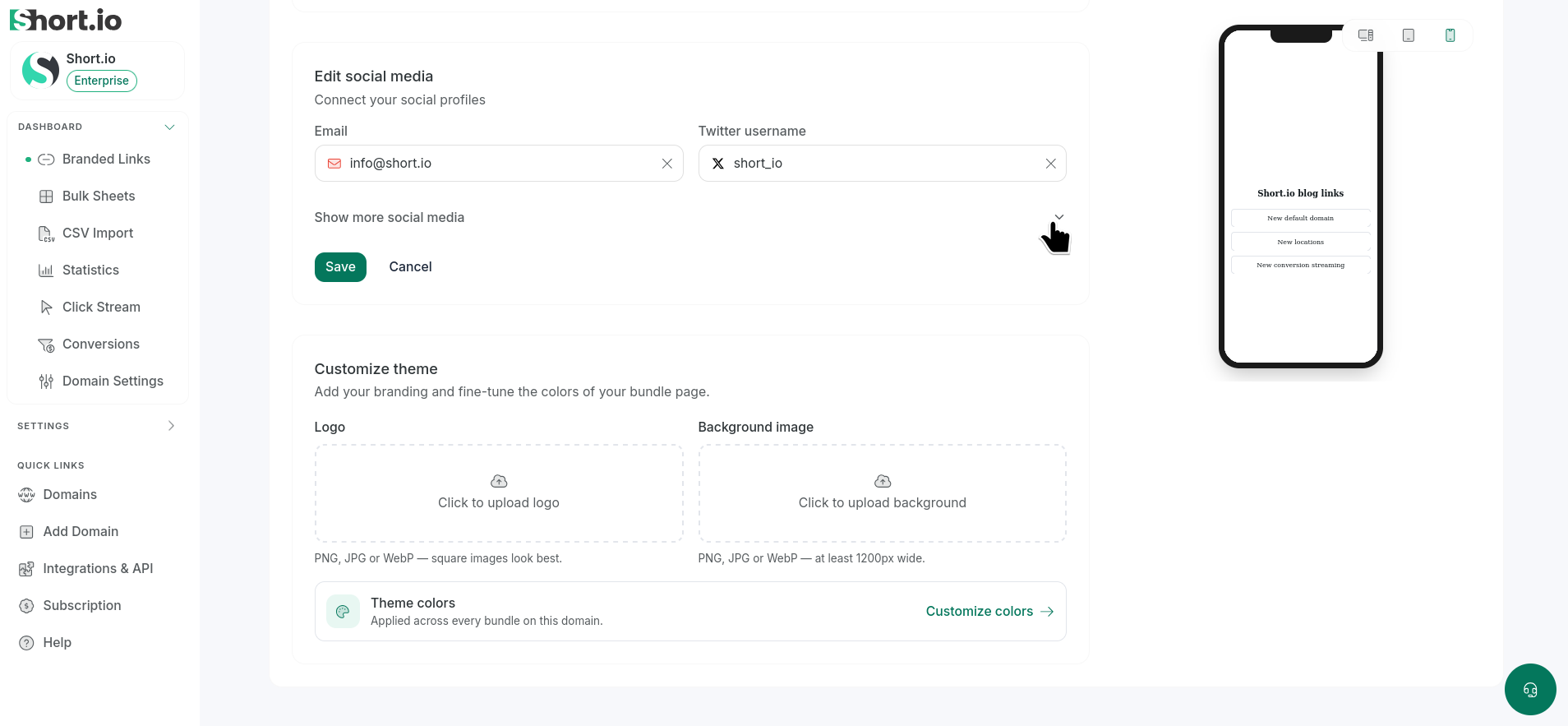
To view all of the available options, expand the list:
-
Save.
The links are added to the bundle.
To remove a link, click X next to it and Save.
Bundle preview options
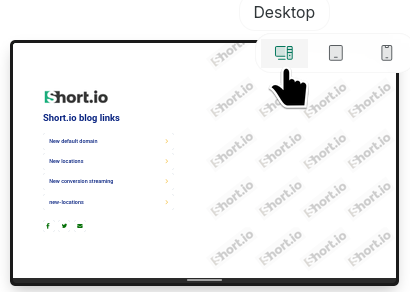
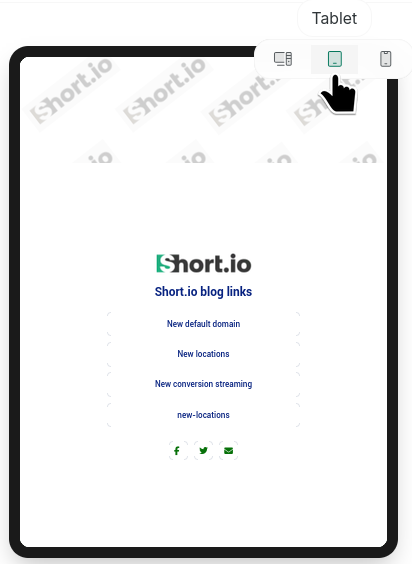
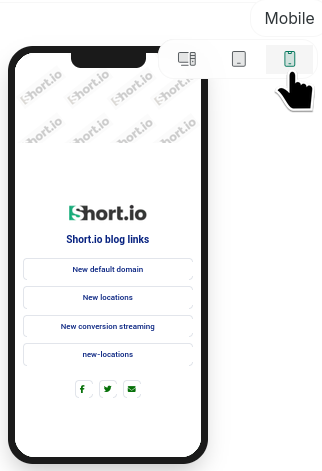
The bundle preview section allows you to review the appearance of your bundle in the three available modes:
-
Desktop
-
Tablet
-
Mobile
Logo & background image
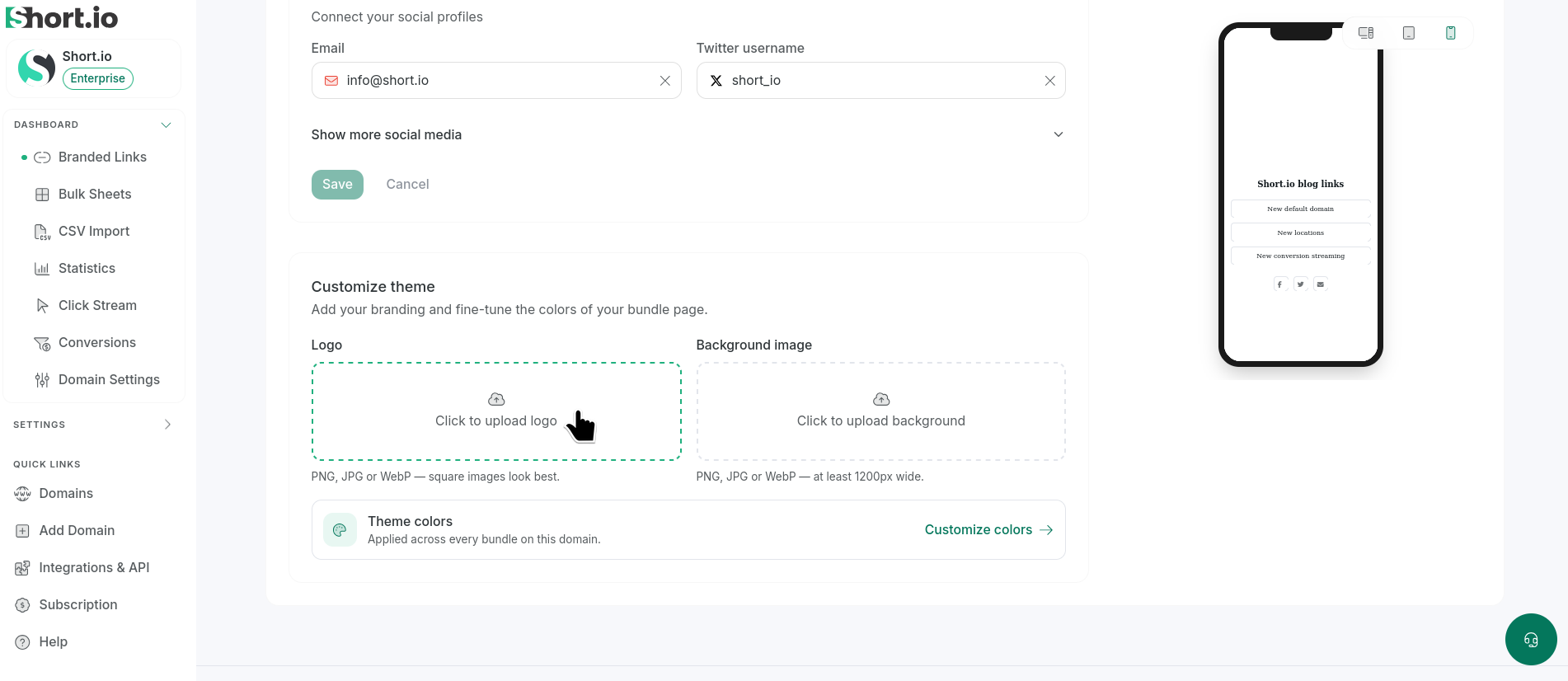
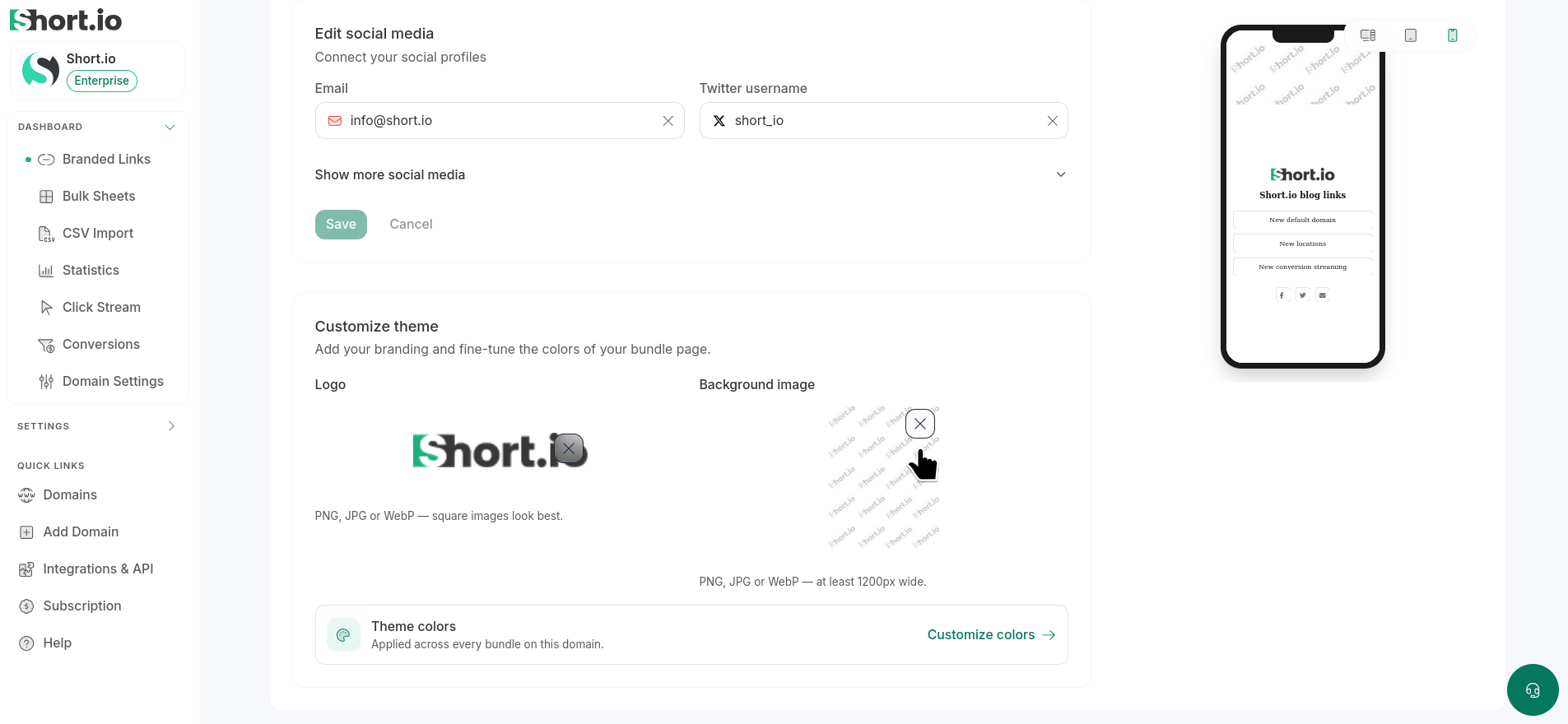
You can customize the logo and the background of your bundle links as follows:
Click in the respective area to upload images from your device:
The images are uploaded and displayed in the bundle preview.
To remove an image, click X:
Colors
To customize the color palette of your bundle page:
-
Click Theme colors / Customize colors:
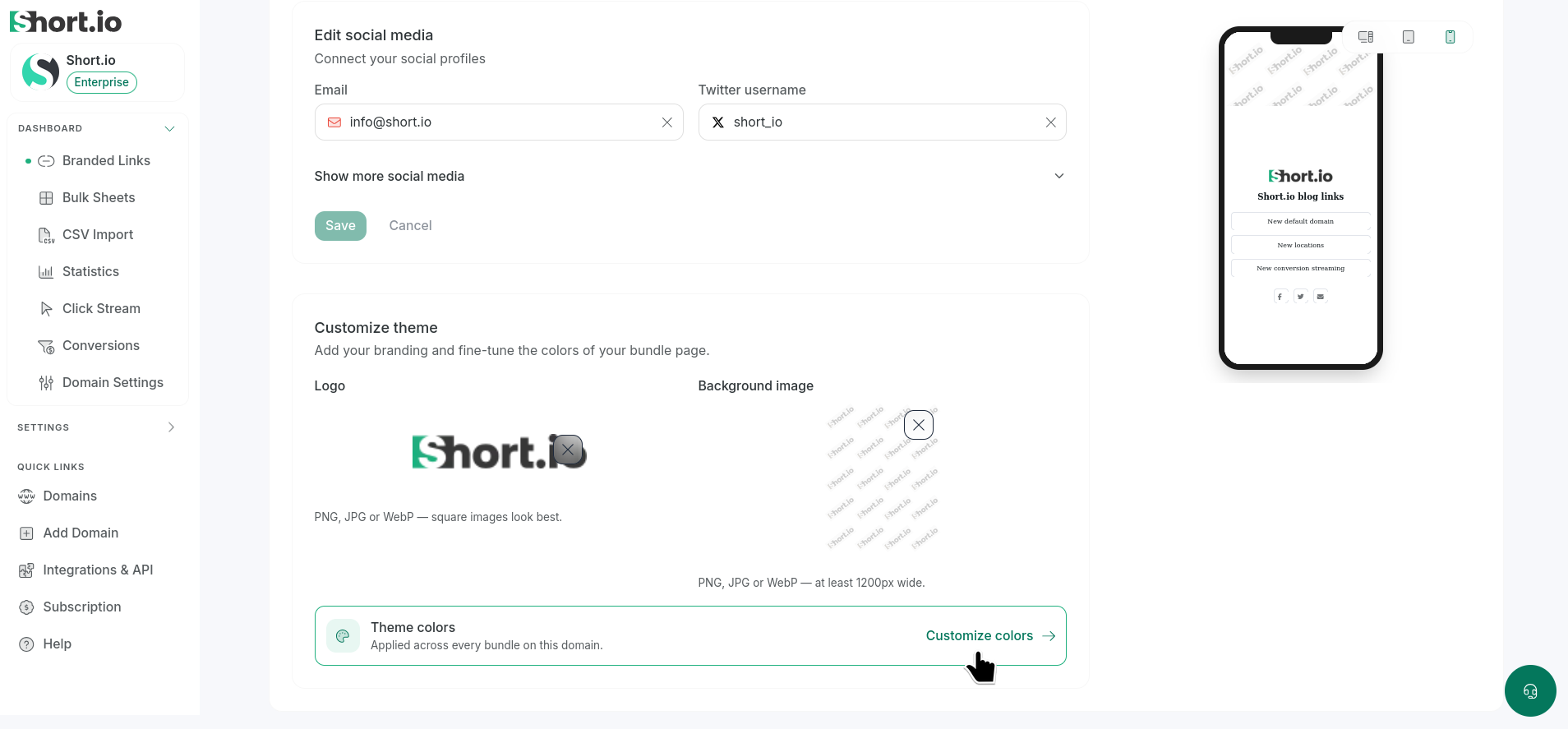
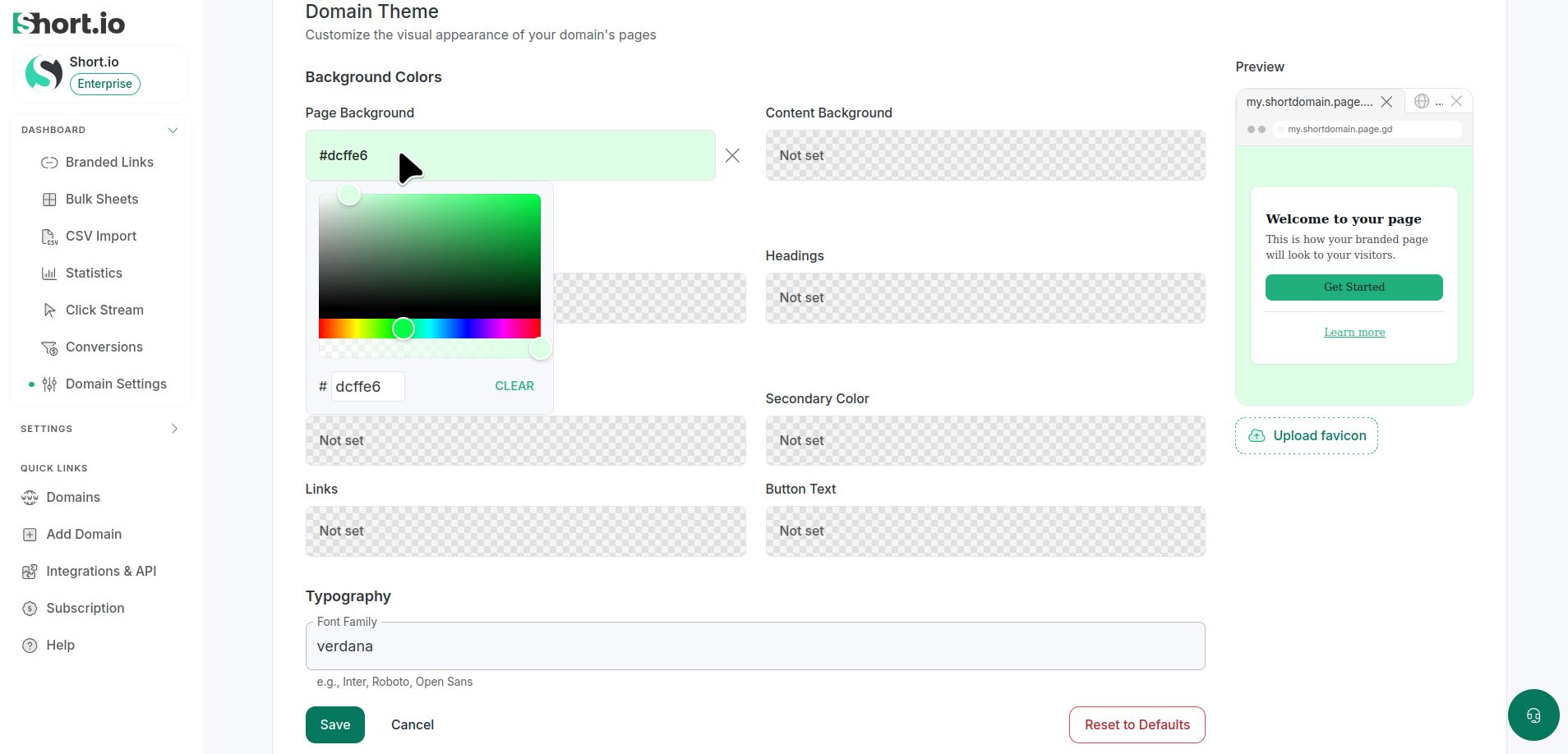
You will be redirected to the Domain settings-> UI customization section.
-
There, select the needed colors (you can find more information on theme colors in the following article):
-
Save and return to the bundle by opening it for editing from the Branded links menu.
The new colors will be applied.
Fonts
To customize the font type of your bundle:
-
Click Theme colors / Customize colors:
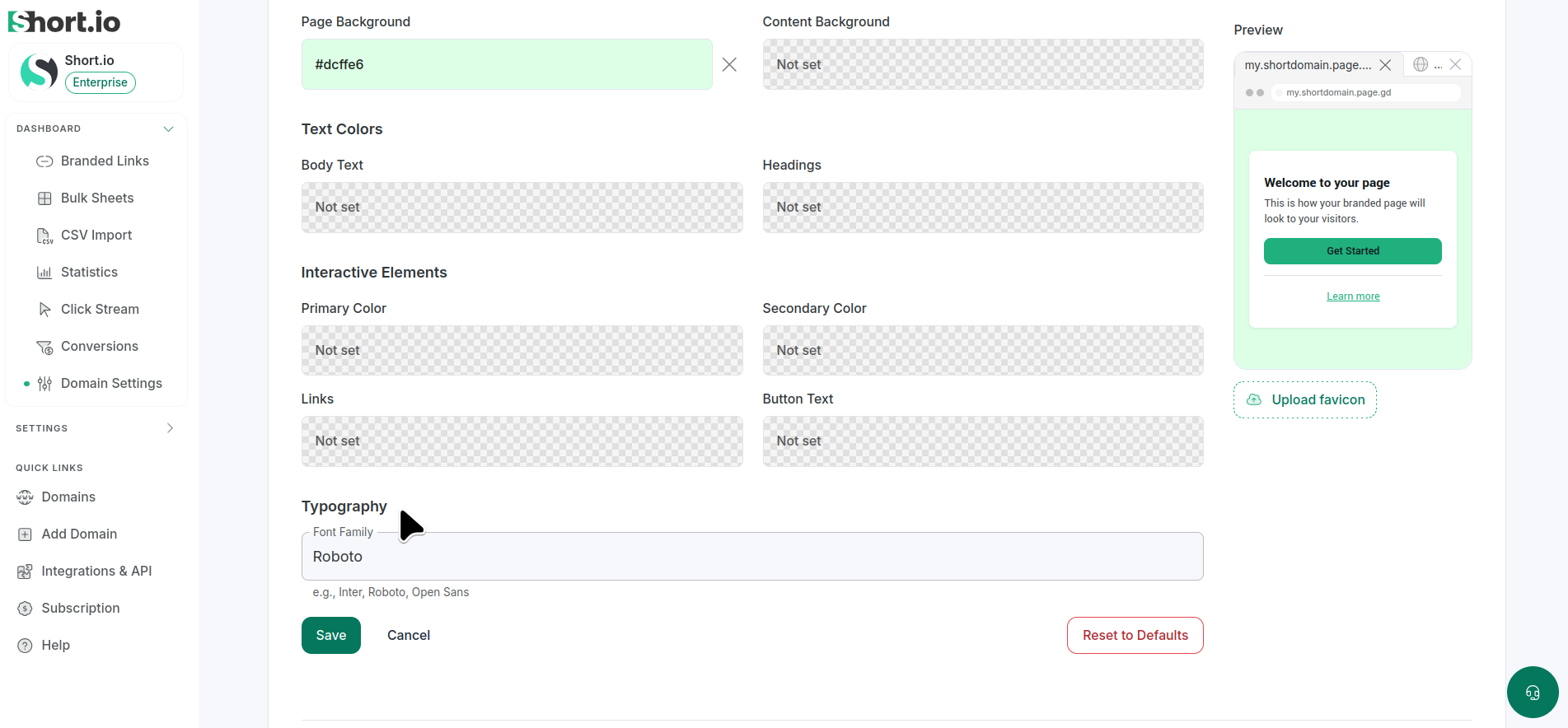
You will be redirected to the Domain settings-> UI customization section.
-
There, navigate to Typography and enter a font type (you can find more information on fonts in the following article):
-
Save the changes and return to the bundle by opening it from the Branded links menu.
The new font will be applied.
Converting a link bundle to a short link
You can convert a link bundle to a short link as follows:
-
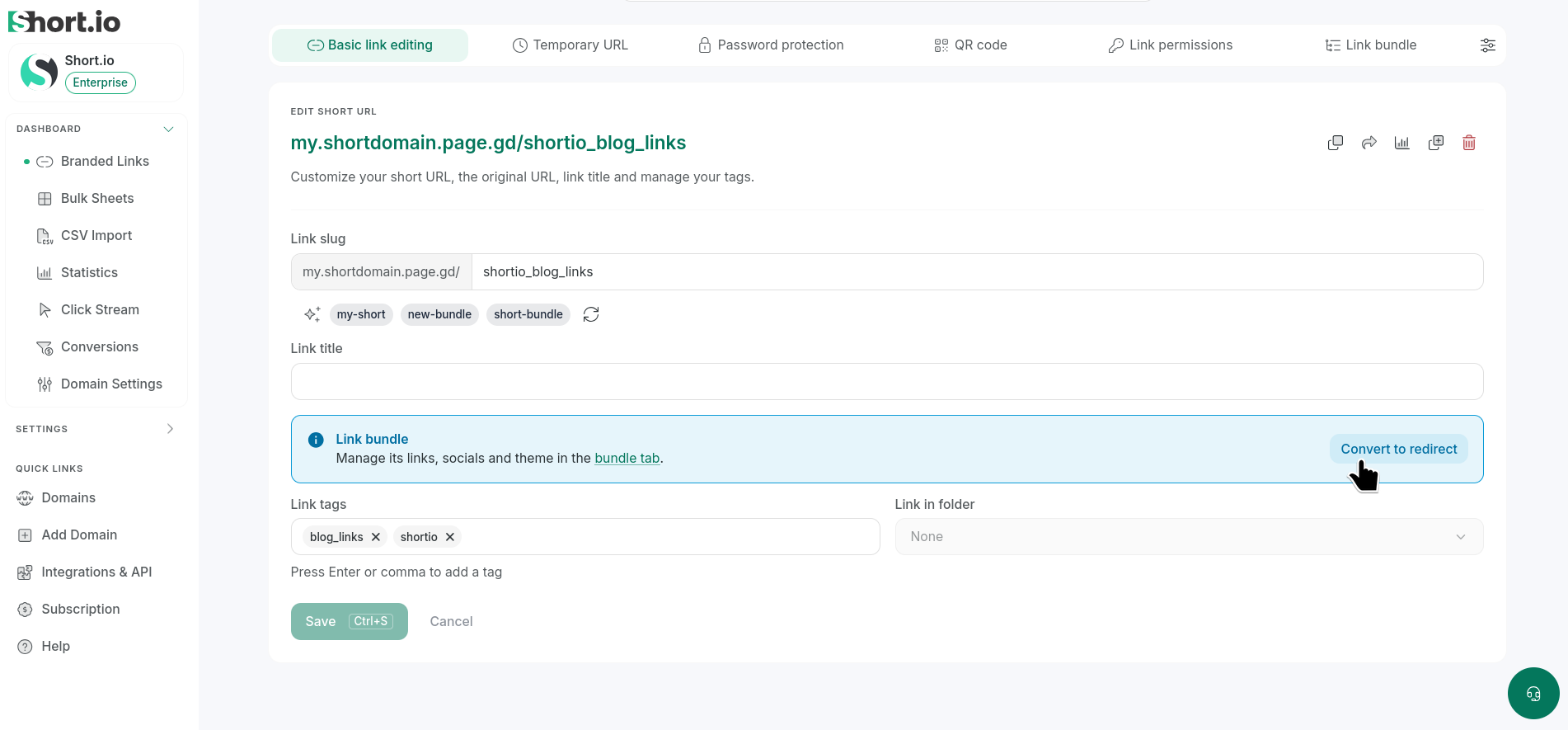
Open the bundle for editing from the Branded links menu.
-
In the Basic link editing section click Convert to redirect:
-
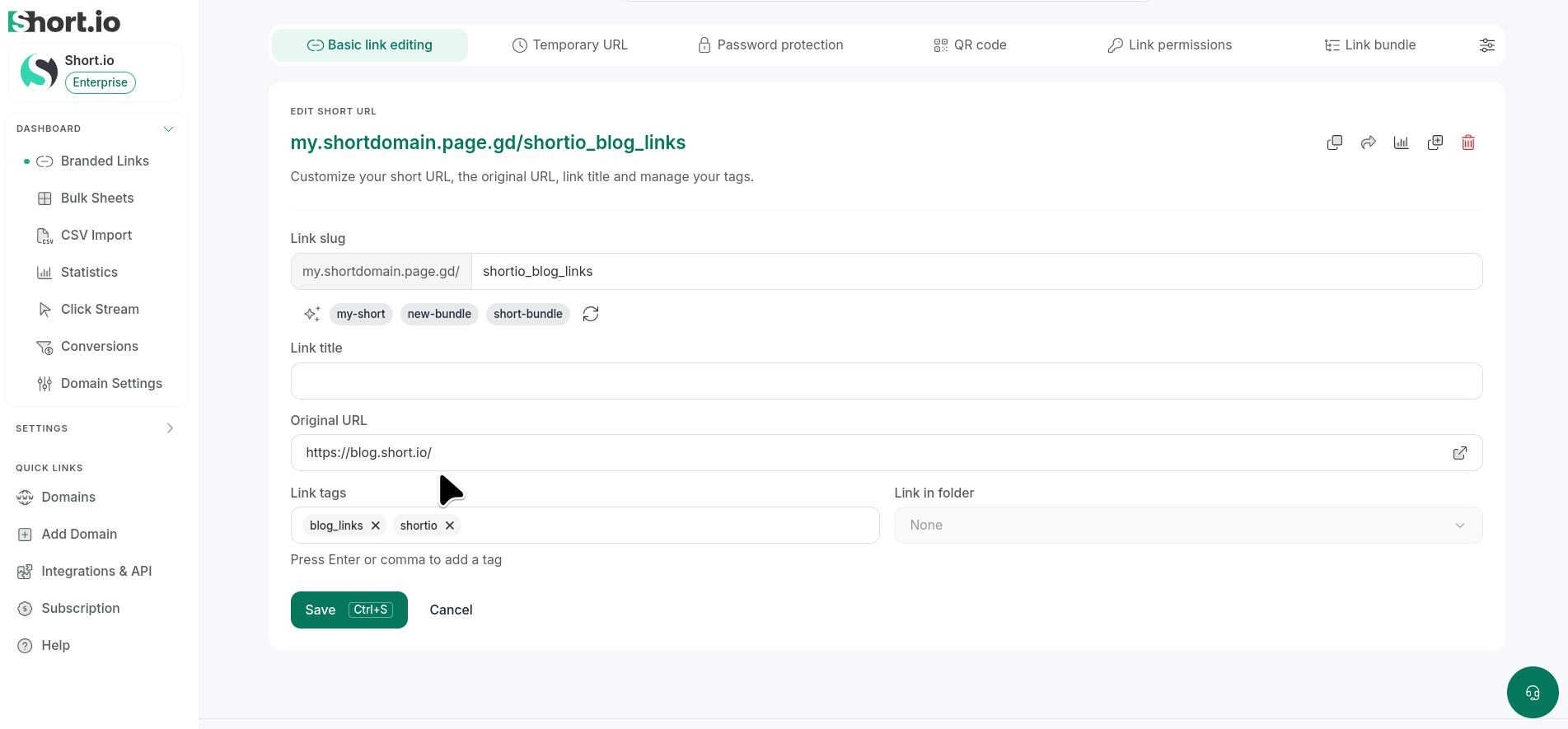
Enter a destination (original) URL:
-
Save.
The bundle will be converted to a short link.
Converting a short link to a link bundle
You can convert a short link to a link bundle as follows:
-
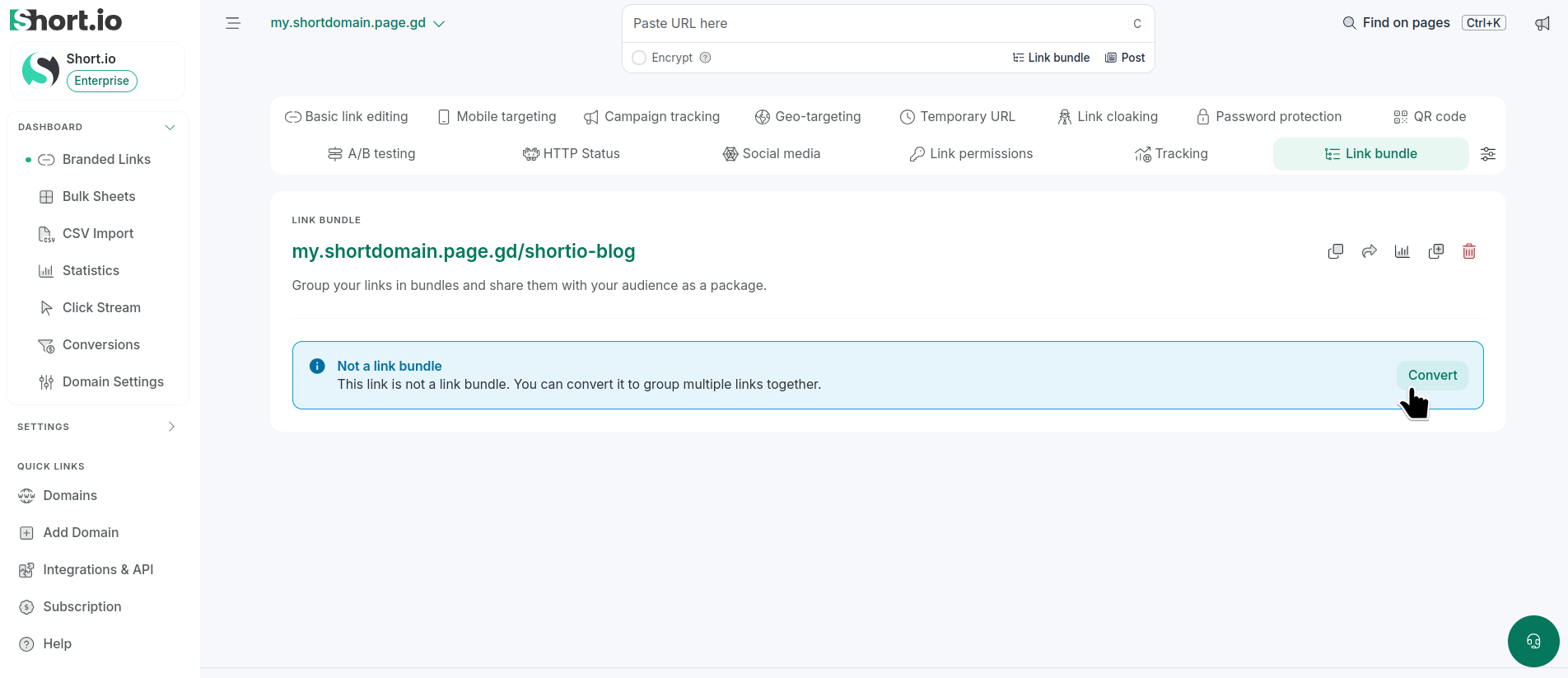
Open the short link for editing from the Branded links menu.
-
Navigate to the Link bundle section and click Convert:
-
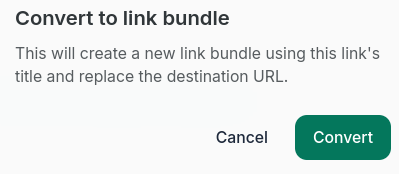
You are prompted to confirm the conversion: "This will create a new link bundle using this link's title and replace the destination URL.":
-
Click Convert:
The short link will be converted to a link bundle.
Deleting a link bundle
You can delete a link bundle from the Branded links menu
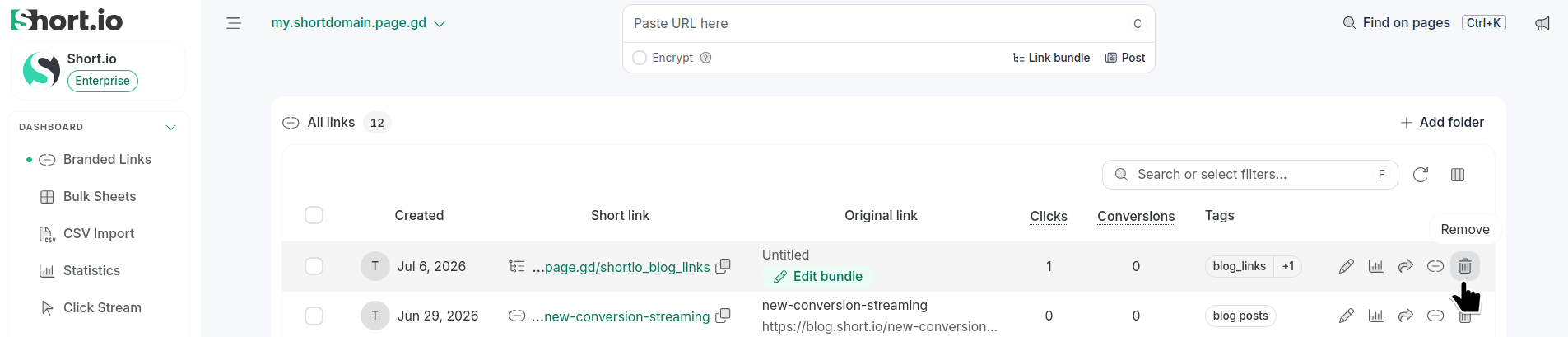
or from the bundle's settings
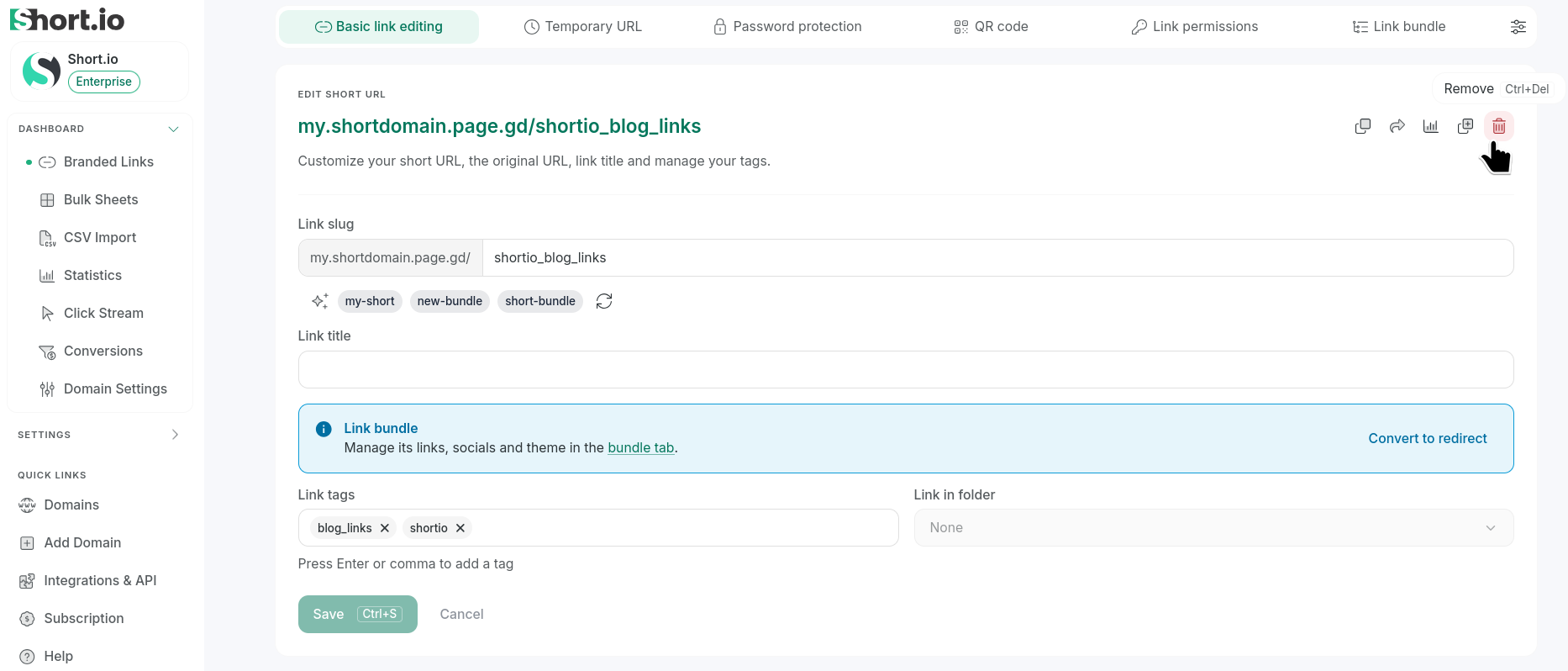
by clicking the icon .
You will be prompted to confirm the deletion: "Are you sure you want to permanently delete this link? Please note that link redirects for URL <your-bundle-link> will stop working. Deletion is irreversible."
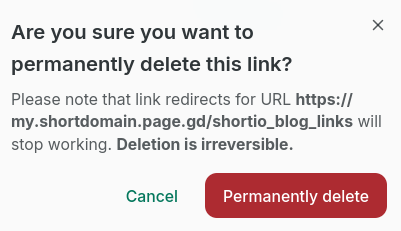
- Click Permanently delete.
The bundle will be removed.