How to import short links from another shortener or from a CSV file
You can migrate links from another link shortener to Short.io by exporting and then importing them without affecting the original URLs or associated data. You can also create your own CSV file with the short links data.
Quick video tutorial
Steps to follow
Prerequisites
Request your current URL shortener to export all the links in a file or prepare your own CSV file.
Here is an example of a CSV file, represented with the following data columns:
| Original URL | Link slug | Tags | Link title | Creation date |
|---|---|---|---|---|
| https://blog.short.io/announcing-organizations/ | organizations | "Organizations,new layer,new feature" | Announcing Organizations | 6/16/2026 |
| https://blog.short.io/new-brazil-and-thailand-edge-locations/ | new-edge-locations | "Brazil,Thailand" | New edge locations | 6/16/2026 |
Use commas to separate the values of the different columns.
To import links
-
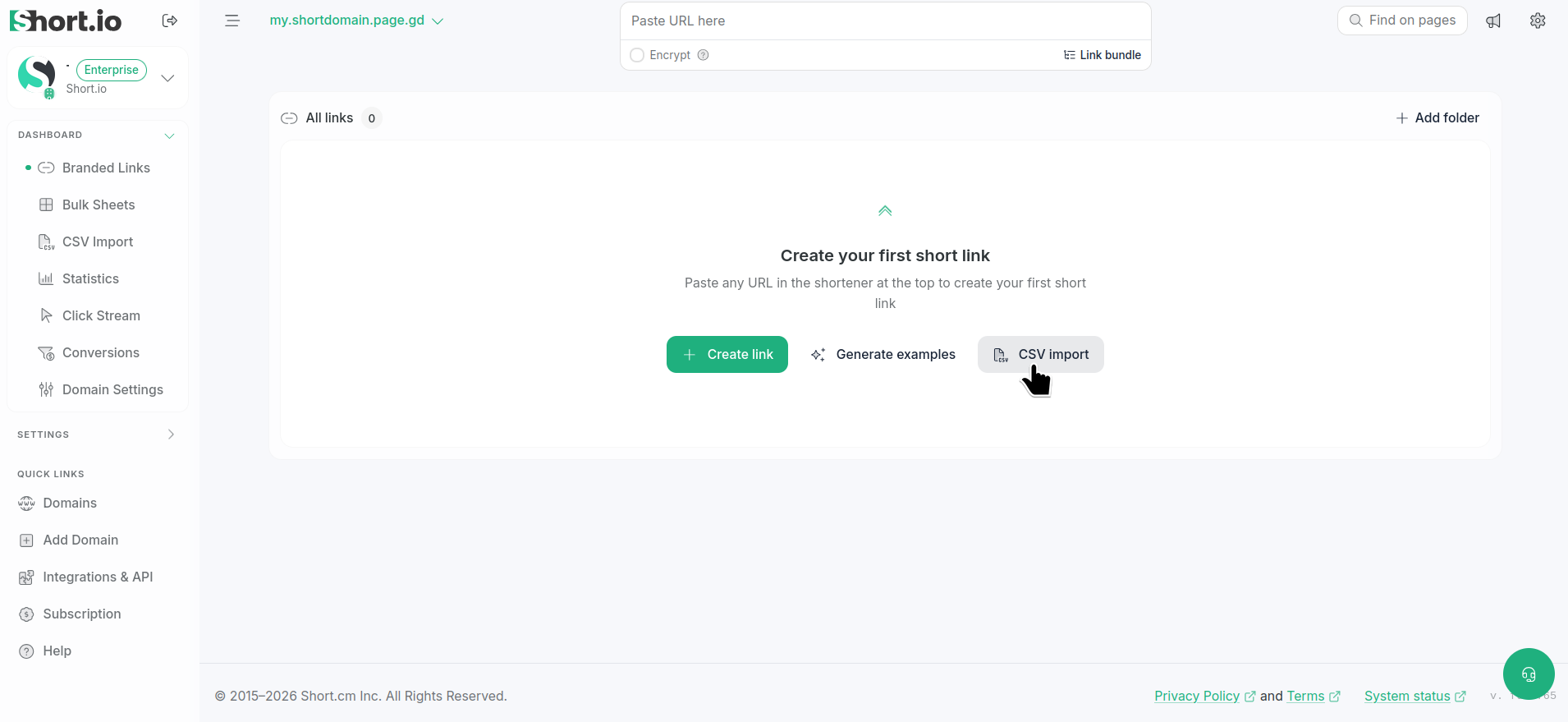
If your Dashboard is empty, from the Branded links menu click CSV Import:
or,
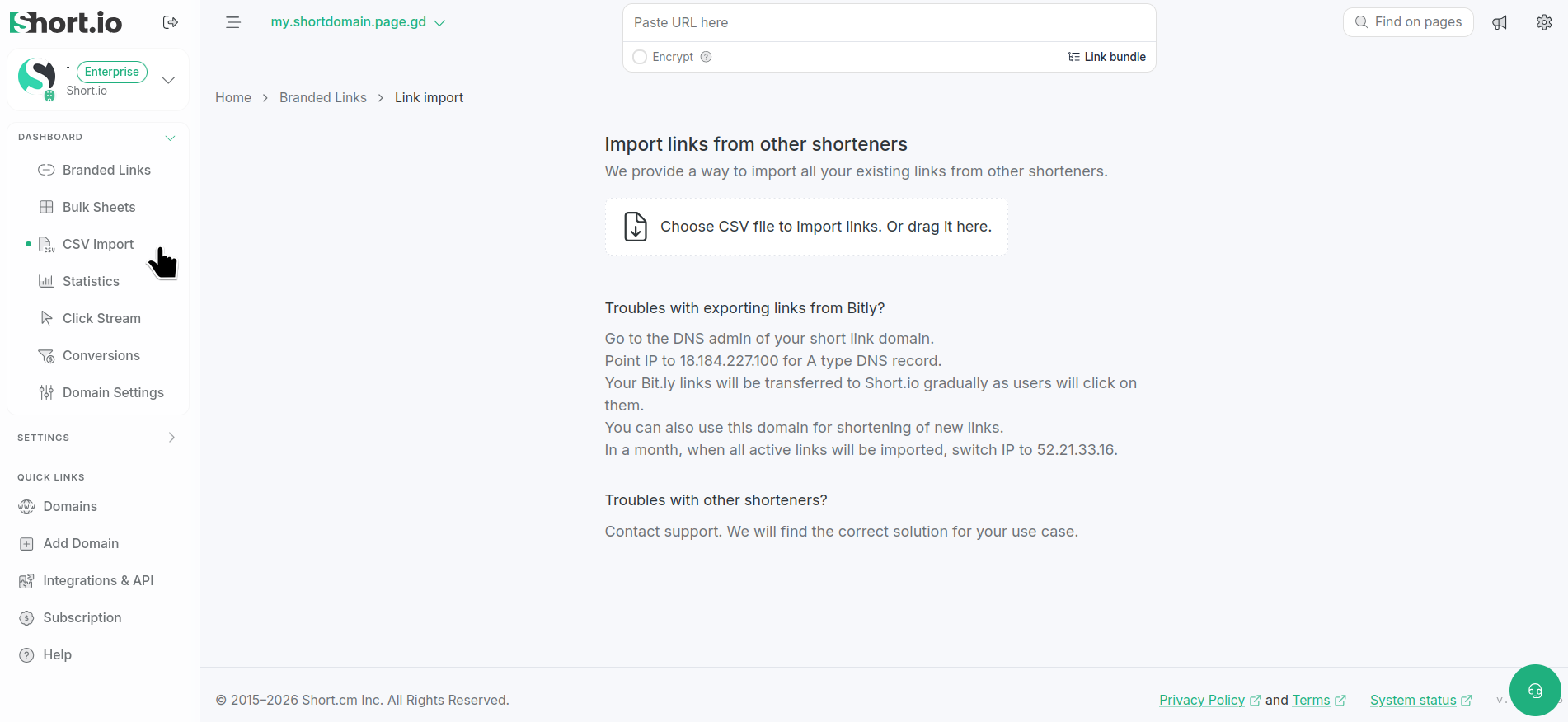
in the left side panel, click CSV Import:
-
Click Choose CSV file to import links. Or drag it here.
-
Once the CSV file is loaded:
-
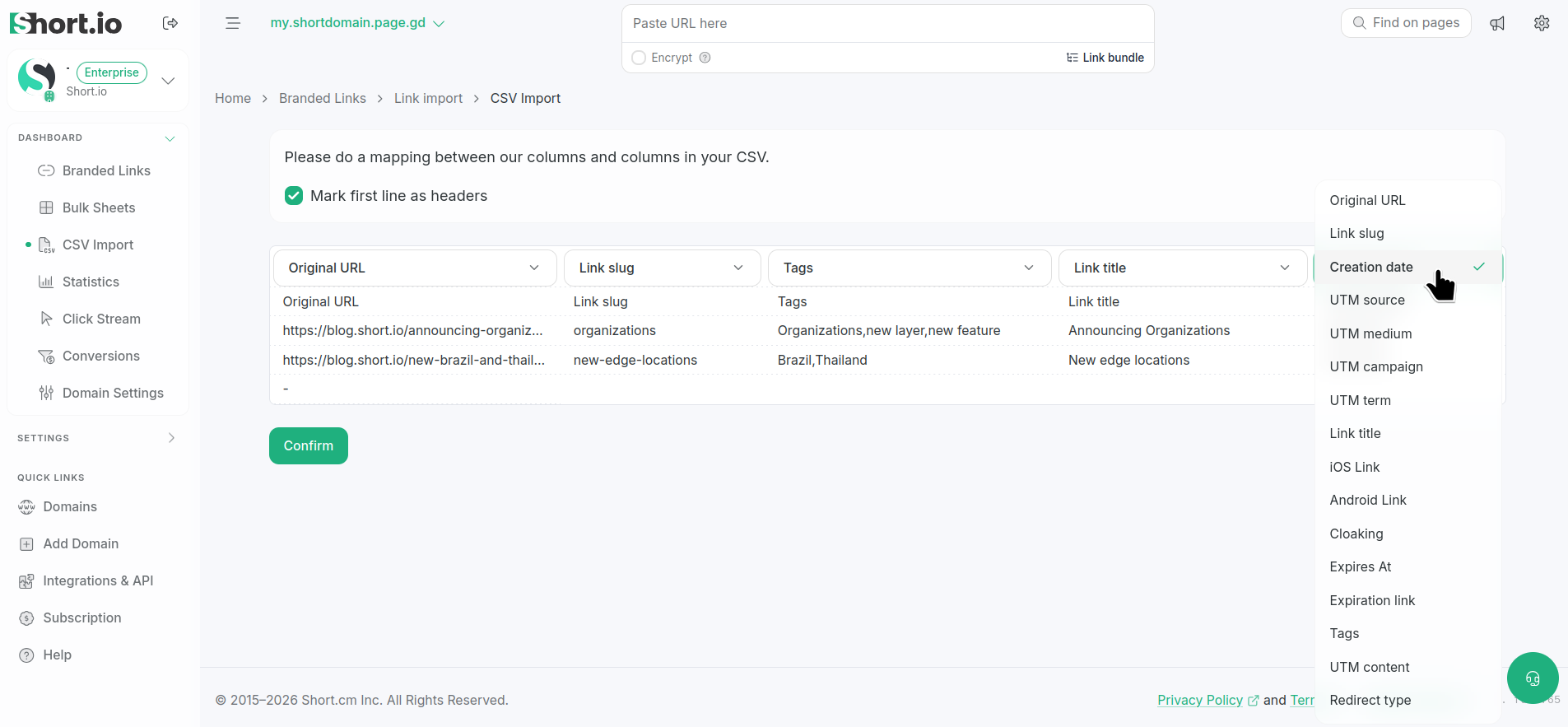
if it contains column names, enable the option Mark first line as headers
-
you need to do a mapping of the columns by selecting the appropriate data:
-
-
Click Confirm.
You will receive an email from Short.io informing you that the import has been successfully completed.
You can now review the imported links in the Branded links section.