Domain theme customization
You can customize the look and feel of your domain’s pages (such as 404 pages and links bundles) by defining custom colors for backgrounds, text, and interactive elements, as well as selecting a custom font family. These settings are available under the UI Customization section of the domain settings.
Customizing your domain theme
Color management
Follow these steps to set new colors for your domain pages:
-
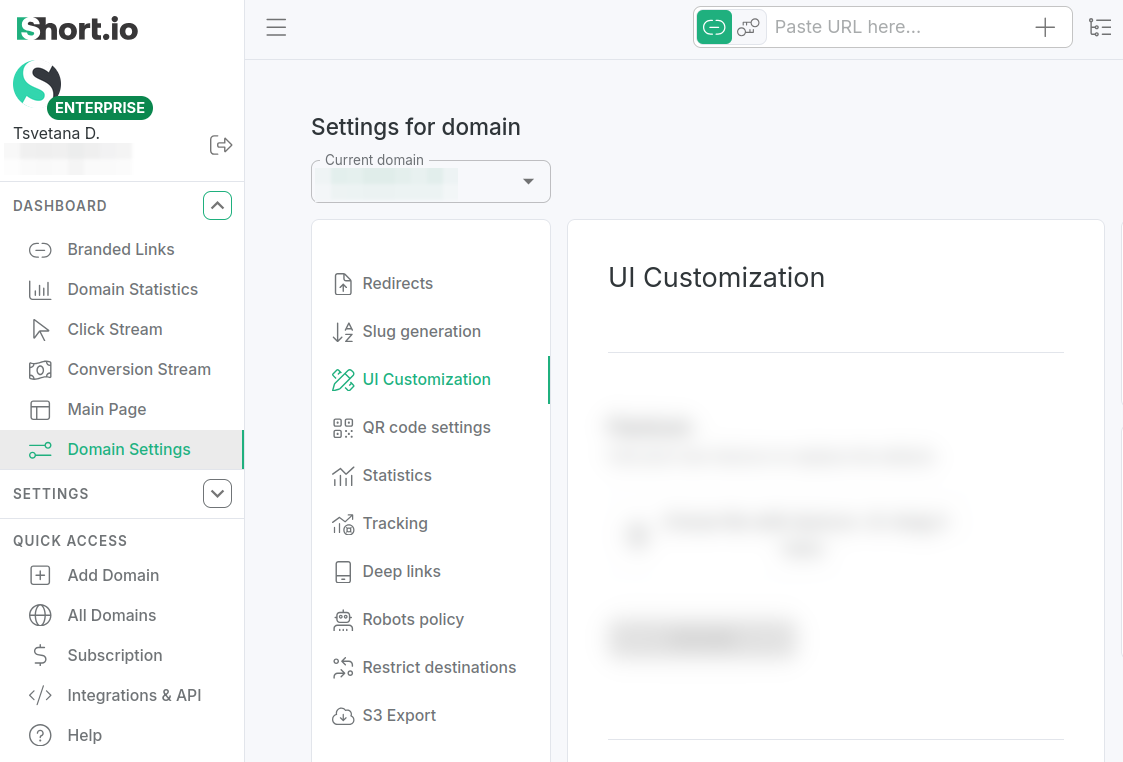
From your dashboard, select Domain Settings -> Customization:
-
Navigate to Domain Theme:
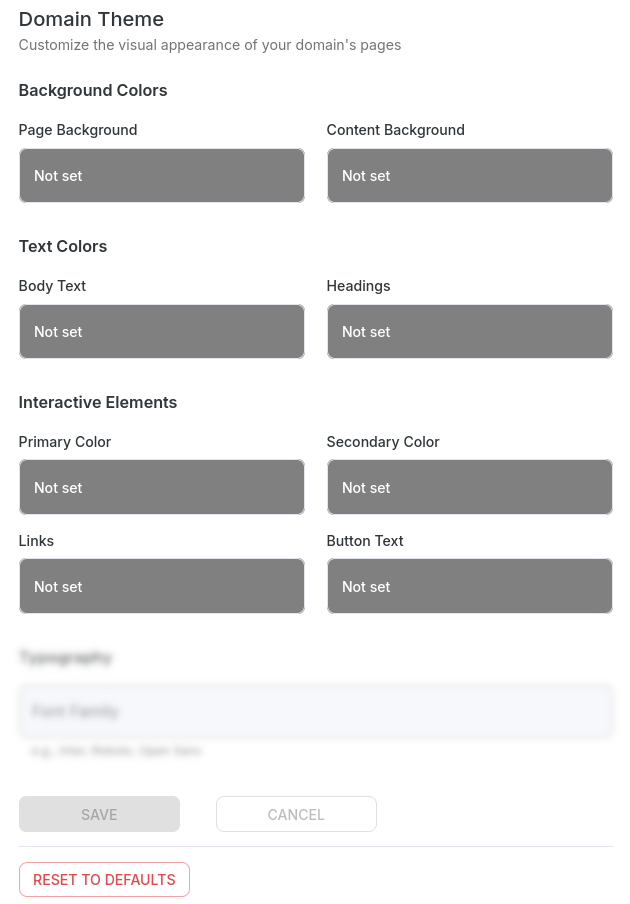
There, you can select colors in the following categories:
-
Background colors - Page background, Content background
-
Text colors - Body text, Headings
-
Interactive elements - Primary color, Secondary color, Links, Button text
-
-
Click inside a "not set" color to display its palette (hue, gradient and opacity):
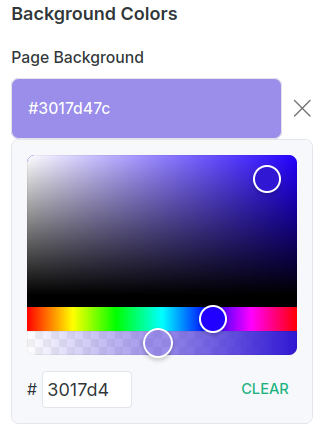
You can slide the cursors to the needed values or manually enter a hex color code.
-
To confirm, click the Save button at the bottom of the settings.
The colors will be applied.
Font management
To apply a font to your domain pages follow these steps:
-
From your dashboard, select Domain Settings -> Customization:
-
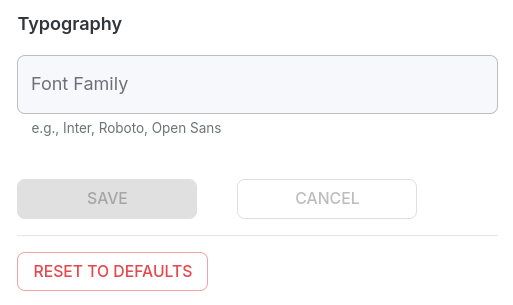
Navigate to Typography:
-
Enter a font of your choice.
-
Click the Save button to confirm.
The new font will be applied.
Resetting to defaults
You can remove all the applied settings at once by clicking the Reset to defaults button.