How to restrict destinations (target URLs)
Let us consider the following misuse scenario: a malicious actor exploits public API (or some loophole) to create a short link on your domain — or on a domain you trust — that points to a destination you do not allow, such as an unrelated, untrusted, or even phishing/malware site. Users see the short link, and because they trust your domain, they click on it and get misled.
To prevent such scenarios, we have introduced the Restrict destinations feature.
Restricting destinations
-
Select the domain where you want to add restrictions.
-
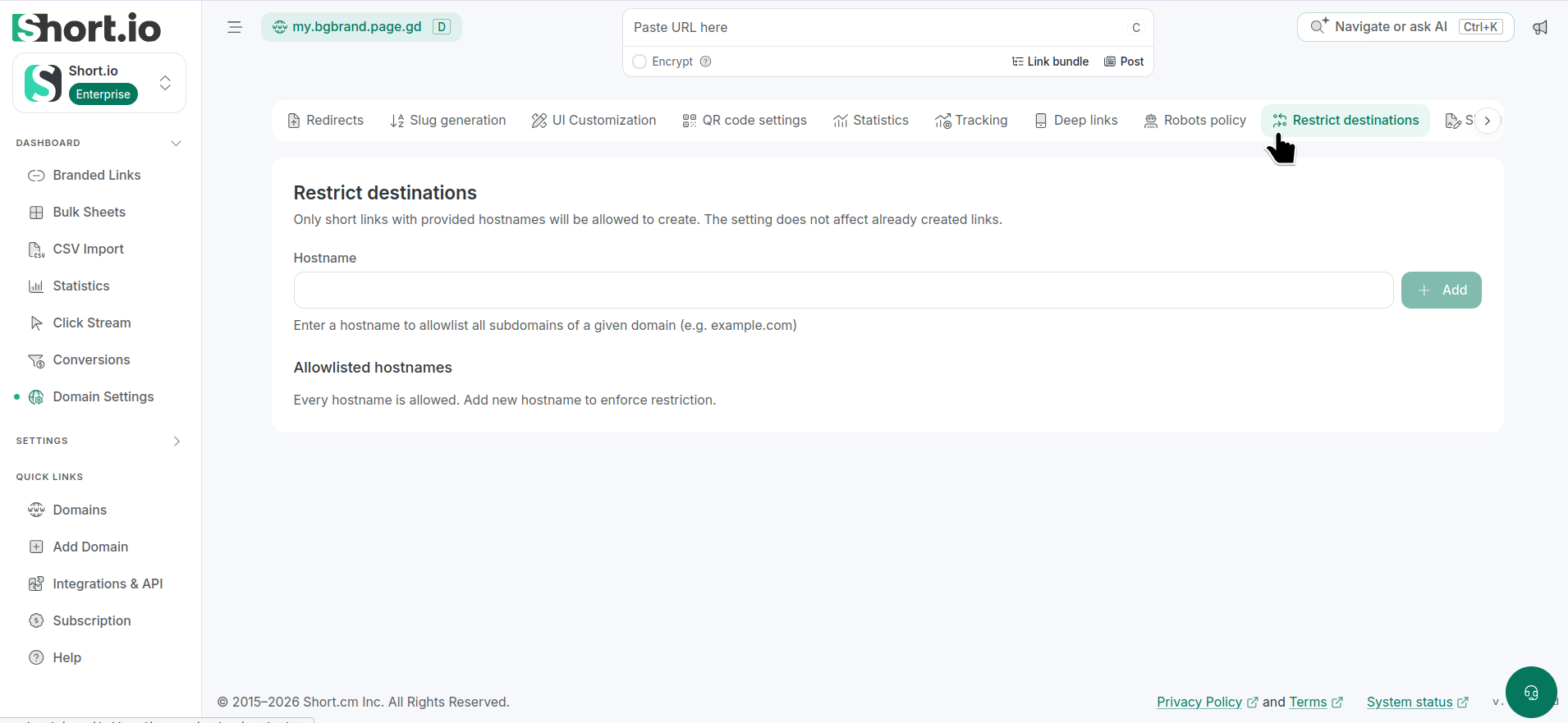
From the left side menu, navigate to Dashboard -> Domain settings and select Restrict destinations:
-
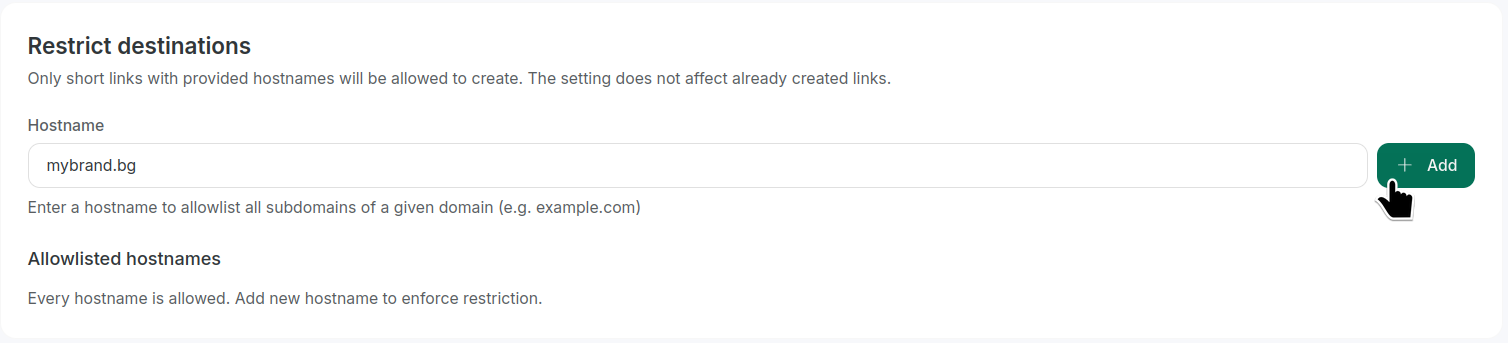
In the Hostname field enter:
-
a domain name, for example, company.com
-
or a subdomain name, for example, *.company.com
-
-
Click Add:
The domain will be included in your Allowlisted hostnames:
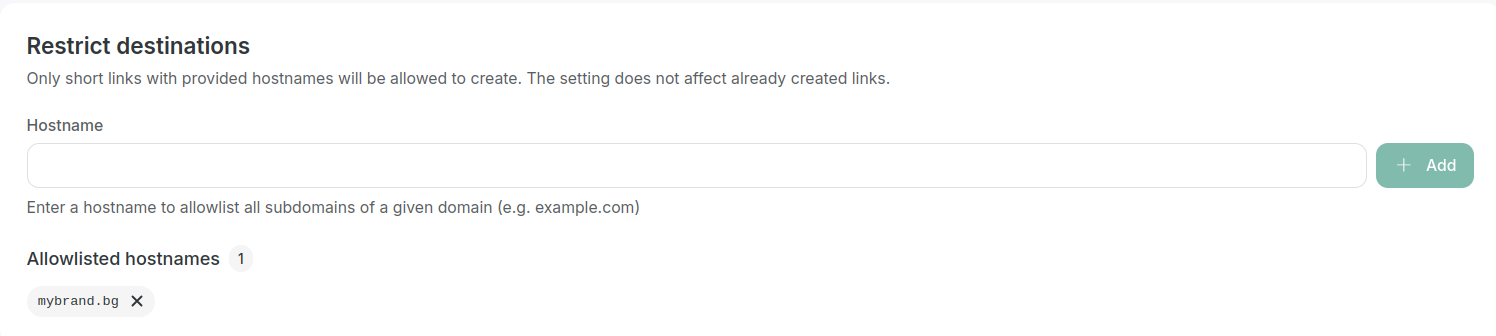
With destination restriction in place, even if someone tries to create a short link with your domain that redirects to a malicious site, it will be blocked — because the malicious site is not on the allow-list.
Removing a hostname from allowlist
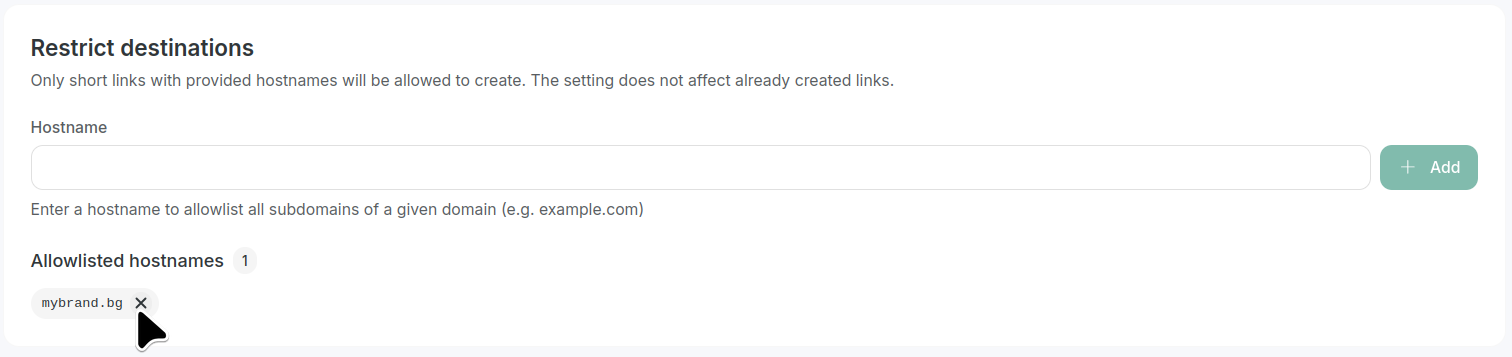
You can remove a domain/subdomain from the Allowlisted hostnames by clicking X next to its name:
Some important notes
-
We strongly advise that you build and monitor the list of valid hostnames with care — if you are too permissive or allow too many, harmful sites might get through
-
This option only protects the redirect destination domain, not necessarily malicious content hosted on an allowed domain or subtle misuse within an approved domain
-
It does not eliminate phishing entirely — but it significantly increases the difficulty for attacks to exploit your domain