How to add DNS records on purchased domain
For domains purchased on Short.io, you can add the following types of DNS records:
-
TXT - text records which can hold information about a server, network, data center, or other accounting details. These records allow you to verify the ownership of the domain
-
MX - Mail eXchange records used for routing emails to specified mail servers
How to add DNS records
-
Sign in to your Short.io account.
-
Navigate to the Domain settings and click on DNS records:

-
Click on Add record.
-
In the next dialog you can:
-
select the type of record: TXT or MX
-
leave the preset @ in the Name field for the root domain (zone apex) or enter a string of your choice to create records for subdomains/specific services within your domain
-
enter a name for the record in the Value field. In case of an MX record, you can specify the 'priority' (or preference which server to try first) as a number in the following format:
<**_priority-number_**\>space<**_name-of-the-mailhost_**\>, for example, 10 mailhost1.example.com -
specify the TTL (Time To Live) parameter
_Two example_s:
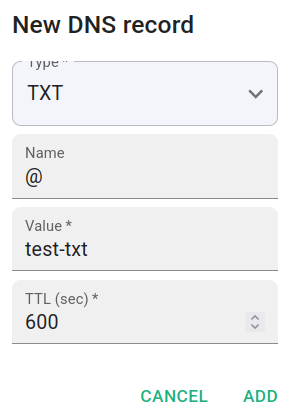
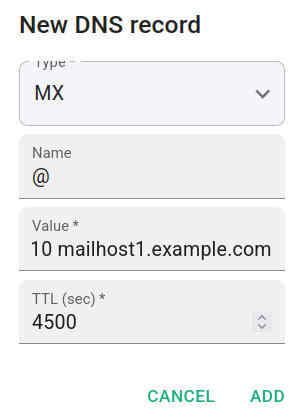
-
-
Click on Add to complete the action.
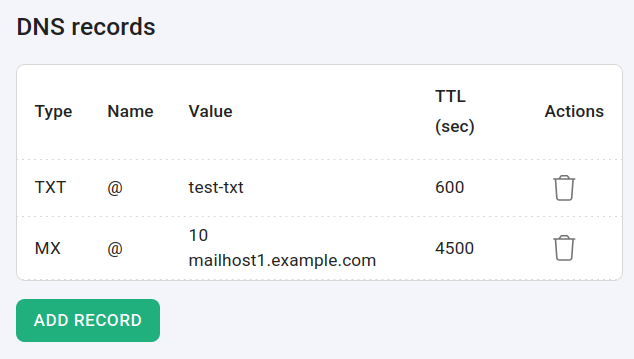
The record is added to the domain:
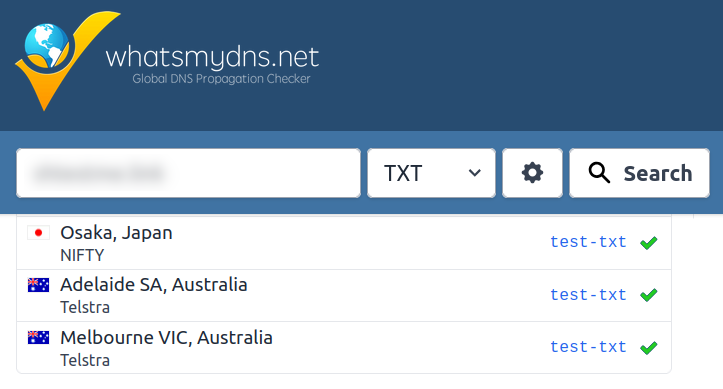
Approximately 30 minutes later, you can verify whether the record has propagated successfully by using a DNS propagation checker service:
How to delete a record
-
Sign in to your Short.io account.
-
Navigate to the Domain settings and click on DNS records:
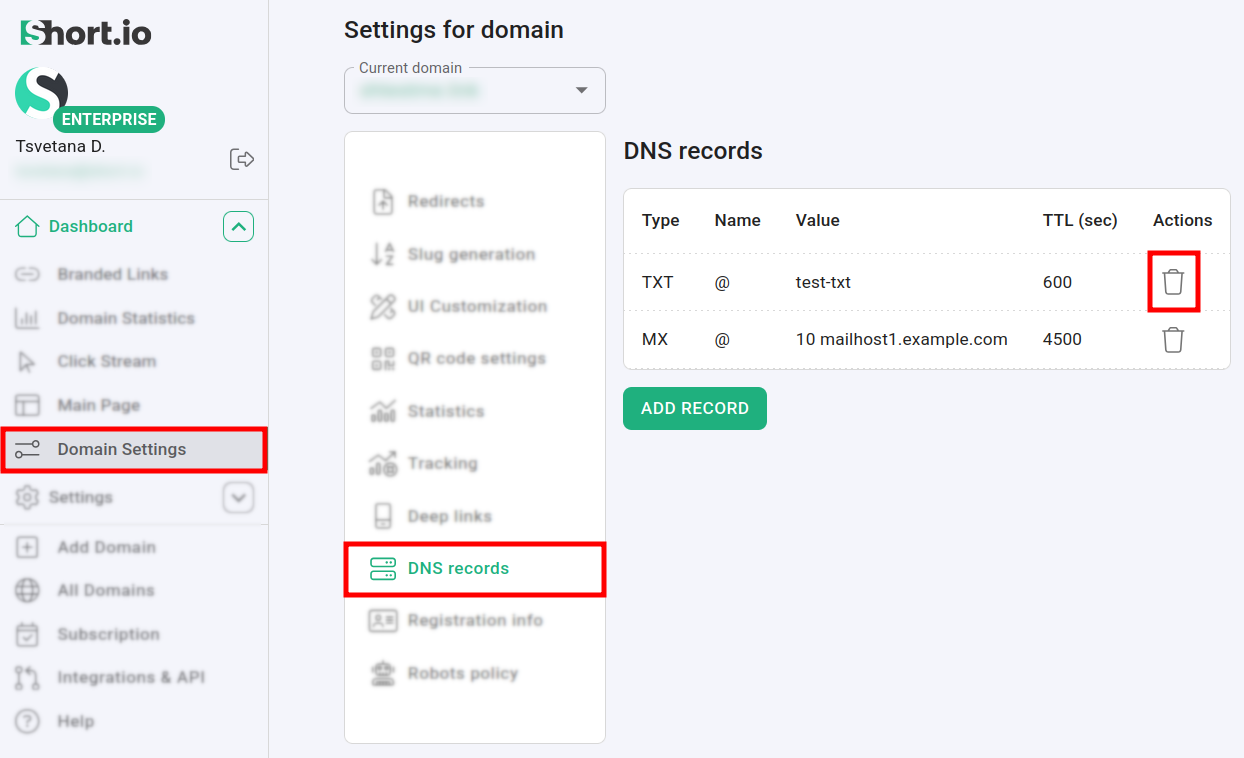
-
Click on next to the DNS record which you want to delete.
-
When prompted "Are you sure you want to remove this
<record-type>record with **<name**\>and<**value**\>?", click on Delete: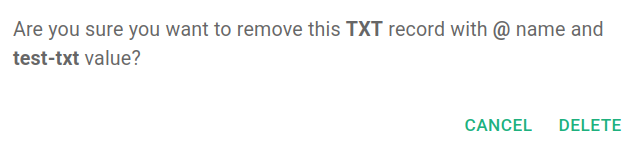
The record is removed from the list.