How to add links to a folder
You can either create new links or add existing ones to a folder.
Adding new links to a folder
To add a new link:
-
Sign in to your Short.io account.
-
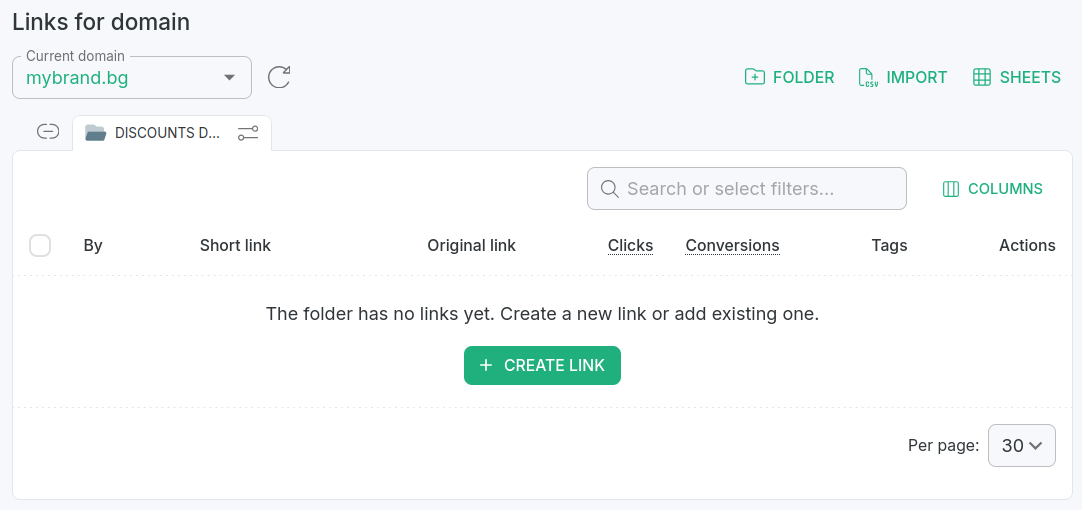
In the Dashboard navigate to the Branded links panel and click the folder where you want to add links:
-
Click Create link.
-
Proceed with the settings as usual.
After the link is successfully created, it appears in the folder.
Adding existing links to a folder
To add a link from the Edit menu
-
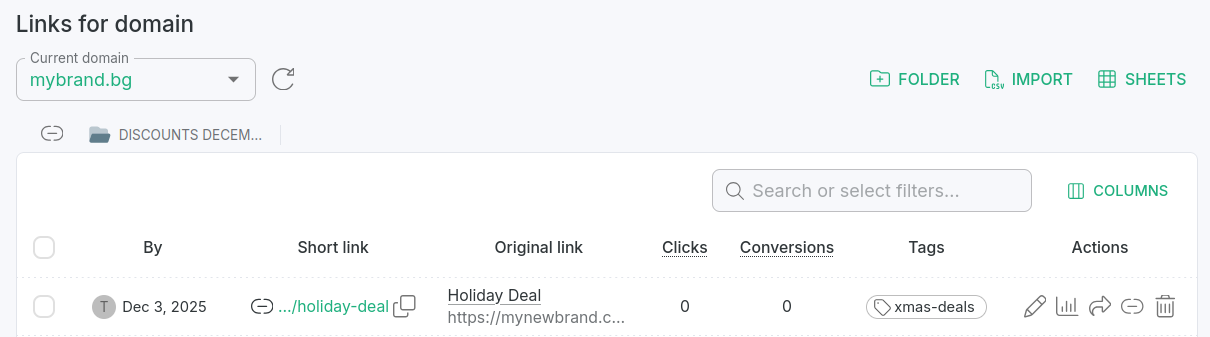
In the Branded links panel open a link for editing by clicking on :
-
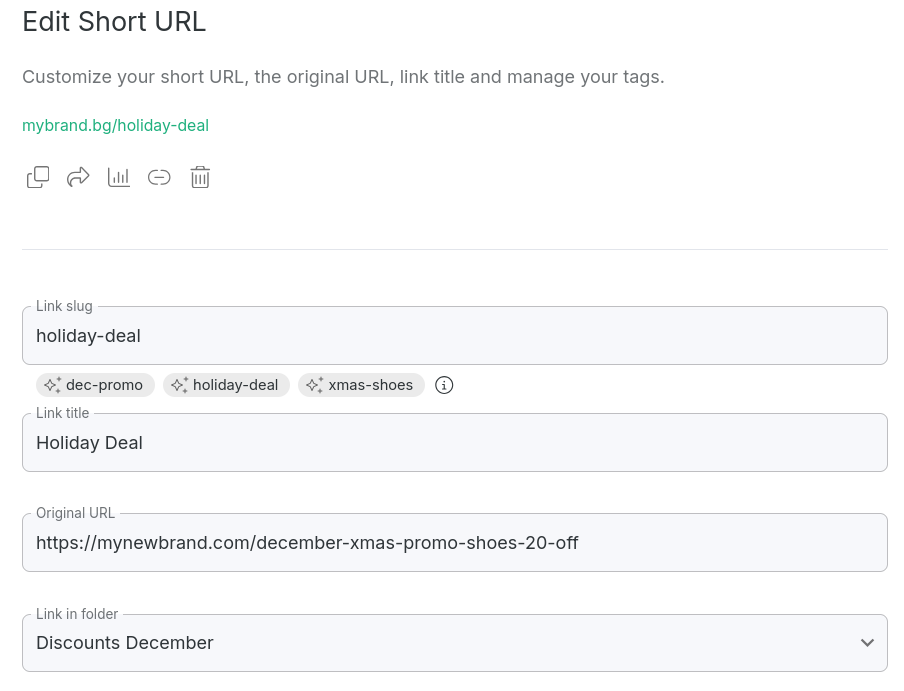
In the Basic link editing panel select the folder where you want to add the link - from the Link in folder drop-down menu:
-
Save.
-
Go back to the Branded links panel and select your folder:
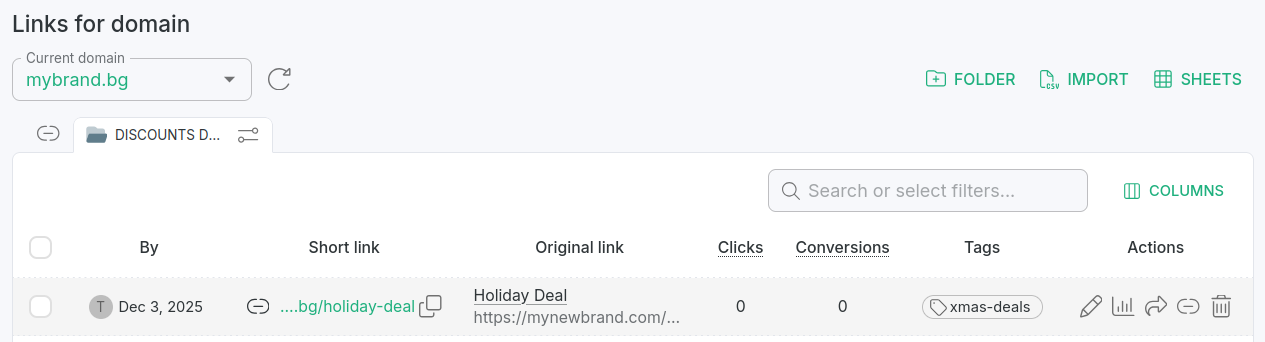
The link is added.
To add links from the Branded links panel
-
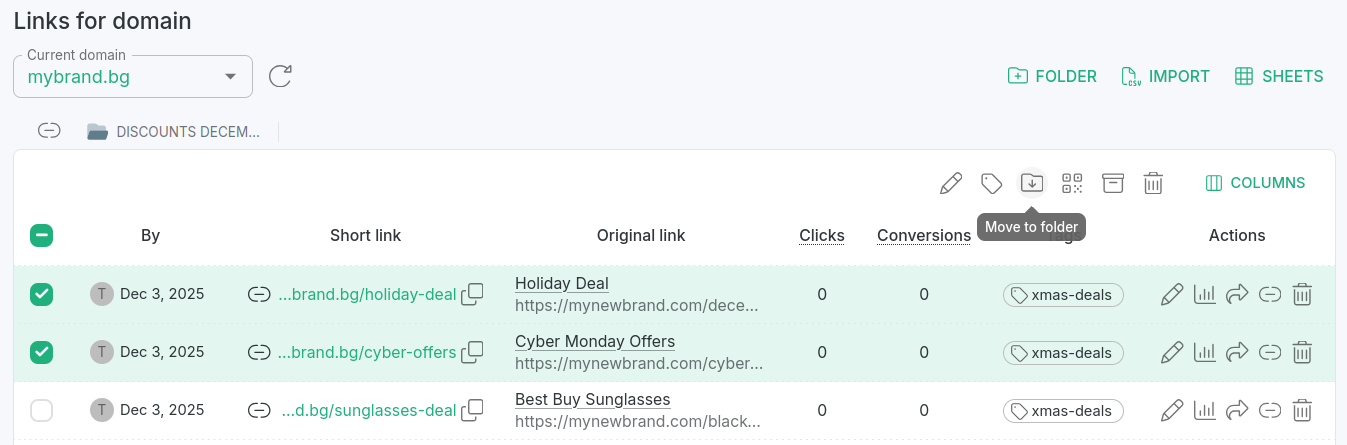
In the Branded links panel select the links which you want to add to a folder:
-
Click the icon Move to folder.
-
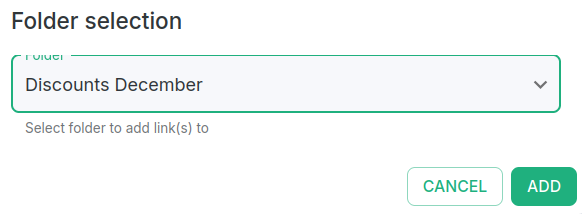
In the next dialog select a folder and click Add:
-
Go back to the Branded links panel and select your folder:
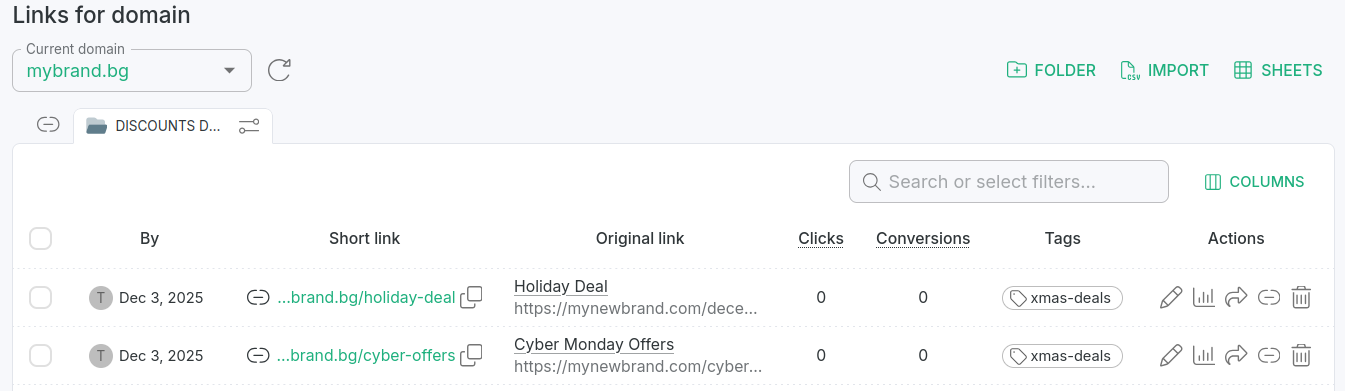
The links are added.