How to remove links from a folder
You can either remove one link from a folder using the Edit menu or remove multiple links at once from the Branded links panel.
Removing one link from a folder
-
Sign in to your Short.io account.
-
In the Dashboard navigate to the Branded links panel and select the folder from which you want to remove a link.
-
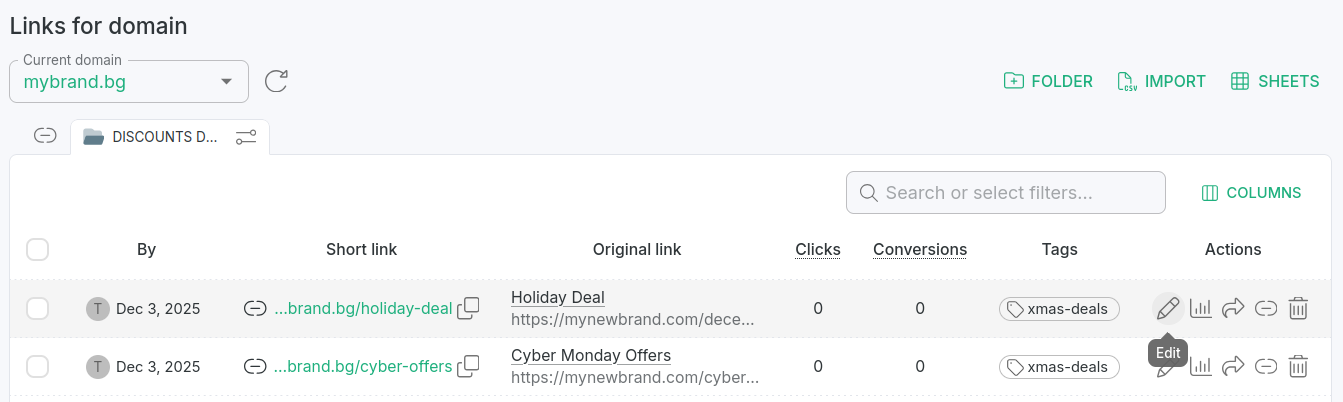
Click the icon next to a link name to open the Edit menu:
-
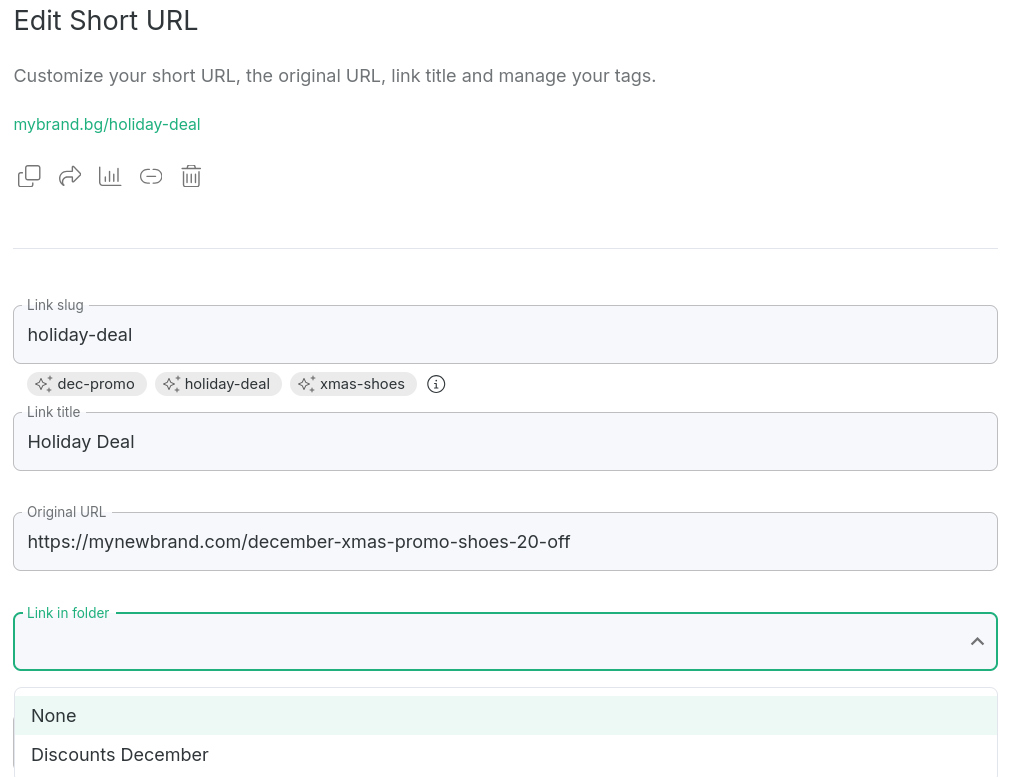
In the Basic link editing panel remove the folder to which the link belongs by selecting the option None:
-
Save.
The link is deleted only from the specific folder. It will not be removed from the branded links.
Removing links from the Branded links panel
-
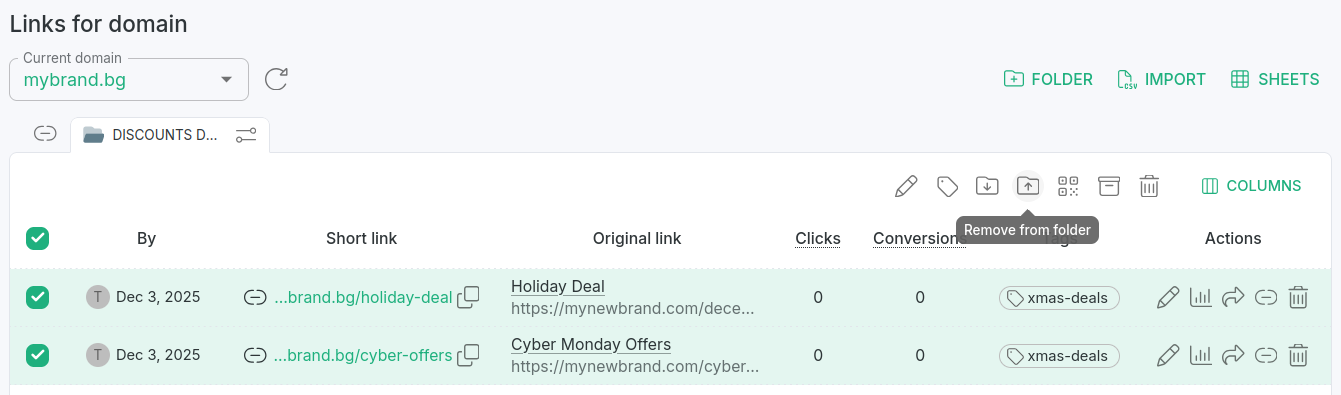
In the Branded links panel click on a folder and select the links which you want to remove from it:
-
Click the icon Remove from folder.
-
When prompted "Are you sure you want to remove <link-count> link(s) from folders?", confirm the action:
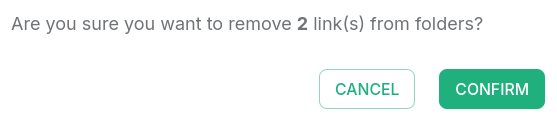
The links are deleted only from the specific folder. They will not be removed from the branded links.