How to change the QR code settings of a folder
For all the links in a folder you can change the predefined QR code settings by selecting error correction level, code colors, border radius, and add your custom logo.
You can also download the QR code in 3 different file formats - PNG, SVG and PDF, or copy the QR code image to your clipboard.
To change the QR code settings
-
Sign in to your Short.io account.
-
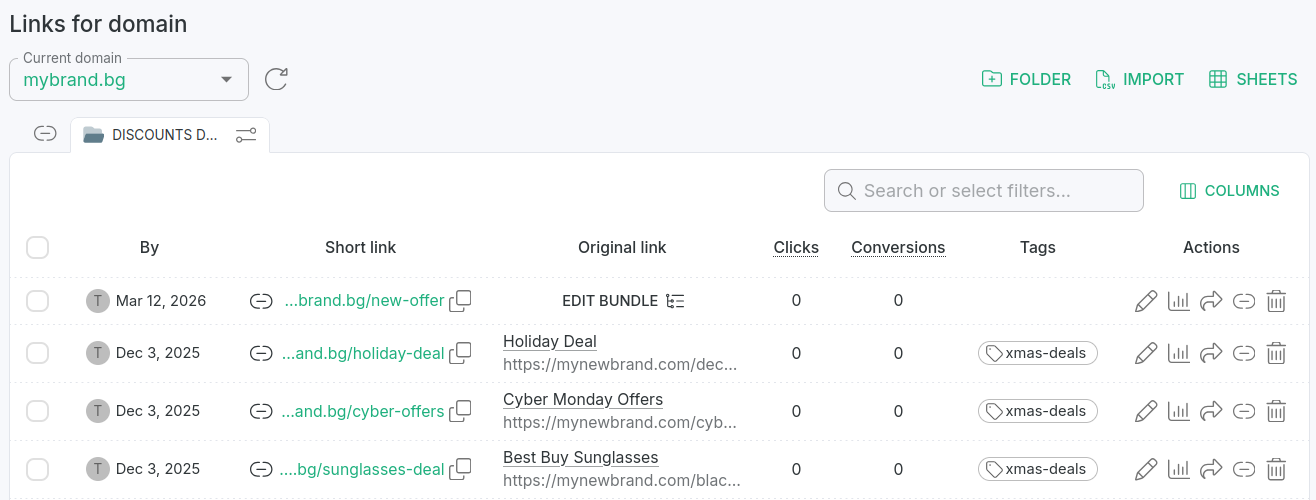
In the Dashboard navigate to the Branded links panel and click on a folder to open it for review:
-
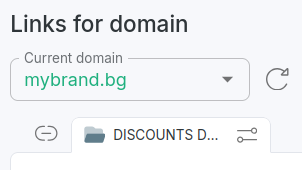
Click the icon which appears next to the folder's name:
-
Navigate to the QR code settings where you can:
-
download the QR code in the following file formats: PNG, SVG and PDF or copy the QR code image to your clipboard
-
change code colors (Foreground, Background and Finder)
-
set style attributes (Border radius, Finder pattern, Dot merge mode)
-
customize logo (add picture, set size and adjust border)
-
add label (Label style, Label font family, Label text color, Label background color, Label font size)
-
set Error correction level
For example:
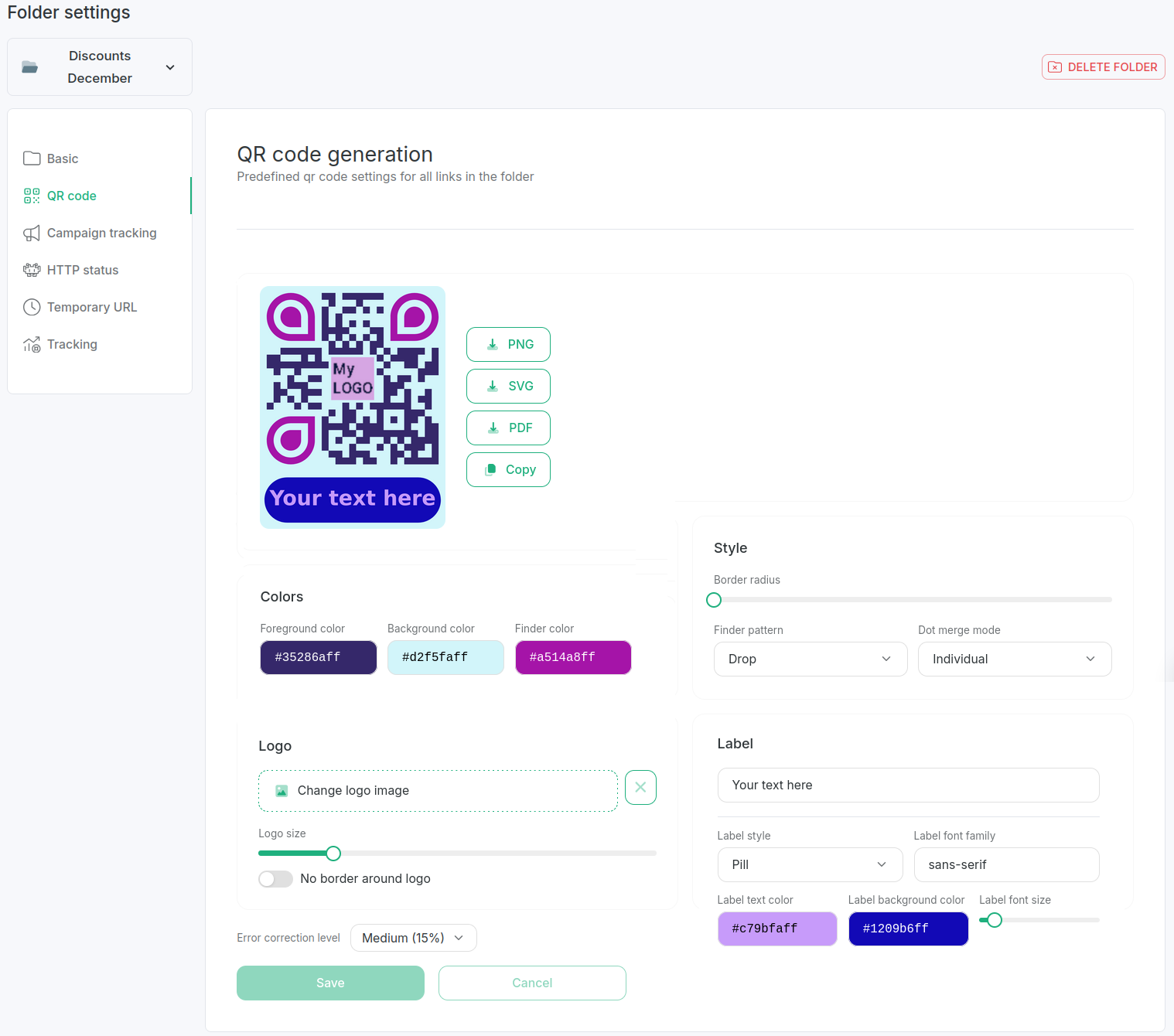
If you want to remove the logo from the QR code, click on the X button next to the Change logo image button:

-
-
Click Save to confirm the changes.
Hereafter, links created within this folder will have the specified settings applied automatically.