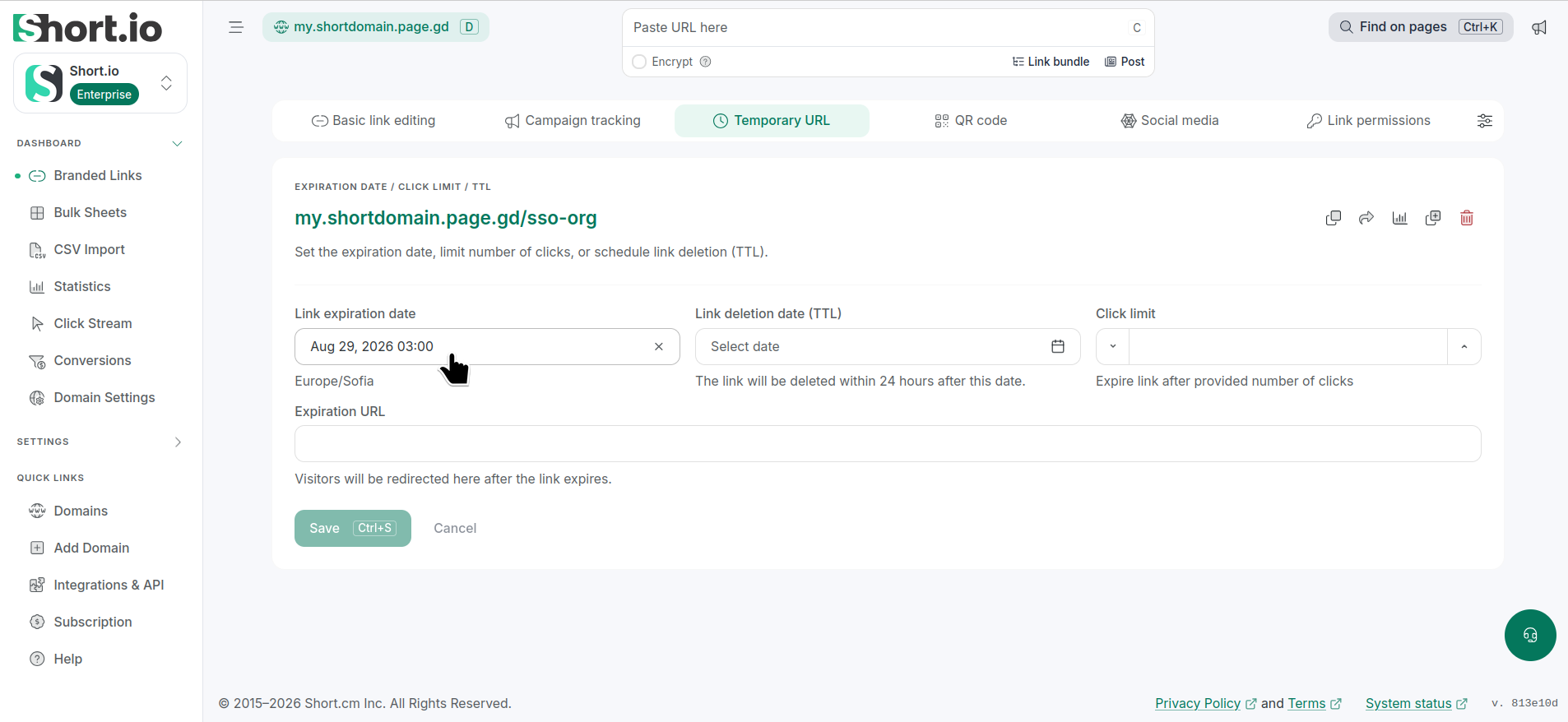
How to set link expiration in bulk
The Bulk link expiration functionality allows you to specify an expiration date that will be automatically applied to a group of links when they are shortened or when edited.
Note
This feature is available starting from the Pro plan.
Setting link expiration in bulk
-
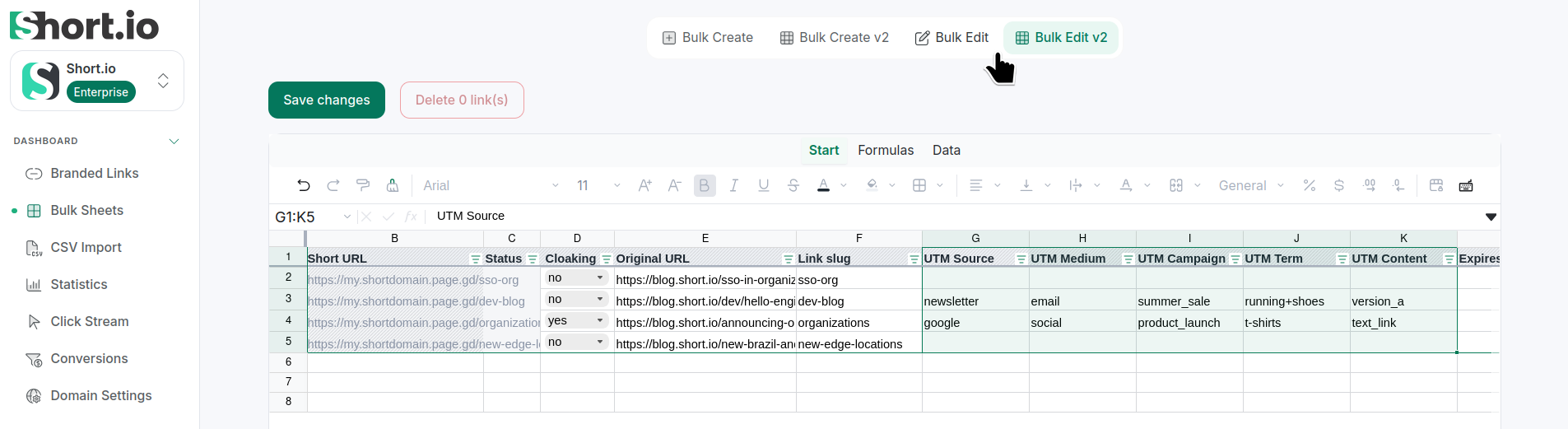
From the Short.io's left panel navigate to Bulk Sheets:
-
If you already have short links - select Bulk Edit (Google Sheets) or Bulk Edit V2 (Sheets V2). Otherwise, shorten some links in bulk.
-
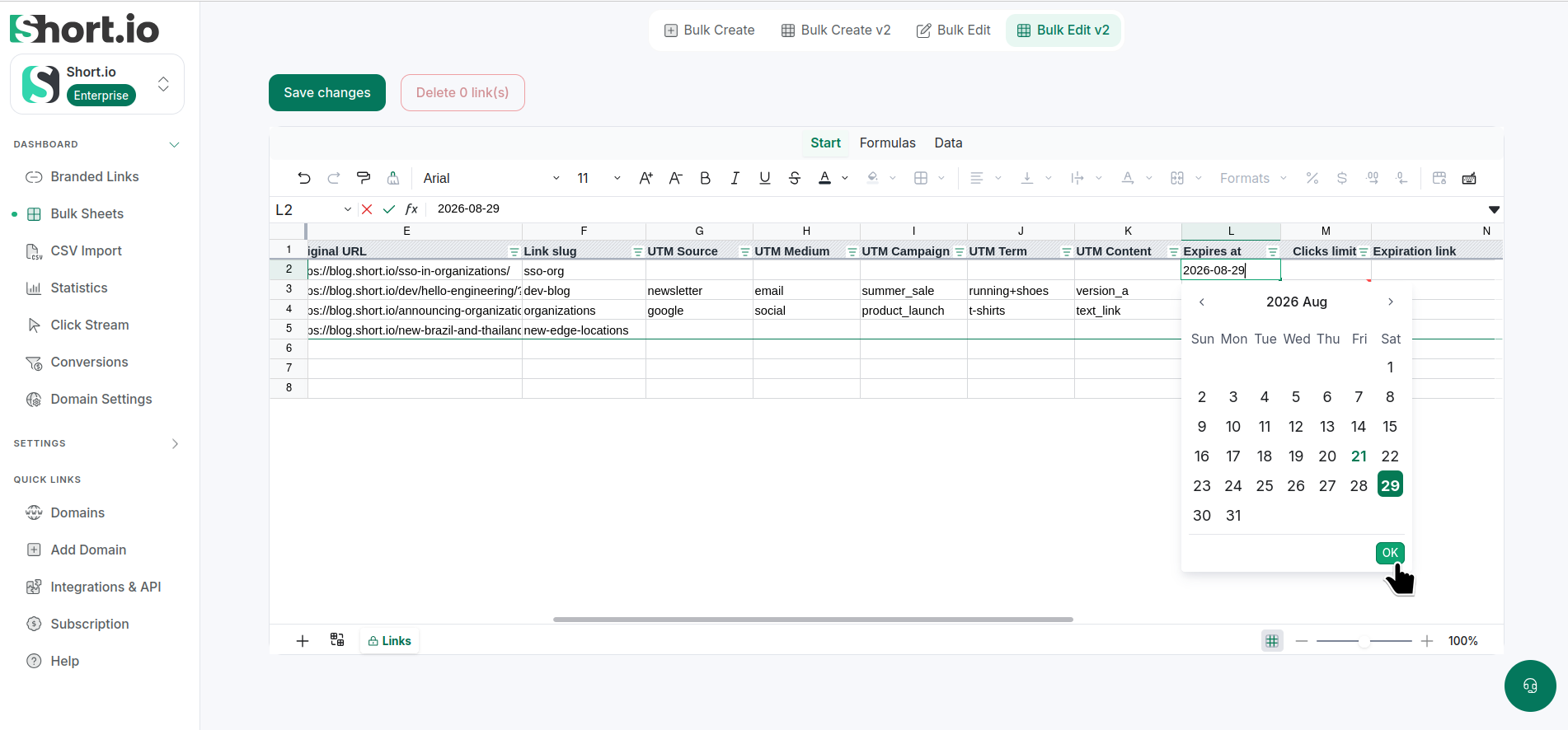
Scroll right to view the Expires at column and double-click inside one of its cells to display the calendar:
-
Select an expiration date. (You can then copy it to other short link rows.)
-
Save.
To review an expiration date, from the Branded links open a link for editing and navigate to Temporary URL tab: