How to edit links in bulk
Short.io supports bulk link editing both with and without Sheets.
Editing links in bulk using Sheets
We offer two bulk sheet options:
-
Google Sheets
Important noteWhen multiple team members use Google Sheets at the same time, it can lead to data synchronization issues and cause links in the spreadsheets to be accidentally deleted or overwritten. Clicking Refresh prior to entering any data, could assist in lowering the associated risks. However, this method does not completely guarantee the absence of issues.
-
Sheets V2 - a lightweight yet functional Sheets implementation, if you prefer not to use Google Sheets
The following steps will guide you in editing links using sheets:
-
From the Short.io's left panel navigate to Bulk Sheets:
-
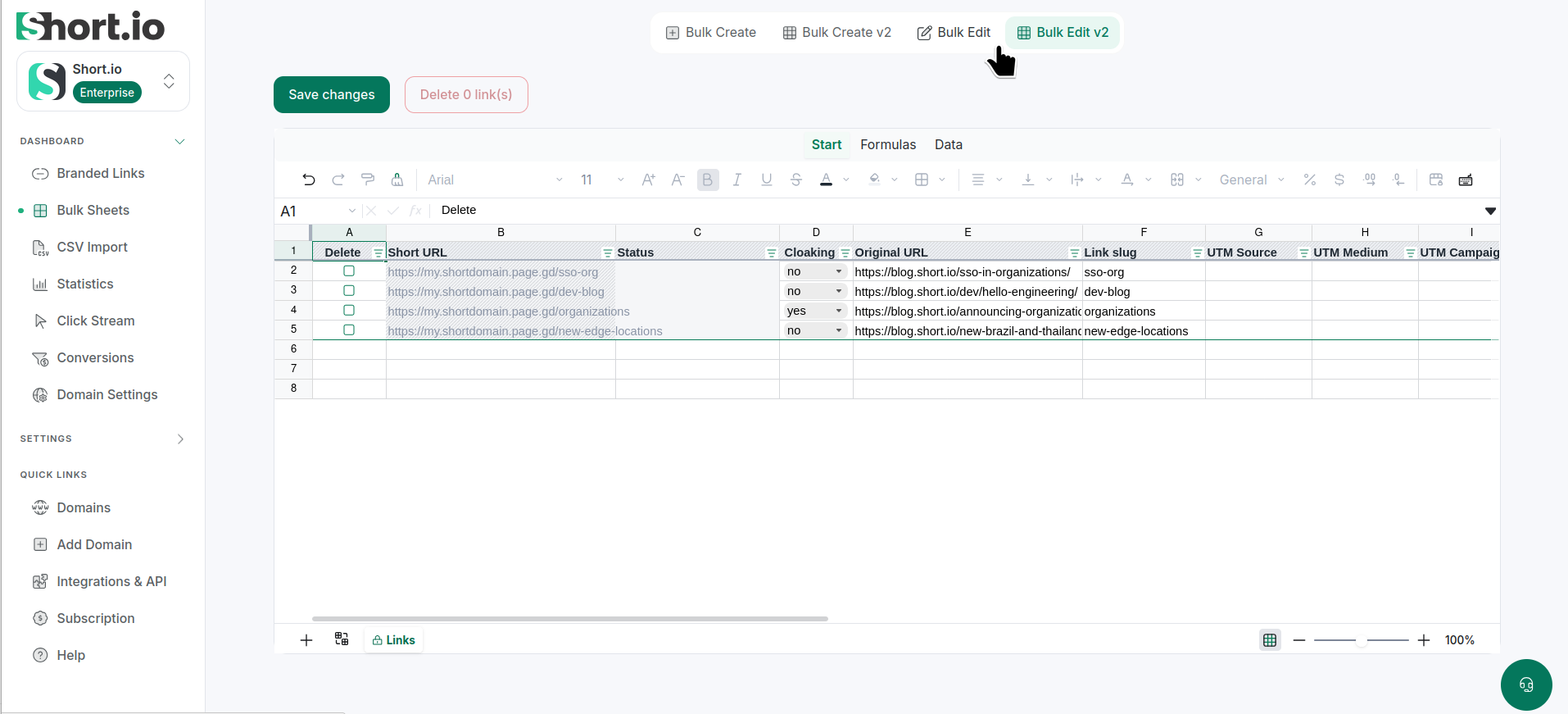
Select a sheet option - Bulk Edit (Google sheets) or Bulk Edit V2 (simple sheets):
-
We may ask you for permission to manage Google sheets - please Grant access.
-
Modify the needed information.
Tips- If you want to add more than one Tag, separate them with commas
- You cannot edit the following columns: Short URL, Status and ID
-
Save the changes.
The process can take a few minutes. You may then review the updated settings from Dashboard in the Branded links section.
Editing links in bulk from Branded links menu
Changing a single setting for selected links
-
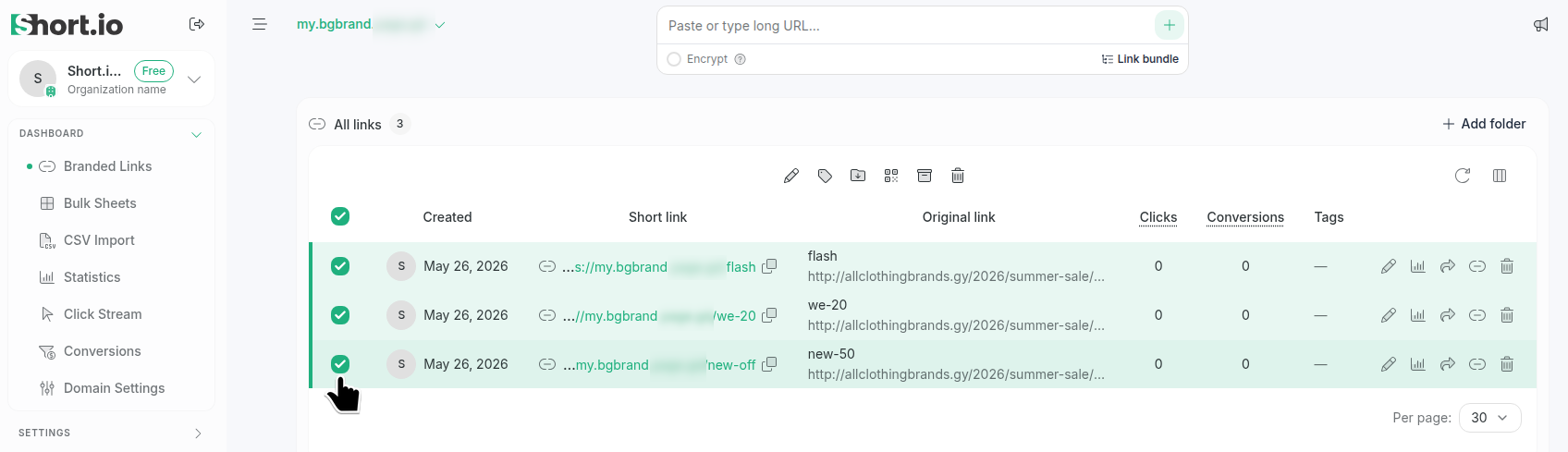
In the Dashboard navigate to Branded links:
-
Select the links which you want to edit.
-
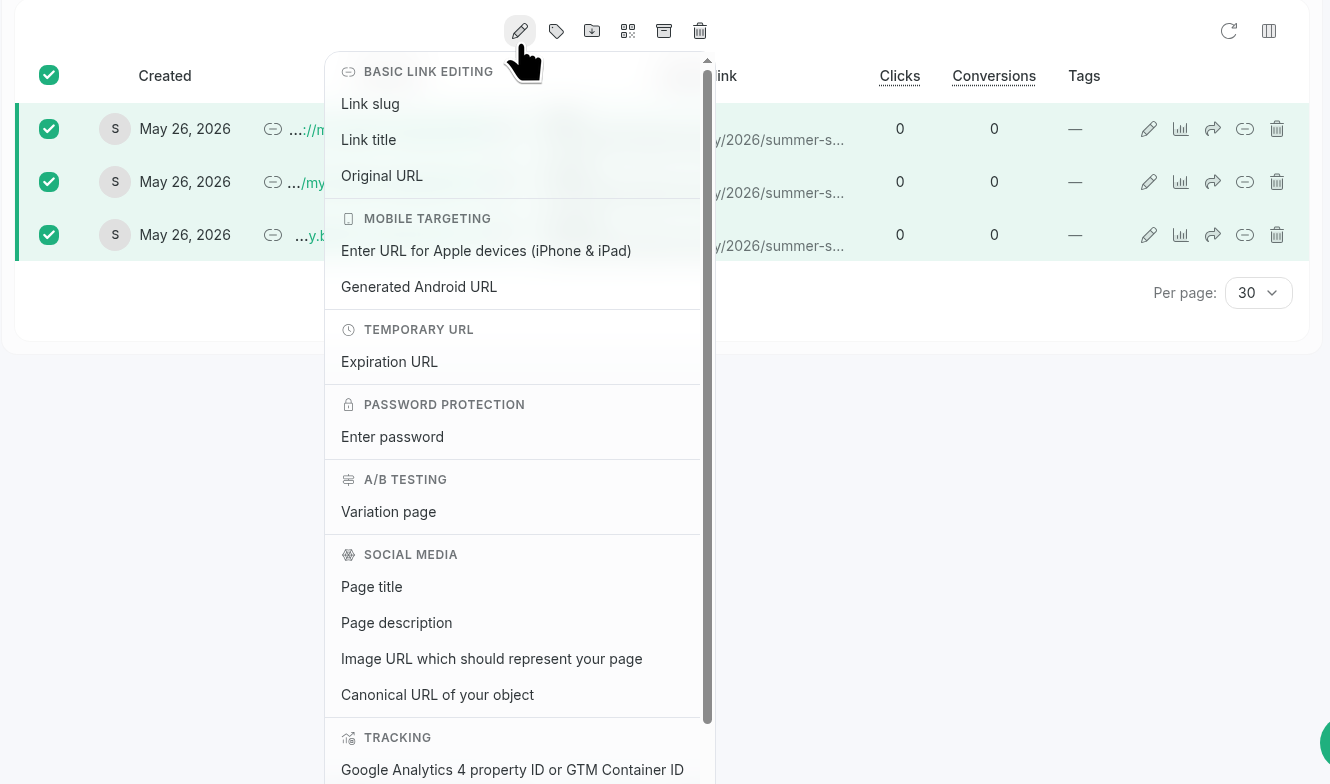
Click to expand the edit menu:
-
Select an option from the list, for example: Expiration URL.
-
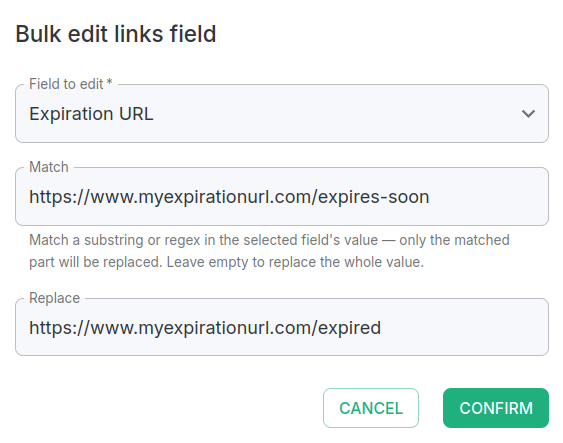
In the next dialog, provide the required information:
-
Confirm.
The new settings will be applied to the respective field.
Updating all domain links at once
You can update all links within the selected domain with new values for the following fields:
-
Link slug
-
Link title
-
Original URL
-
Mobile targeting - URL for Apple devices
-
Mobile targeting - URL for Android devices
The updates can be applied to only one field of the above at a time.
To update all links:
-
In the Dashboard navigate to Branded links:
-
Select a link.
-
Click to expand the edit menu:
-
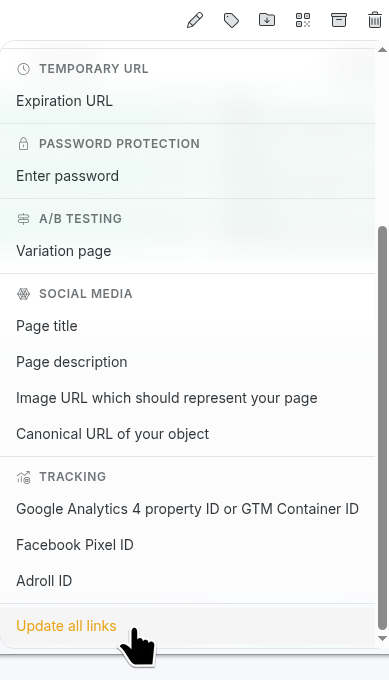
Select the option Update all links:
-
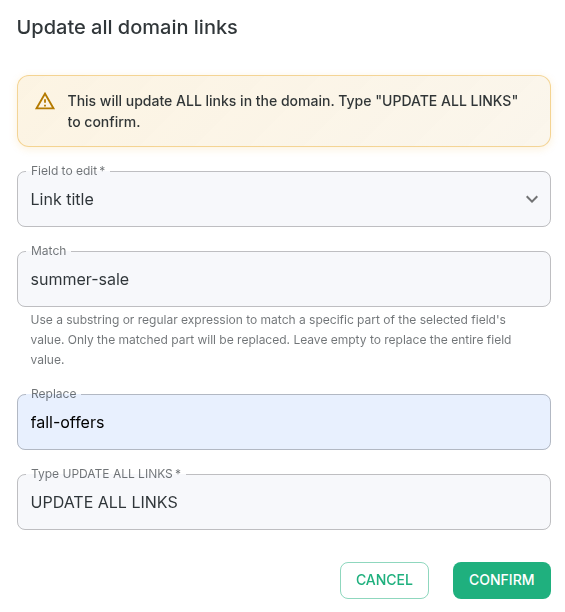
In the next dialog:
-
select the field for which you want to change the values
-
in the Match field enter the current value
-
in the Replace field enter the new value
-
type UPDATE ALL LINKS to confirm
-
-
Click Confirm.
All the links which match your criteria will be updated with the provided value.