How to connect my SiteGround subdomain with Short.io
It is not necessary to register a new domain name for shortening links if you own one that works properly. Create a subdomain using a domain you already have.
Before using SiteGround for a subdomain, enable the service for your main domain.
When your main domain is active in SiteGround, add a subdomain.
SiteGround configurations
-
Sign in to your SiteGround account.
-
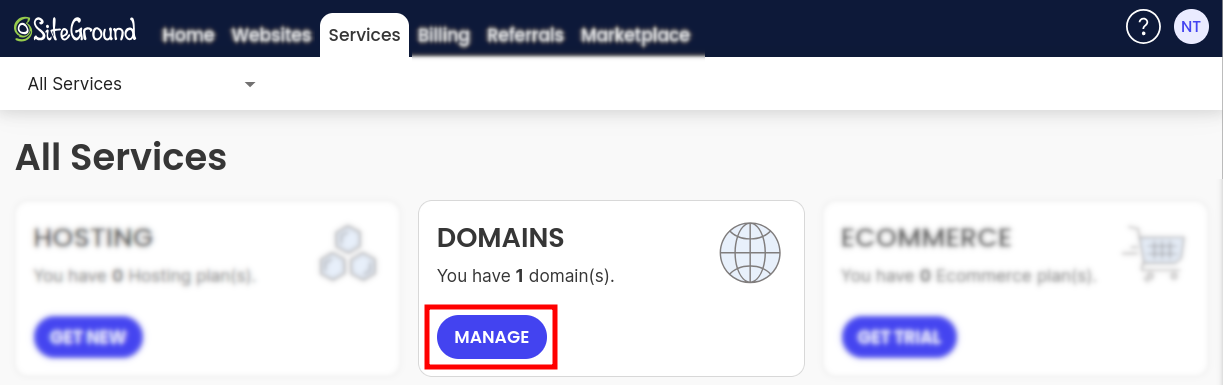
From the Dashboard navigate to Services:
-
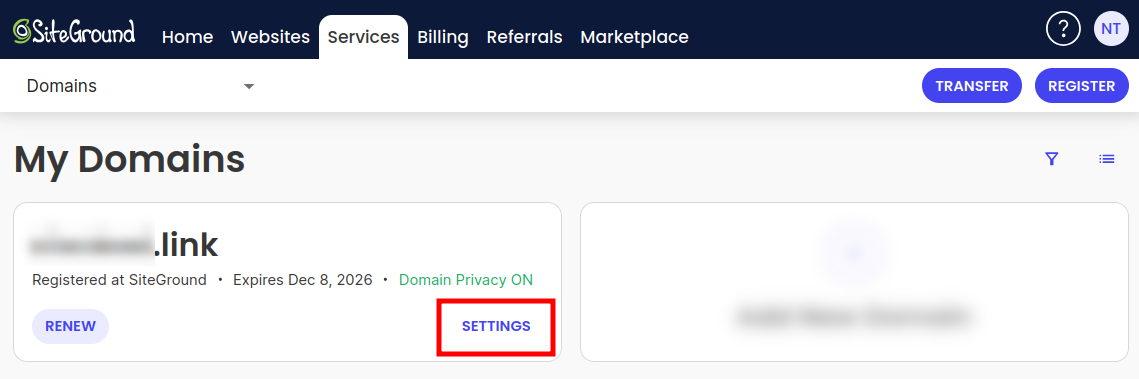
Find the Domains section and click on Manage. Your domains are displayed:
-
Click on Settings for the domain you want to configure.
-
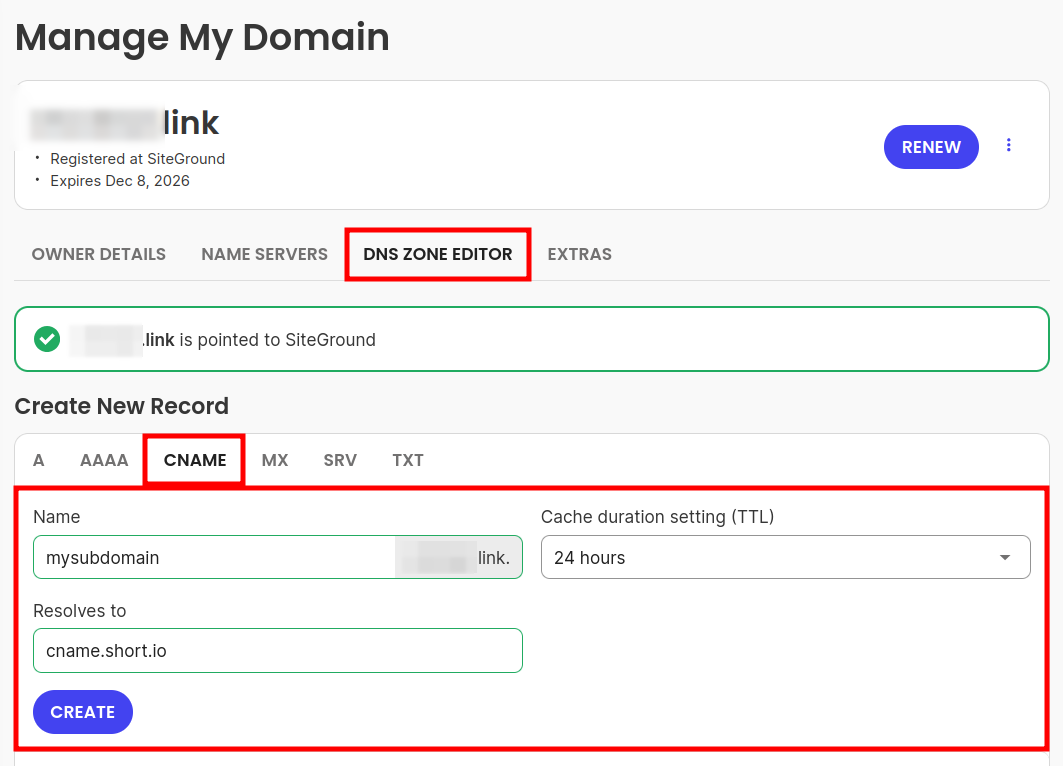
In the next screen navigate to DNS Zone Editor:
-
In the Create New Record section:
-
select CNAME as record type
-
provide a name, in the example - mysubdomain
-
enter cname.short.io in Resolves to
-
select cache duration period (TTL)
-
-
Click on Create.
The record is added.
Short.io configurations
-
Sign in to your Short.io account.
-
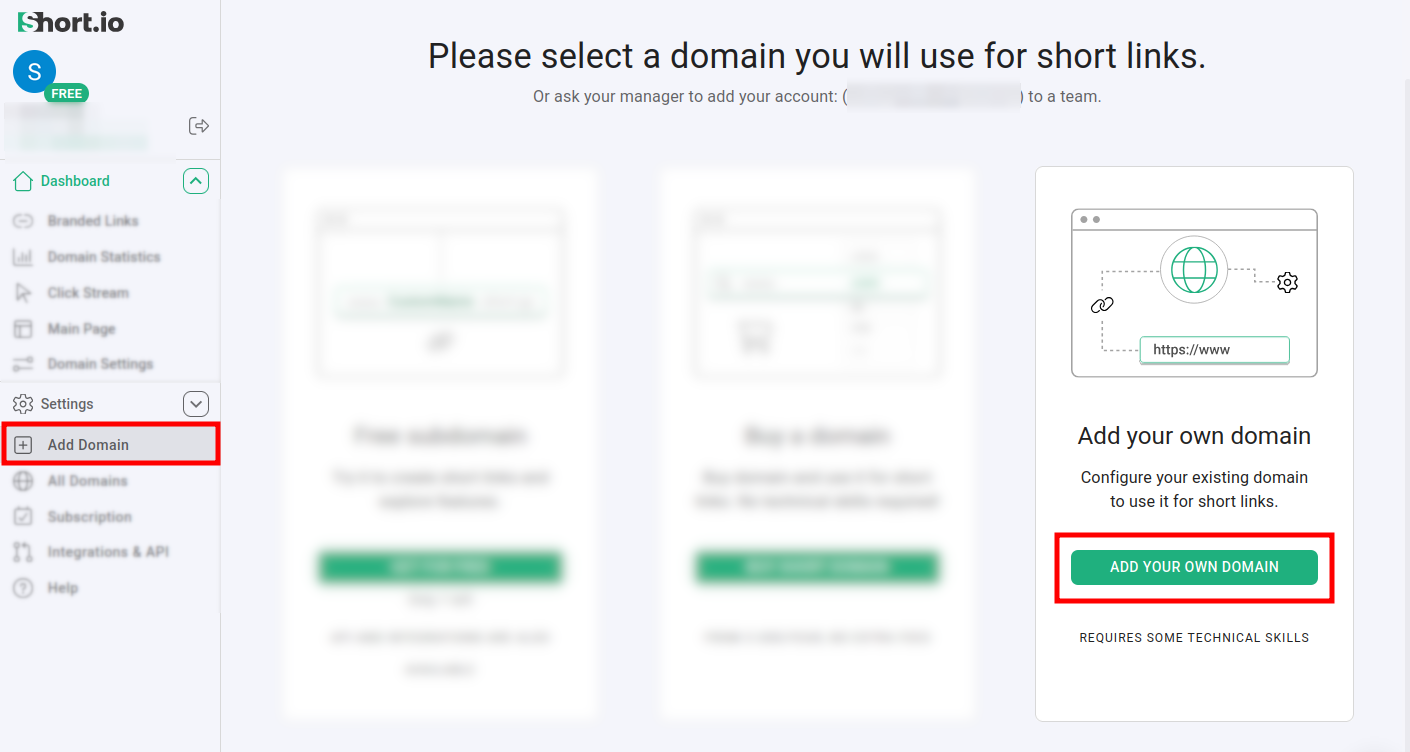
Click on Add domain and then on Add own domain:
-
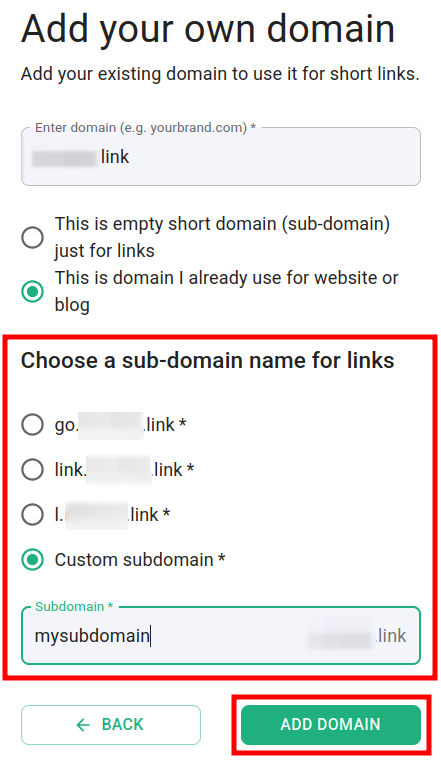
Enter your domain name and click on This domain I already use for website or blog:
-
Select an option according to your subdomain name and click on Add domain.
-
Open the Domain settings and check if the domain is in status Active:
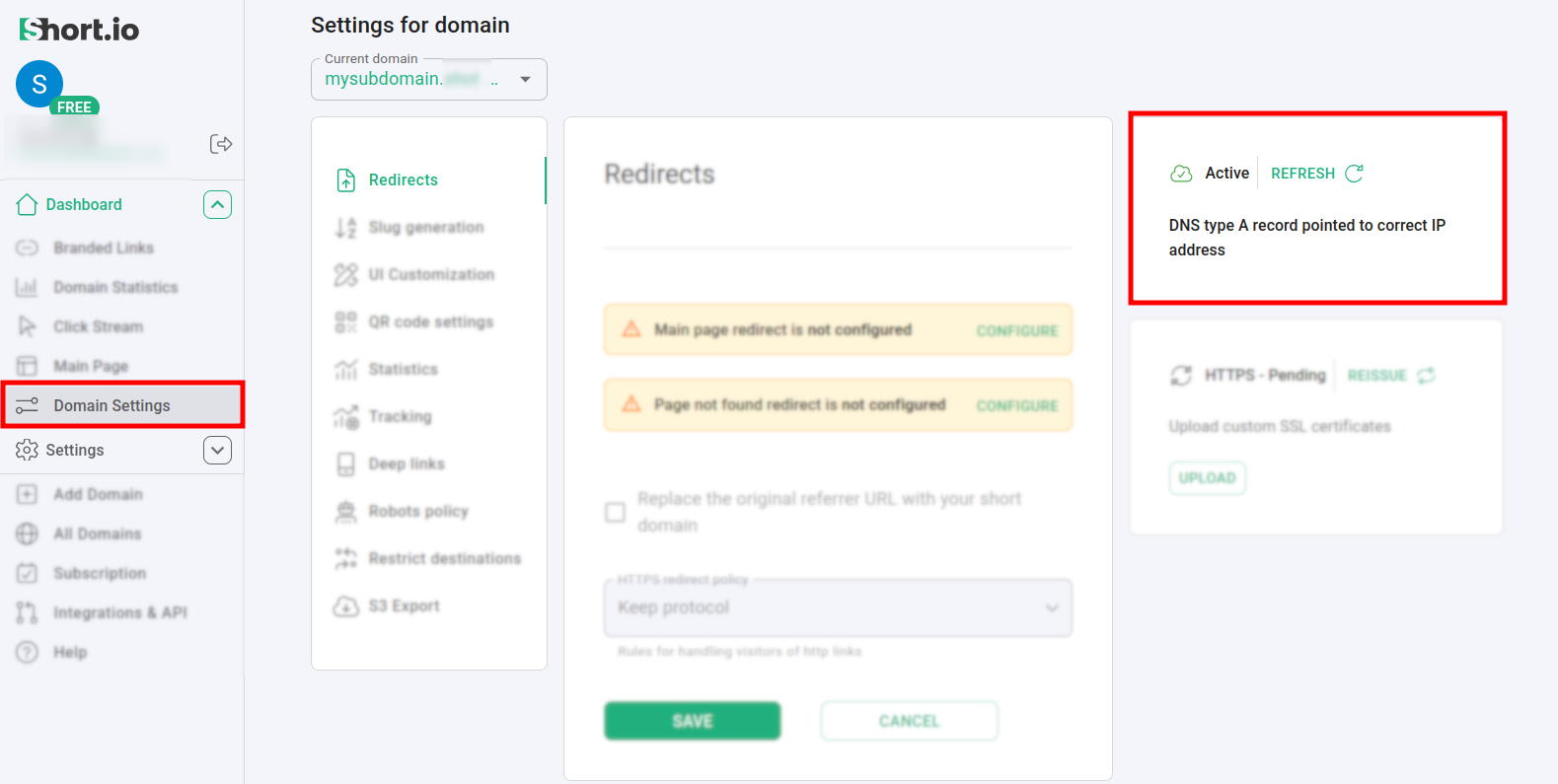
If the domain is Inactive then wait for a few hours and click on Refresh to check if the status has changed.
You will receive an email from the Short.io team informing you that the domain is now configured. Feel free to shorten your links and enjoy Short.io.