How to integrate Short.io with Zapier webhook
Webhooks are data and executable commands sent from one app to another over HTTP instead of through the command line in your computer, formatted in XML, JSON, or form-encoded serialization.
Webhooks are activated in response to particular actions taking place, for example, when a customer clicks on a shortened link.
The Webhooks by Zapier app requires Paid plan.
Follow the guide below to set up integration of Zapier Webhook and Short.io.
Zapier configuration
-
Sign in to your Zapier account.
-
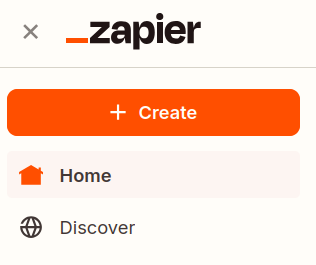
From the left panel, create a new zap by clicking on + Create and then on Zaps:

-
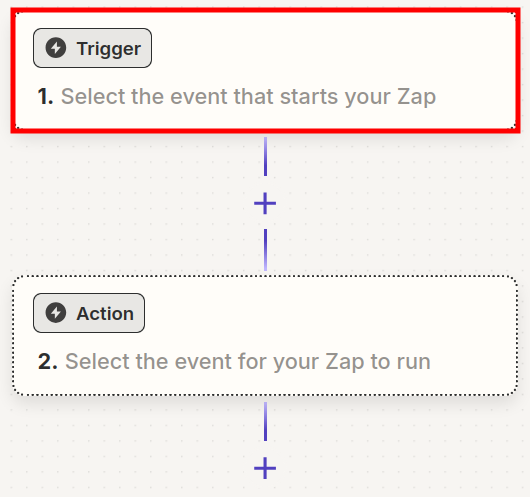
In the Zapier draft click on the Trigger:
-
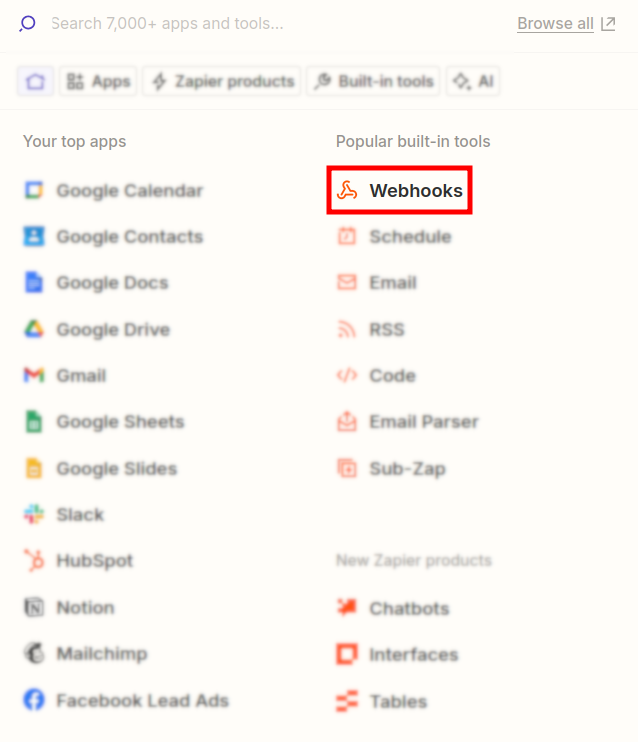
In the next screen select Webhooks:
-
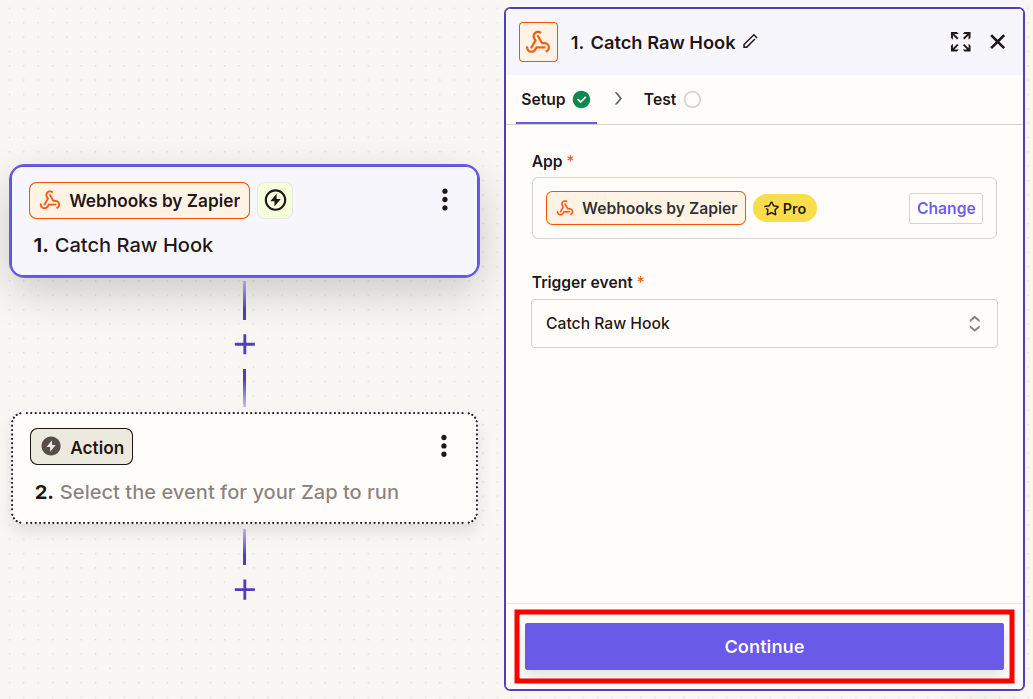
Click in the Trigger event field and then select Catch Raw Hook:

-
Click on Continue:
-
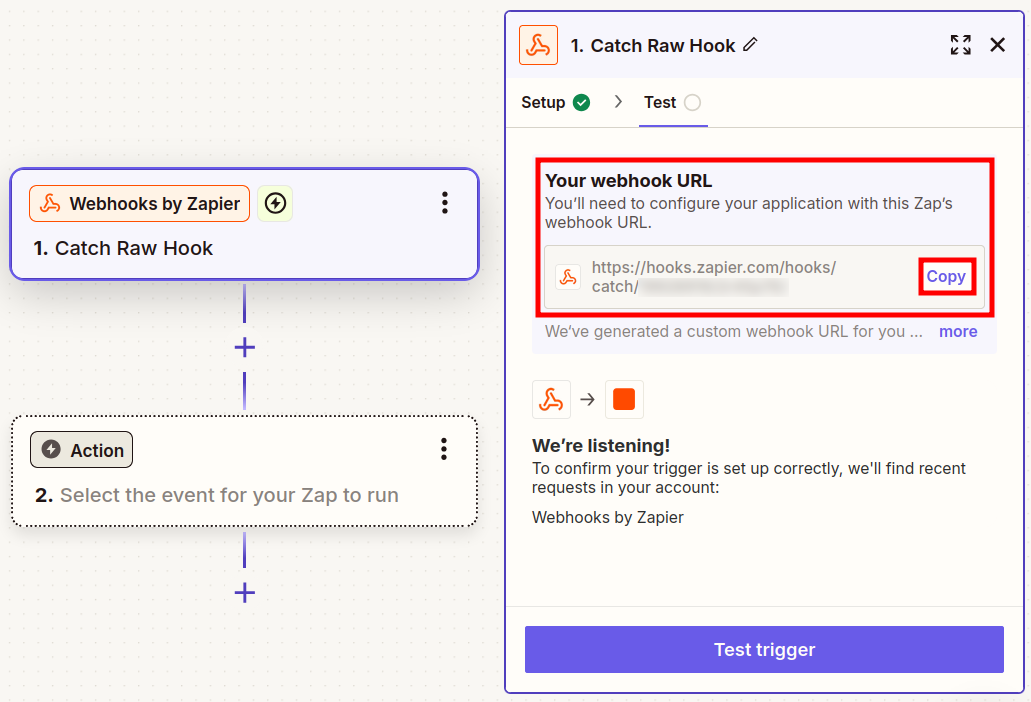
In the next screen copy the webhook URL which Zapier has created for you:
Short.io configuration
-
Sign in to your Short.io account.
-
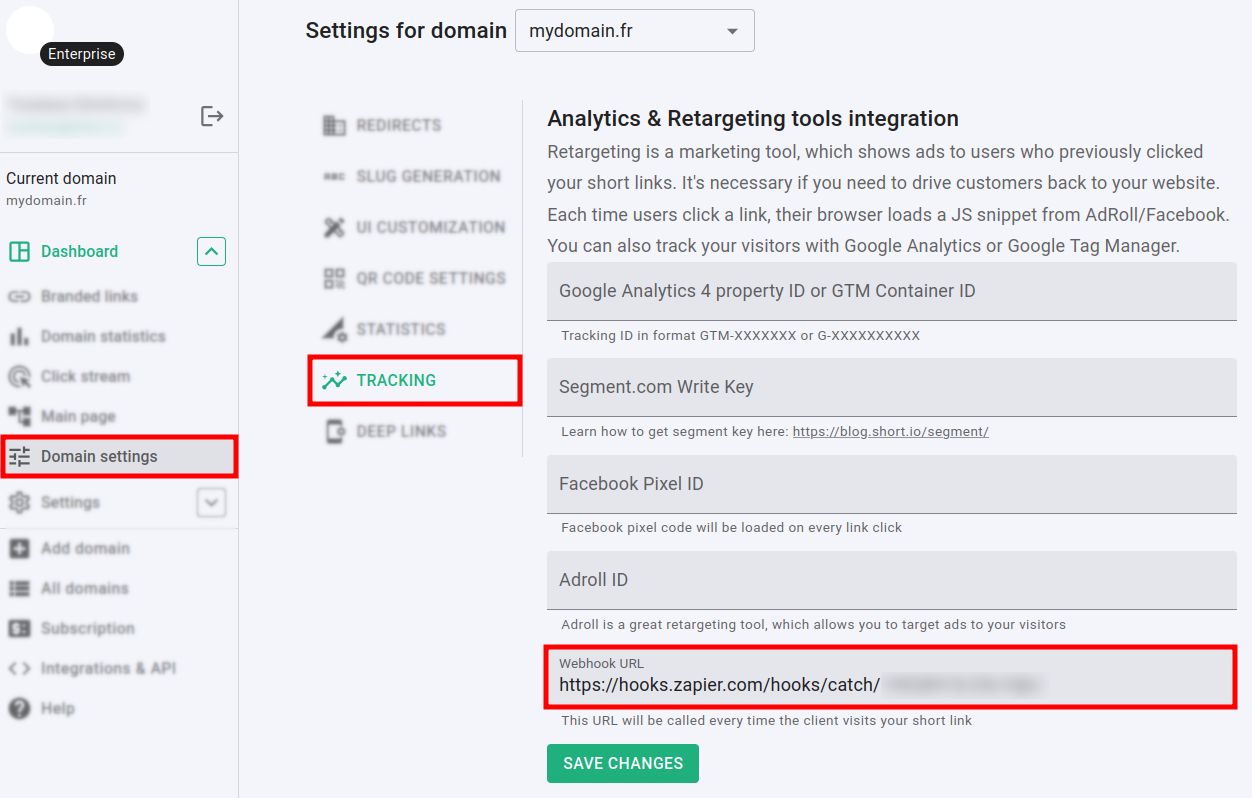
Navigate to the Domain settings menu and click on Tracking:
-
In the Webhook URL field paste the copied Zapier URL.
-
Click on Save changes to confirm.
To test your zap
-
Browse or click on one of the links which you have shortened and which belongs to the above domain.
-
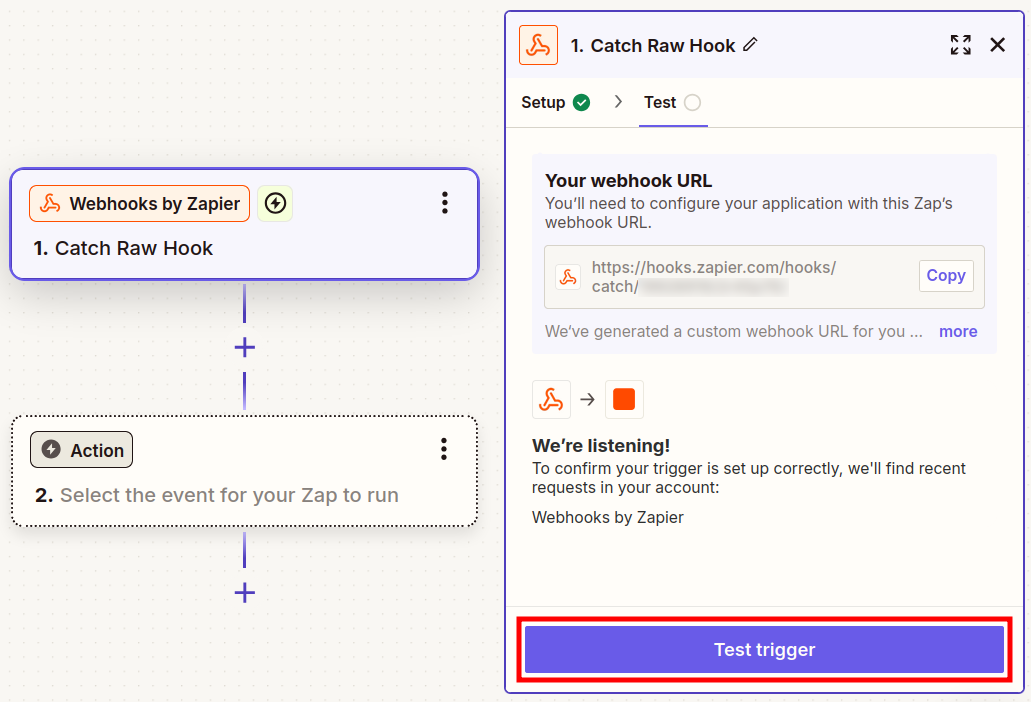
Immediately after that, from the webhook screen in Zapier click on Test trigger:
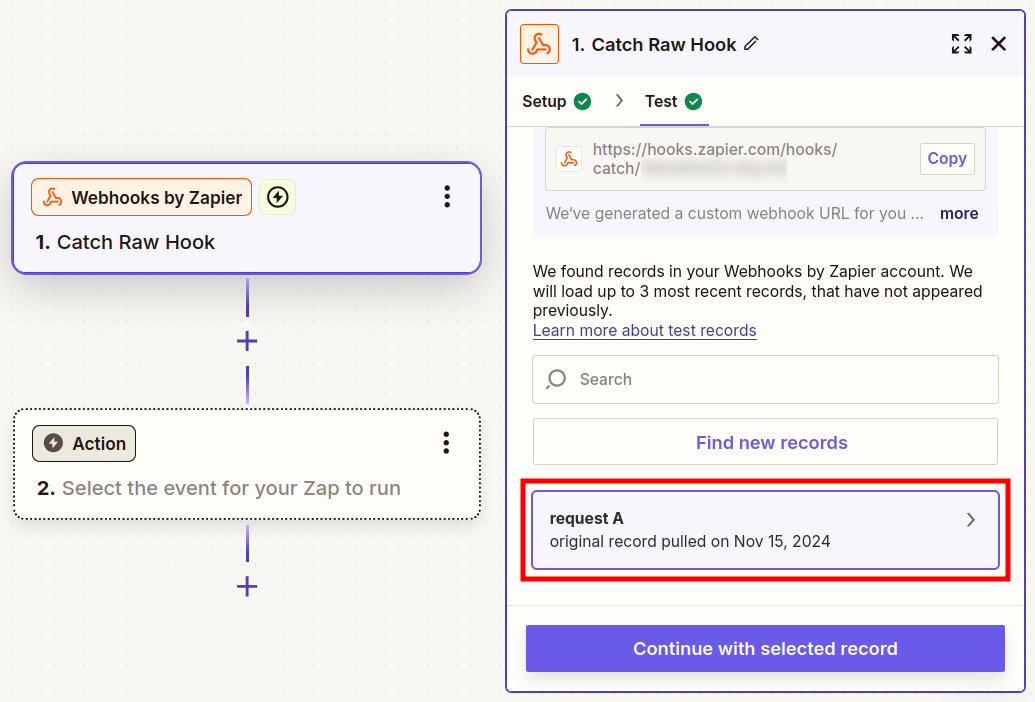
Zapier should display the record of your request, thereby confirming the successful completion of the test:
In case Zapier is not able to find a record, please wait a couple of minutes until domain cache refreshes and changes apply. Then trigger the test again.
Upon successful completion of the test, you can click on Continue with selected record
to proceed with setting up the Action that follows.
After you finish with all the Zapier configurations, make sure you publish the zap.