How to integrate Short.io with Wordpress
WordPress is a service for launching a personal website or a blog. To promote it, you'll need extra tools. One of them is Zapier.
WordPress & Short.io Zap helps to create short links for new blog articles. When a new article is published, a new short branded link appears in short URL list automatically.
This tool is helpful for saving time. Instead of copy-pasting, you immediately have a link shortened. After that, share links on social networks straight from Short.io dashboard.
Follow the instruction to configure WordPress & Short.io Zap.
1. Go to Zapier.
2. Choose Make a Zap.

3. Search for WordPress and click its icon.

4. Choose "New Post" and continue.
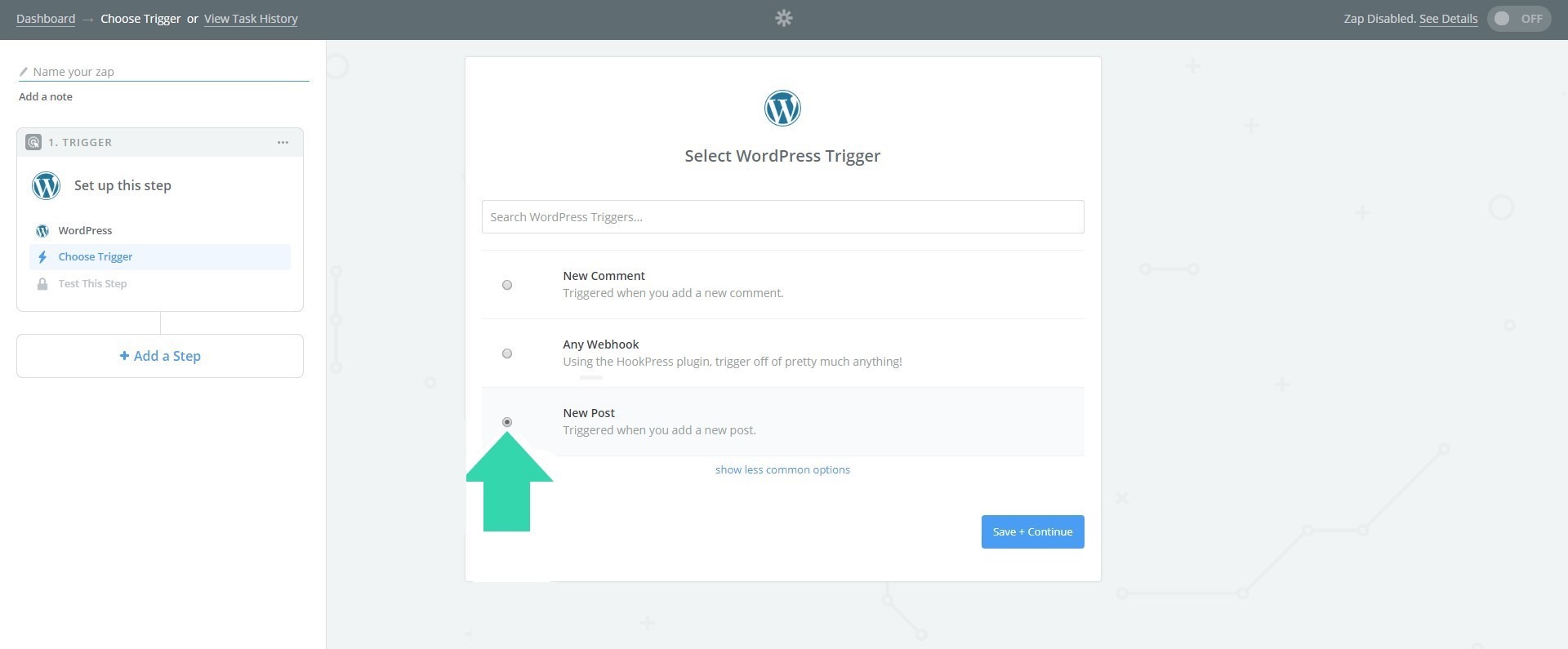
5. Connect your WordPress account by specifying your WordPress website URL, email and password.

6. When your account is on, continue.

7. Fill in the necessary fields. Continue.

8. Pick a sample of the article to test.
9. Now you need to add an action. Search for Short.io and click its icon.

10. Choose the action and continue.
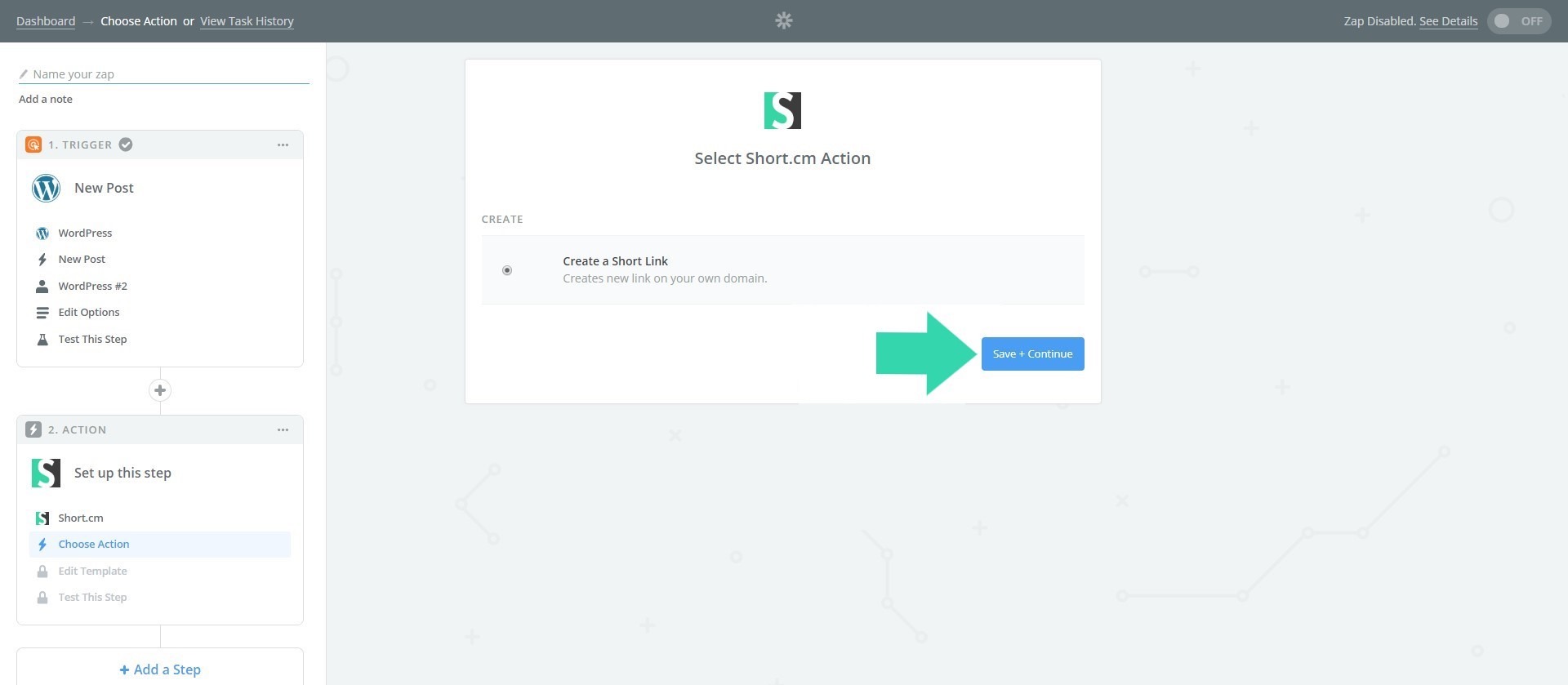
11. If you configure this Zap for the first time, you need to connect Short.io account.

12. Go to your Short.io account or https://app.short.io/settings/integrations/api-key
13. Open User Menu.
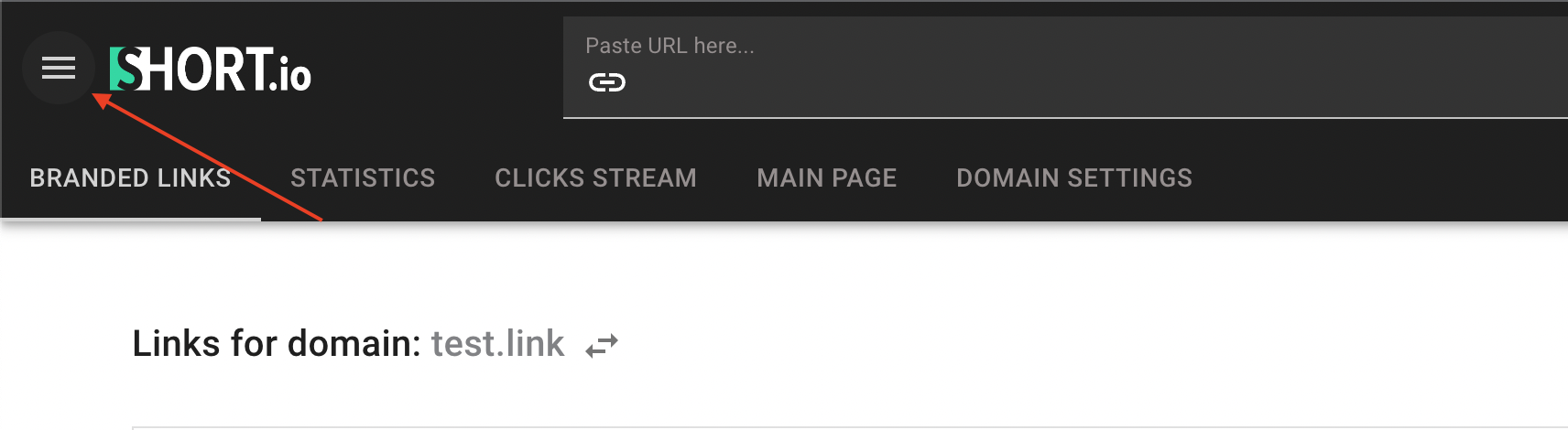
14. Choose the "Integrations & API" tab.

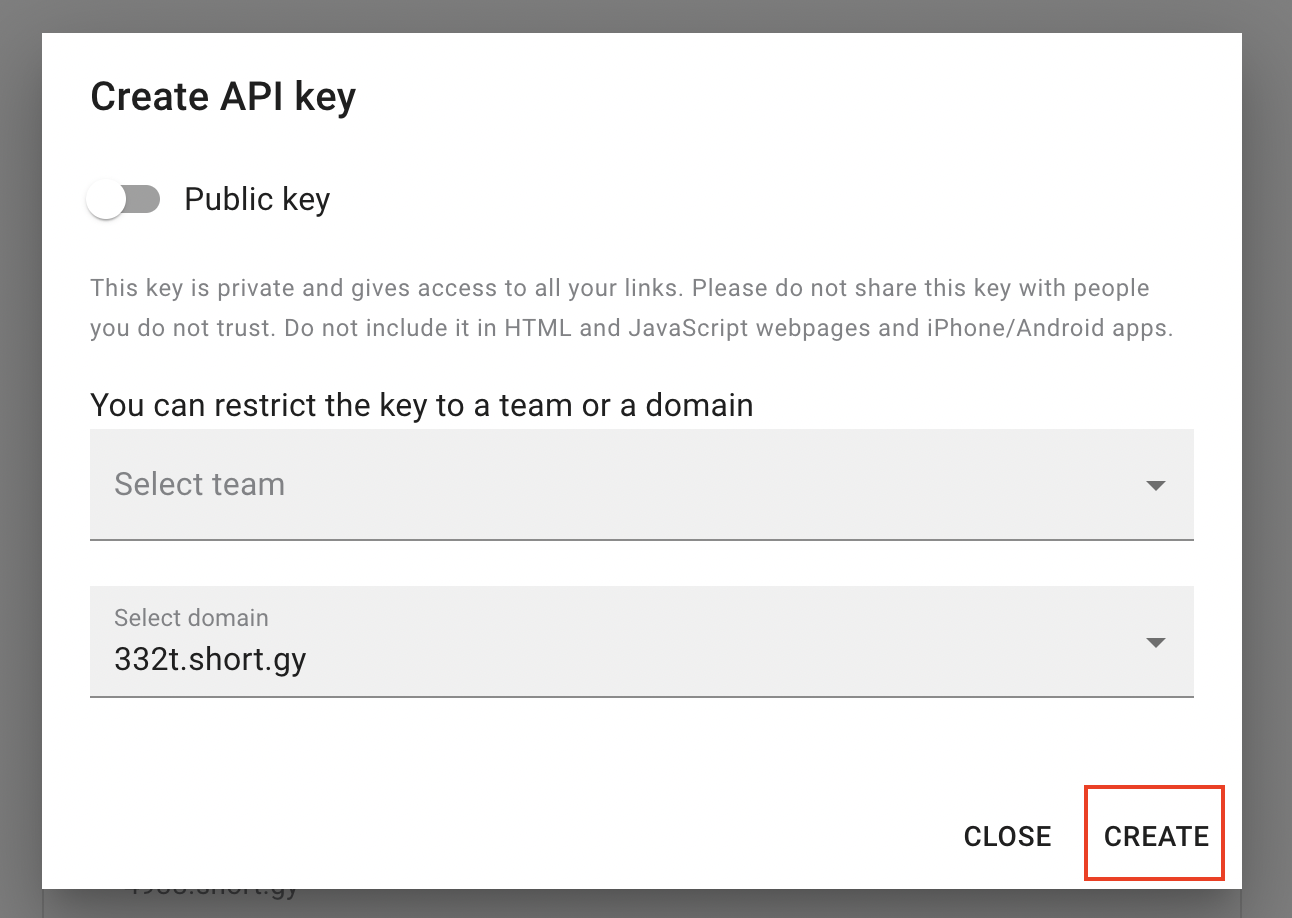
15. Click Create API key.
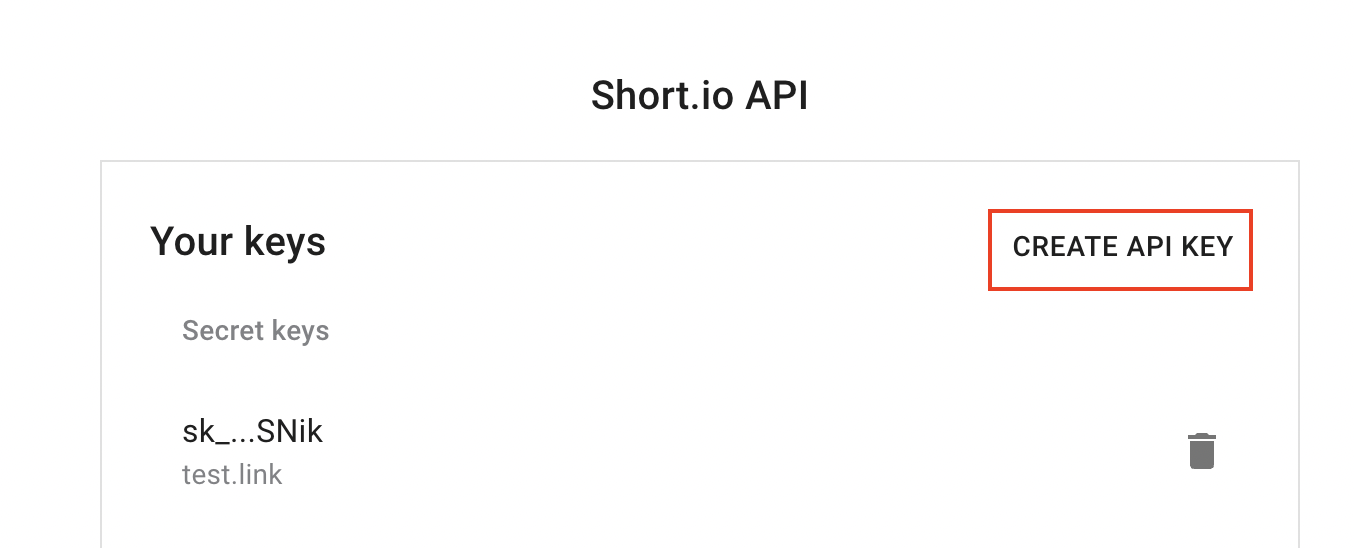
Choose the domain or team, and click Create.
Copy your Secret API key by clicking the marked icon.
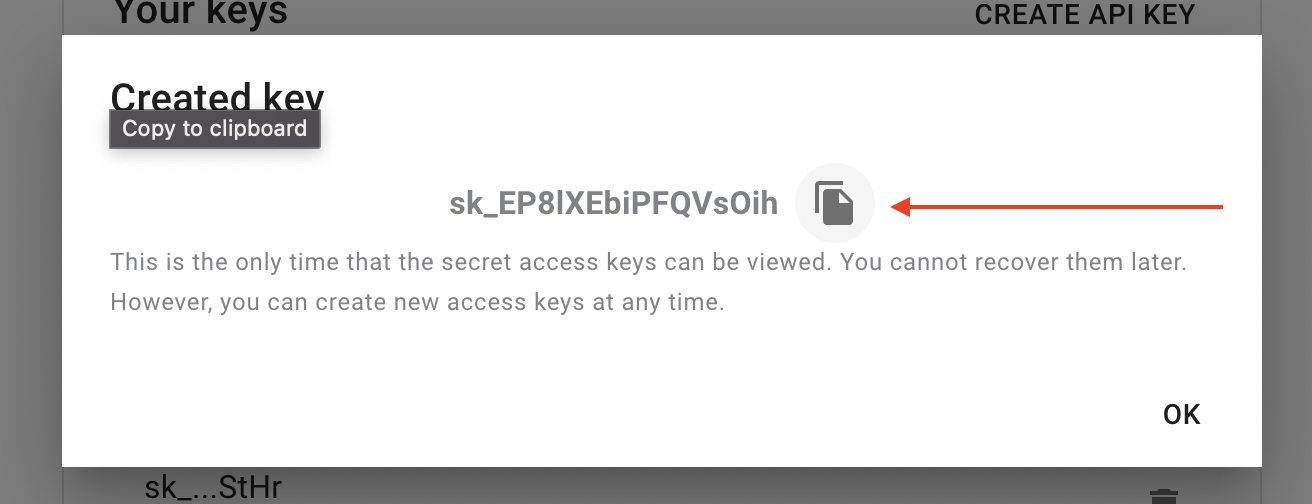
16. Paste API key to connect Short.io account. Continue.

17. When account is on, continue.
18. Fill in necessary fields to send a short link. Continue.

19. Send a test to make sure you've made a correct setup.
Please do not forget to turn on your Zap.