How to configure Short.io SSO via Salesforce
Short.io supports Single Sign-On (SSO) integration with Salesforce.
SSO is available on the Enterprise Plan.
Before you begin
You need to create a Team in Short.io before setting up SSO. Follow the instructions in this article.
How to configure SSO with Salesforce
Salesforce settings
-
Sign in to your Salesforce account.
-
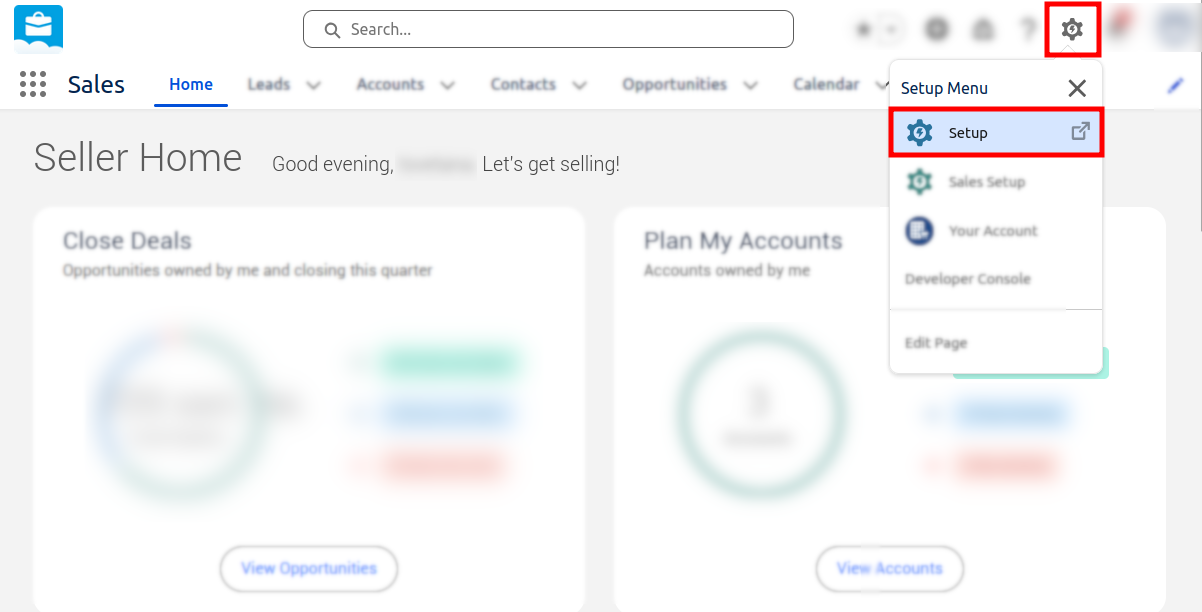
From the Home page click on the Setup menu icon and choose Setup.
-
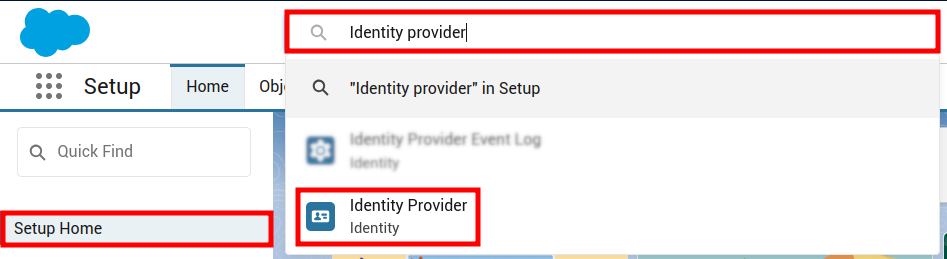
In the search field of the Setup Home page enter Identity provider and select the option with the same name:
-
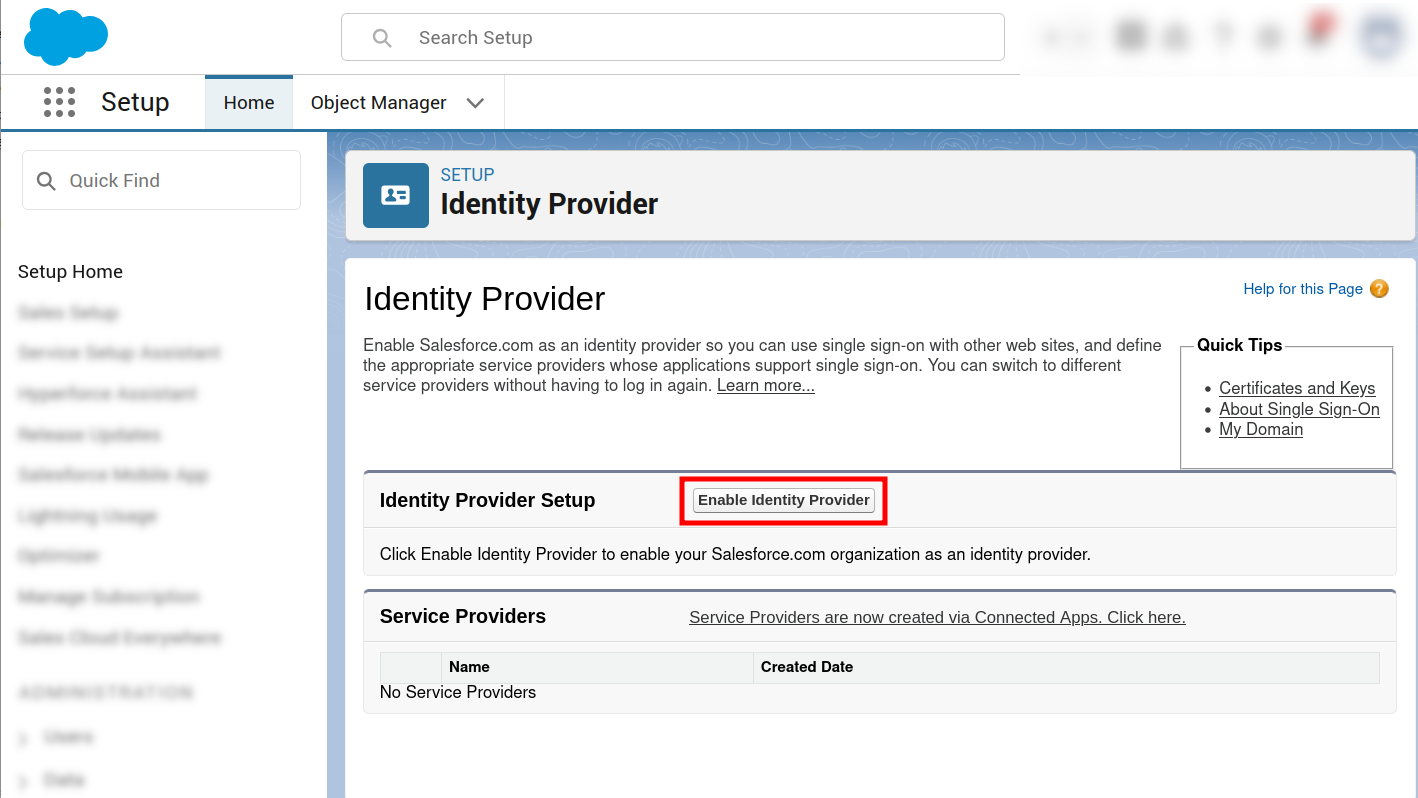
Click on Enable Identity Provider:
-
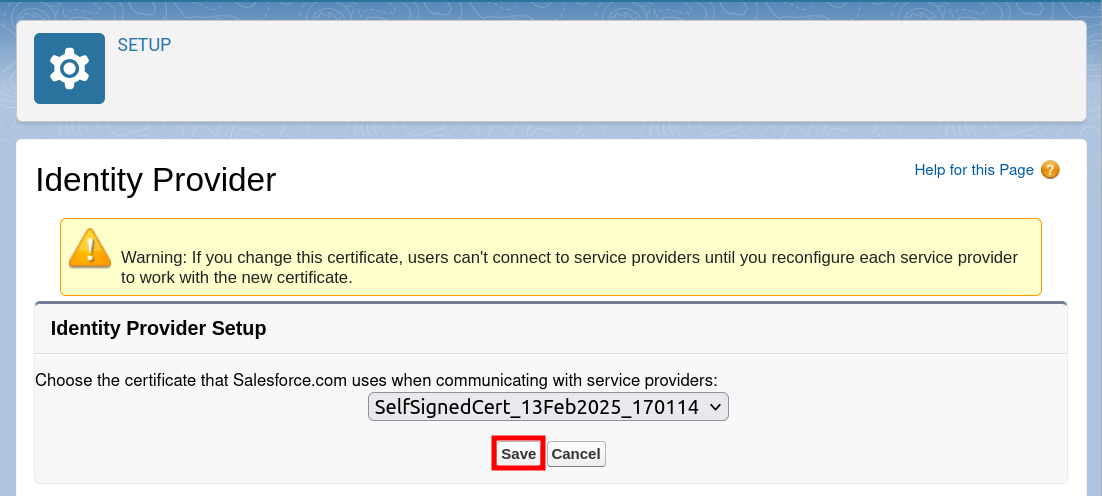
In the next screen Save the generated certificate:
-
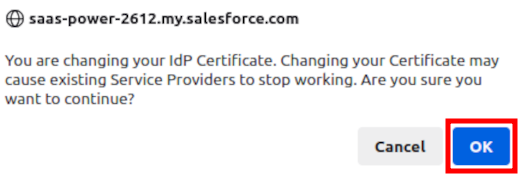
When prompted, confirm by clicking on OK:
-
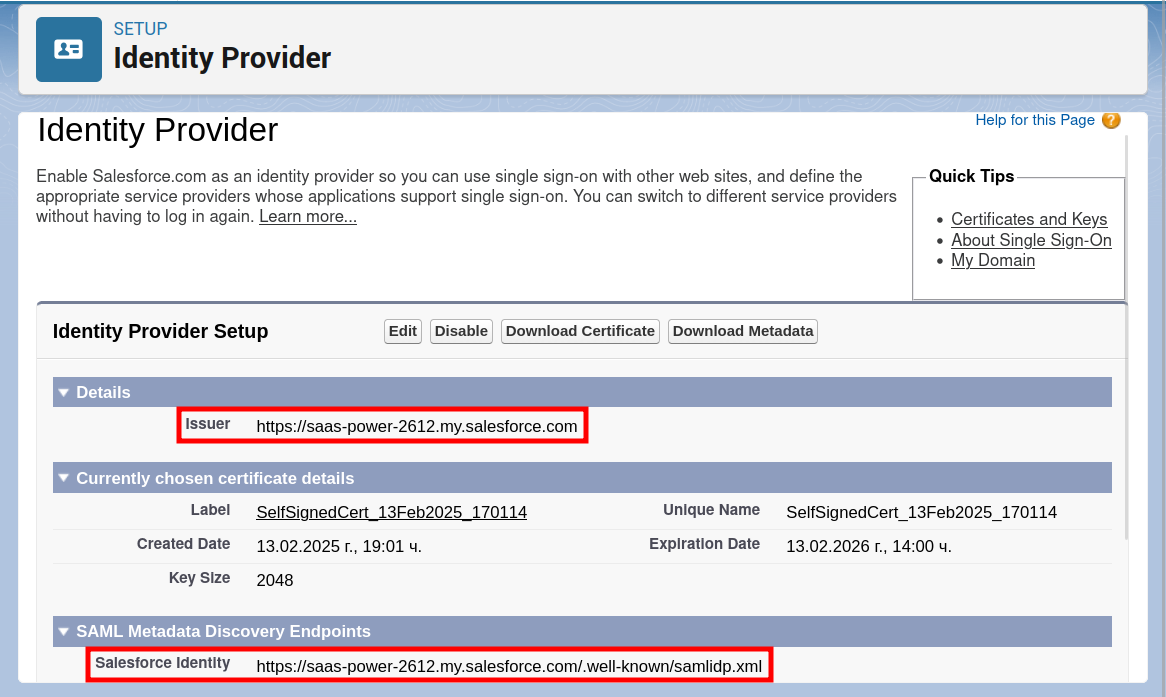
From the Identity Provider Setup panel copy and save in a text document the values of the fields Issuer and Salesforce Identity:
-
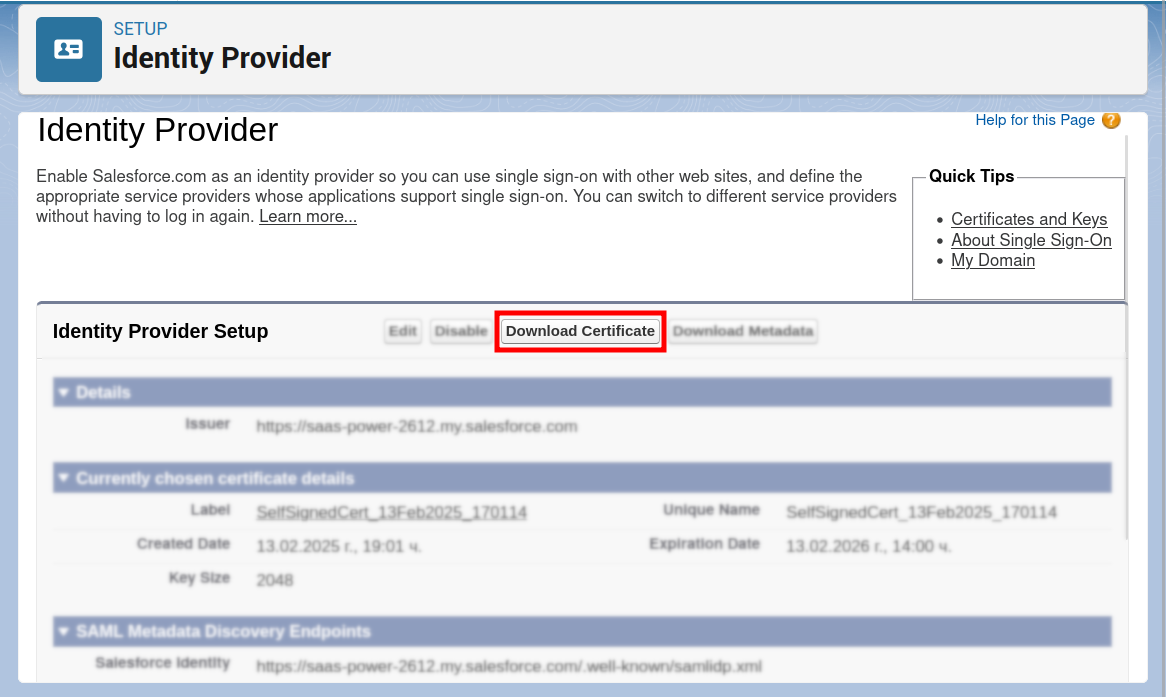
Download the generated certificate on your device:
-
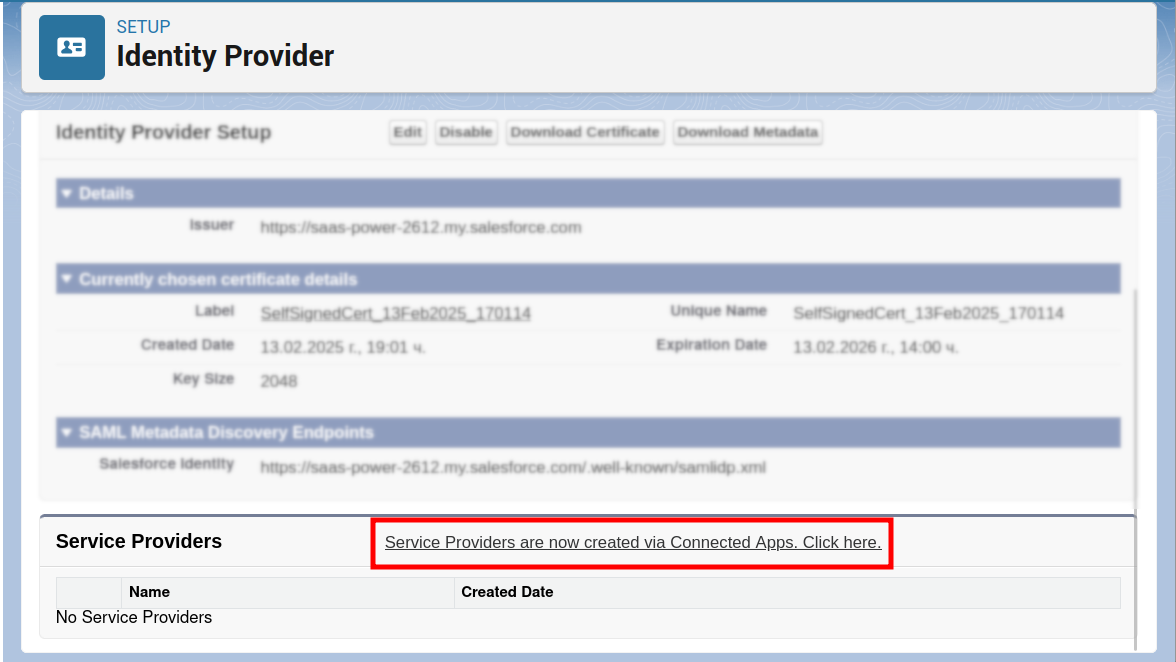
Navigate to the Service Providers section and click on the link to create a new service provider:
-
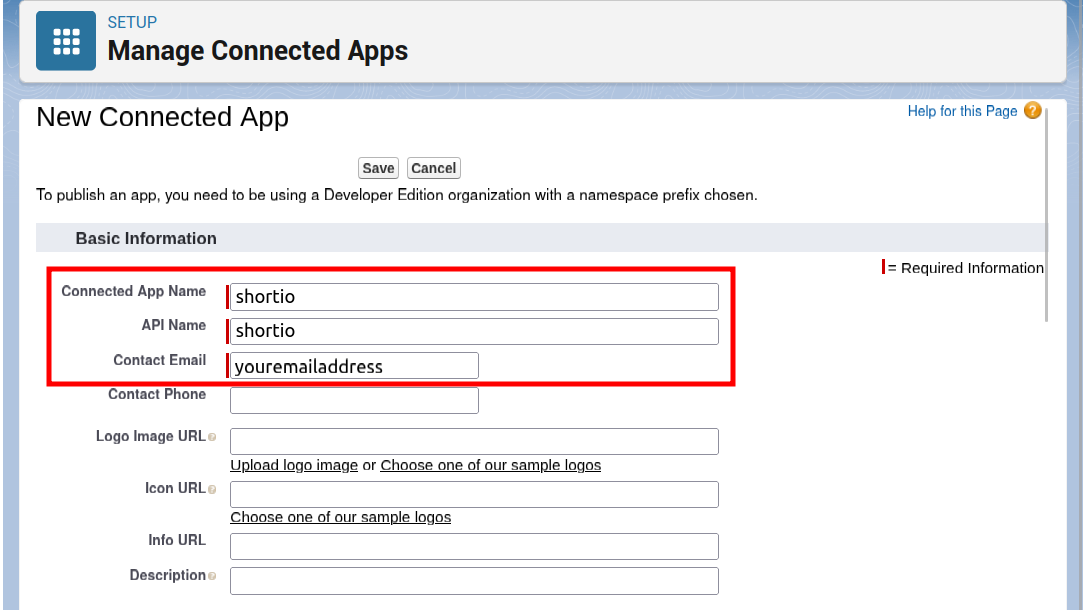
Fill in the required Basic information - Connected APP name, API name and Contact Email:
-
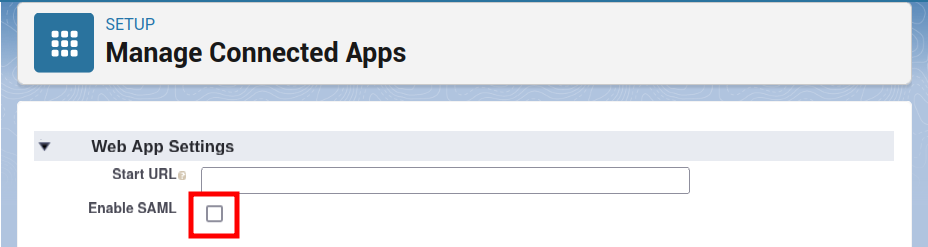
Navigate to the Web App Settings and Enable SAML:
-
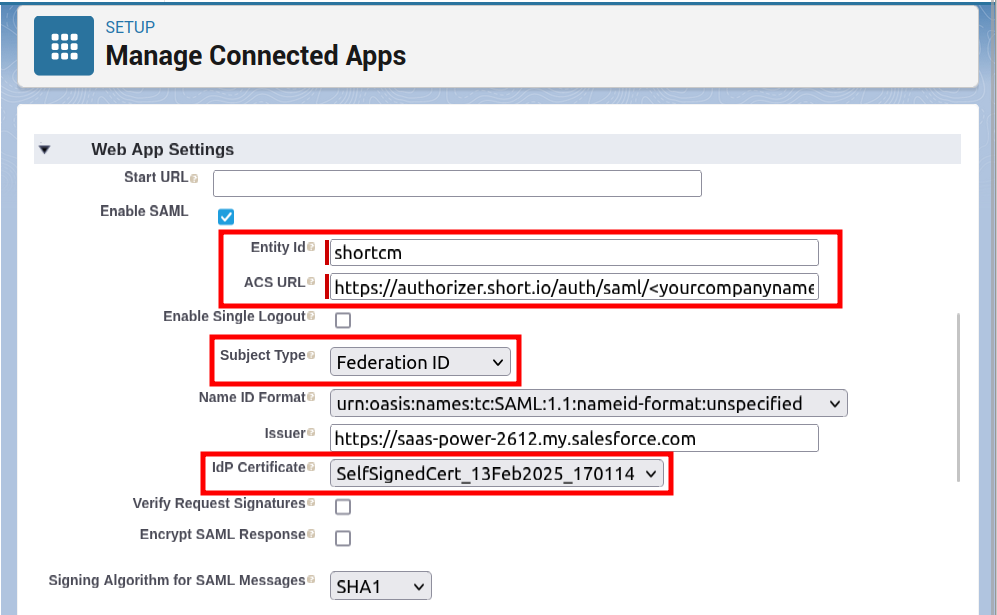
Provide the required information:
-
enter shortcm as Entity Id
-
enter [https://authorizer.short.io/auth/saml/
<yourcompanyname](https://authorizer.short.io/auth/saml/yourcompanyname)\>as ACS URL -
select Federation ID as Subject Type
-
-
Verify that the correct certificate is selected from the idP Certificate options.
-
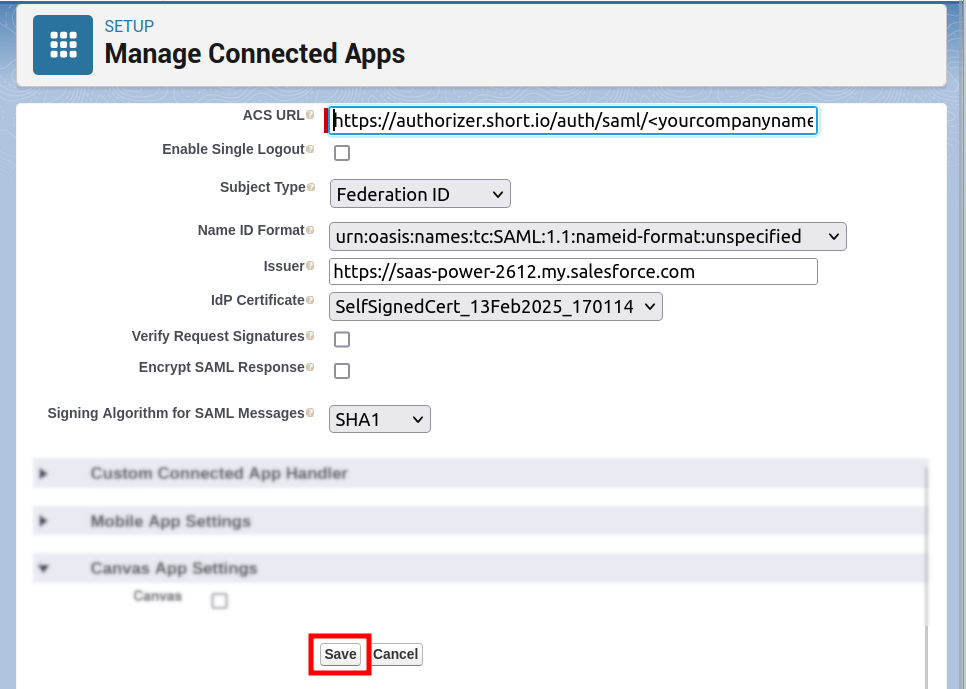
Save your configuration:
Short.io settings
-
Sign in to your Short.io account.
-
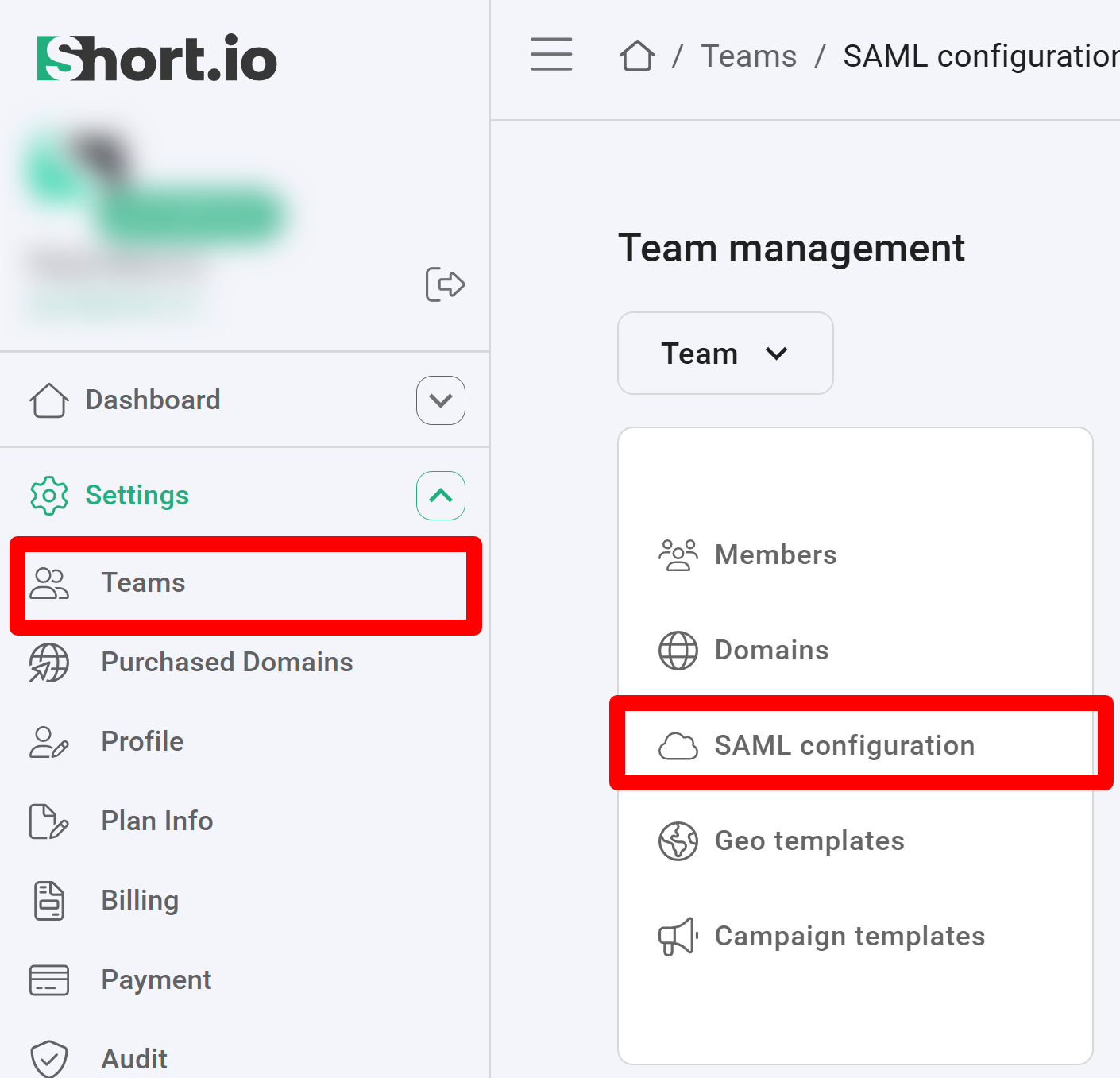
Navigate to the Settings and click on Teams:
-
Click on your team and then click SAML Configuration.
-
In the next screen:
-
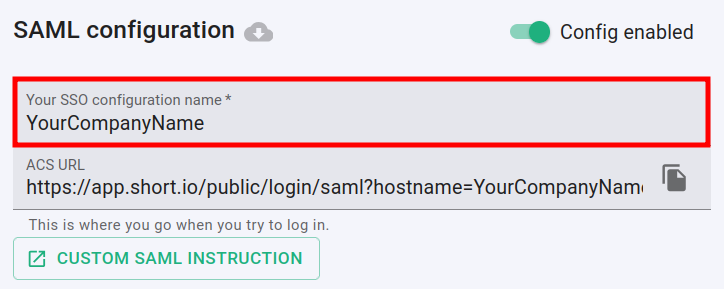
enable the SAML configuration:

-
enter the name of your company in the SSO configuration field:
-
paste the Salesforce Identity value which you copied from the identity settings into the Entry point URL field:

-
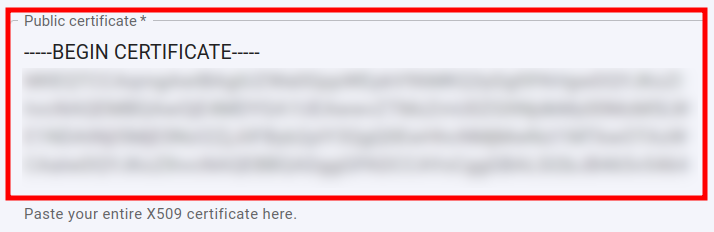
open the certificate which you downloaded in a text editor, copy and paste the content of the certificate into the Public certificate field:
-
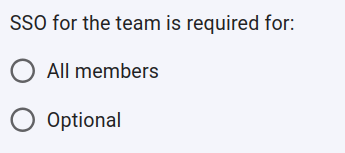
you can specify whether or not the SSO is required for All members of the team or is Optional:
-
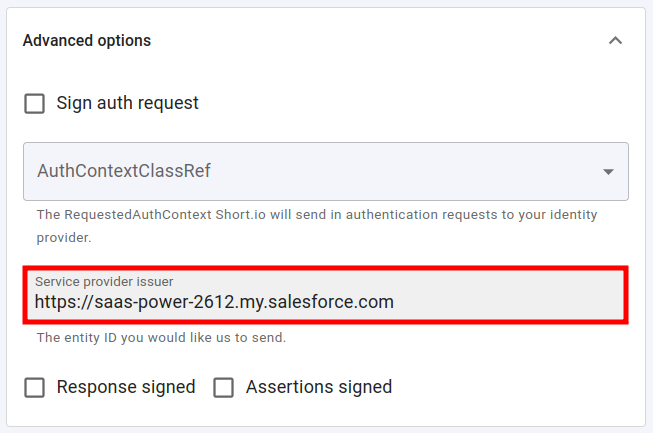
expand the Advanced options and paste the Issuer value which you copied from the identity settings into the Service provider issuer field:
-
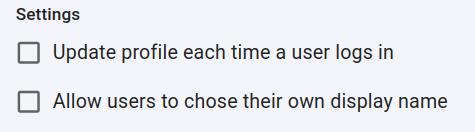
you can determine if a profile should be updated each time the user logs in,
and if the users are allowed to chose their own display name:
-
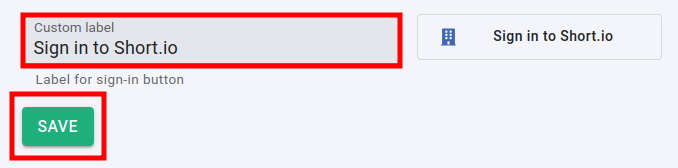
you can change the appearance of the Sign in button by adding a custom label:
-
-
Click on Save to confirm.
You can now use the Single Sign-On with Short.io.
The Short.io team configures SSO within 24 hours.
In case you need further assistance, please contact the Short.io support team at [email protected].