How to configure Short.io SSO via Google Workspace

Short.io supports Single Sign-On (SSO) integration with Google Workspace.

Note

SSO is available on the Enterprise Plan.

Before you begin

You need to create a Team before setting up SSO. Follow the instructions in this article.

How to configure SSO with Google Workspace

Google settings

  1. Sign in to your Google Workspace account.

  2. In the sidebar navigate to Apps > Web and mobile apps:
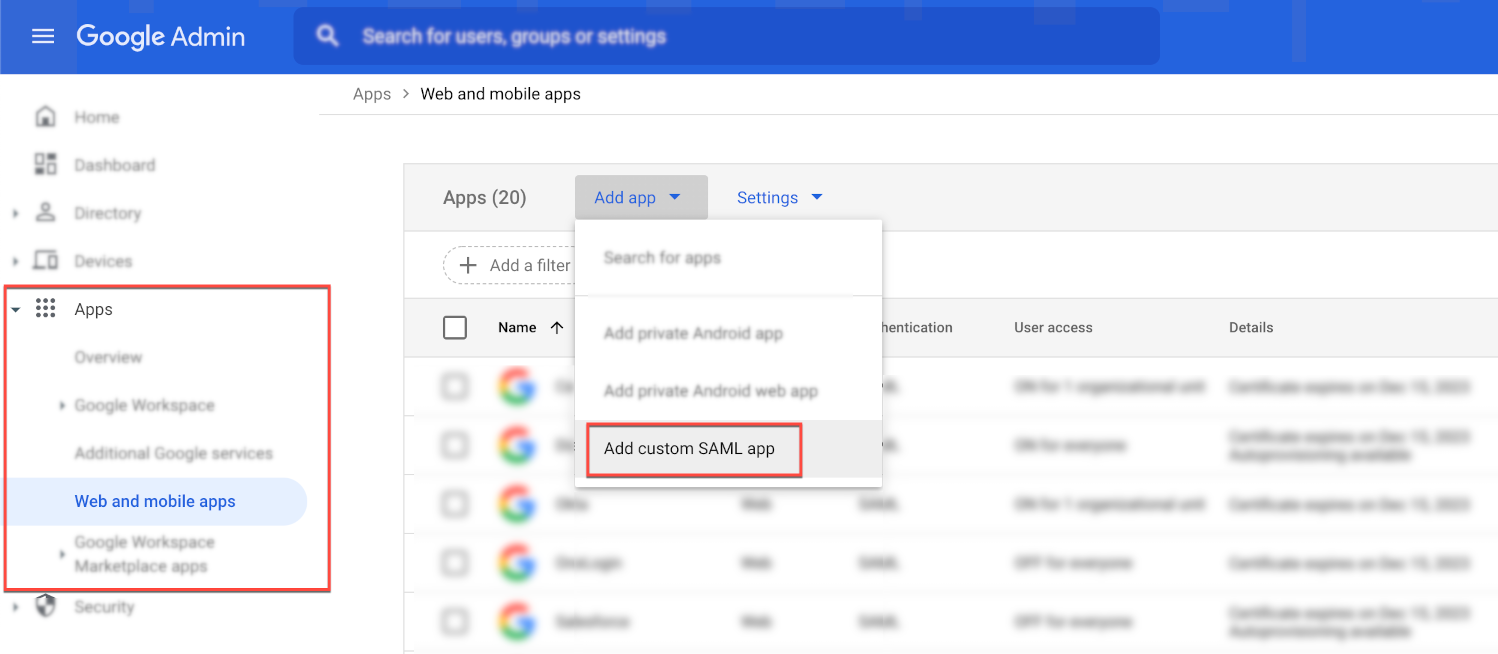
    Google Admin console with Apps sidebar highlighted and Add custom SAML app option shown

  3. Click on Add app and choose the Add custom SAML app option.

  4. In the App details screen enter Shortio as app name, add a description of the app, and (optionally) upload an app icon:
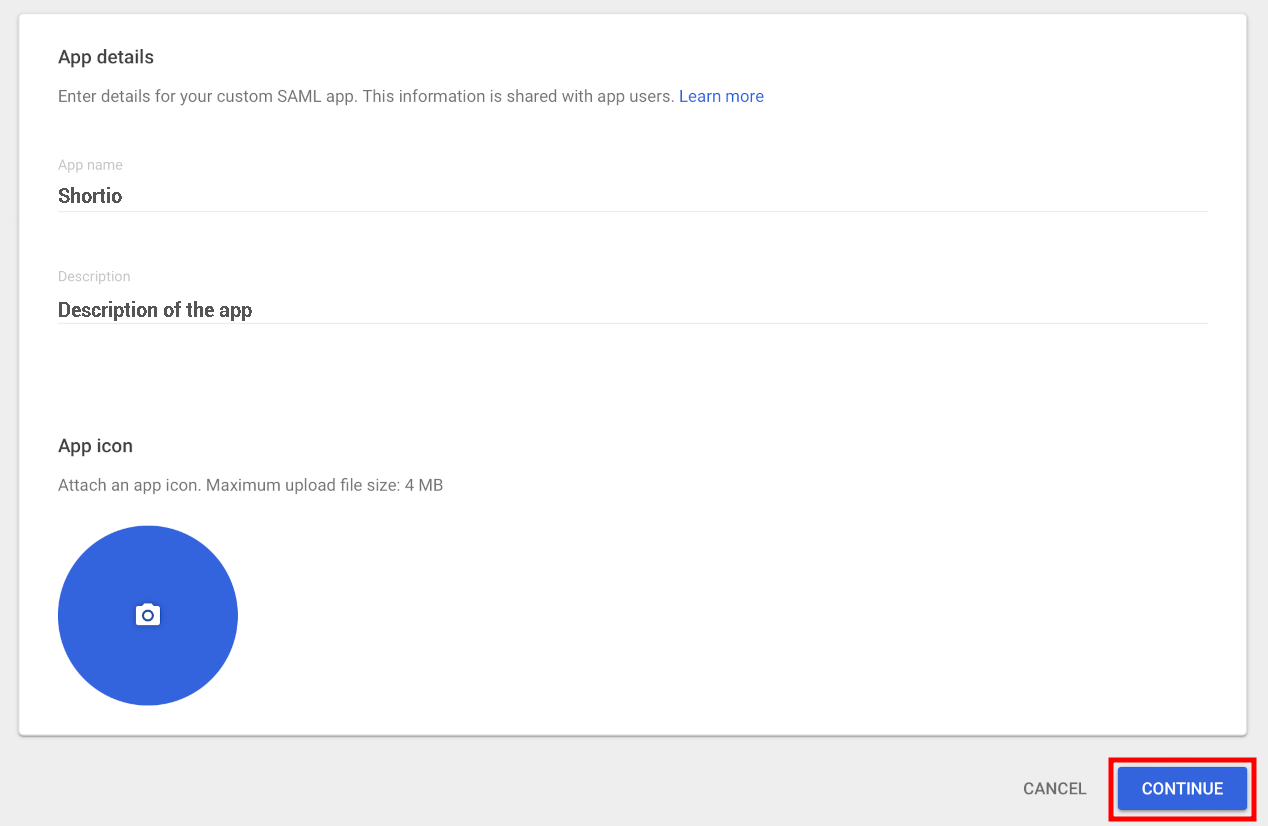
    App details form with Shortio entered as app name and Continue button highlighted

  5. Click on Continue.

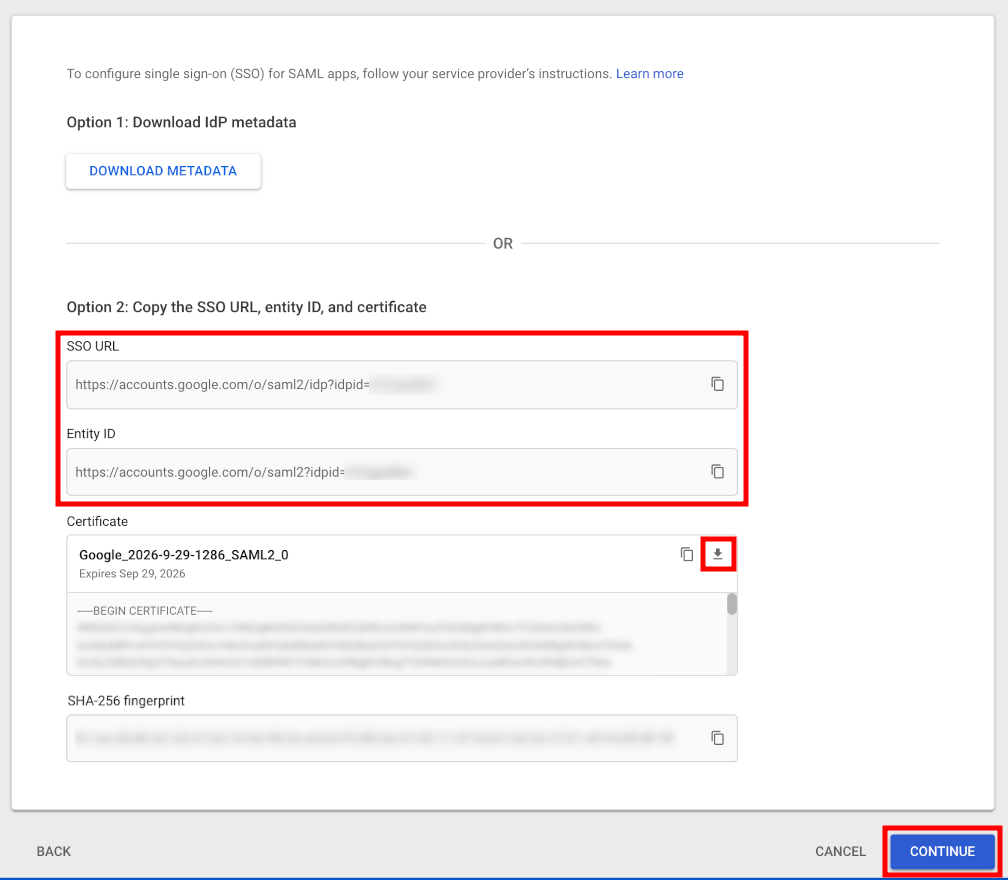
  6. From the next screen :

    • copy the SSO URL and the Entity ID values and save them in a text file

    • download the certificate

    Google IdP details with SSO URL, Entity ID highlighted and certificate download button

  7. Click on Continue.

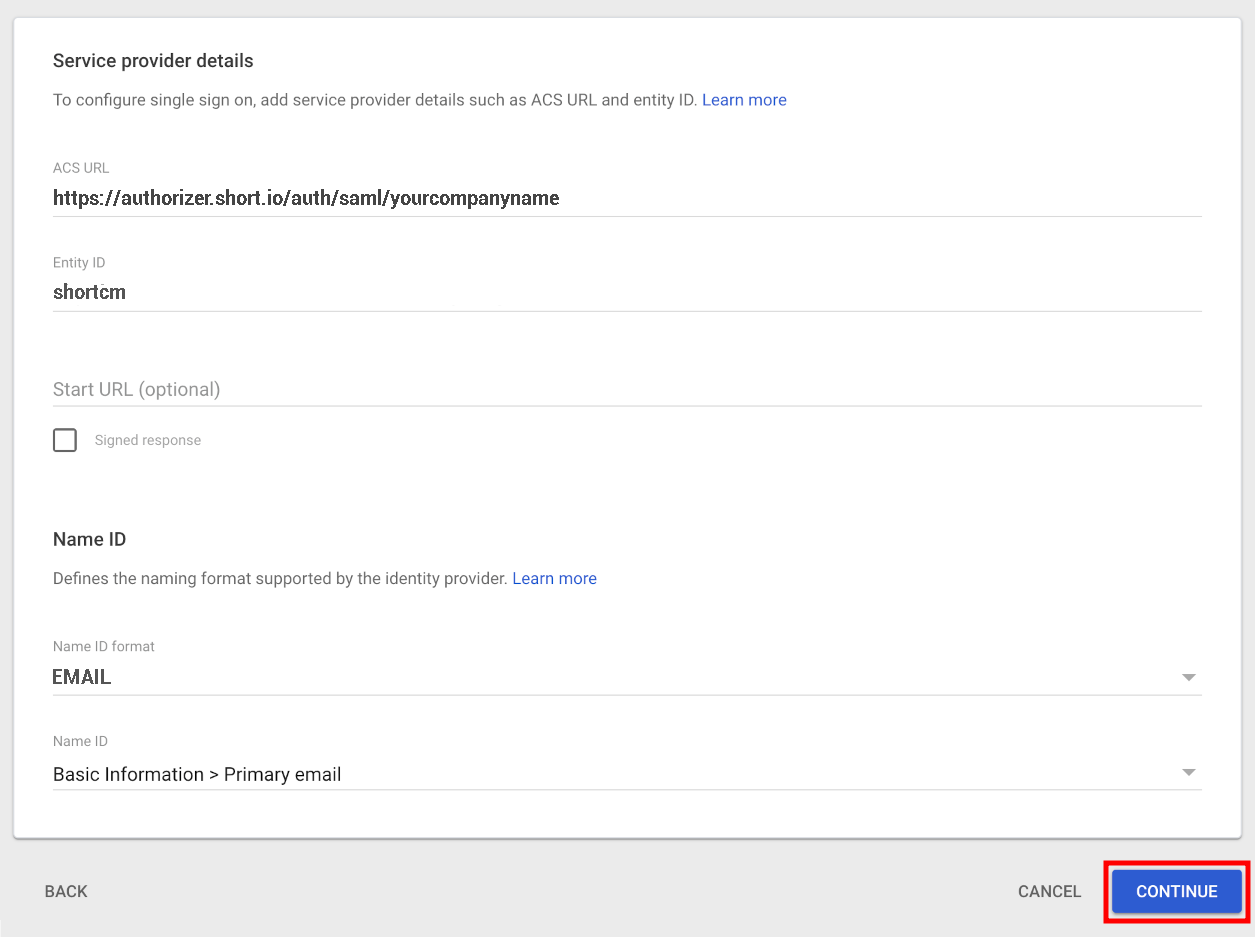
  8. In the next screen:

    Service provider details with ACS URL, Entity ID, and Name ID format set to EMAIL

  9. Click on Continue.

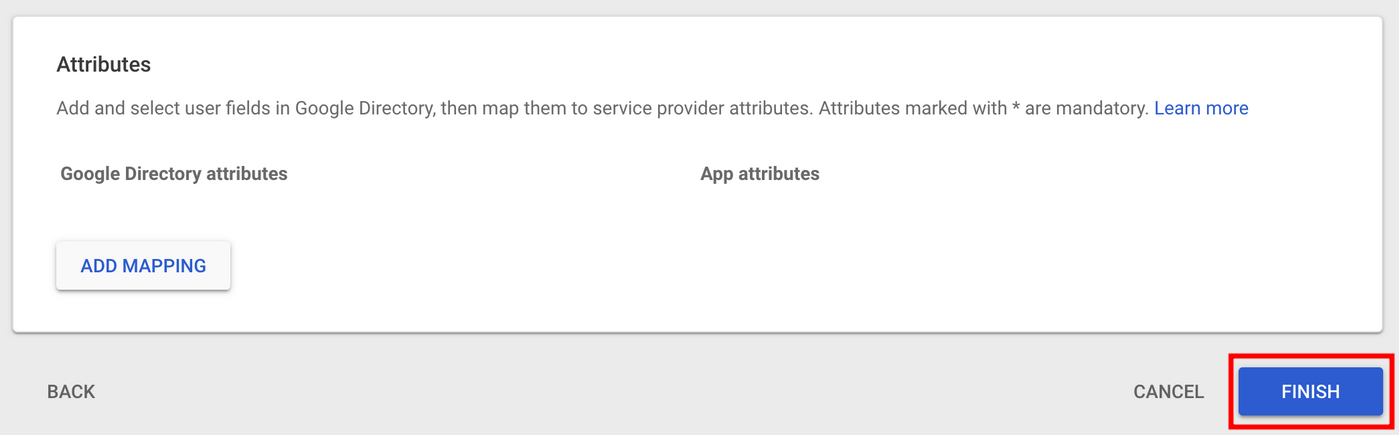
  10. In the next screen click on Finish:

    Attribute mapping screen with Finish button highlighted

Short.io settings

  1. Sign in to your Short.io account.

  2. Navigate to the Settings and click on Teams:

    Short.io Settings sidebar with Teams and SAML configuration highlighted

  3. Click on your team and then click SAML Configuration.

  4. In the next screen:

    • enable the configuration:

      SAML configuration section with Config enabled toggle

    • enter the name of your company in the SSO configuration field:

      SSO configuration name field highlighted with YourCompanyName entered

    • paste the SSO URL value that you copied into the Entry point URL:

      Entry Point URL field highlighted with Google SSO URL pasted

    • open the certificate which you downloaded in a text editor, copy and paste the content of the certificate into the Public certificate field:

      Public certificate field highlighted with X509 certificate content pasted

    • you can specify whether or not the SSO is required for All members of the team or is Optional:

      SSO requirement options for the team with All members and Optional choices

    • expand the Advanced options and paste the Entity ID URL which you copied from the application settings into the Service provider issuer field:

      Advanced options with Service provider issuer field highlighted containing Google Entity ID

    • you can determine if a profile should be updated each time the user logs in,

      and if the users are allowed to chose their own display name:

      Profile settings with update profile and display name checkboxes

    • you can change the appearance of the Sign in button by adding a custom label:

      Custom label field and Save button highlighted for sign-in button configuration

  5. Click on Save to confirm.

You can now use the Single Sign-On with Short.io.

Note

The Short.io team configures SSO within 24 hours.

In case you need further assistance, please contact the Short.io support team at support@short.io.