How to configure Short.io SSO via Okta
Short.io supports Organization SSO (Single Sign-On) integration with Okta.
The SSO configuration is available on the Enterprise Plan.
SSO login video demo
Configuring Short.io SSO with Okta
Before you begin
You need to create and enable a SAML configuration in Short.io before setting up SSO with Okta.
Follow these steps:
-
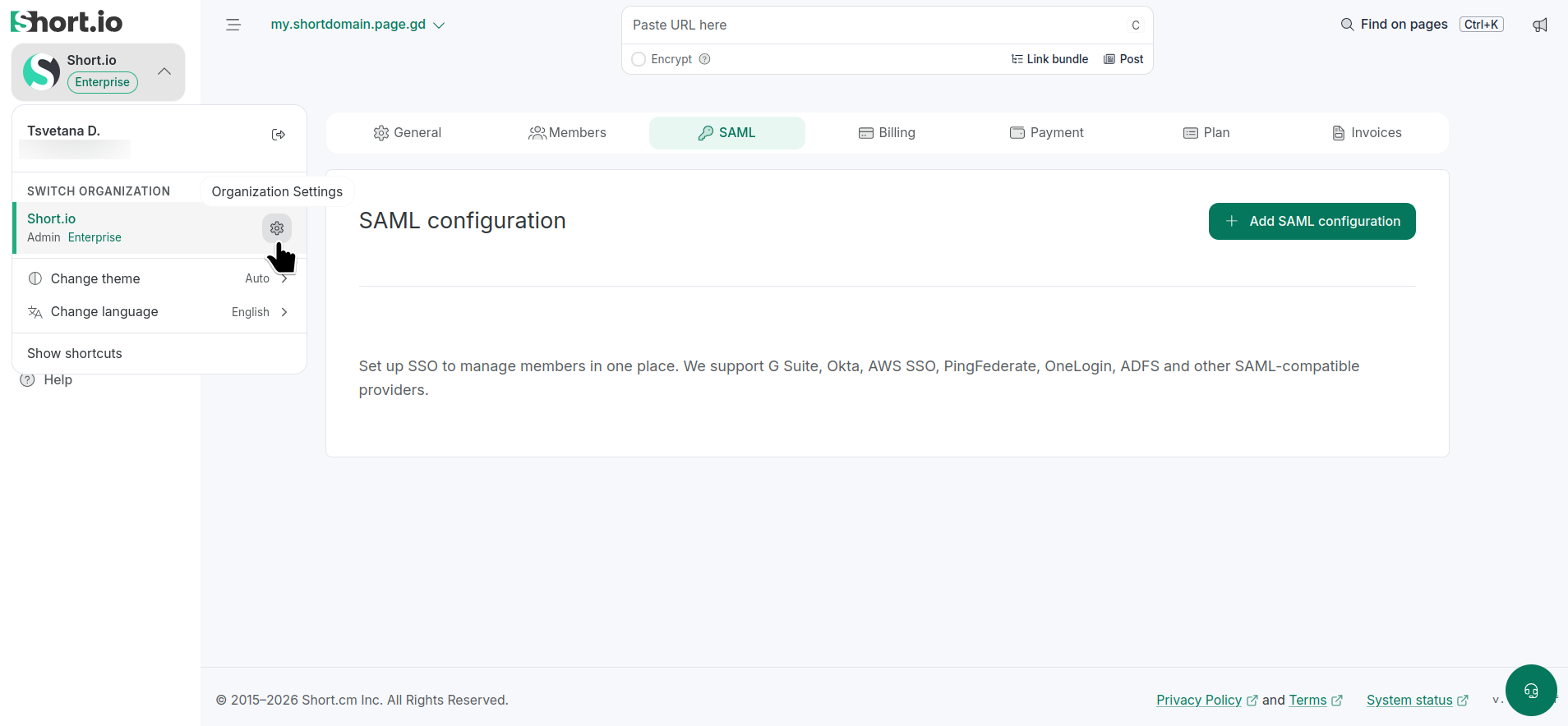
From Short.io's left panel, expand the Organizations settings.
-
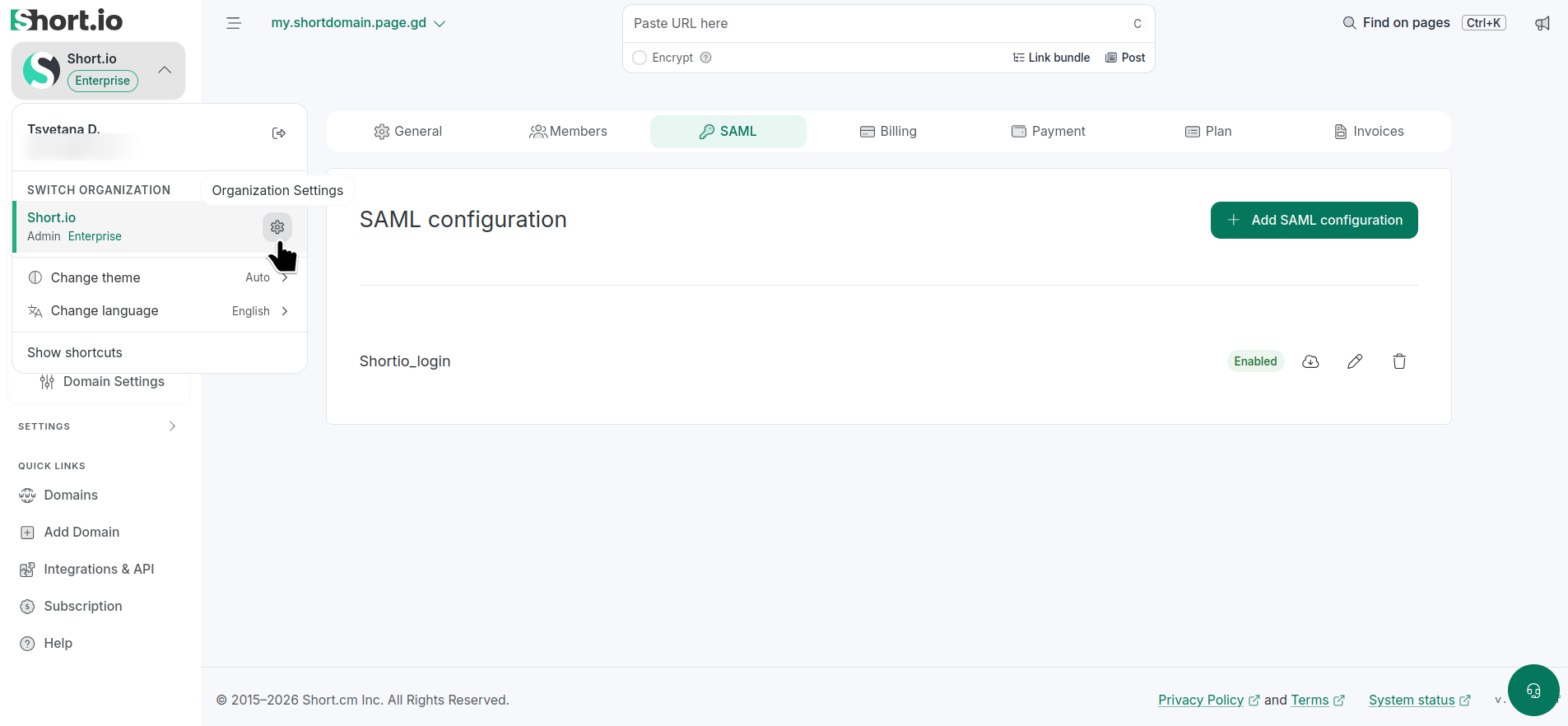
Click the icon next to the Organization where you want to configure SAML:
-
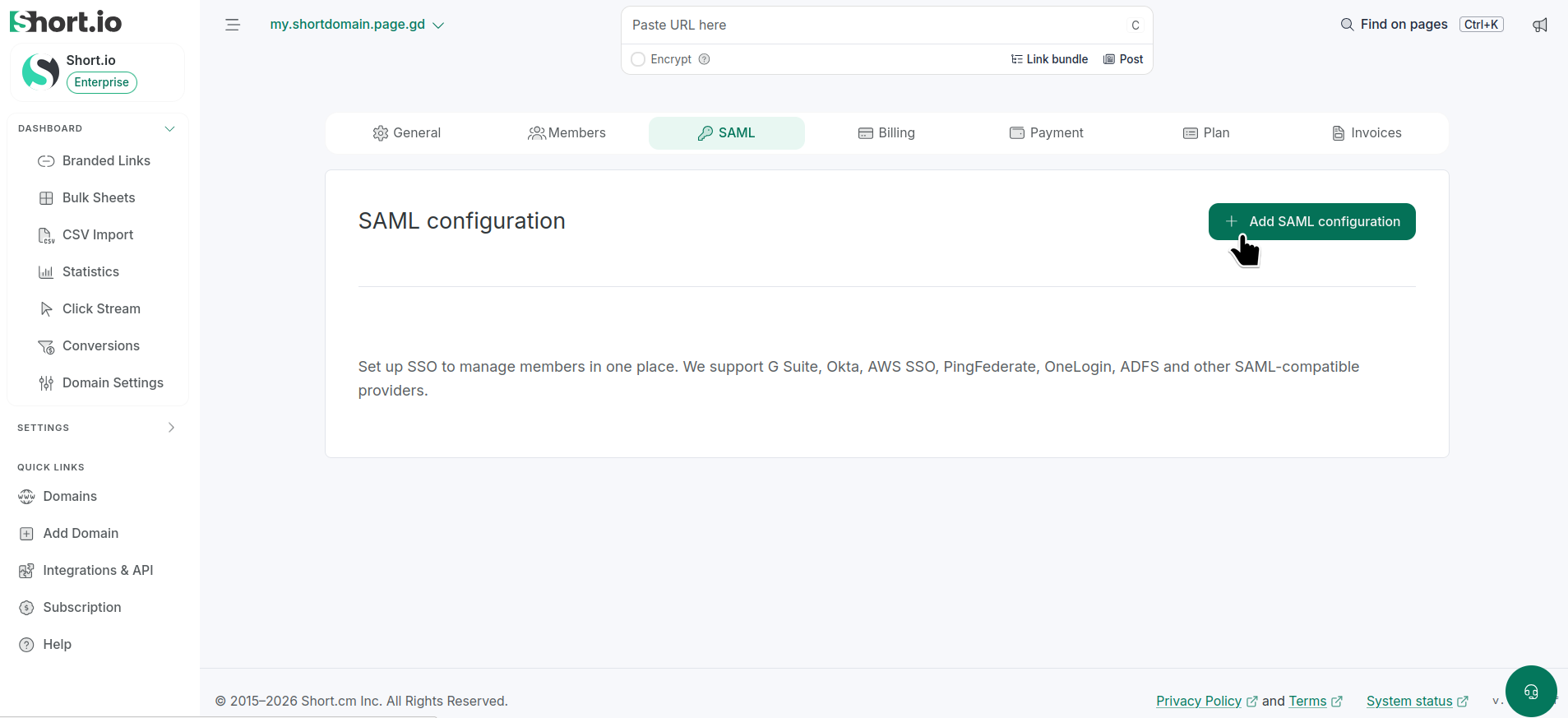
Navigate to the SAML tab:
-
Click Add SAML configuration.
-
-
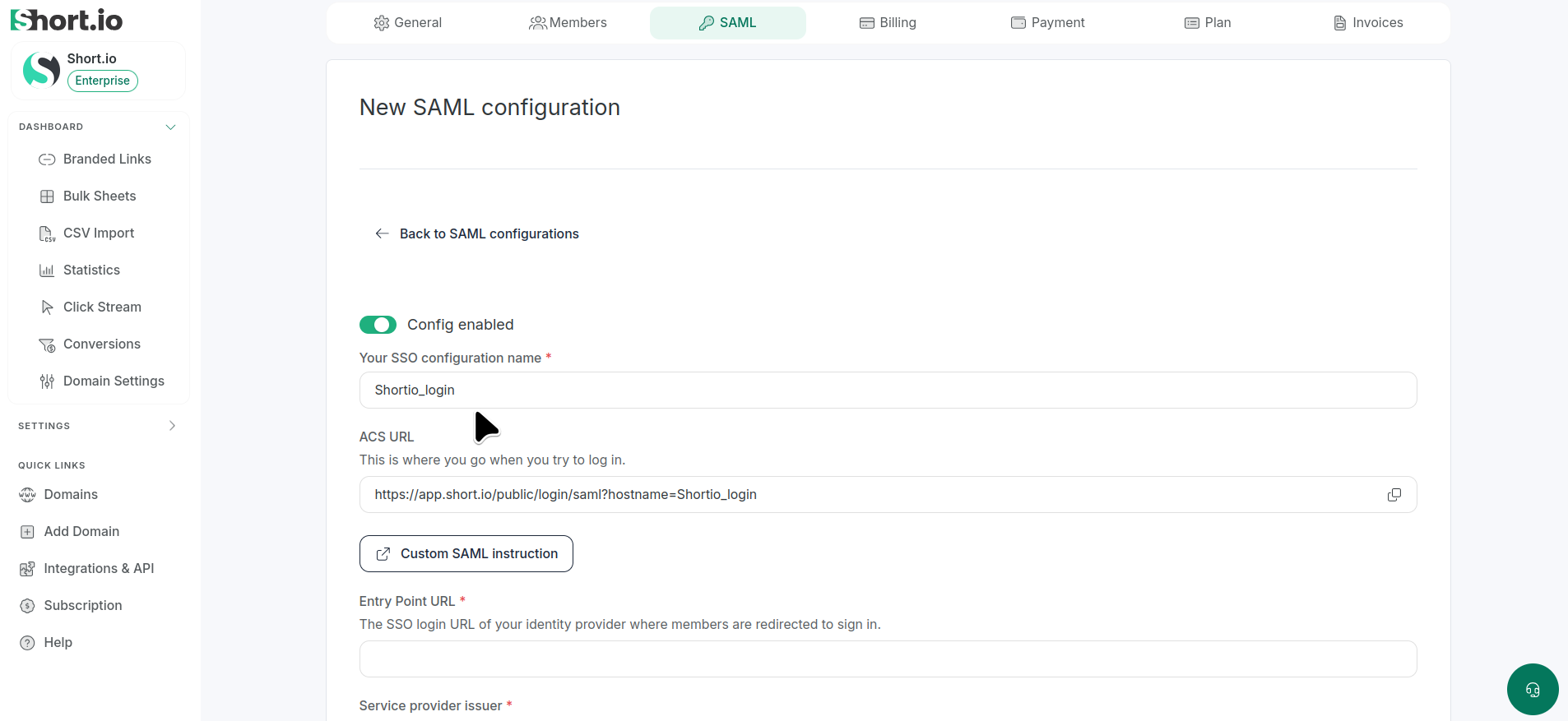
set Config enabled
-
enter Your SSO configuration name (or your company name)
-
-
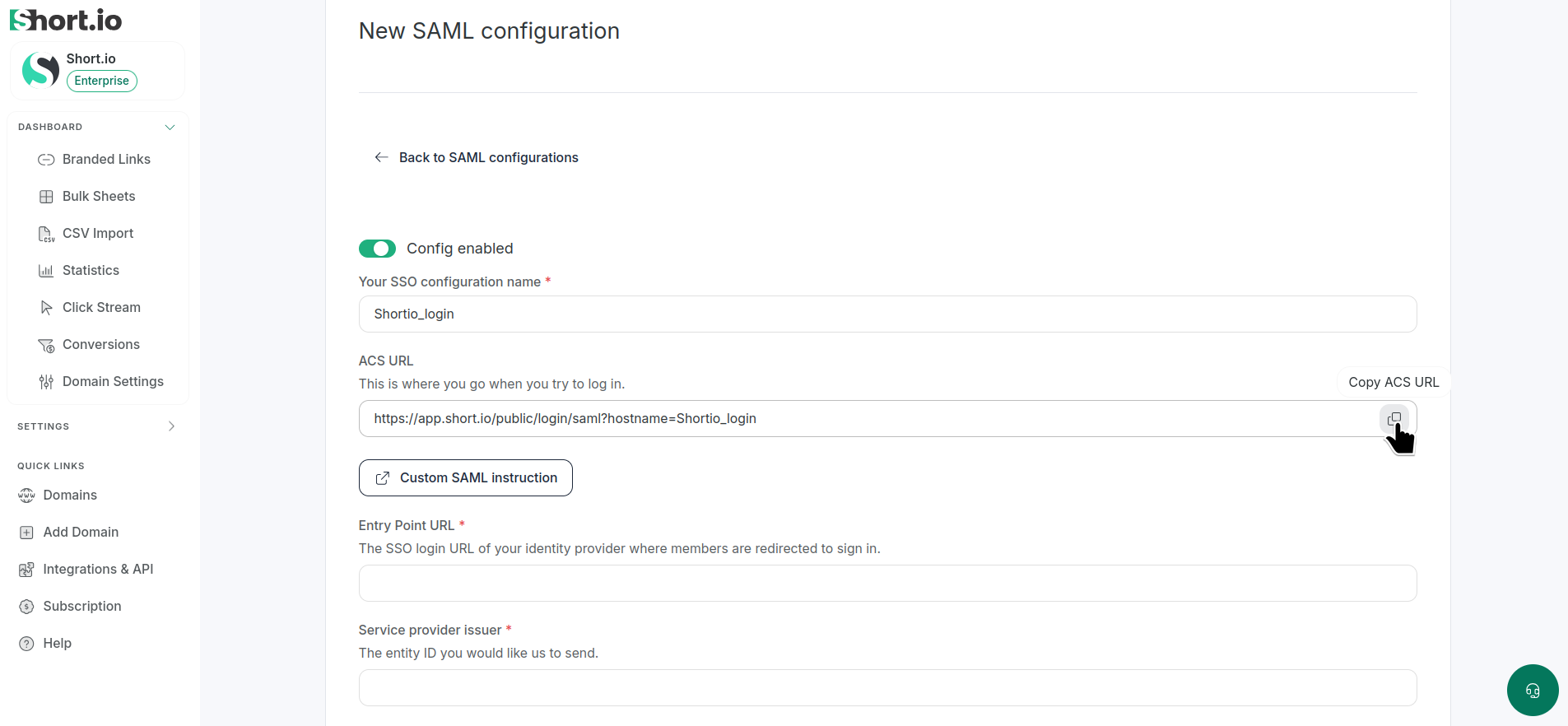
Copy the ACS URL (this is where you go when you try to log in using SSO) and save it for later:
-
Save.
Okta settings
-
Sign in to your Okta account.
-
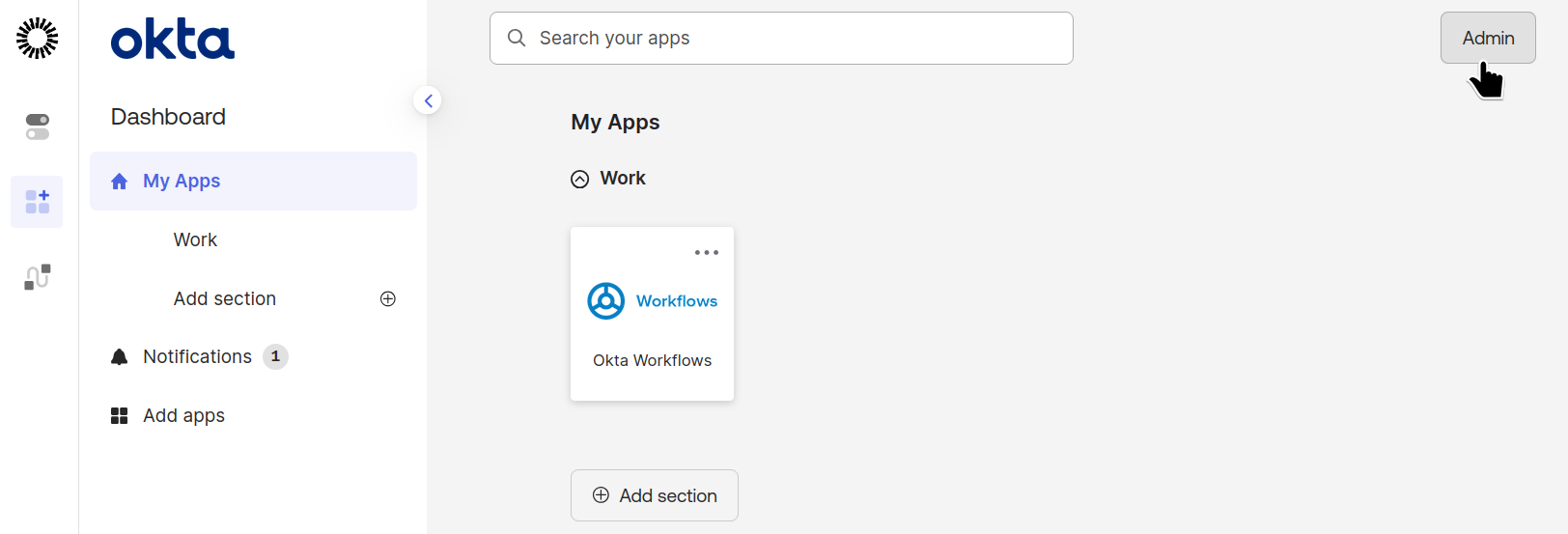
Open Admin:
-
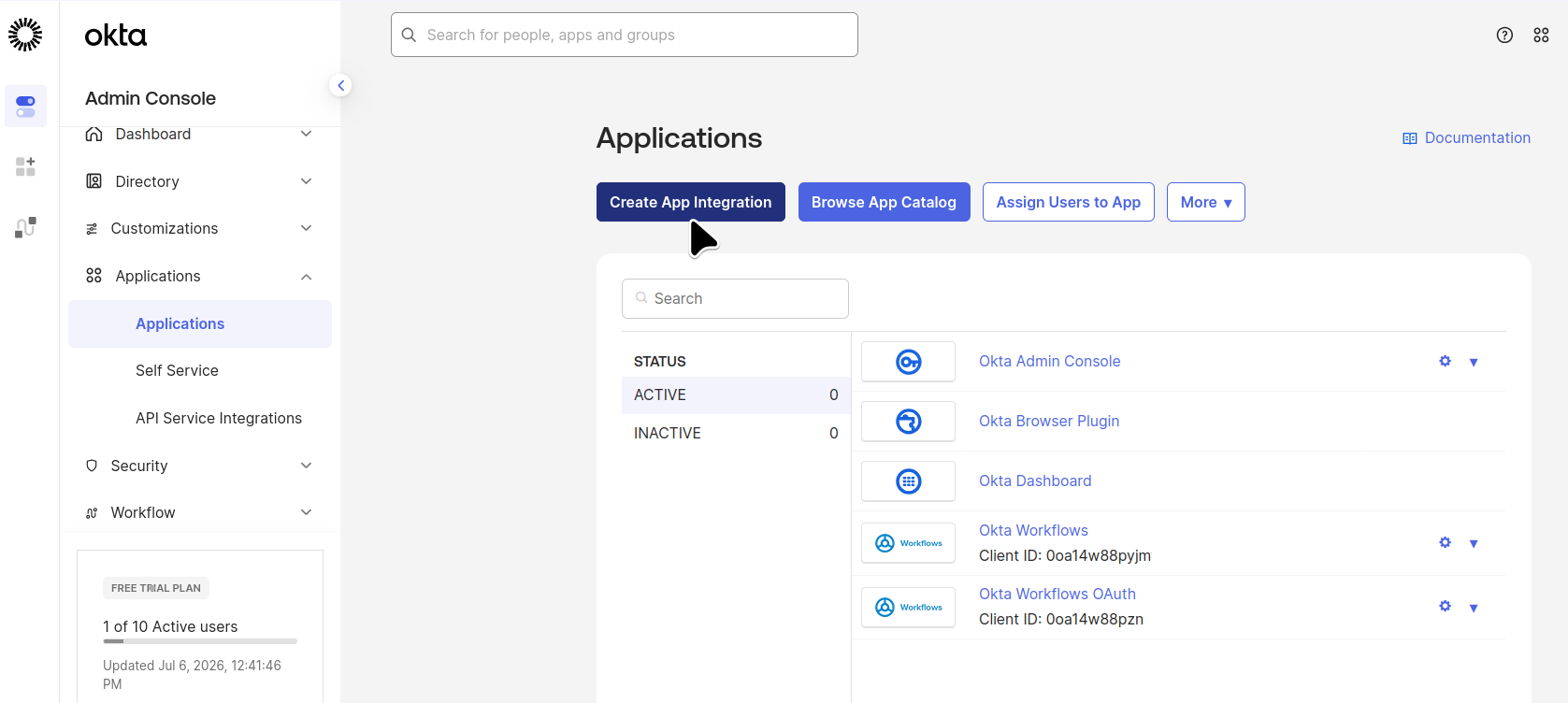
Select Applications > Applications:
-
Click Create App Integration.
-
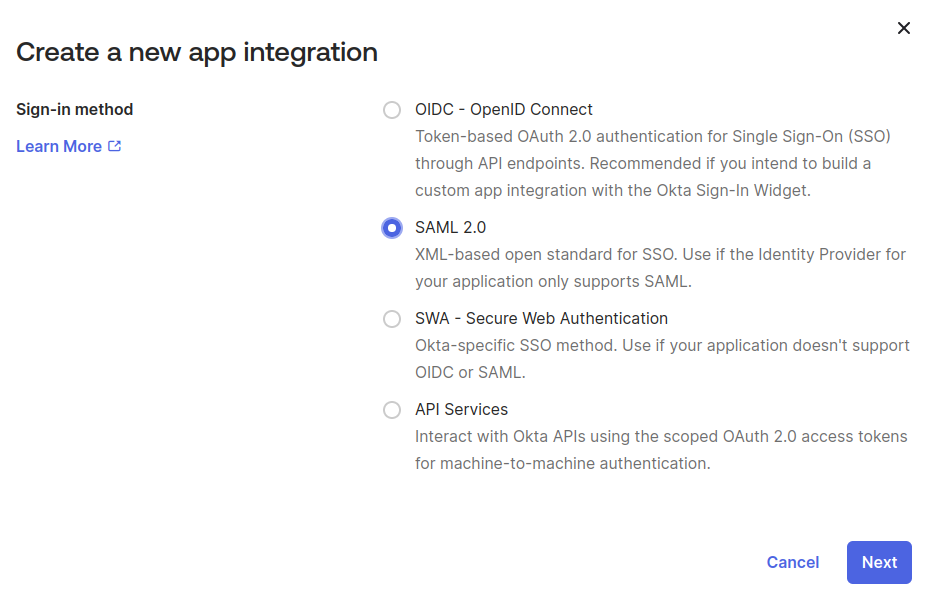
Select SAML 2.0 :
-
Click Next:
-
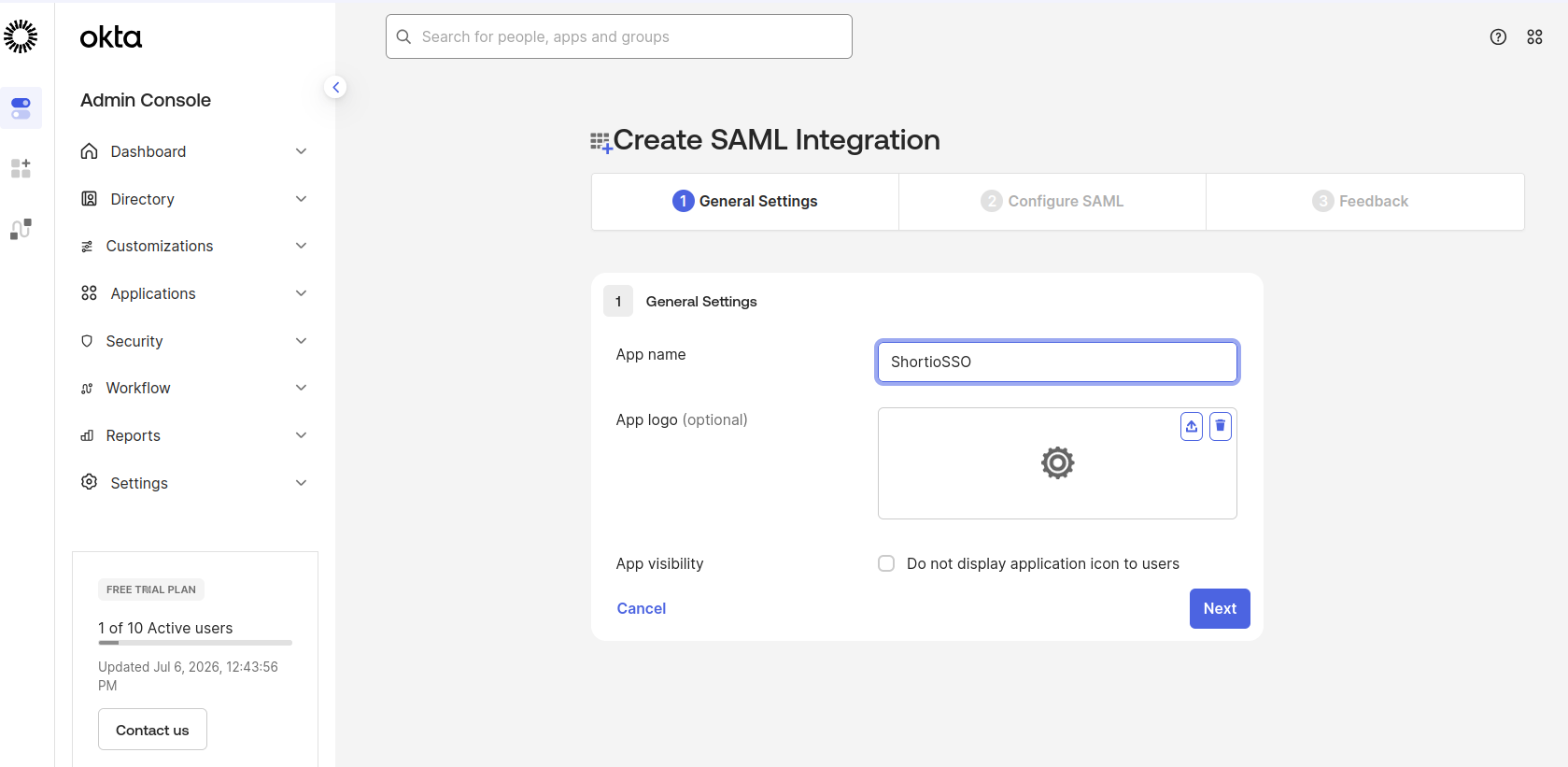
Enter an app name of your choice:
-
Click Next
-
In the Single sign-on URL field of the subsequent screen paste the following link where you substitute <yourcompanyname> with Your SSO configuration name:
https://authorizer.short.io/auth/saml/<yourcompanyname>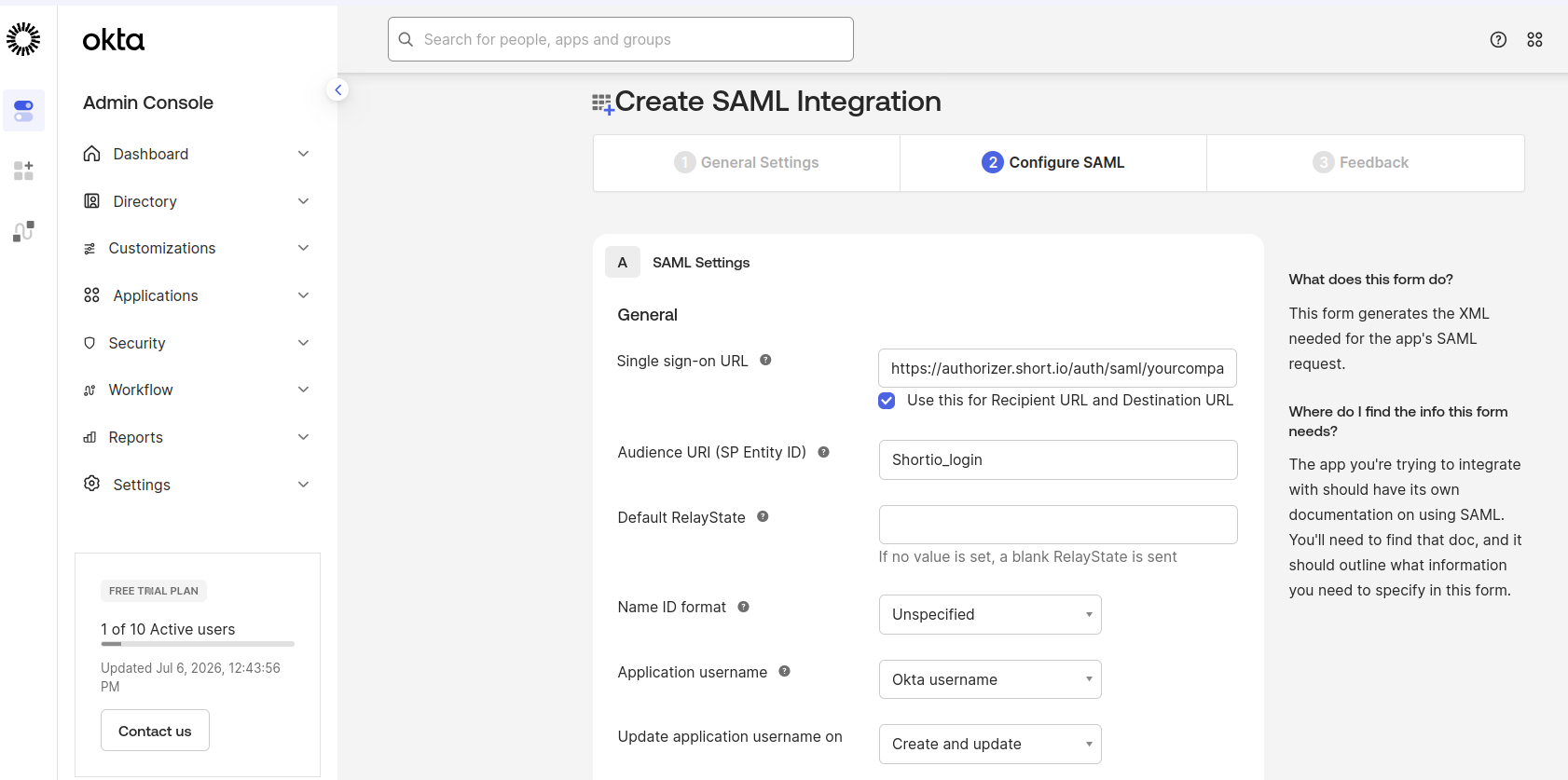
-
Scroll down to click Next.
-
In the Feedback screen click Finish.
-
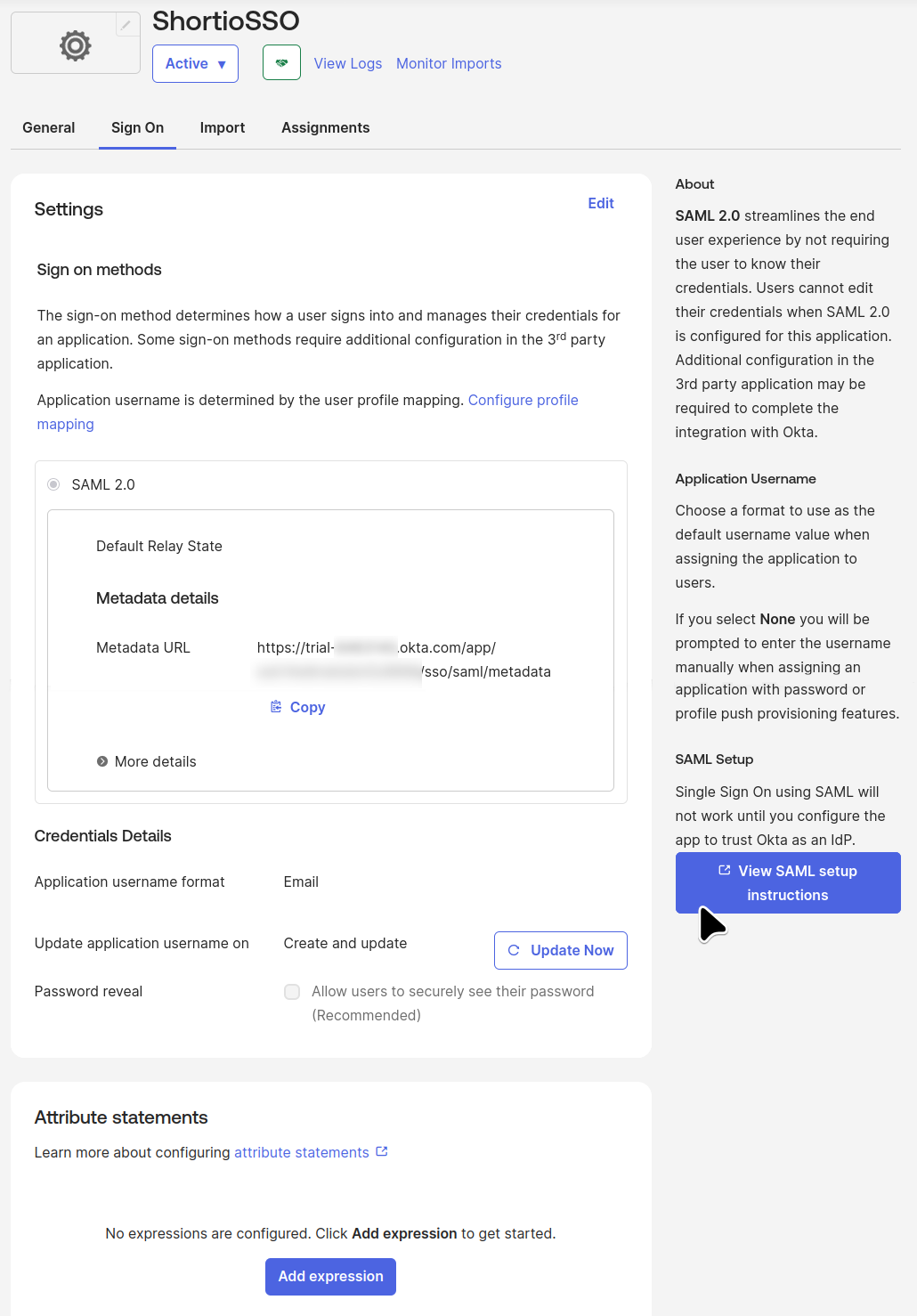
Open the app and navigate to the Sign On tab:
-
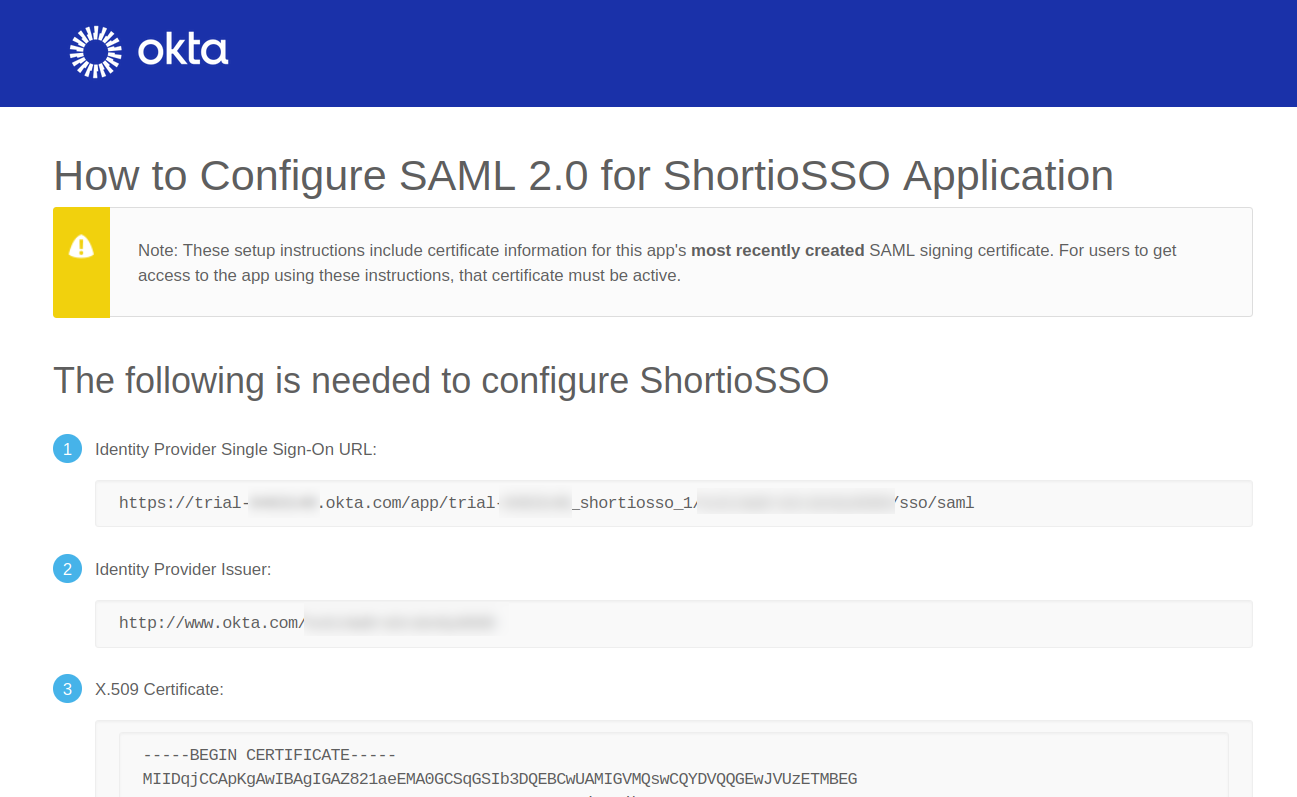
From the next screen:
-
copy and save the Identity Provider Single Sign-On URL
-
copy and save the Identity Provider Issuer
-
download the X.509 certificate on your device
-
Short.io settings
-
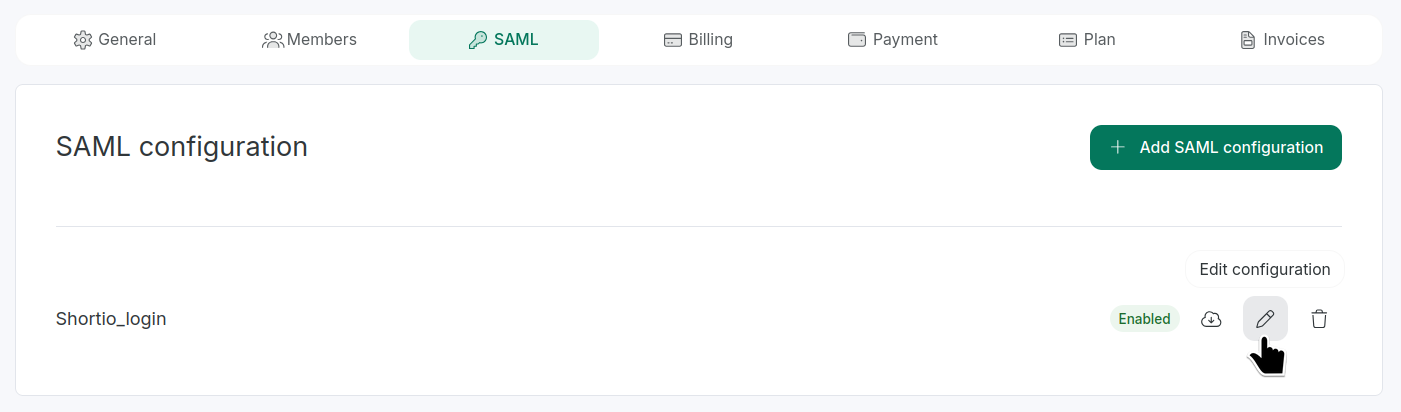
From the Organization SAML settings tab, open the configuration by clicking :
-
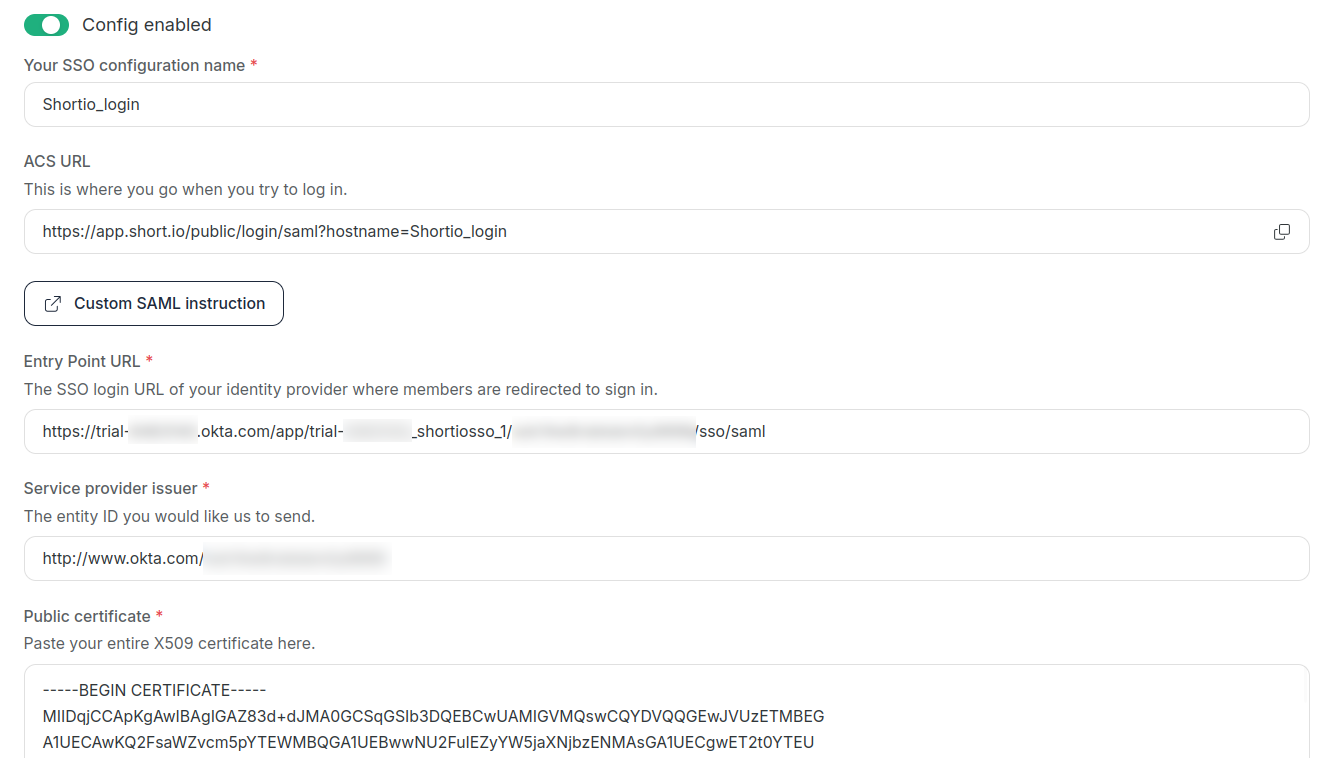
In the next screen:
-
paste the Identity Provider Single Sign-On URL from Okta settings into the Entry point URL field
-
paste the Identity Provider Issuer from Okta settings into the Service provider issuer field
-
open in a text editor the X.509 certificate you downloaded from Okta. Copy and paste the content into the Public certificate field:
-
-
Optionally, you can add members to sign in to a team using this SSO configuration. Expand the list and select one of the teams:

-
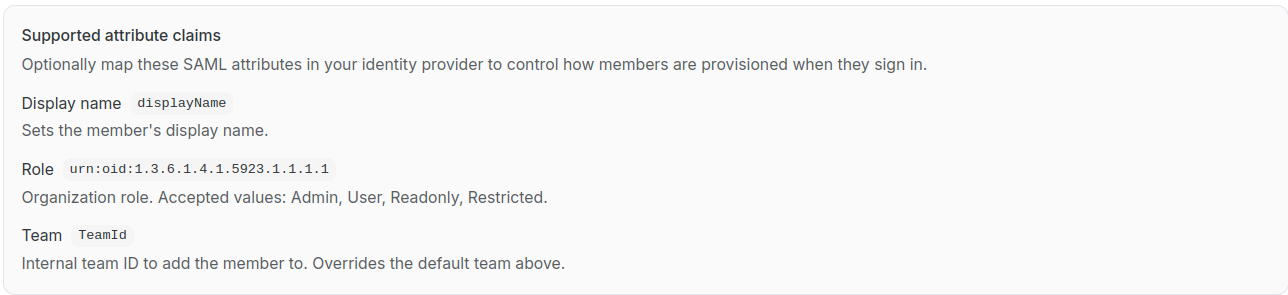
Optionally, you can map SAML attributes in your identity provider to control how members are provisioned when they sign in. Here is the list of available settings:
-
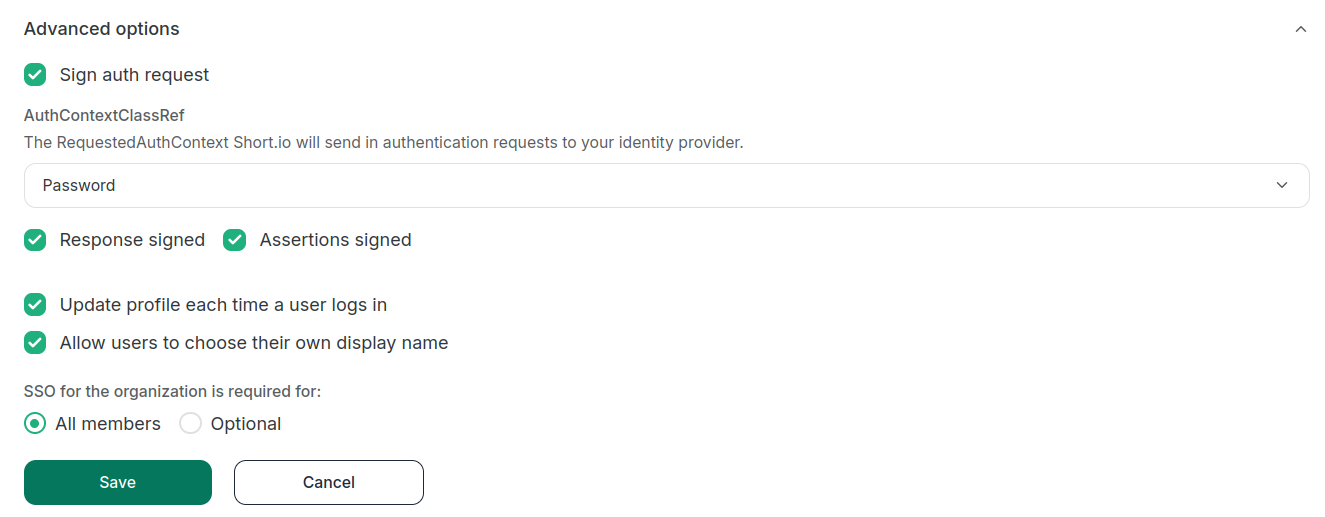
Expand the Advanced options where you can:
-
add an extra layer of security with Sign auth request enabled
-
specify which RequestedAuthContext Short.io should send in authentication requests to your identity provider (select one from the list) - Password, Kerberos, X.509, TLS or FederationAuthWindows
-
define whether the Response and Assertions should be signed
-
enable profile update each time users log in
-
allow users to choose their own display name
-
specify whether SSO is optional or is required for all members of the Organization:
-
-
Save.
The Short.io team configures SSO within 24 hours.
In case you need further assistance, please contact the Short.io support team at [email protected].
First-time logging in with SSO
With the SAML configuration set up, your Organization members can use the Short.io's ACS URL or the page https://app.short.io/public/login (button SSO) to log in.
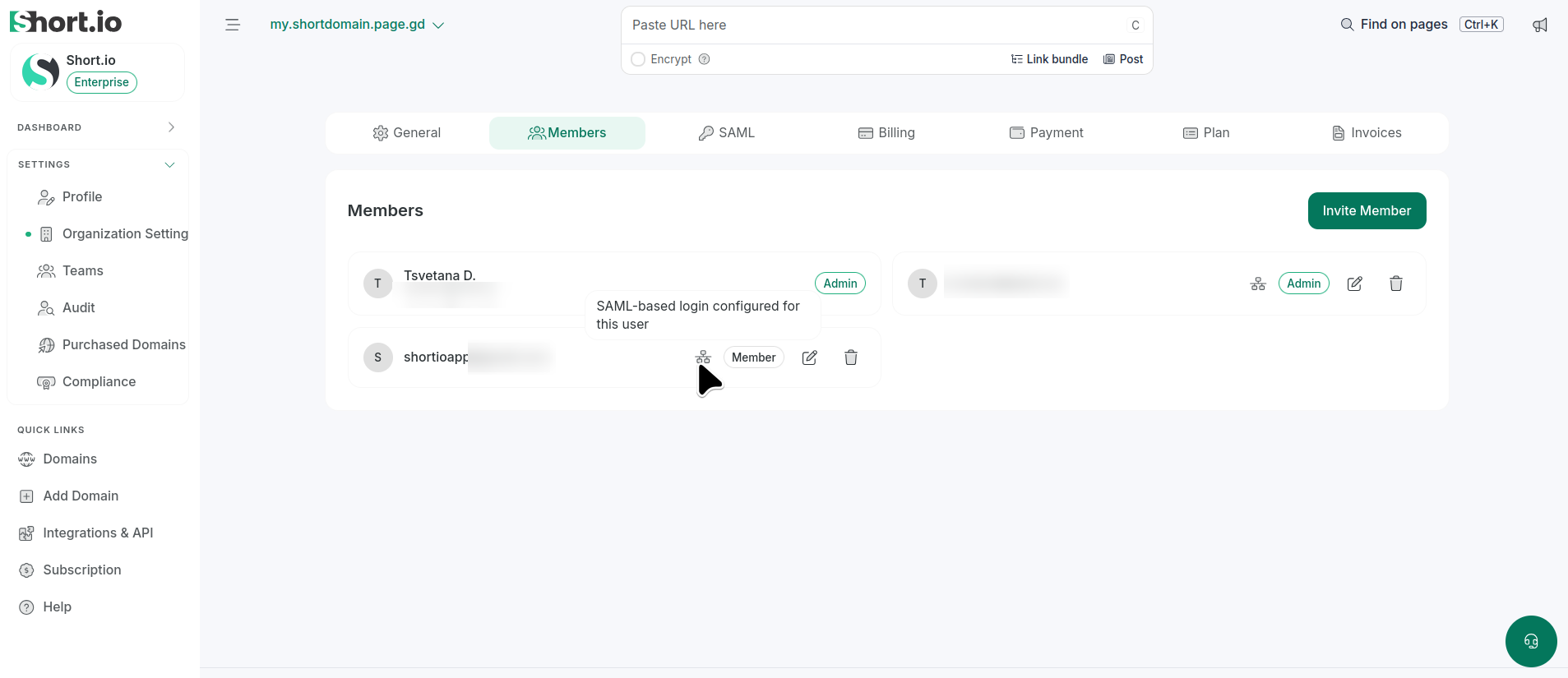
Short.io automatically creates a SAML-based login in the given Organization with the role Member for each user who logs in via SSO for the first time:
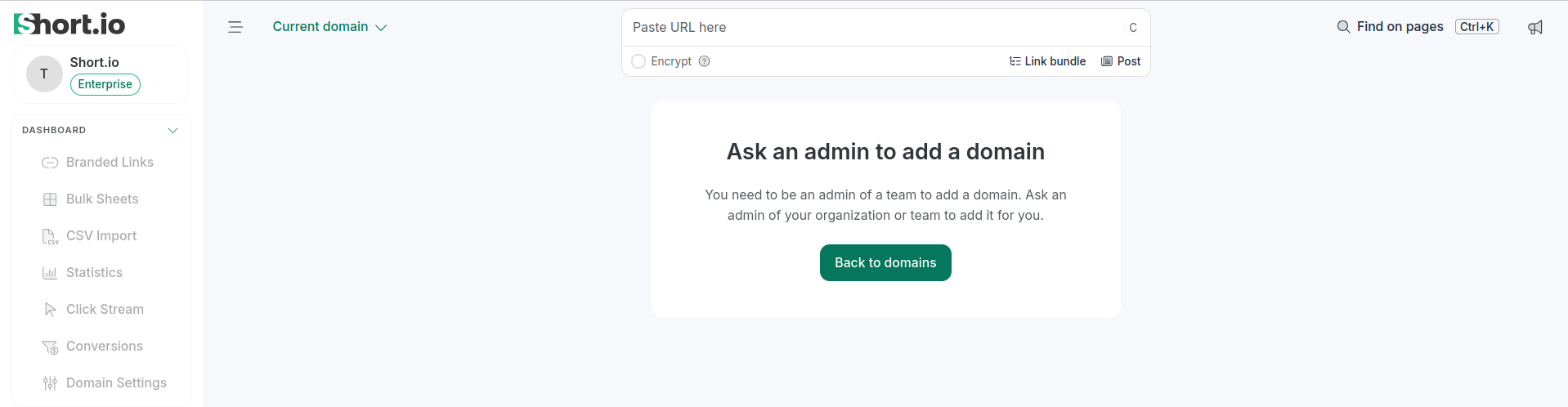
In case you have added a user without specifying a team, the Organization admin(s) should grant this user access to the resources they are authorized to use:
Otherwise, when team members log in through SSO, they are redirected to the dashboards and settings they usually have permission to access.