What is a service account
Overview
Service accounts are designed to avoid issues that can arise when team members change. If an API key is created under a personal user account, it may become unavailable when that person leaves the company. To address similar situations, Short.io introduces a special type of user which team owners can create, assign to particular teams and designate with one of three roles: Admin, User, or Read-only.
Service accounts are intended exclusively for programmatic API access. They cannot sign in to the Short.io interface using a username and password.
Where to find service accounts
Service accounts are located in the Teams section of the Settings menu.
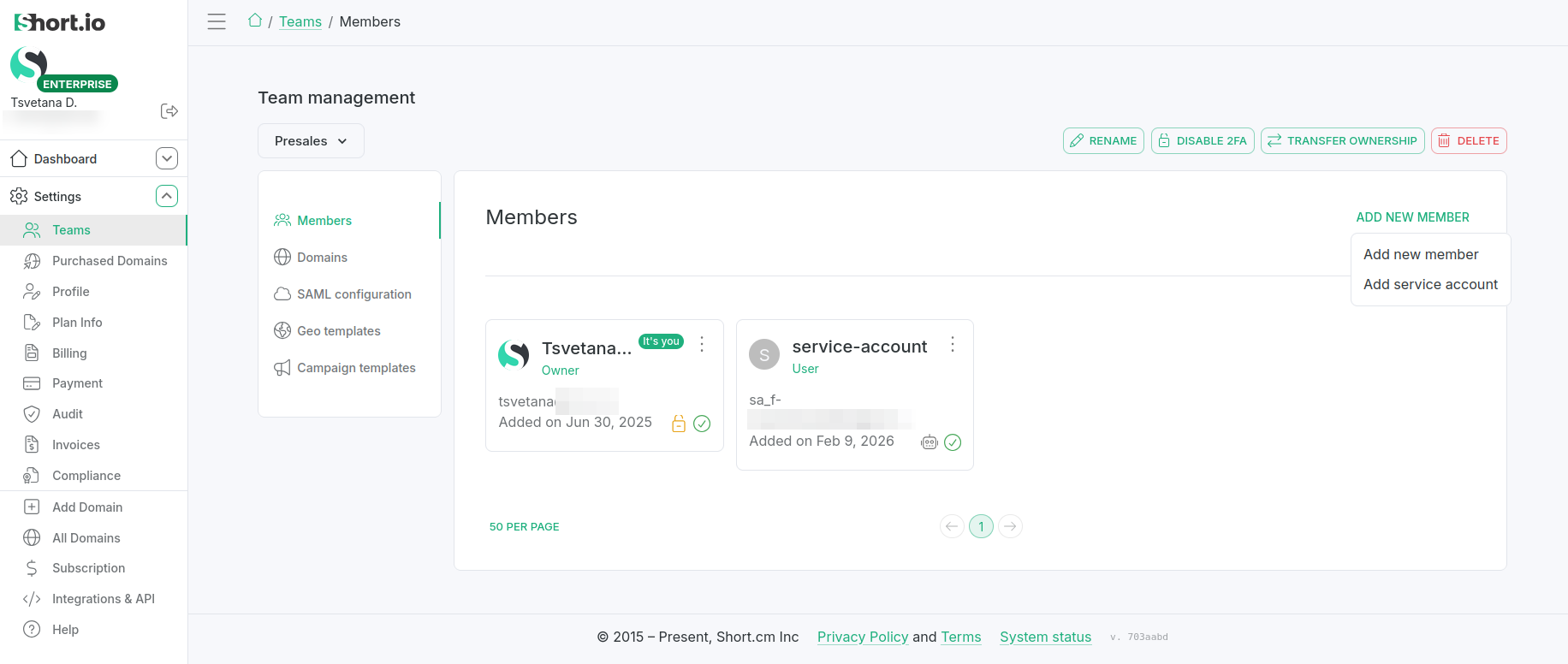
Managing service accounts
Creating a service account
To create a service account, follow these steps:
-
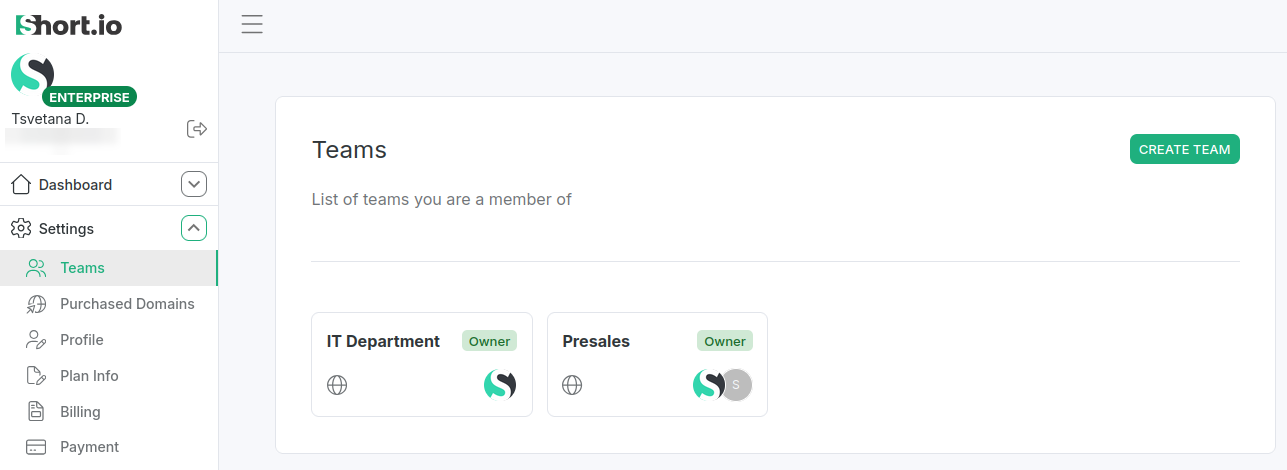
From the Dashboard's left panel select Settings->Teams.
-
Click on a team to open it or create a new one:
-
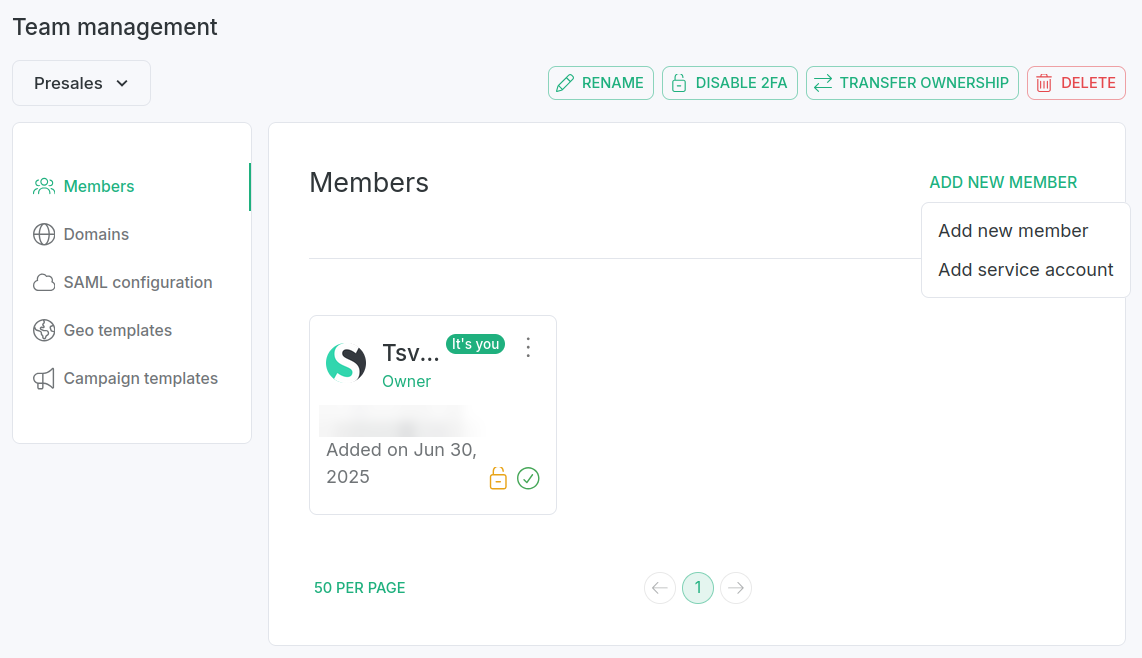
From the team's Members section, click the Add new member button and select Add service account:
-
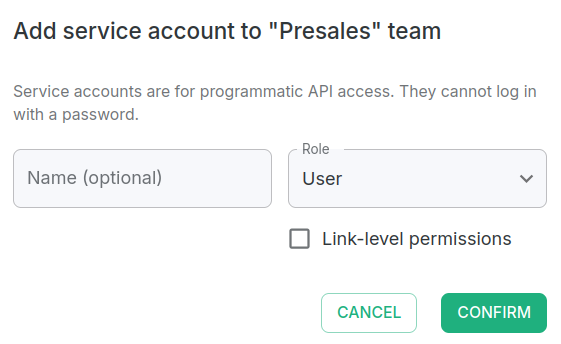
In the Add service account dialog box, you can:
-
(optionally) enter the service account's name
-
select the role you want to assign to it - Admin, User, or Read-only.
-
-
Confirm.
The service account will be created and added to the team.
Editing a service account
To edit a service account, follow these steps:
-
Navigate to the team to which the service account belongs.
-
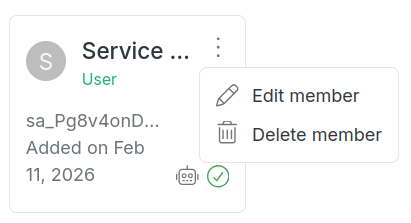
Locate the service account to be edited and click the more options icon:
-
Select Edit member.
-
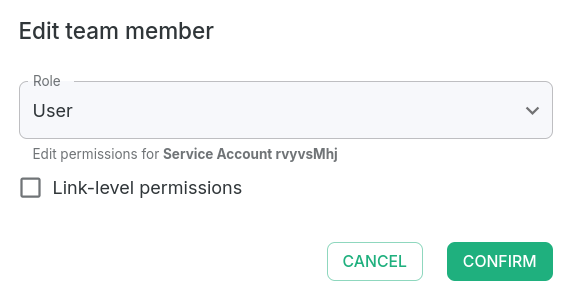
In the dialog box, you can only:
- change the role assigned to the service account - Admin, User, or Read-only.
-
Confirm.
The service account will be updated.
Deleting a service account
To delete a service account, follow these steps:
-
Navigate to the team to which the service account belongs.
-
Locate the service account to be removed and click the more options icon:
-
Select Delete member.
-
When prompted, confirm the deletion.
The service account will be removed from the team.