How to enforce Two-factor authentication on teams
Short.io provides you with the option to enforce Two-factor authentication (2FA) on teams. This is a crucial step in enhancing security, building trust, and protecting against various cyber threats for both individual users and for the whole team.
When you enforce 2FA on a team you have created that currently has no other members, then you cannot add other users who have not turned on 2FA in their profiles settings.
And if 2FA is enforced on a team that already has a few members, those who have not yet set up 2FA in their profile will be removed from the team. Their status will become Invite pending and they will receive an email from Short.io including a link for 2FA activation.
To enforce 2FA on a team
-
Sign in to your Short.io account.
-
Navigate to the Settings -> Teams menu and select a team:
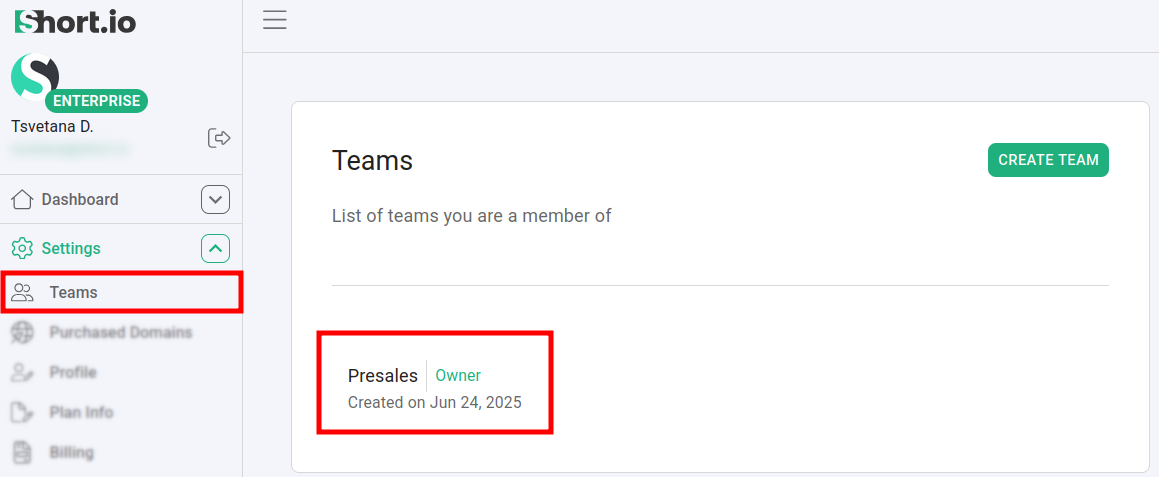
-
Click on Enforce 2FA:

-
When the following message appears: _All users without second factor will be removed from
<_**_team-name**\>team!_, click on Confirm: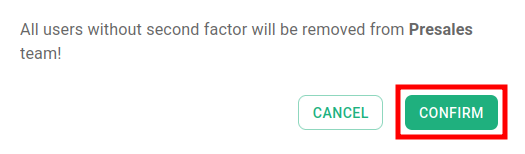
The team has now Two-factor authentication enforced.
To disable 2FA for a team
-
Sign in to your Short.io account.
-
Navigate to the Settings -> Teams menu and select a team:
-
Click on Disable 2FA:
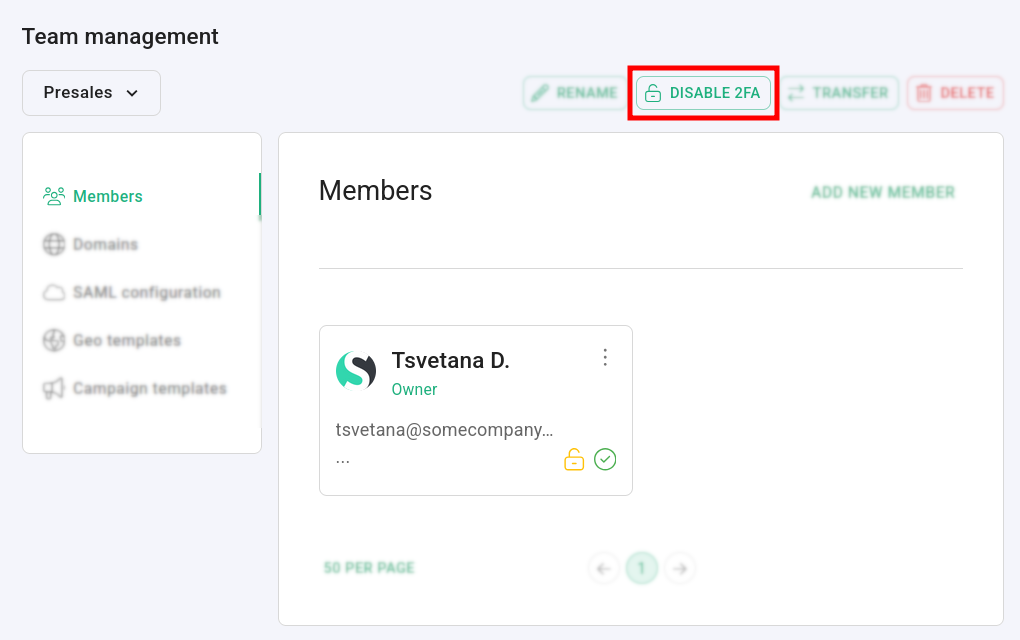
-
When the following message appears: Do you want to cancel 2FA enforcement?, click on Confirm_._
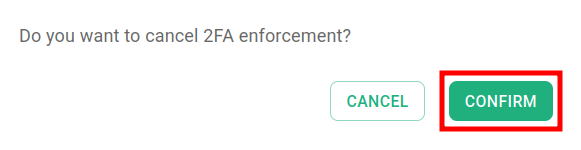
The team no longer has Two-factor authentication enforced.