How to change team members permissions
You can edit team members permissions following the procedure below:
-
Sign in to your Short.io account.
-
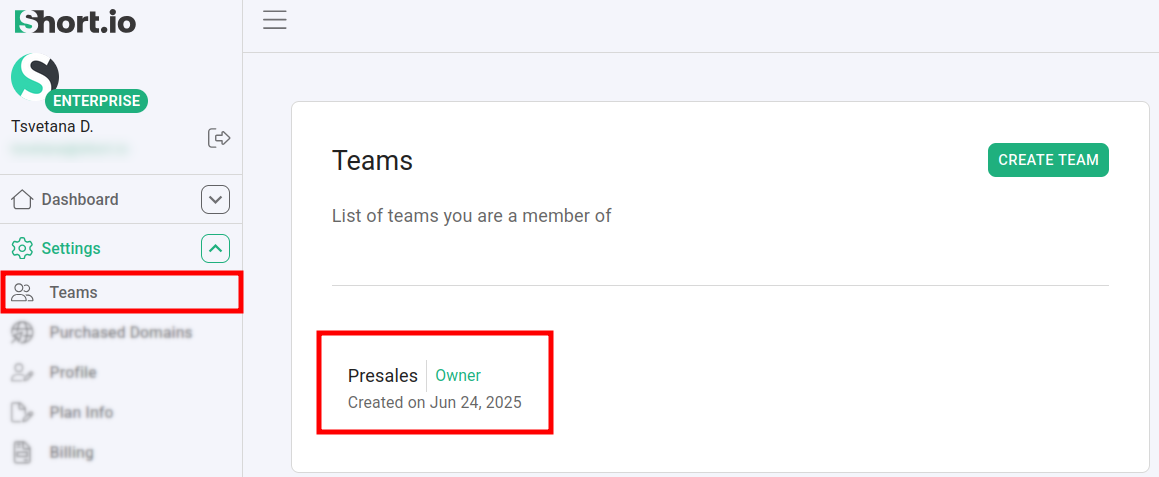
Navigate to the Settings -> Teams menu and select a team:
-
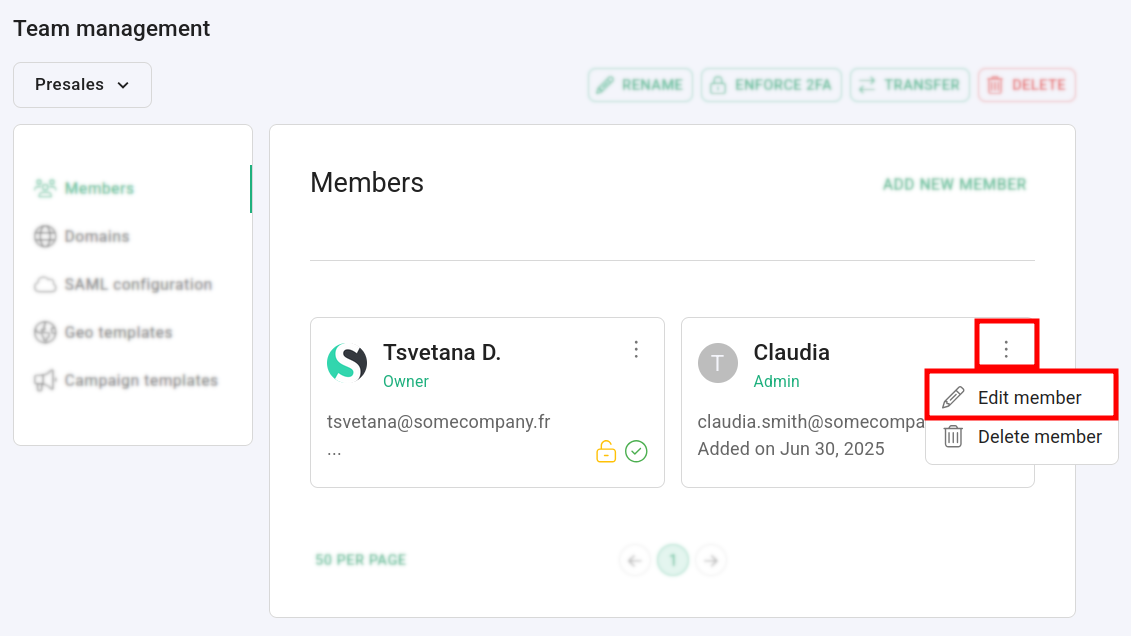
Click on next to the user for which you want to change the permissions, and then select Edit member.
-
In the next screen you can change the member's role. Click on Confirm to save your settings:
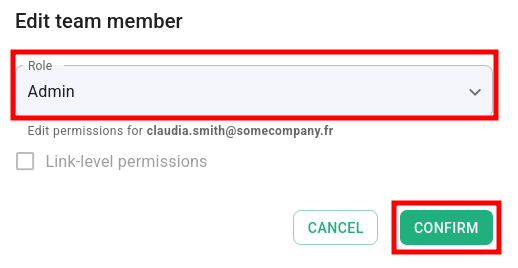
The new permissions are applied.
For more information on the Short.io roles and permissions please review the following article.