How to retrieve domain, link and folder identifiers from the Short.io URLs and API
The instructions below will help you locate the unique IDs of the Short.io domains, links and folders.
Before you begin, sign in to your Short.io account.
How to find DomainID
-
In the Dashboard navigate to the Branded links panel.
-
You can extract the domain identifier from the URL address:
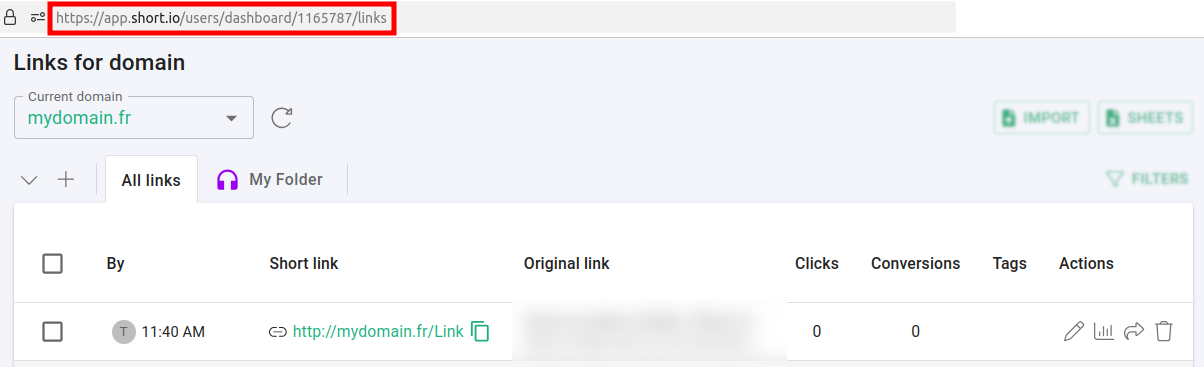

In this case, DomainID = 1165787**.**
How to find LinkID (IdString or linkIdString)
-
In the Dashboard navigate to the Branded links panel.
-
Click on
 to edit a link: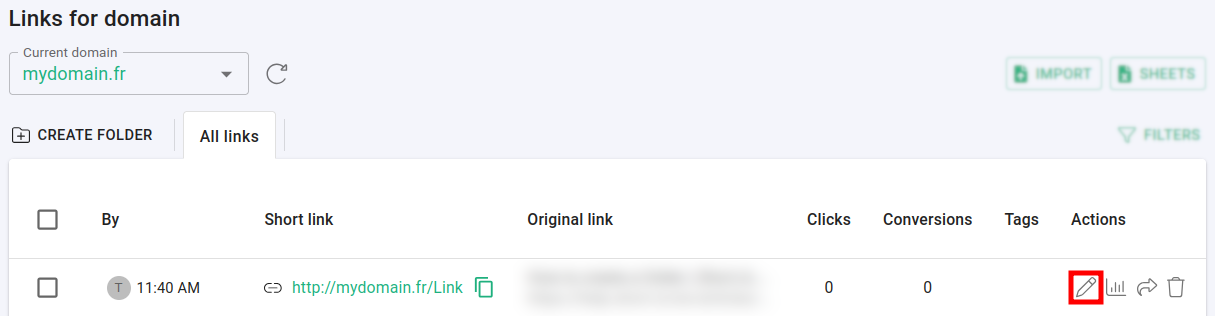
-
You can extract the link identifier from the URL address:
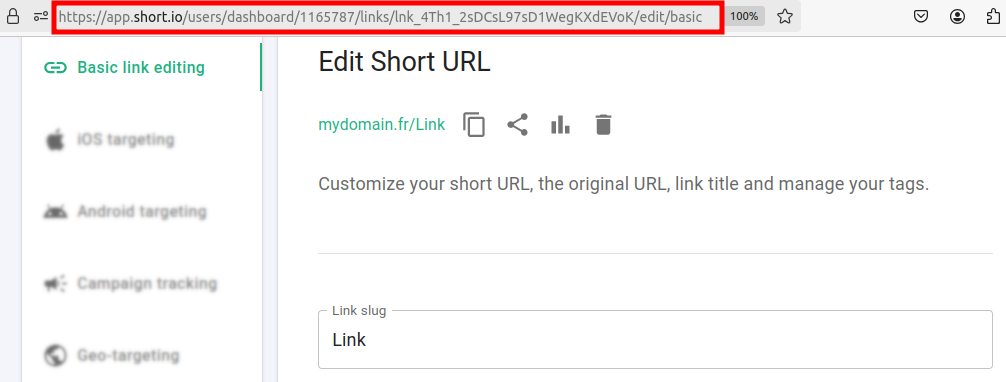
In this case, LinkID = lnk_4Th1_2sDCsL97sD1WegKXdEVoK**.**
How to find FolderID
-
In the Dashboard navigate to the Branded links panel.
-
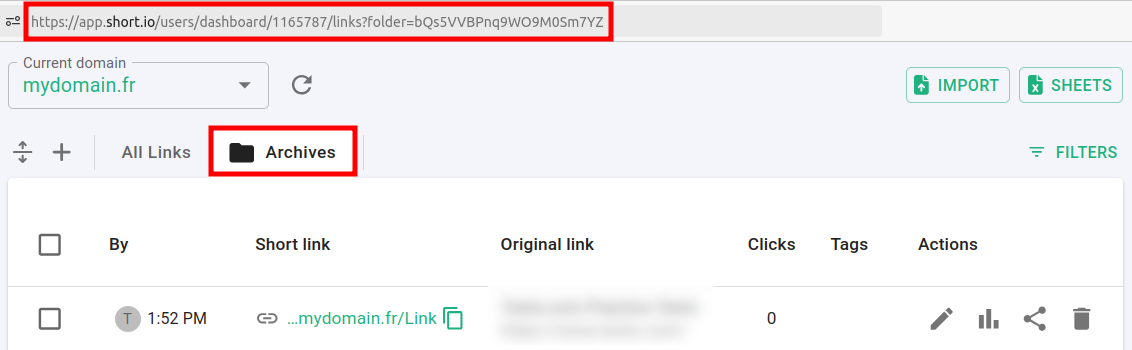
Click on a folder to display its links:
-
You can extract the folder identifier from the URL address, which in this case is:
FolderId = OSE5BWDxBxdAS-oBVN-0f
How to find identifiers using the API
You can use the Short.io API reference page to extract specific Domain, Link and Folder IDs.
Before you begin, make sure you have created an API key.
Steps to follow
-
Sign in to your Short.io account.
-
From the Branded links menu click on
to edit a link: -
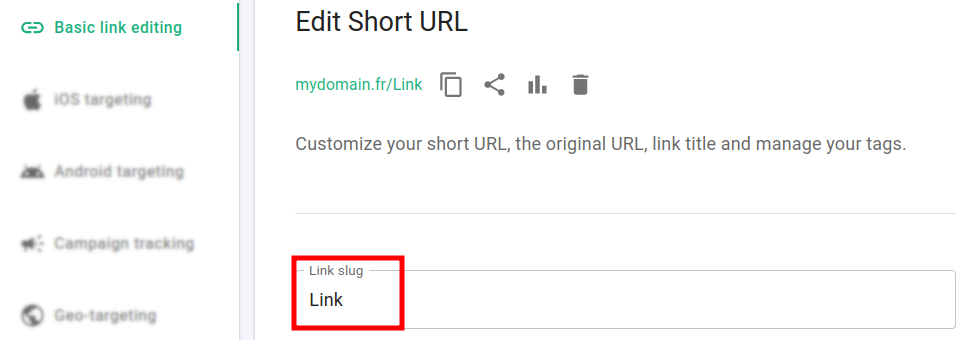
Copy the link's slug from the Basic link editing section:
-
Open the Short.io API Link info page.
-
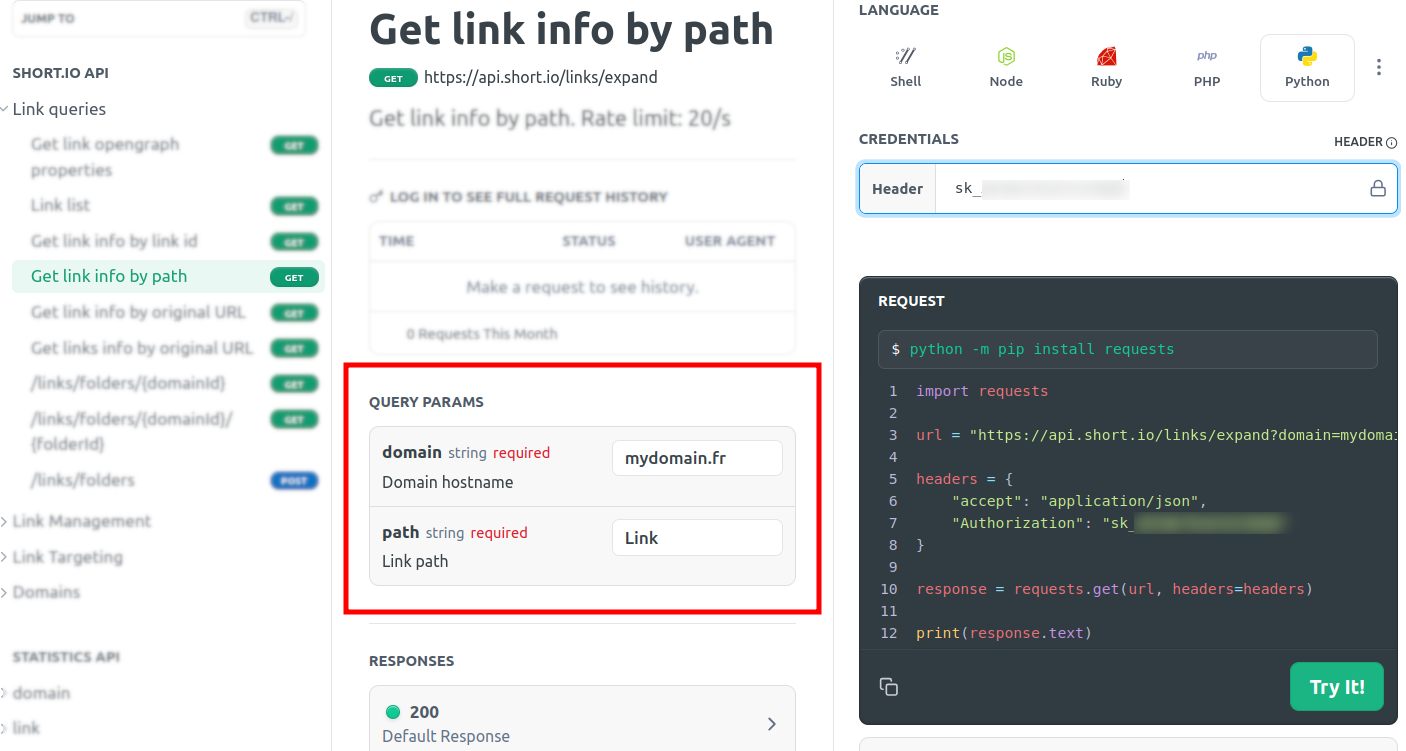
In the Query params panel enter the following information:
-
domain name
-
link slug (path part of your link)
-
-
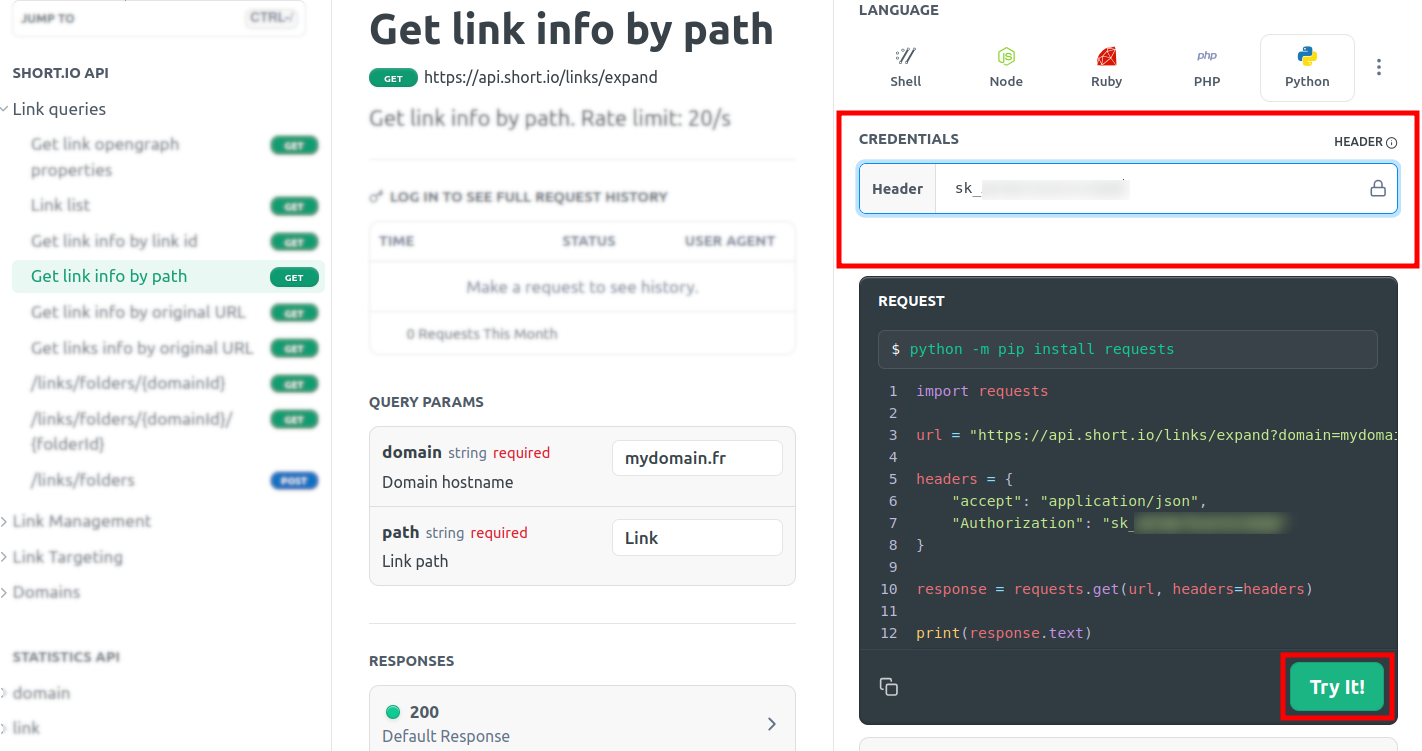
In the Credentials section enter your API key:
-
Click on Try it.
-
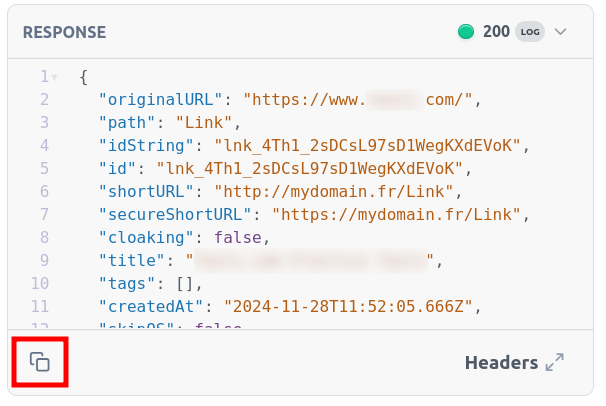
In the Response panel you can review the result:
-
Click on
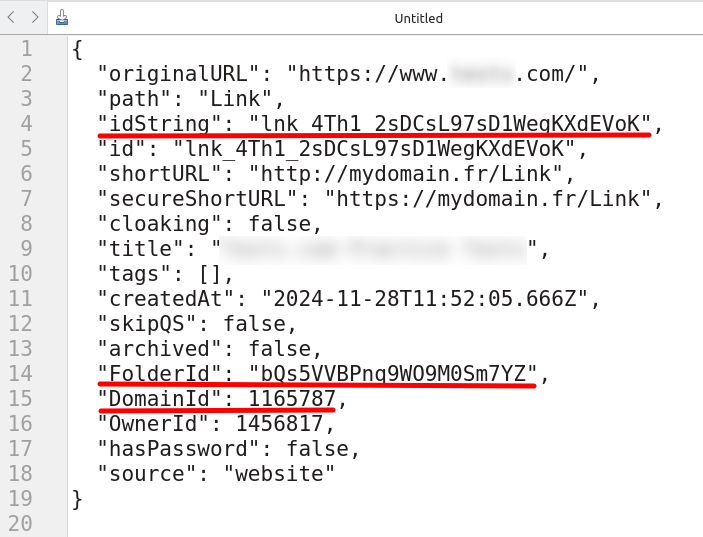
 to copy the entire response and paste it in a text editor. The following information is available:
-
idString - your link identifier
-
FolderId - if your link belongs to a folder, this is its identifier
-
DomainID - your domain identifier
-