How to configure Short.io SSO via Microsoft Azure Active Directory
Short.io supports Single Sign-On (SSO) integration with Microsoft Azure Active Directory.
Note: SSO is available on the Enterprise Plan.
Before you begin
You need to create a Team in Short.io before setting up SSO. Follow the instructions in this article.
How to configure SSO with Azure Active Directory
Azure settings
-
Sign in to your Microsoft Azure account.
-
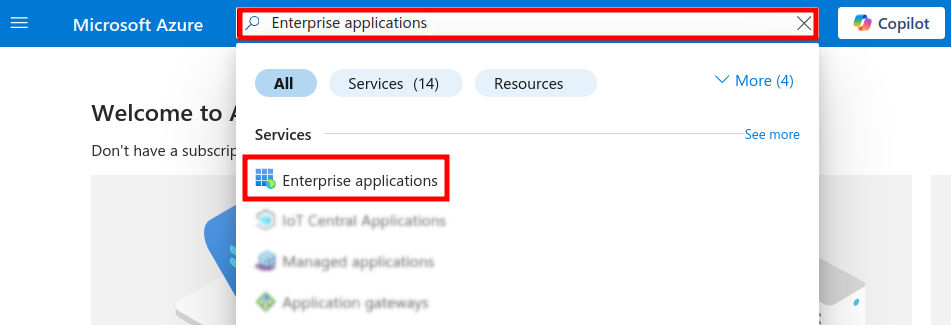
In the search field enter Enterprise applications and from the result list select the service with the same name:
-
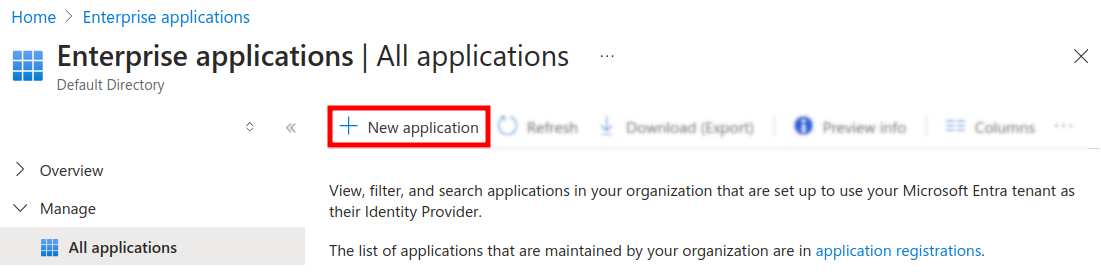
Click on + New application:
-
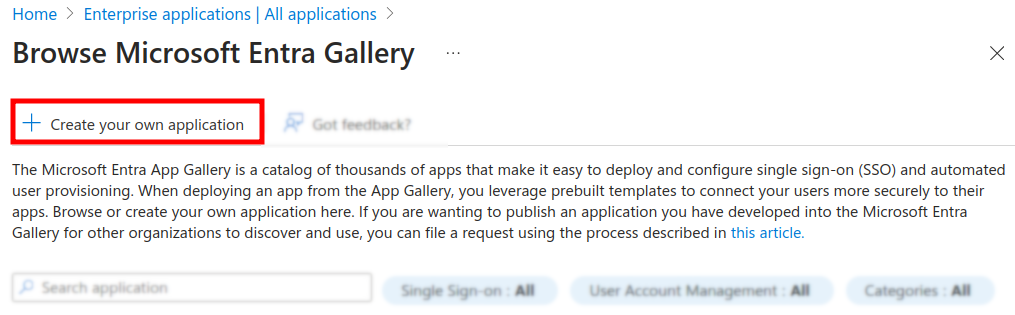
Click on + Create your own application:
-
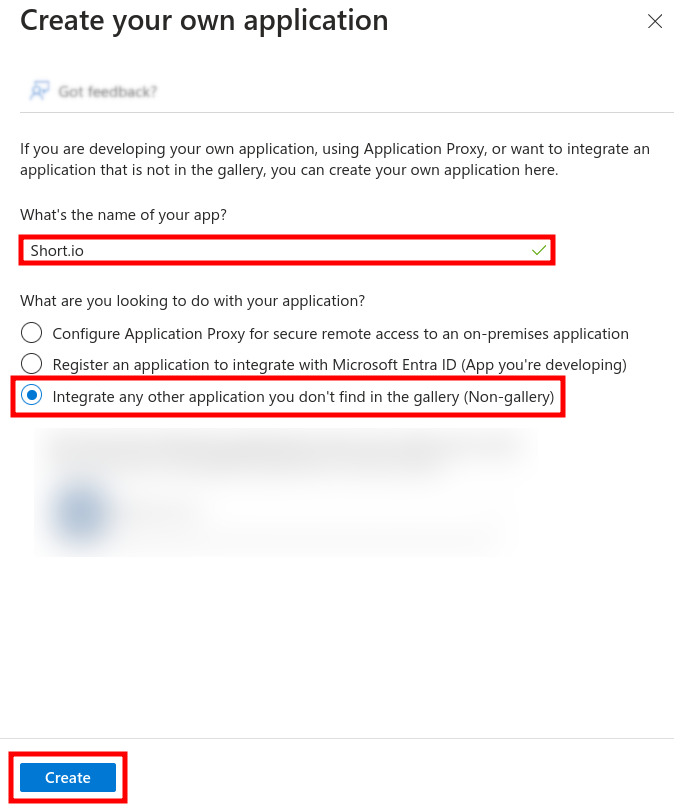
Enter a name for the application and select Integrate any other application you don’t find in the gallery:
-
Click on Create.
-
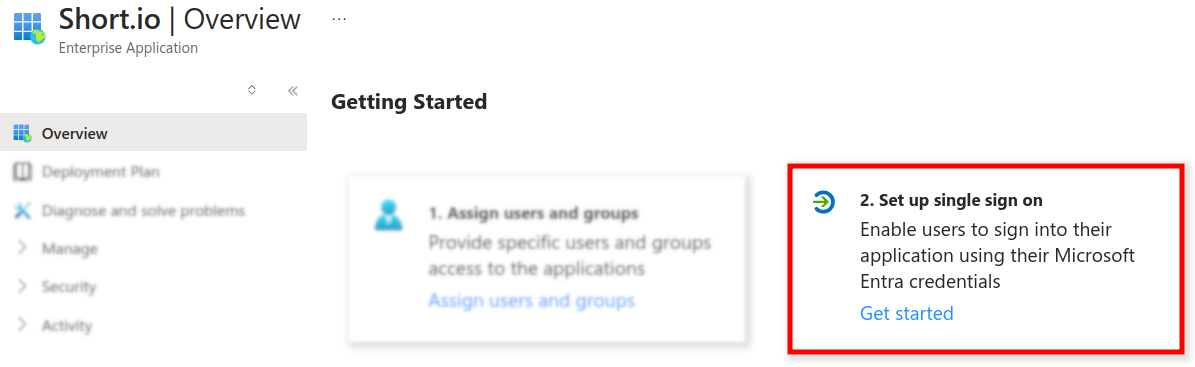
In the Getting Started screen select Set up single sign on:
-
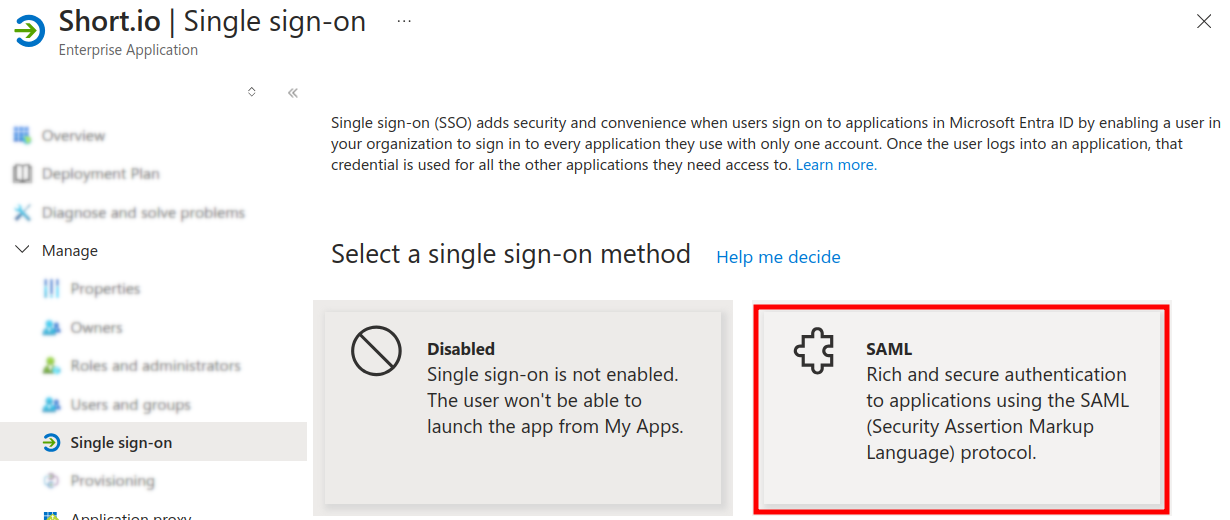
Choose SAML as SSO method:
-
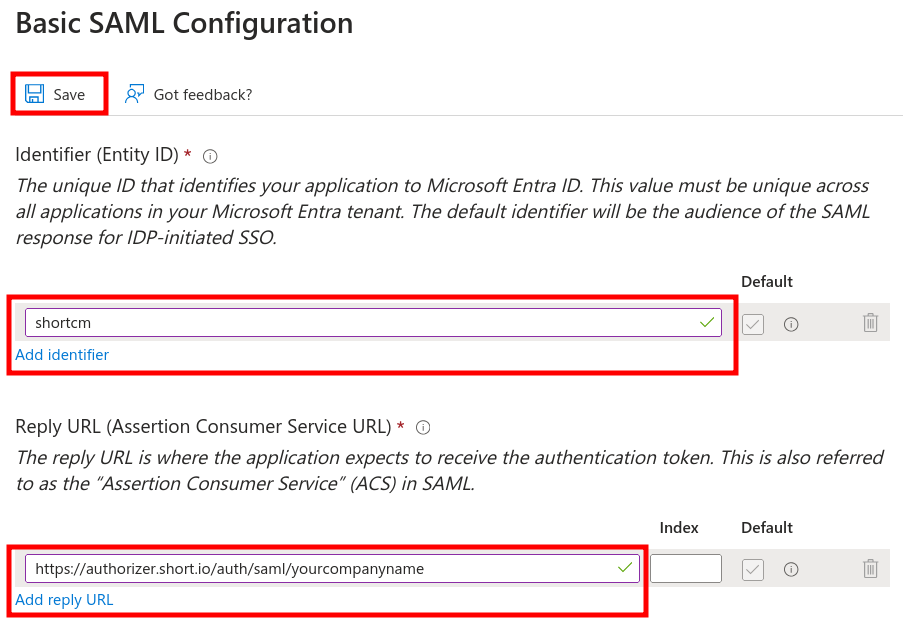
In the Basic SAML configuration screen:
-
enter shortcm as identifier
-
enter [https://authorizer.short.io/auth/saml/
<yourcompanyname](https://authorizer.short.io/auth/saml/yourcompanyname)\>as Reply URL -
click on Save
-
-
When prompted to test the SSO, click on No, I’ll test later:

-
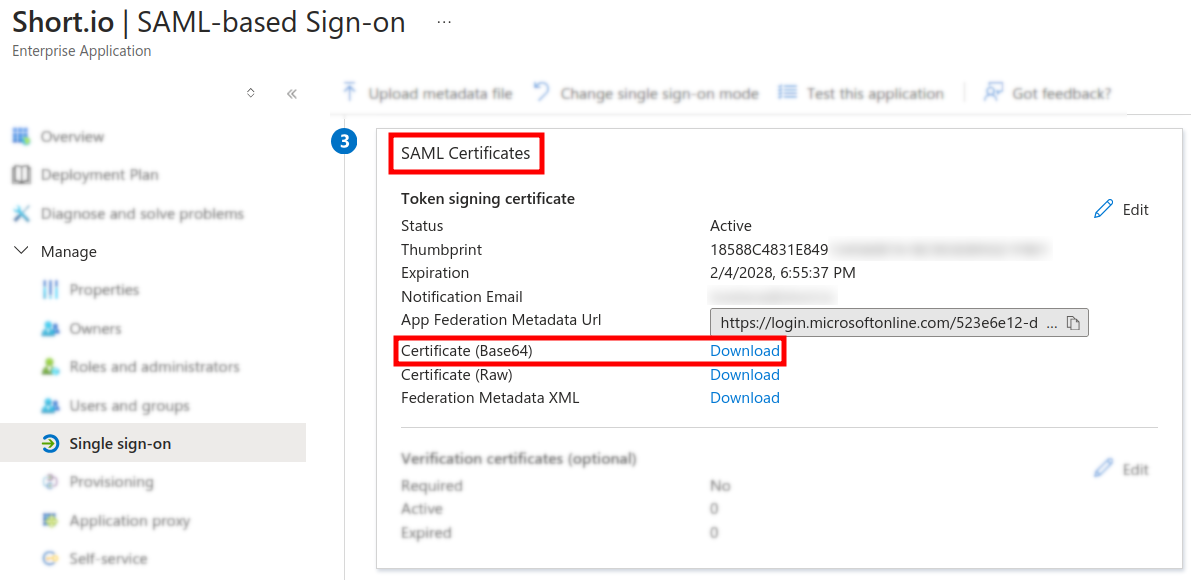
In the Single sign-on configurations page navigate to the SAML Certificates section:
-
Download the Certificate (Base64) on your device.
-
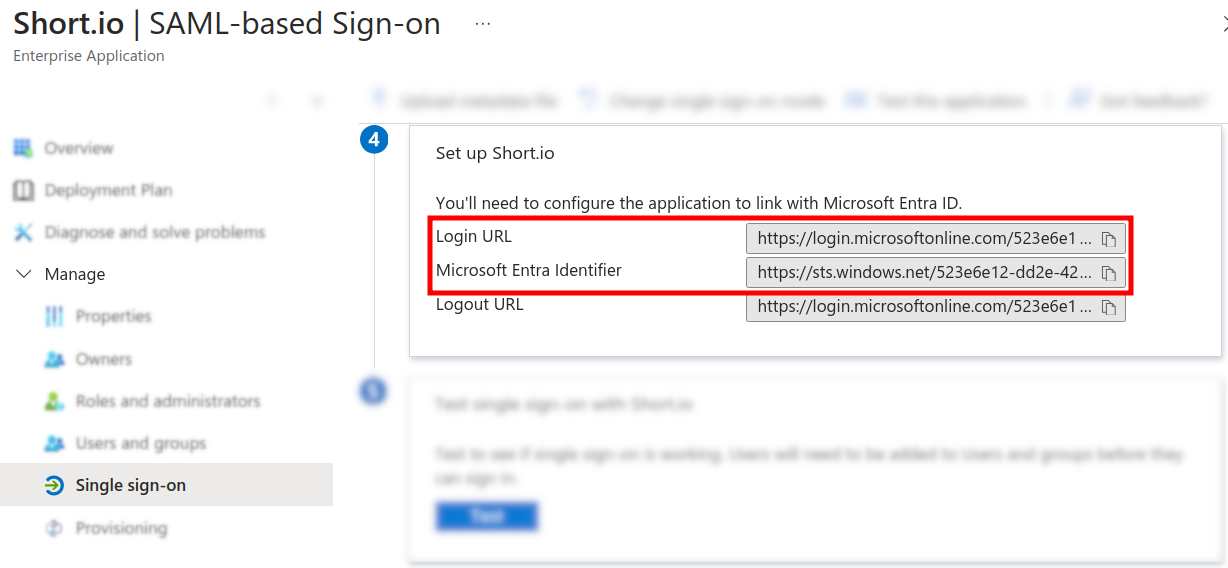
From the Set up panel copy and save in a text document the Login URL and the Microsoft Entra identifier:
-
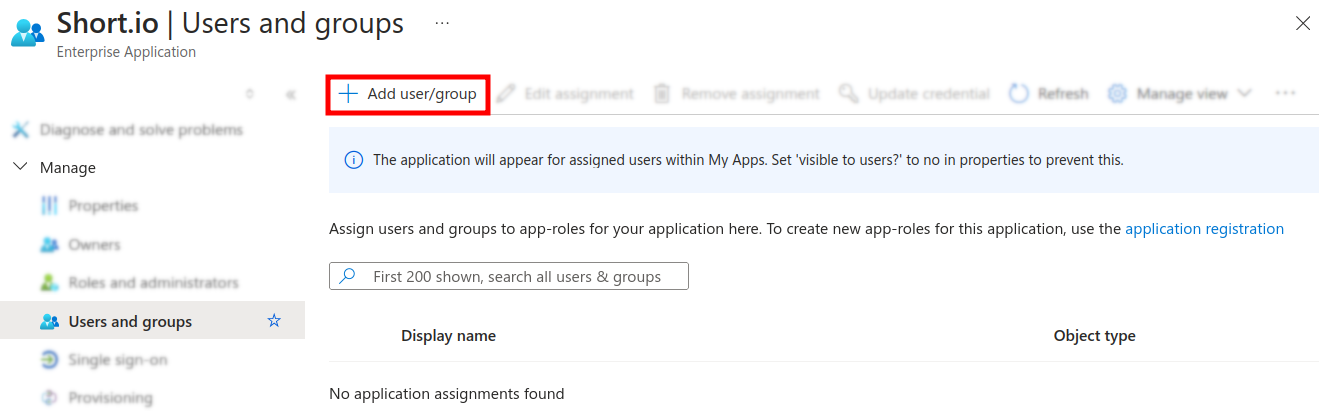
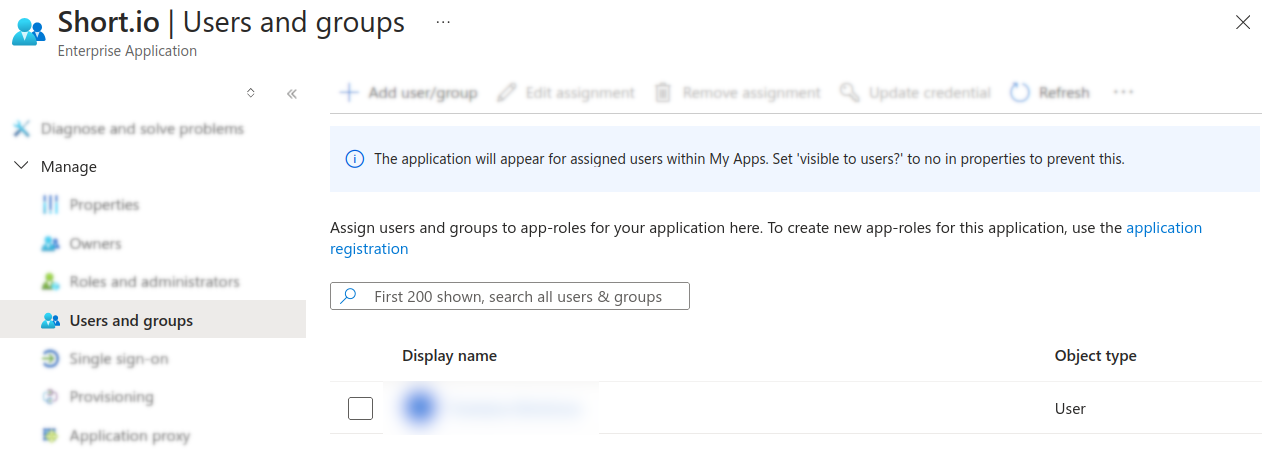
From the Manage menu select Users and groups and click on + Add user/group:
-
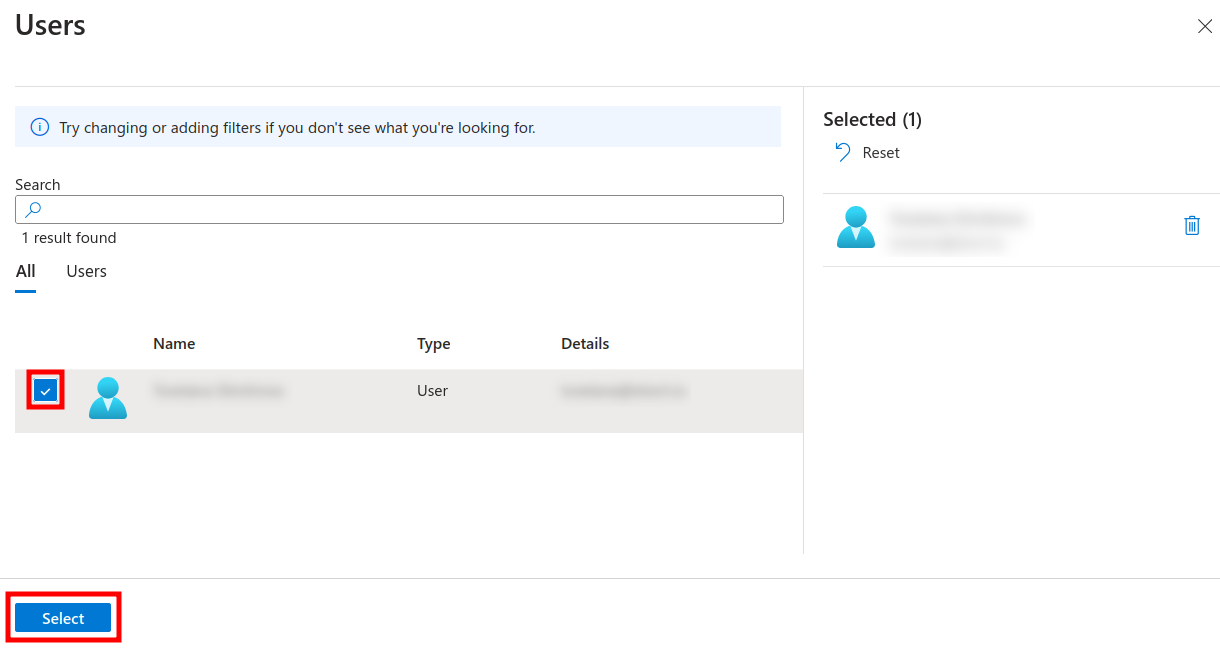
Mark the needed user(s) and click on Select:
-
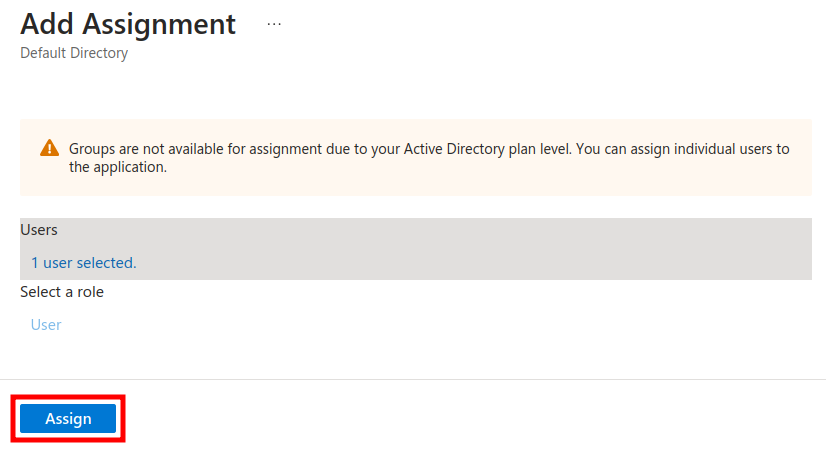
Review the selection and click on Assign:
-
Your settings are applied:
Short.io settings
-
Sign in to your Short.io account.
-
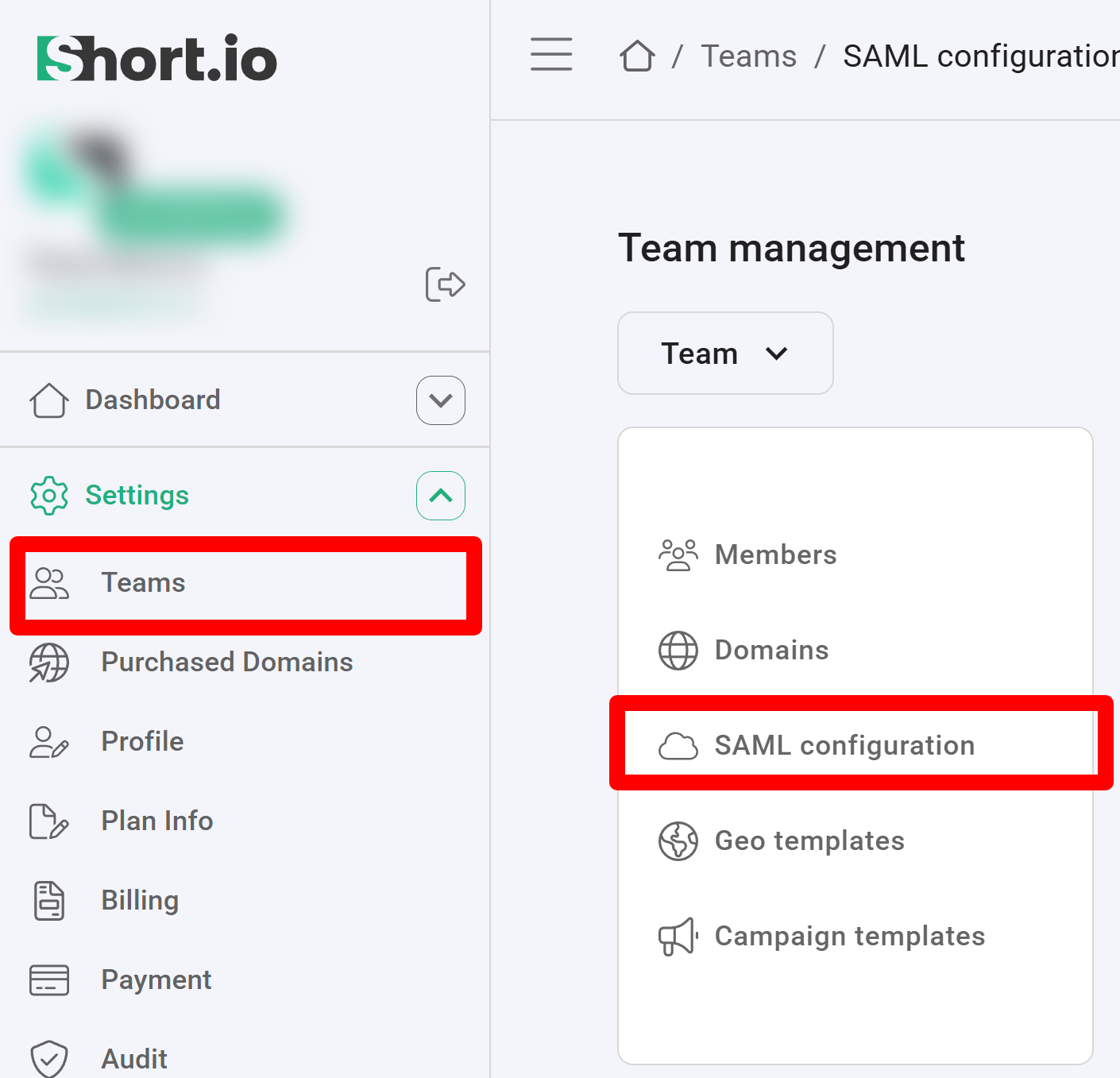
Navigate to the Settings and click on Teams:
-
Click on your team and then click SAML Configuration.
-
In the next screen:
-
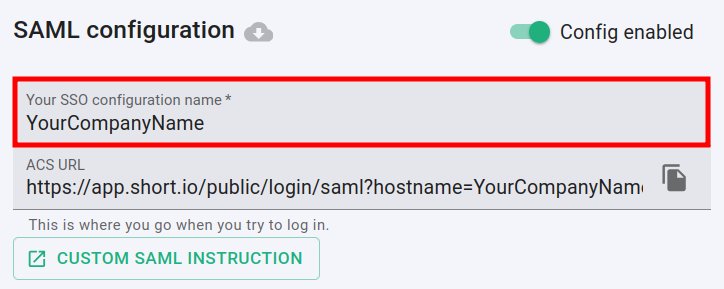
enable the SAML configuration:

-
enter the name of your company in the SSO configuration field:
-
paste the Microsoft Login URL which you copied from the Microsoft application settings into the Entry point URL field:

-
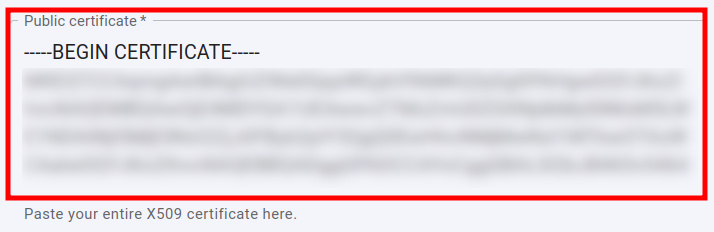
open the certificate which you downloaded in a text editor, copy and paste the content of the certificate into the Public certificate field:
-
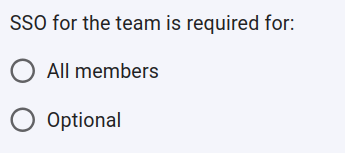
you can specify whether or not the SSO is required for All members of the team or is Optional:
-
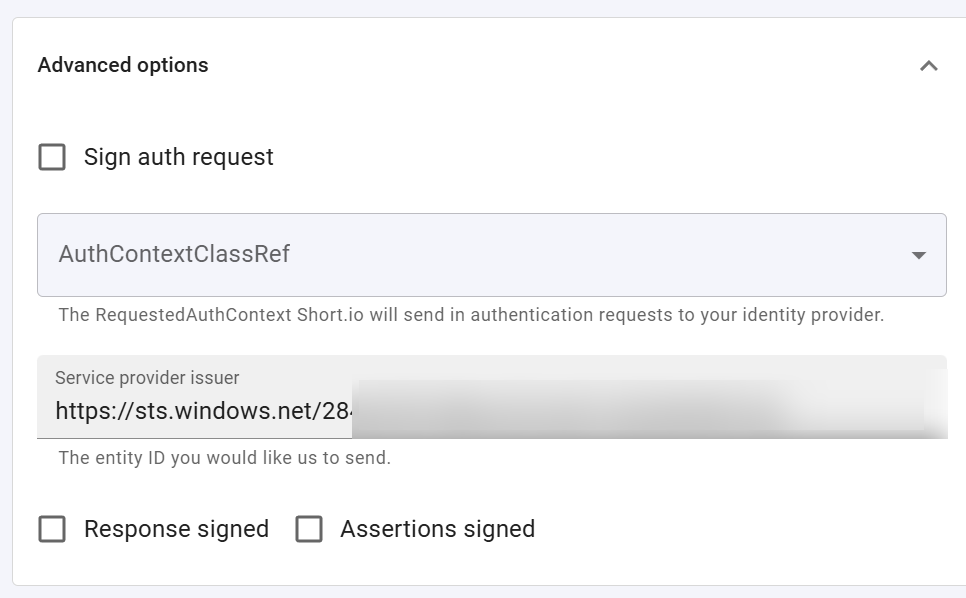
expand the Advanced options and paste the Microsoft Entra Identifier which you copied from the application settings into the Service provider issuer field:
-
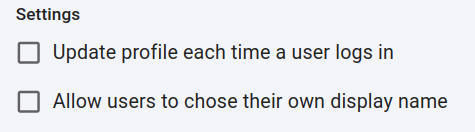
you can determine if a profile should be updated each time the user logs in,
and if the users are allowed to chose their own display name:
-
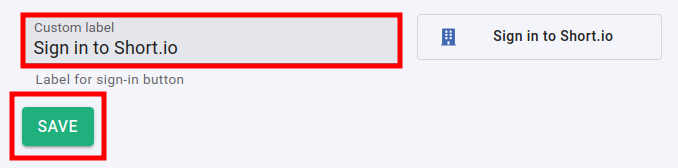
you can change the appearance of the Sign in button by adding a custom label:
-
-
Click on Save to confirm.
You can now use the Single Sign-On with Short.io.
Note: The Short.io team configures SSO within 24 hours.
In case you need further assistance, please contact the Short.io support team at support@short.io.