How to integrate Short.io with Amplitude
Integrate Short.io with Amplitude to receive detailed statistical data. The integration lets tracking success of short URLs in a form of graphs and charts.
You can build funnels, which displays the number of users who have taken each step before making a purchase. You will find out what percentage of users leaves a certain stage of the funnel. Amplitude counts Retention, Rolling Retention and Retention with a certain time interval: you can set the first, second-fifth, sixth-twelfth days.
Follow the instructions below:
1. Go to your Segment workspace.
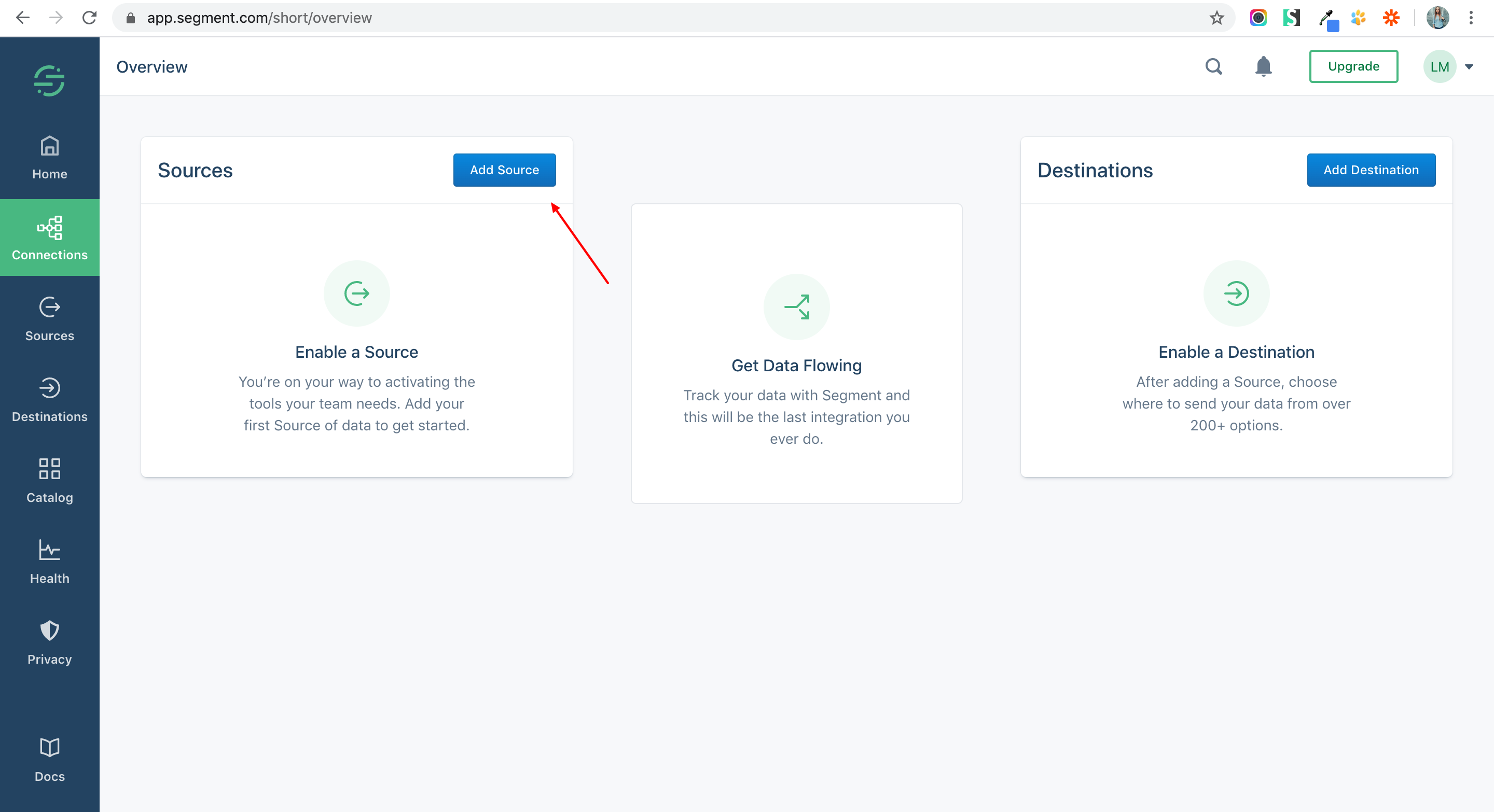
2. Add a source app.
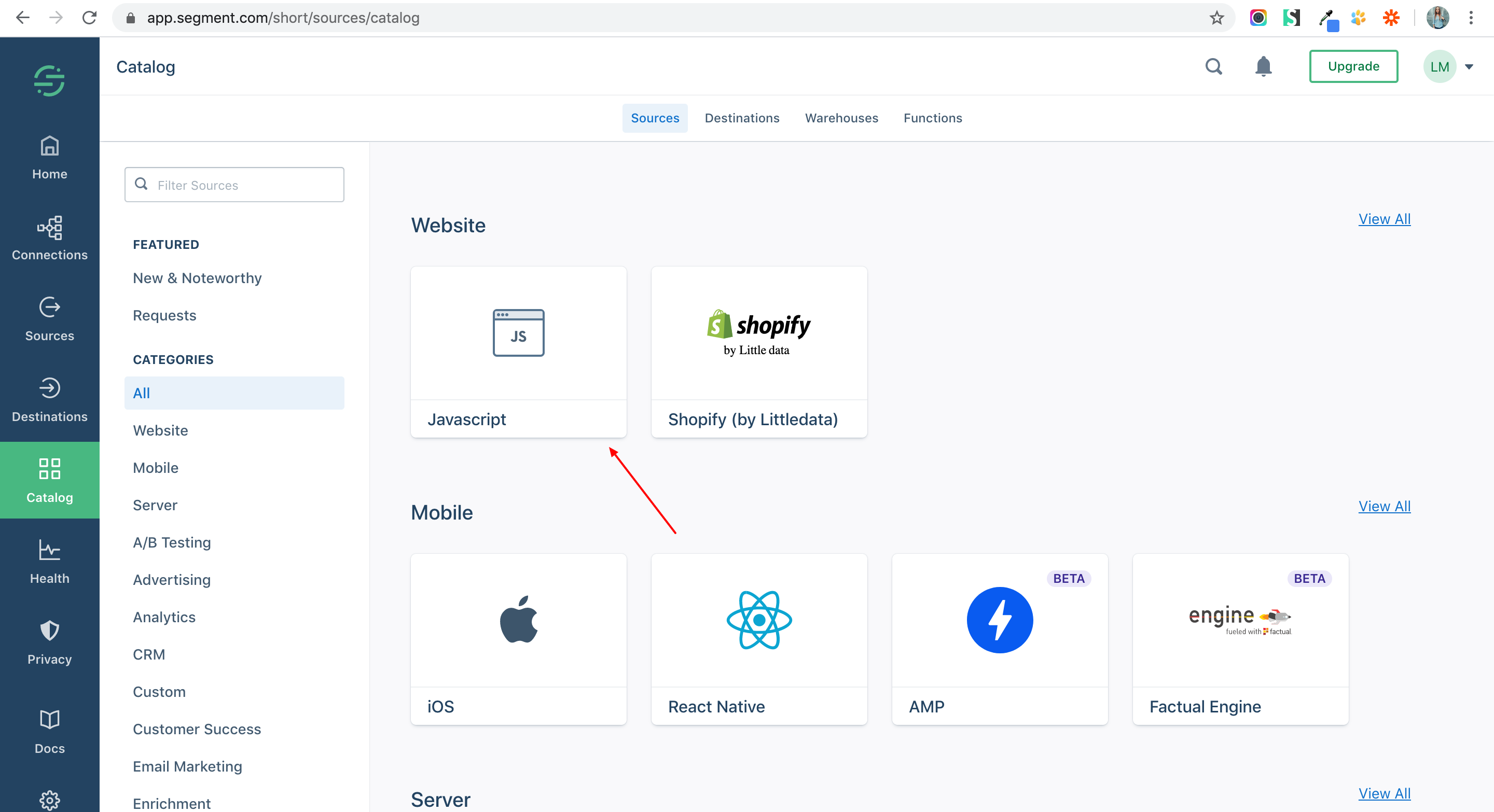
3. Connect the Website — JavaScript mode.
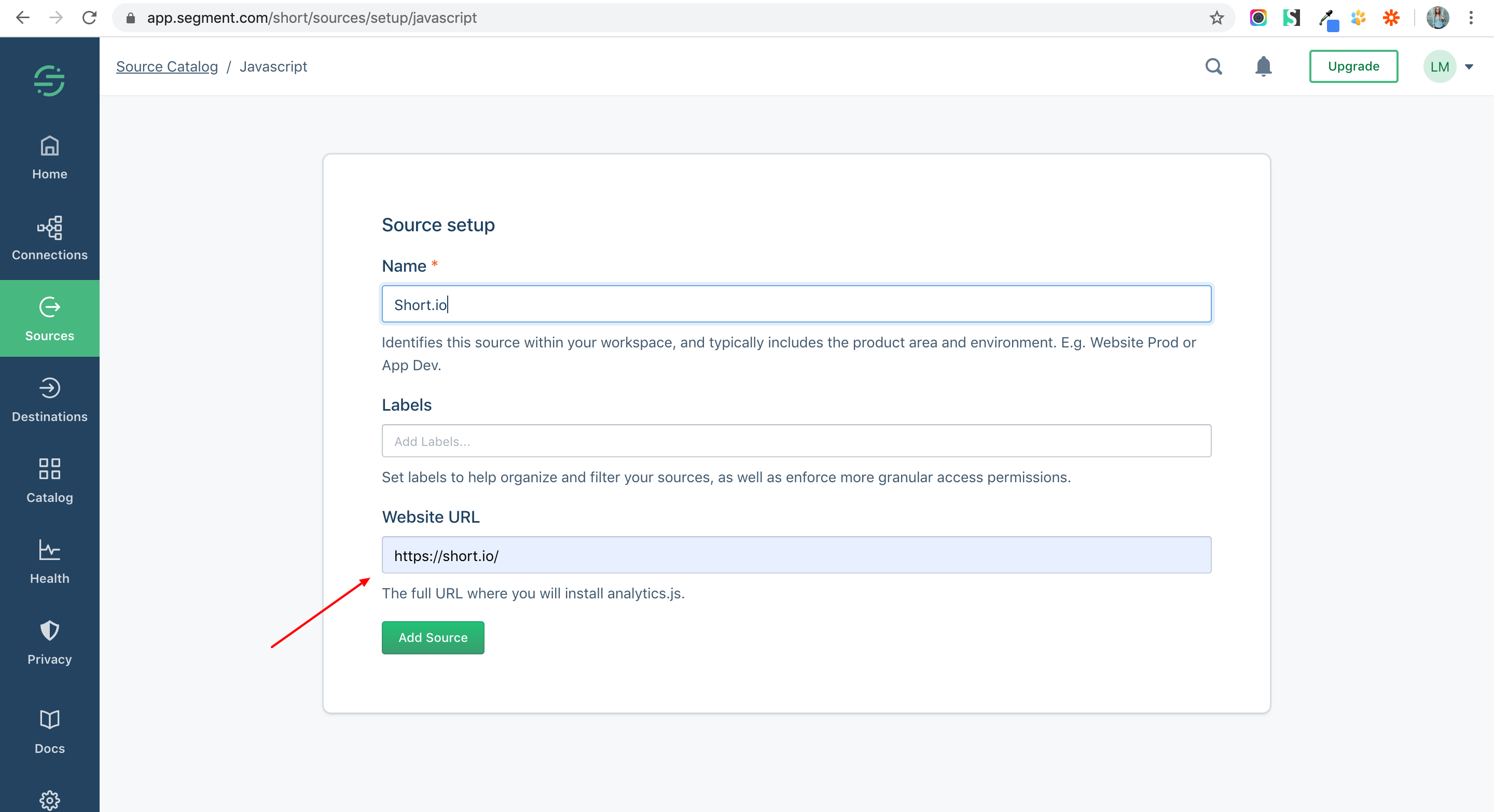
4. Add the Short.io website URL.
5. Choose Settings.
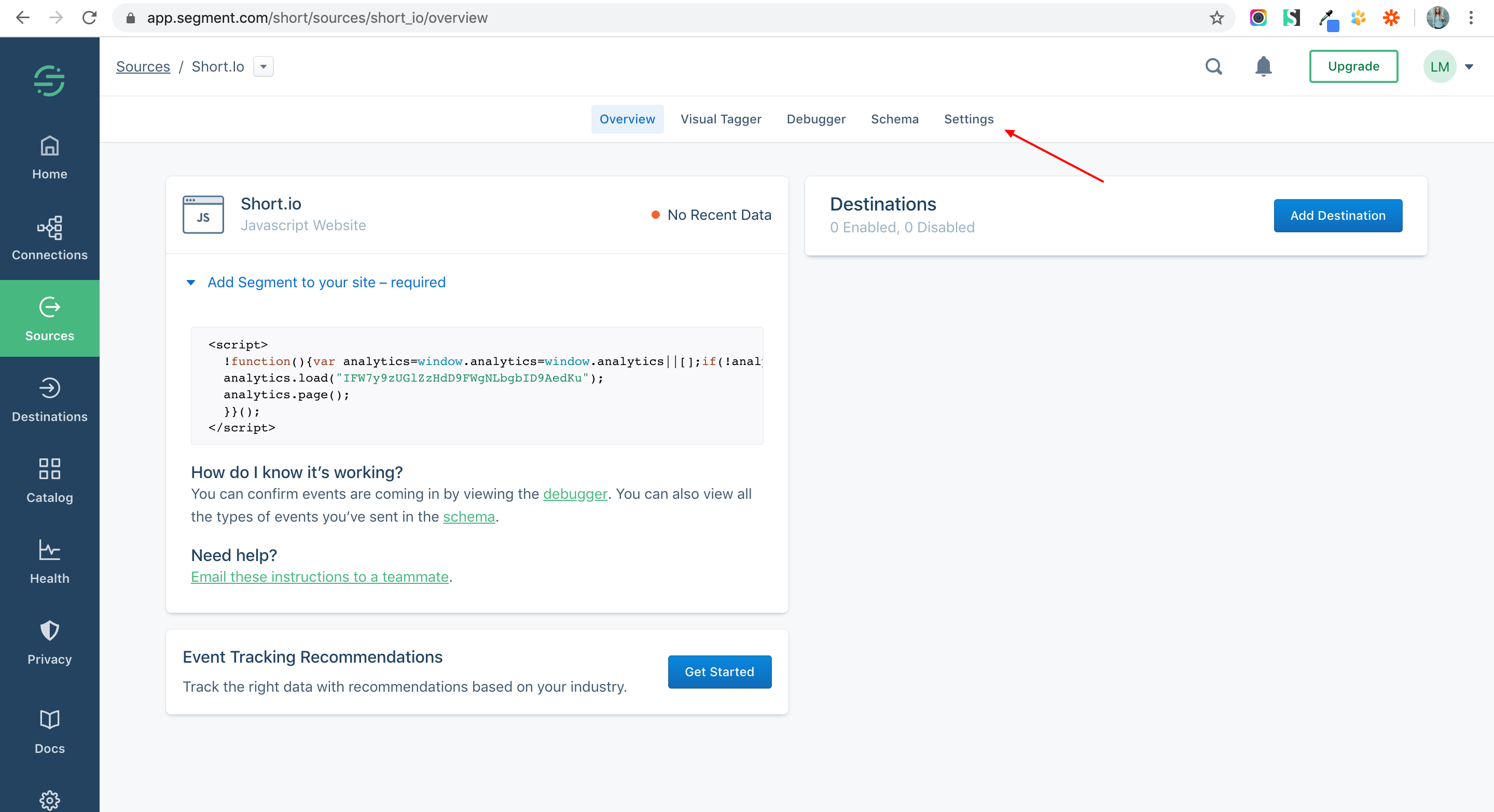
6. Click API Keys.
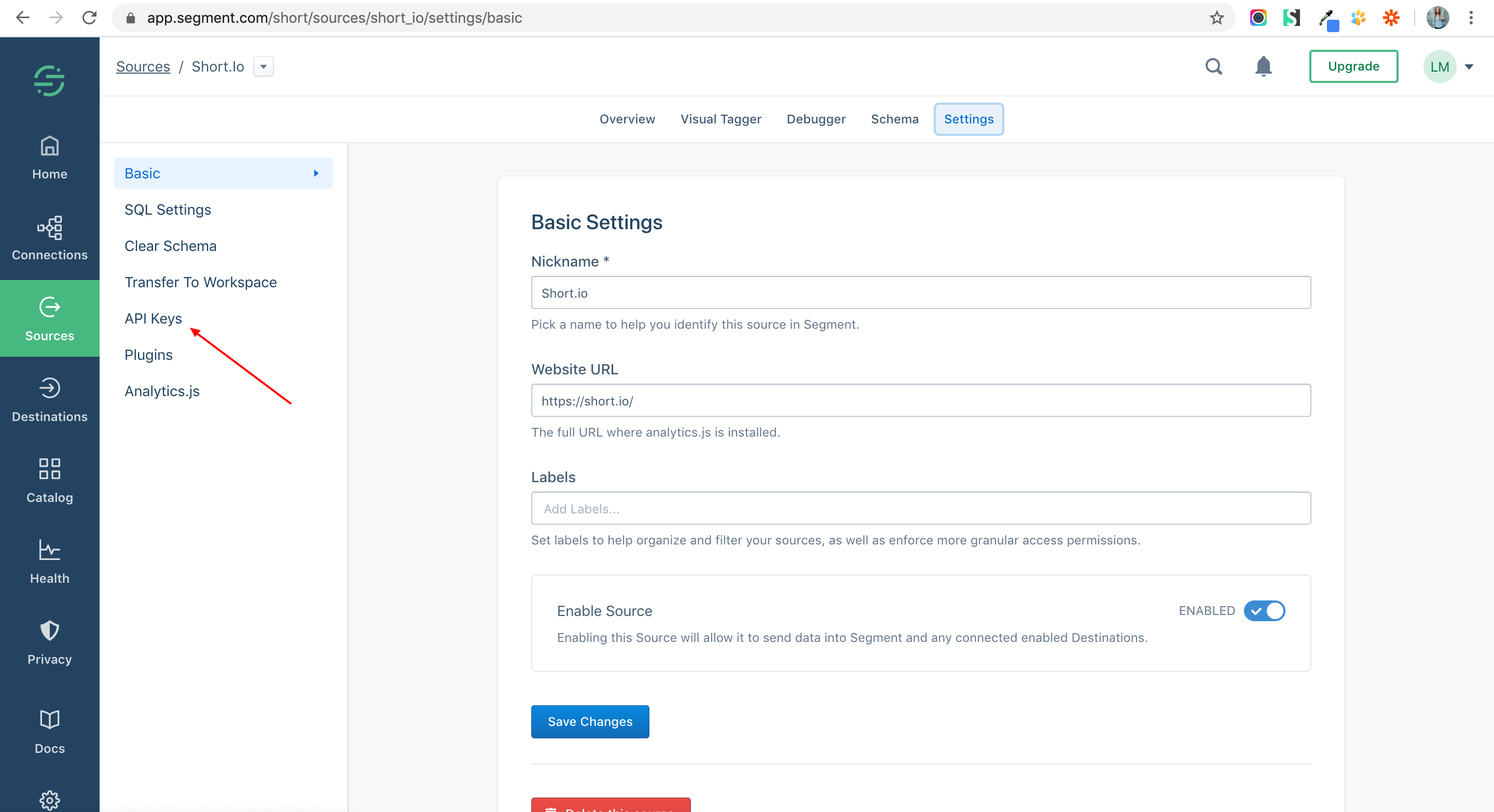
7. Copy an API Key.
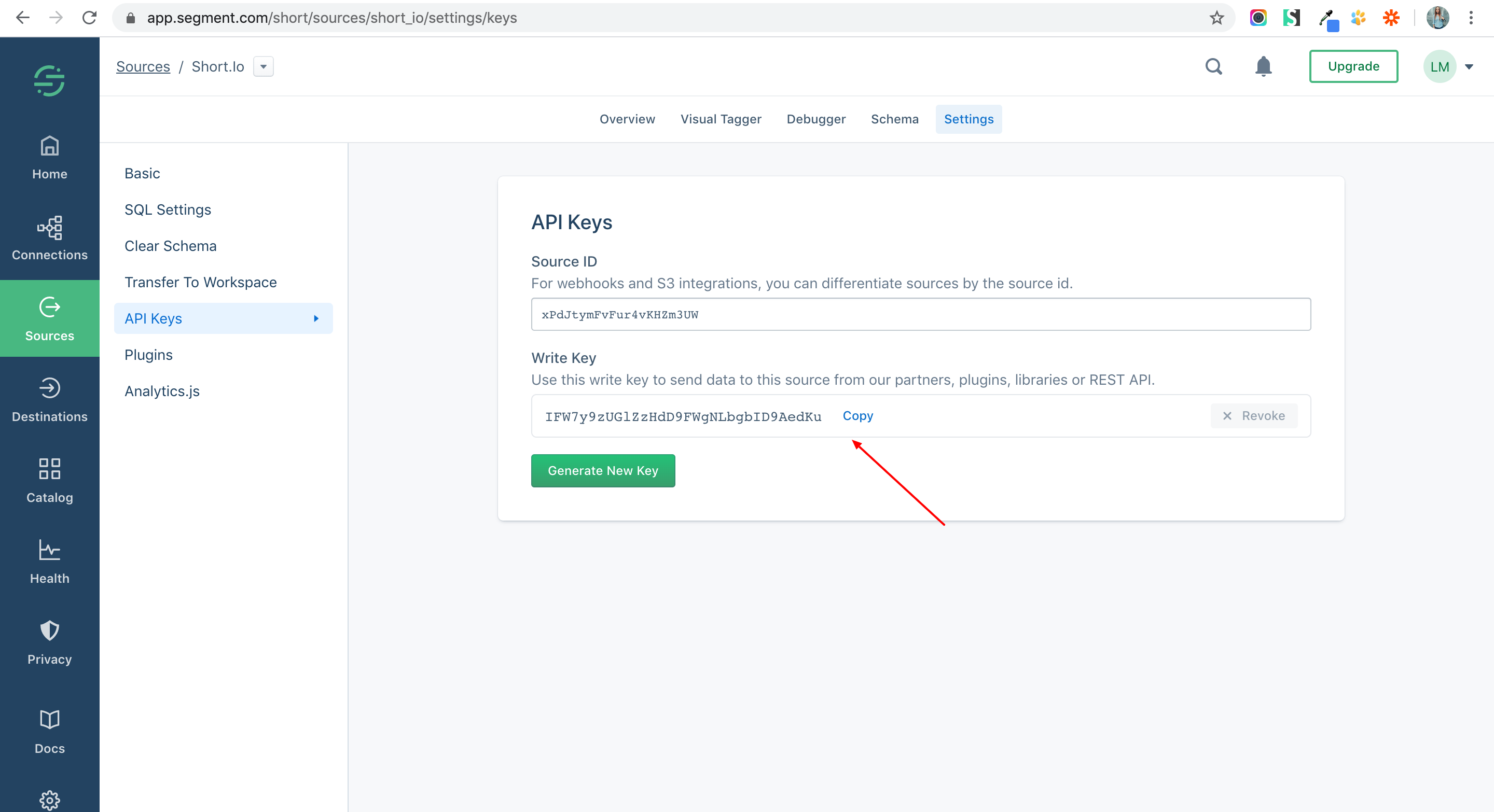
8. Go to your Short.io account.
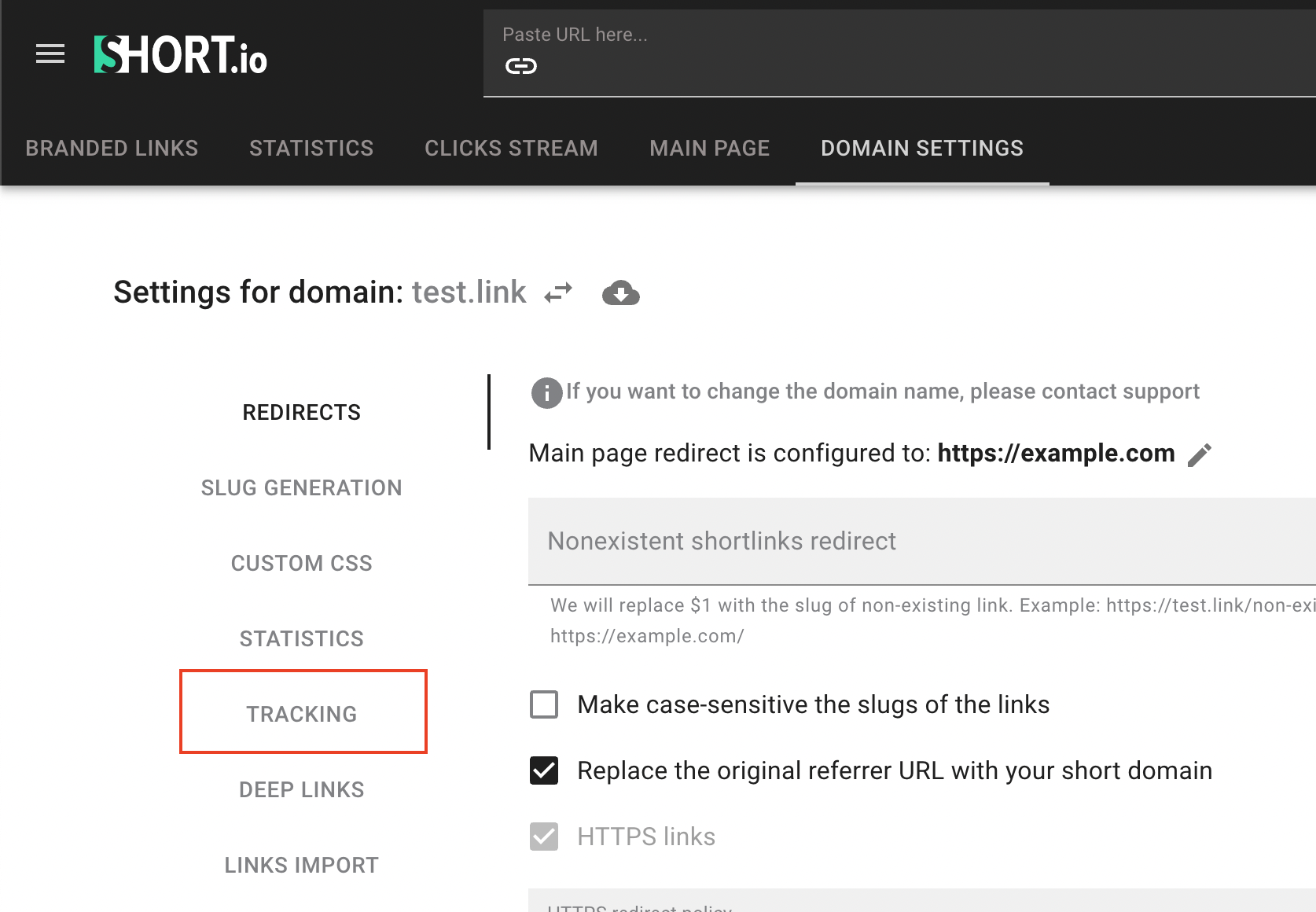
9. Open Domain Settings tab.
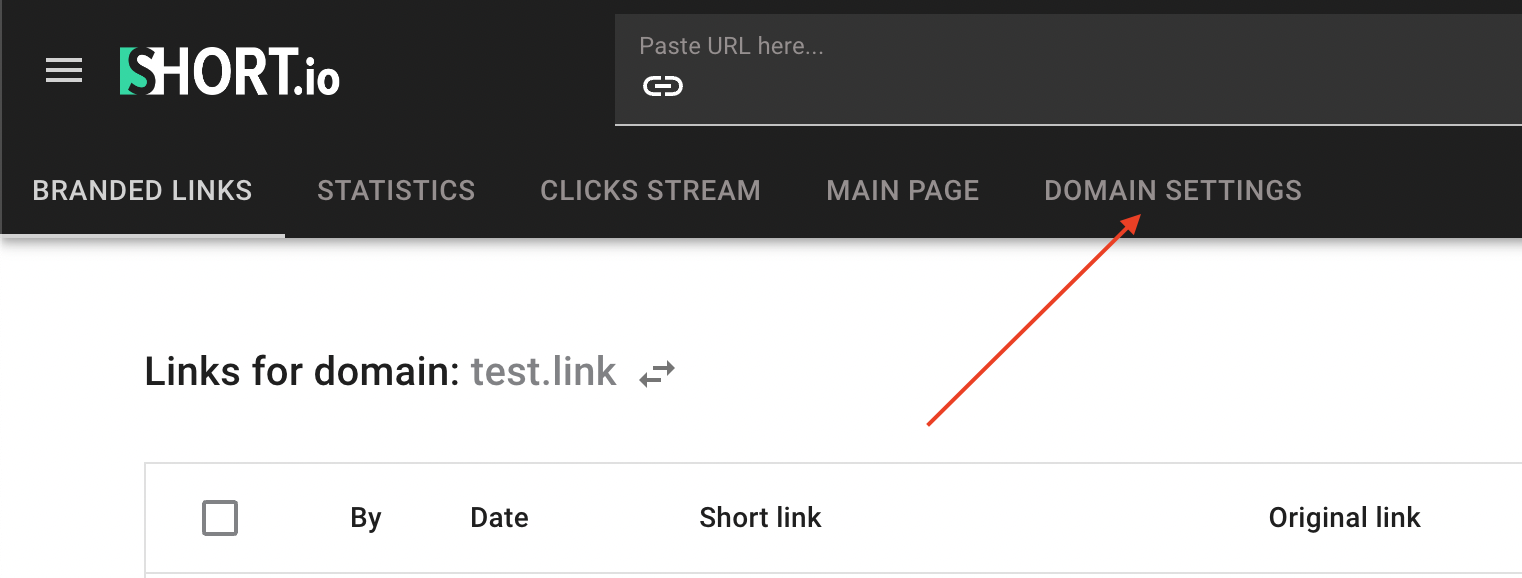
10. Click Tracking
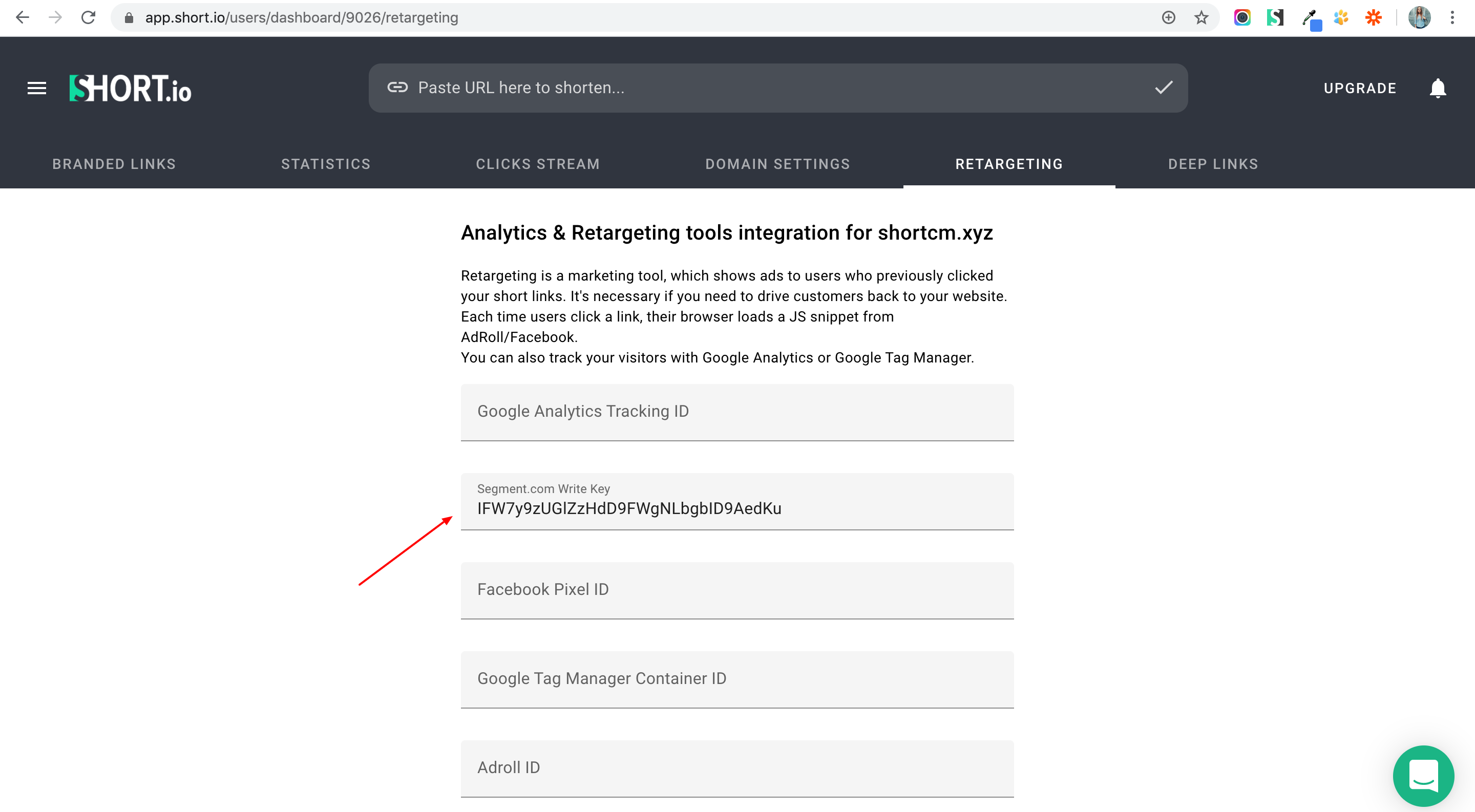
11. Paste the API Key to Segment field and save.
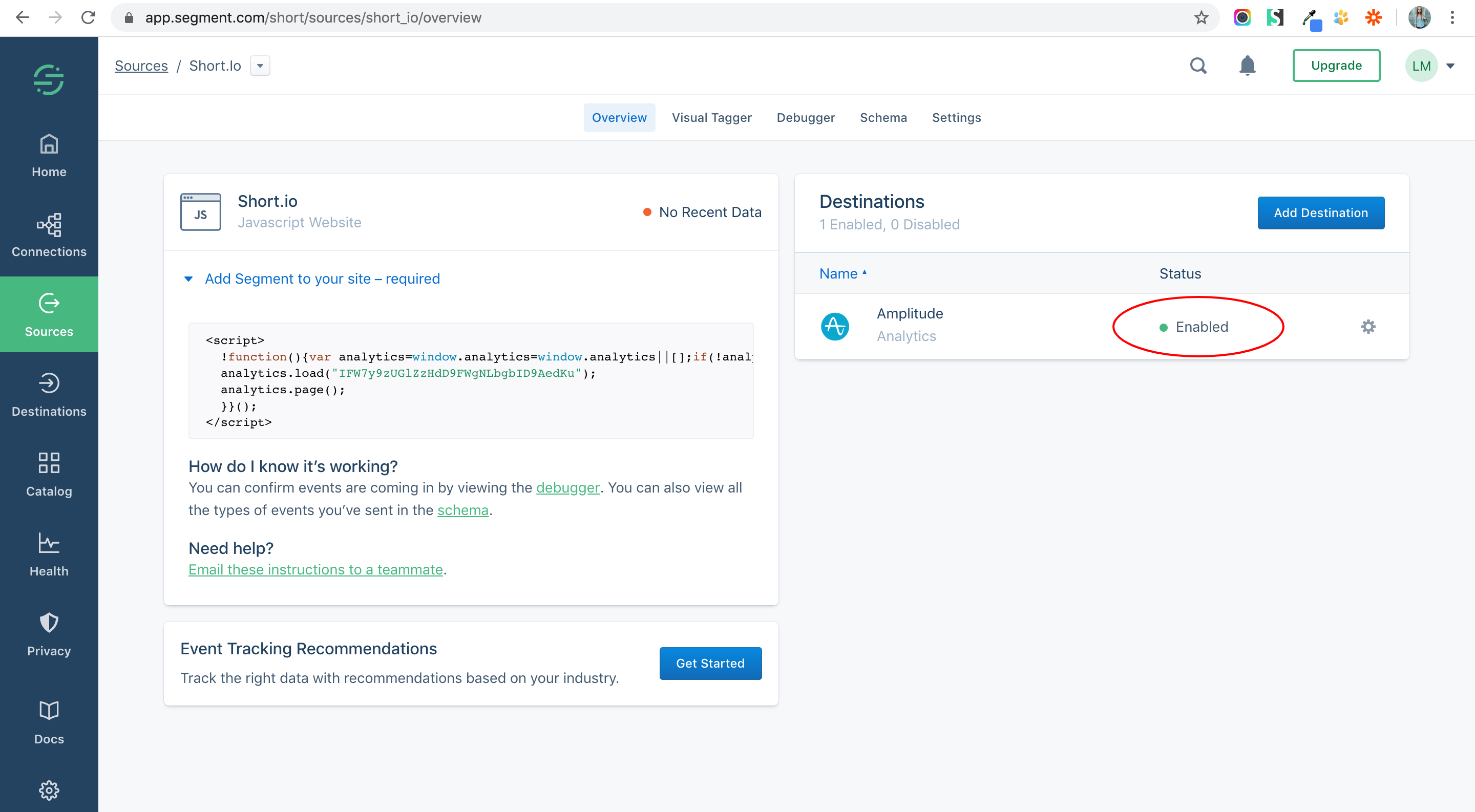
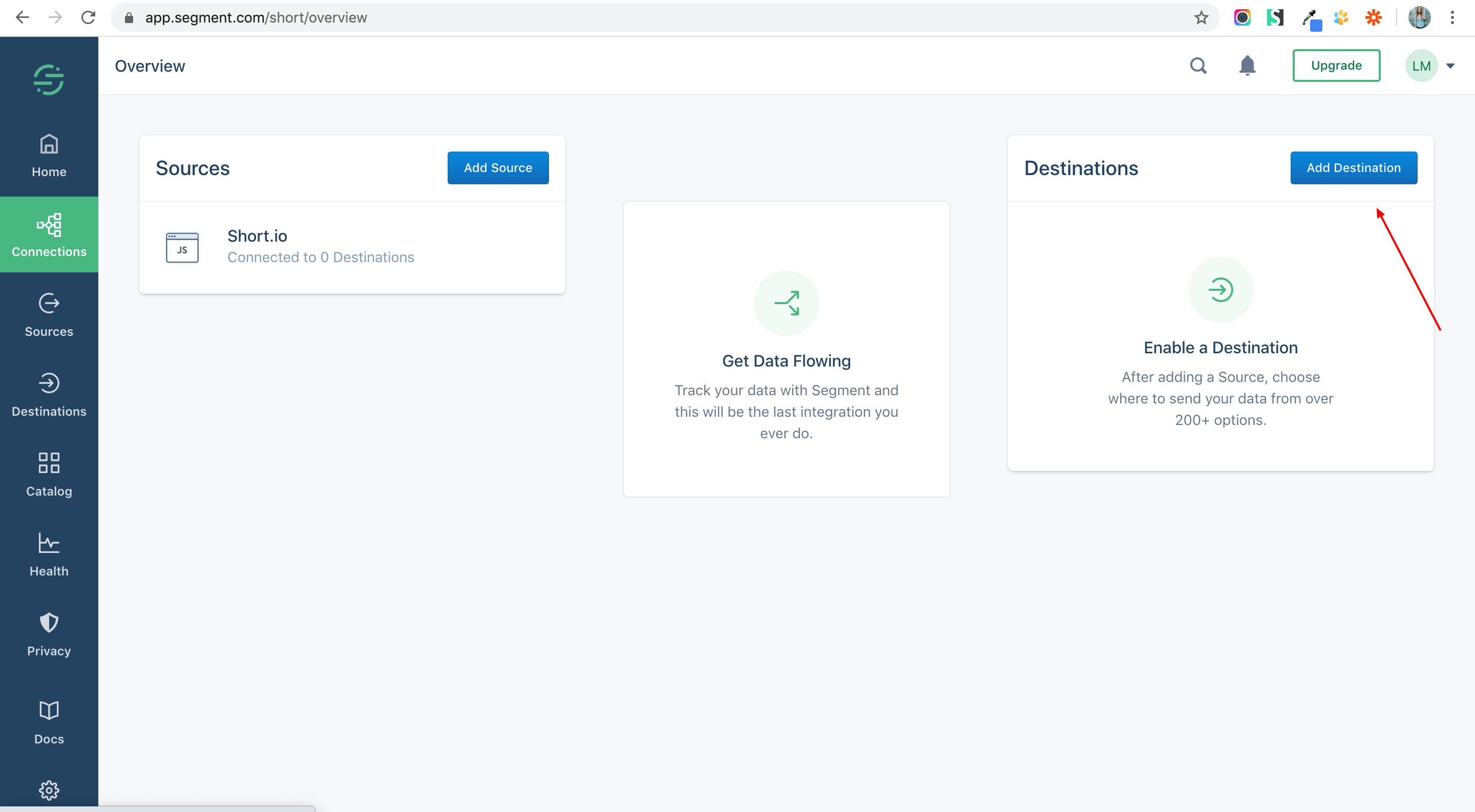
12. Add a Destination app.
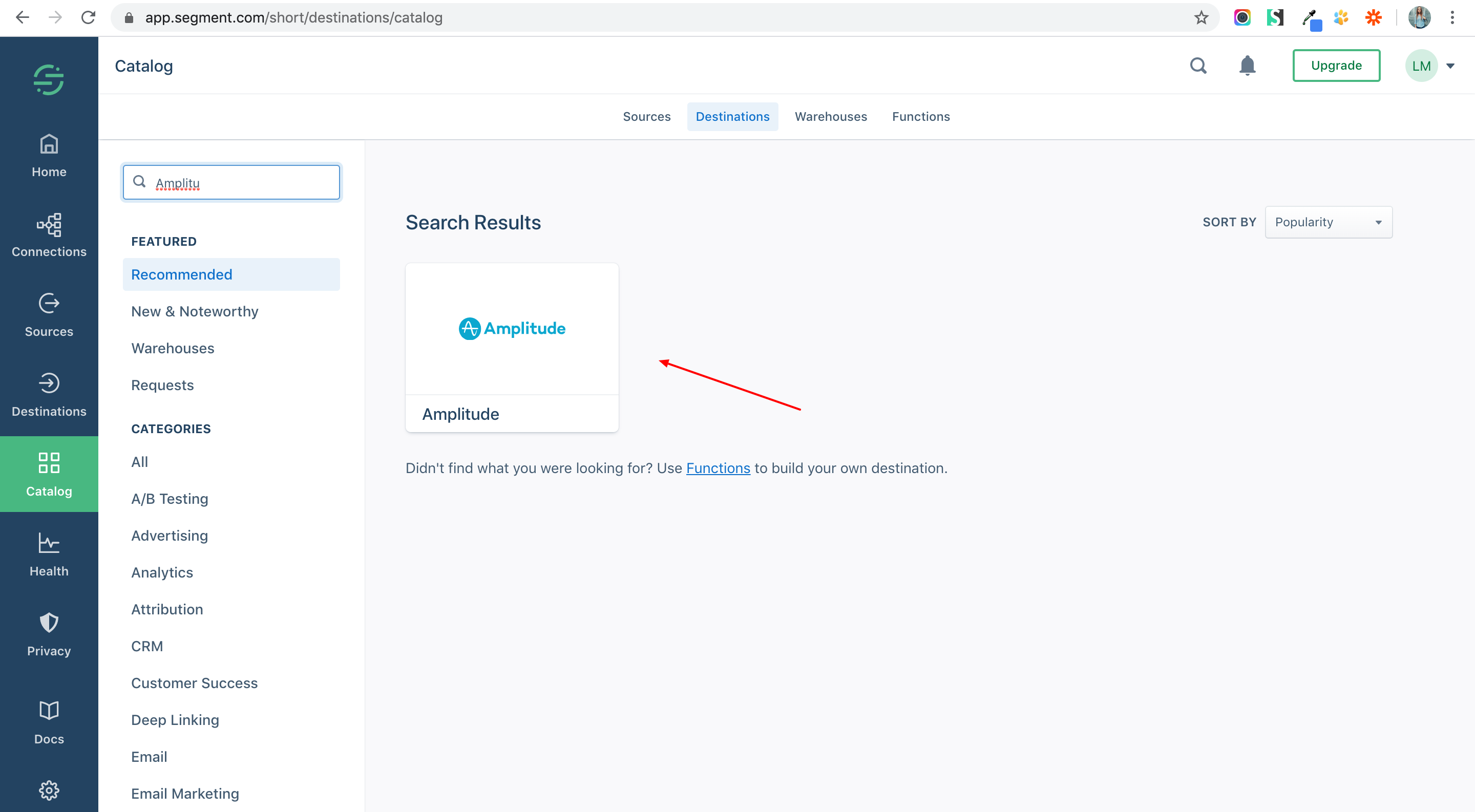
13. Search for Amplitude.
14. Configure Amplitude.
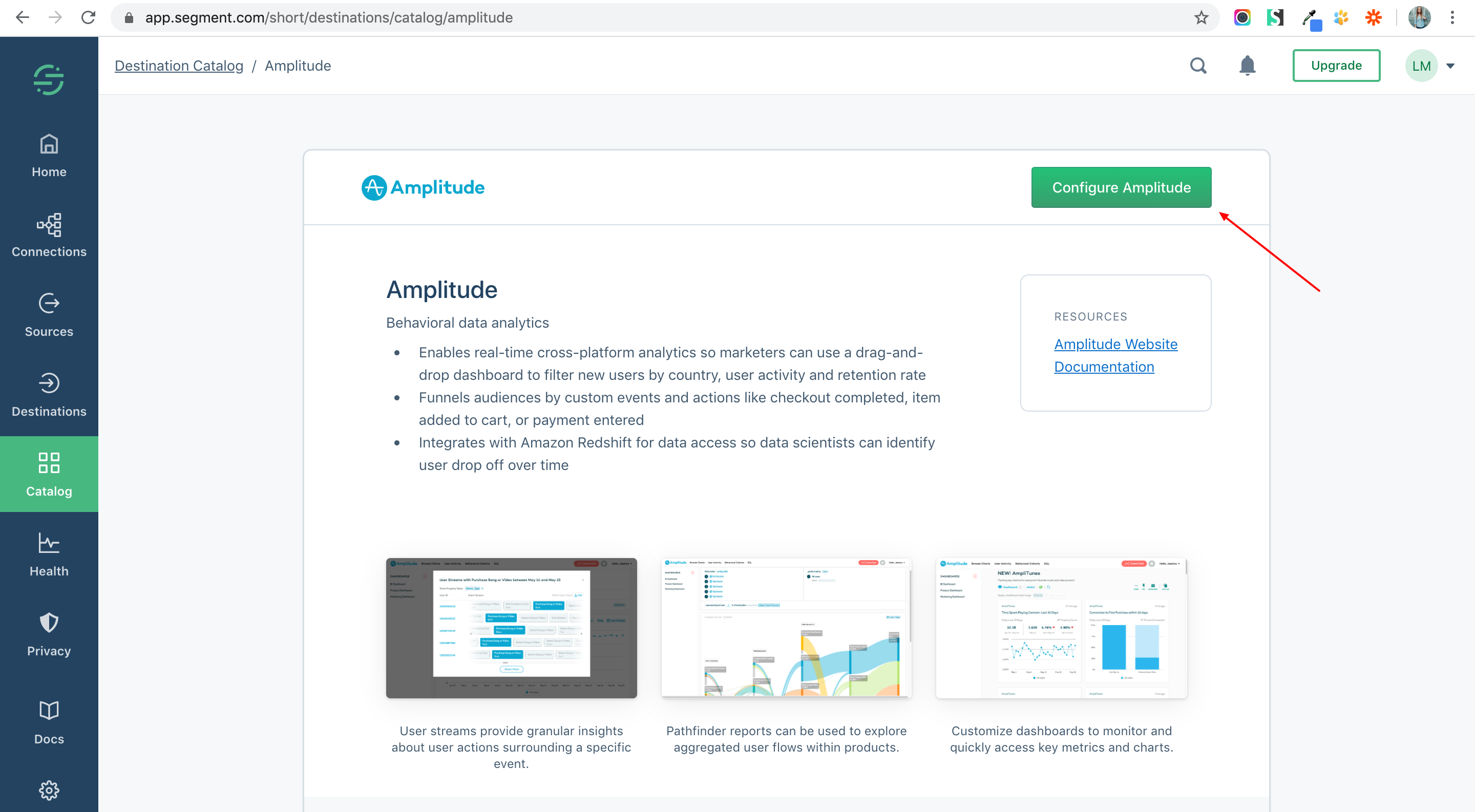
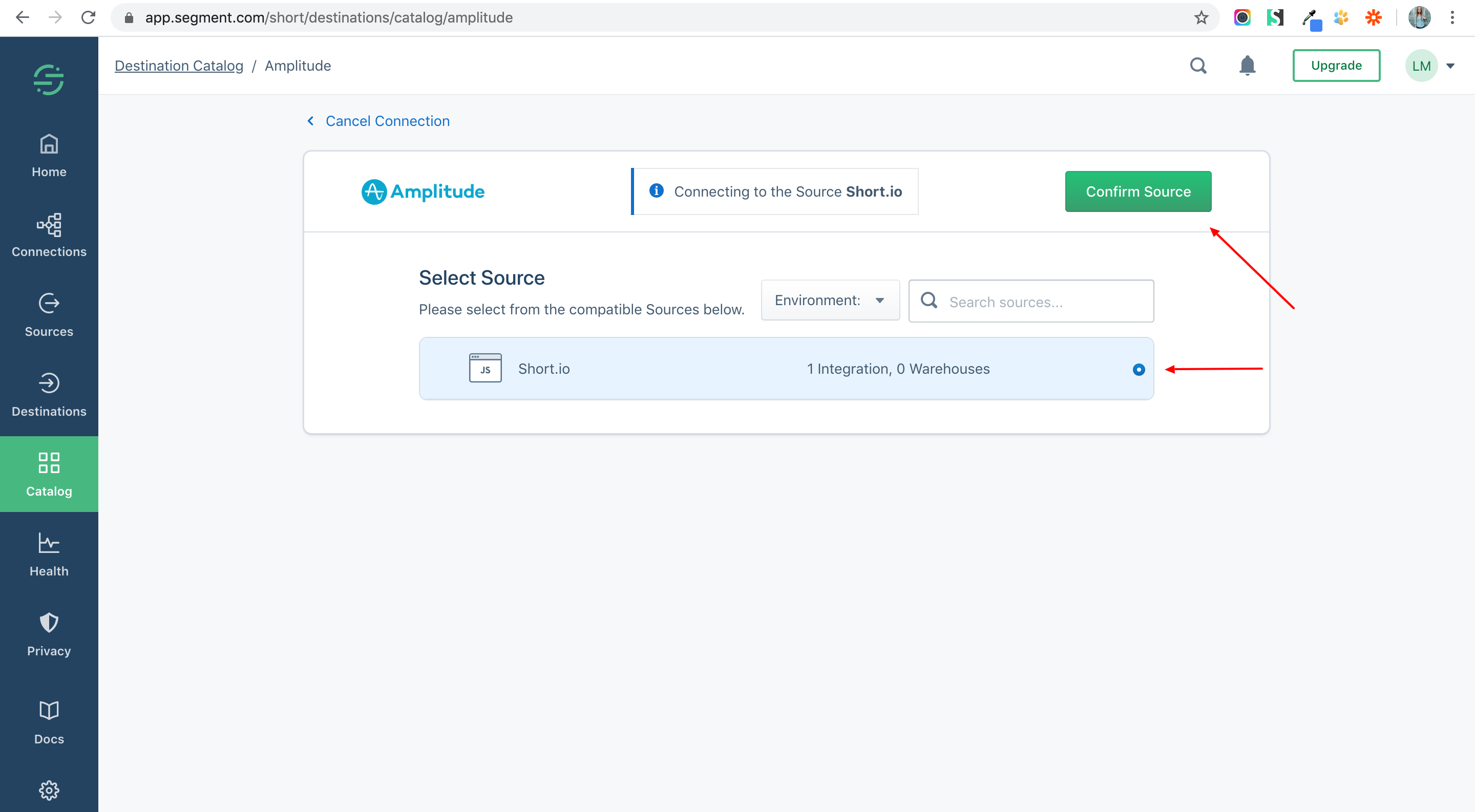
15. Choose a Source and Confirm.
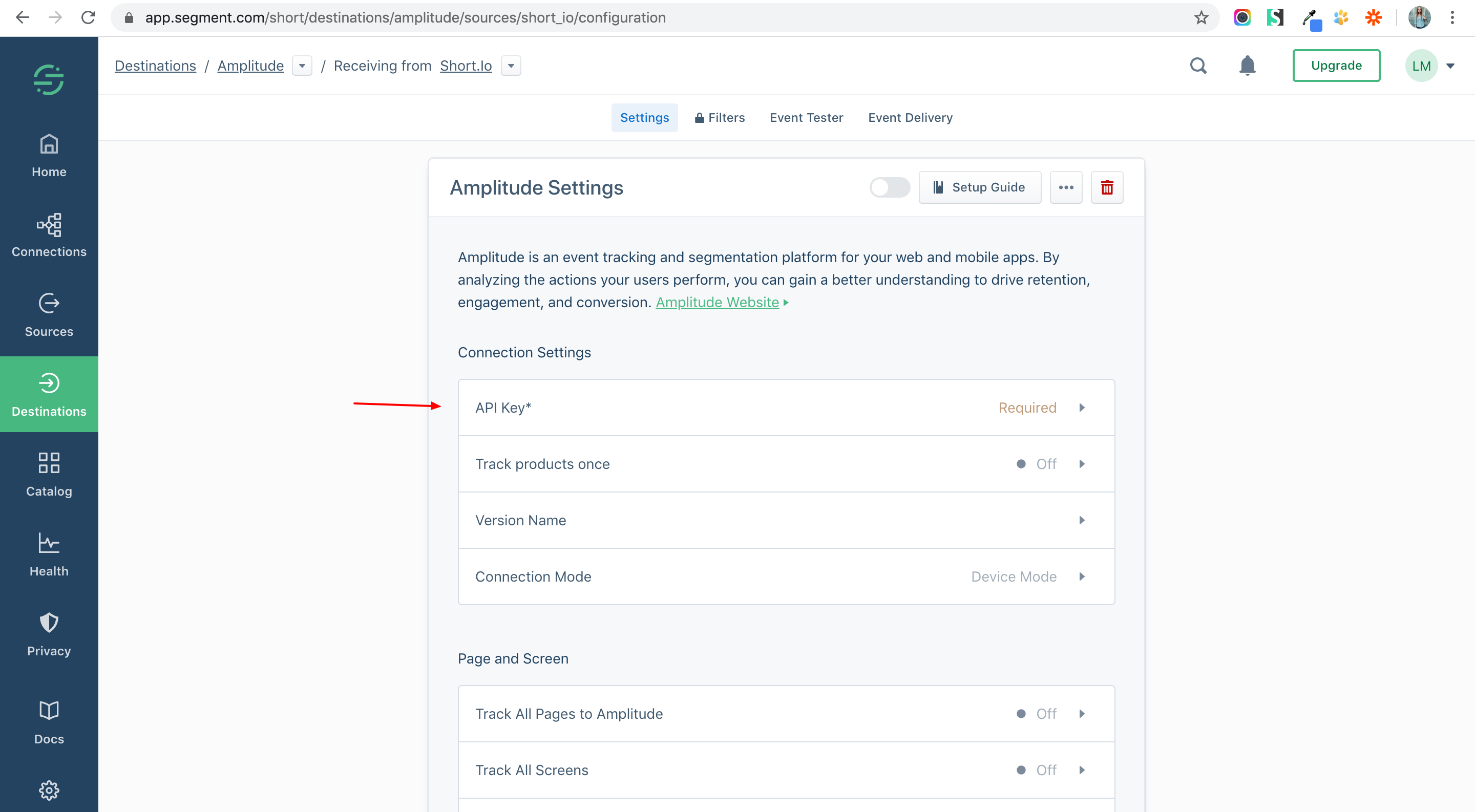
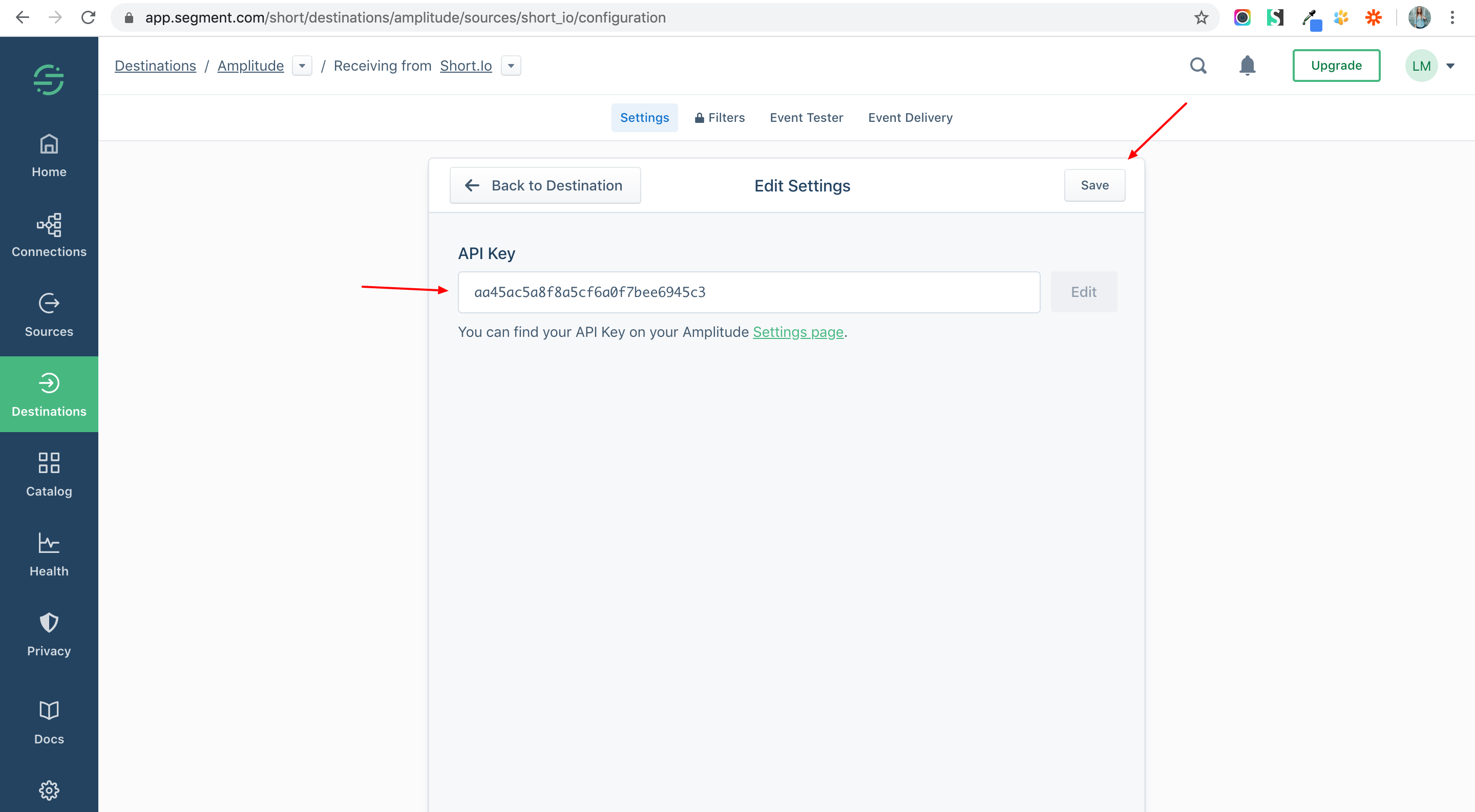
16. Choose the API key field.
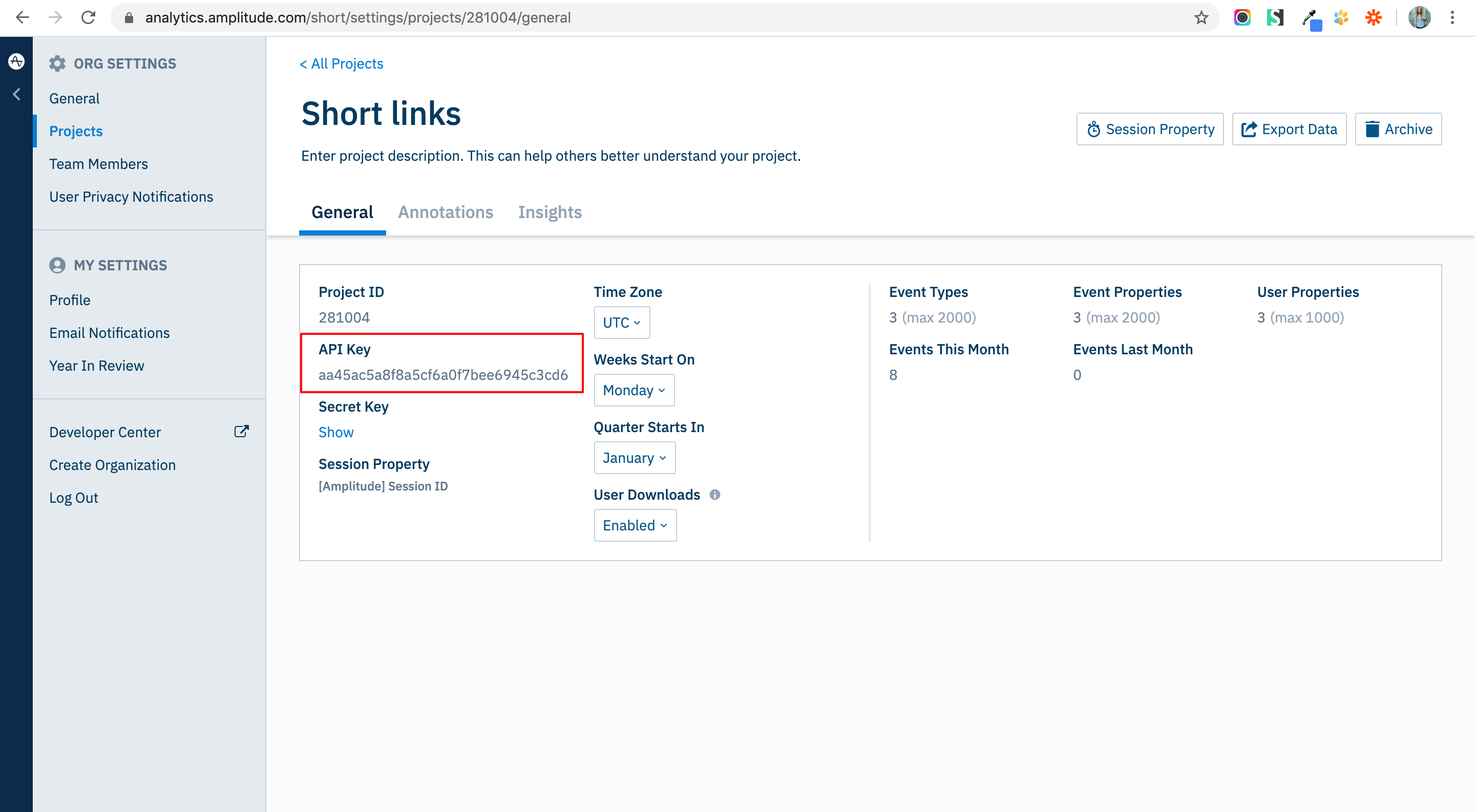
17. Go to your Amplitude project.
18. Copy the API key.
19. Go to Segment and Paste your API key > Save.
20. Turn on the integration.
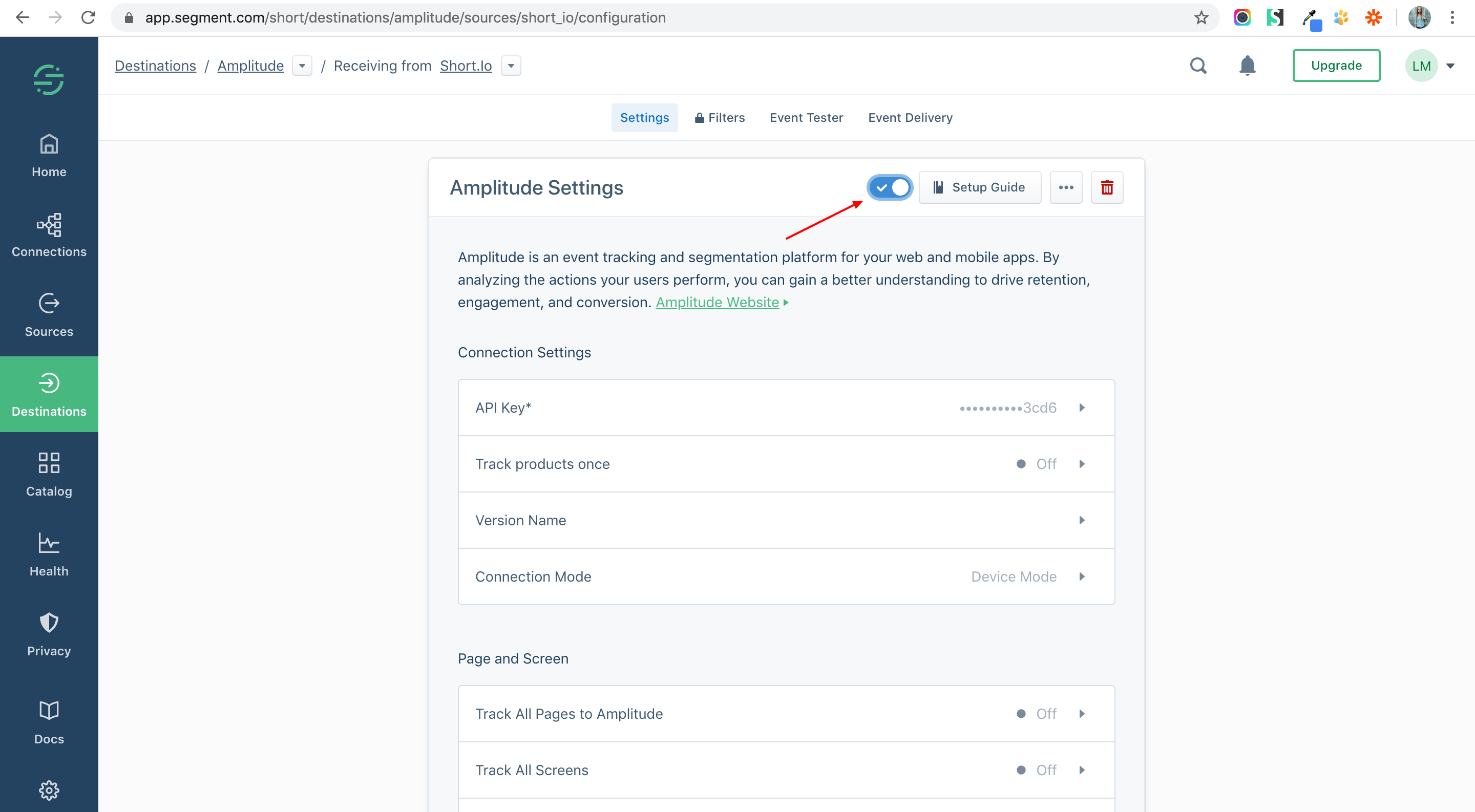
21. Check the connection.