How to manage Organization members
Members settings
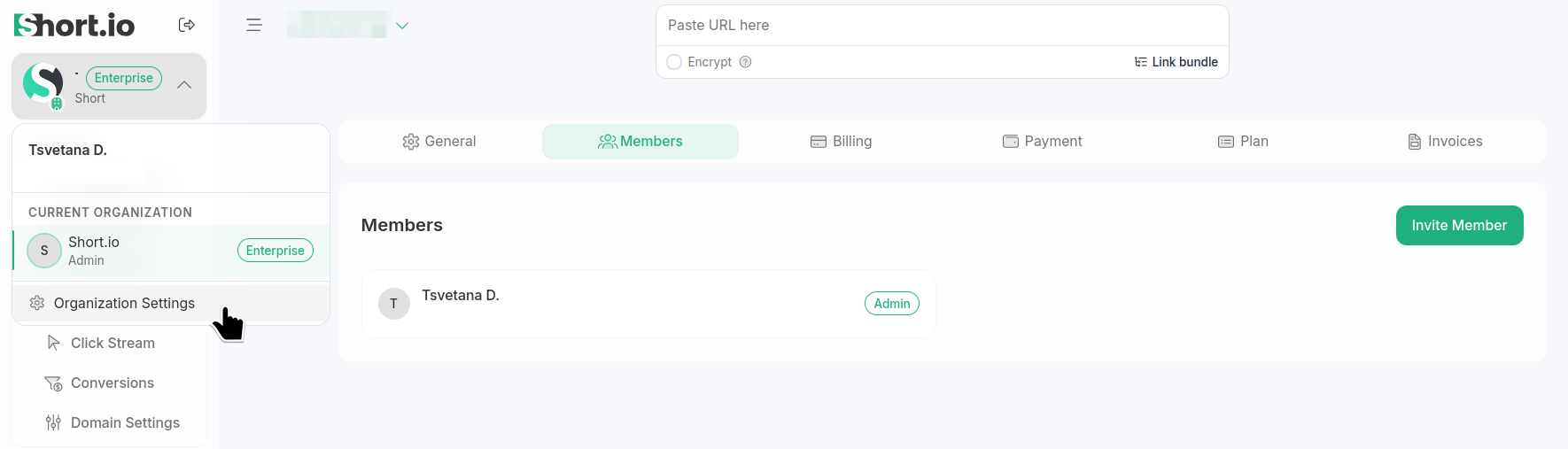
To access the Organization options, in the left sidebar click your Organization's name/logo, select Organization settings and then Members tab:
Inviting a member
To invite(add) members to your Organizations, you need to have at least Team plan subscription and admin rights.
To invite a member:
-
In the Organization's Members tab click Invite member.
-
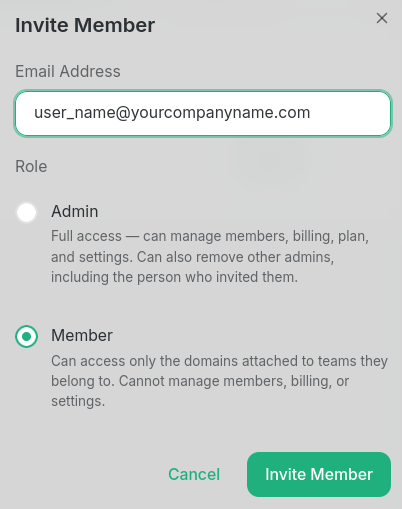
In the next dialog:
-
enter the email address of the Short.io user you want to add
-
select a role for this user:
-
Admin (full access) — can manage members, billing, plan, and settings. Can also remove other admins, including the user who invited them
-
Member — can access only the domains attached to teams they belong to. Cannot manage members, billing, or settings
-
-
-
Click Add member.
The user is added to the members list.
Editing a member's role
You can change the role of a member at any time by following the steps below:
-
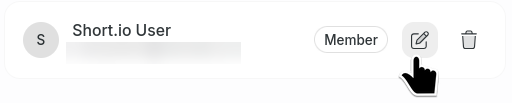
From the Organization's Members tab click the icon next to the member's name:
-
Select another role and click Save:
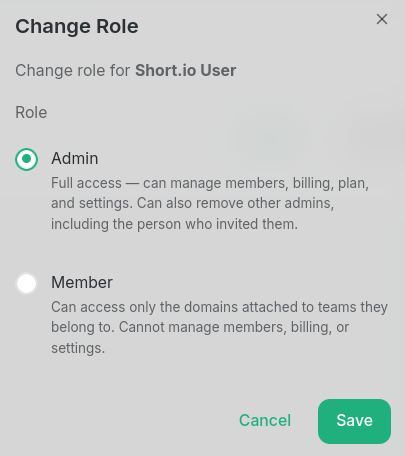
The role is updated.
Deleting a member
You can delete a member from your Organization as follows:
-
From the Organization's Members tab click the icon next to the member's name:

-
When prompted "Are you sure you want to remove <username> from the organization?", click Remove member:
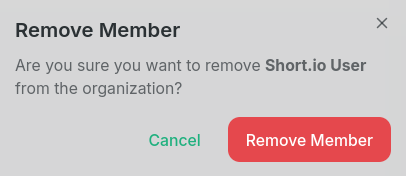
The user is removed from your Organization.
Leaving Organizations
If you no longer want to be part of an Organization you were invited to, you can leave it by following these steps:
-
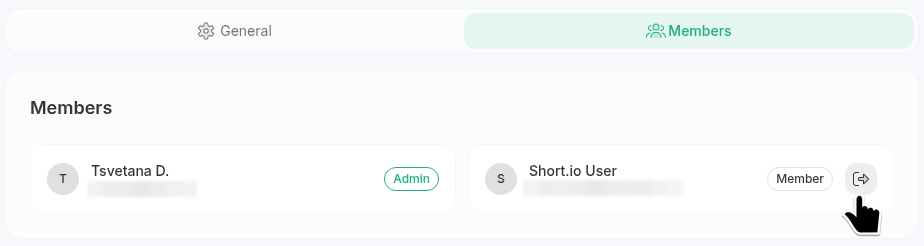
Switch to this Organization's settings and open the Members tab:
-
Click the icon next to your name.
-
When prompted "Are you sure you want to leave <Organization-name>? You will lose access to this organization.", click Leave organization.
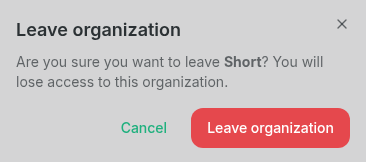
You will be removed from this Organization.