How to set up deep links for iOS
Deep links redirect users to the app after clicking a short link. If users have your mobile app installed, they are redirected to the app. If not, they are routed to the app page on a mobile browser. Deep linking is available for both iOS and Android.
Deep linking starts from the Team Plan.
Deep Linking in iOS: Universal Links via Apple App Site Association (AASA)
Apple introduced Universal Links in iOS 9. Universal Links are standard web links that point to both a web page and a piece of content inside an app. When a user clicks a short link, iOS checks if the app is installed on a device. If so, the app is launched immediately without loading the web page. If not, the web URL is loaded in Safari.
Here's a detailed instruction on how to enable deep linking for iOS on Short.io.
Setting Up
-
Open your application in Xcode.
-
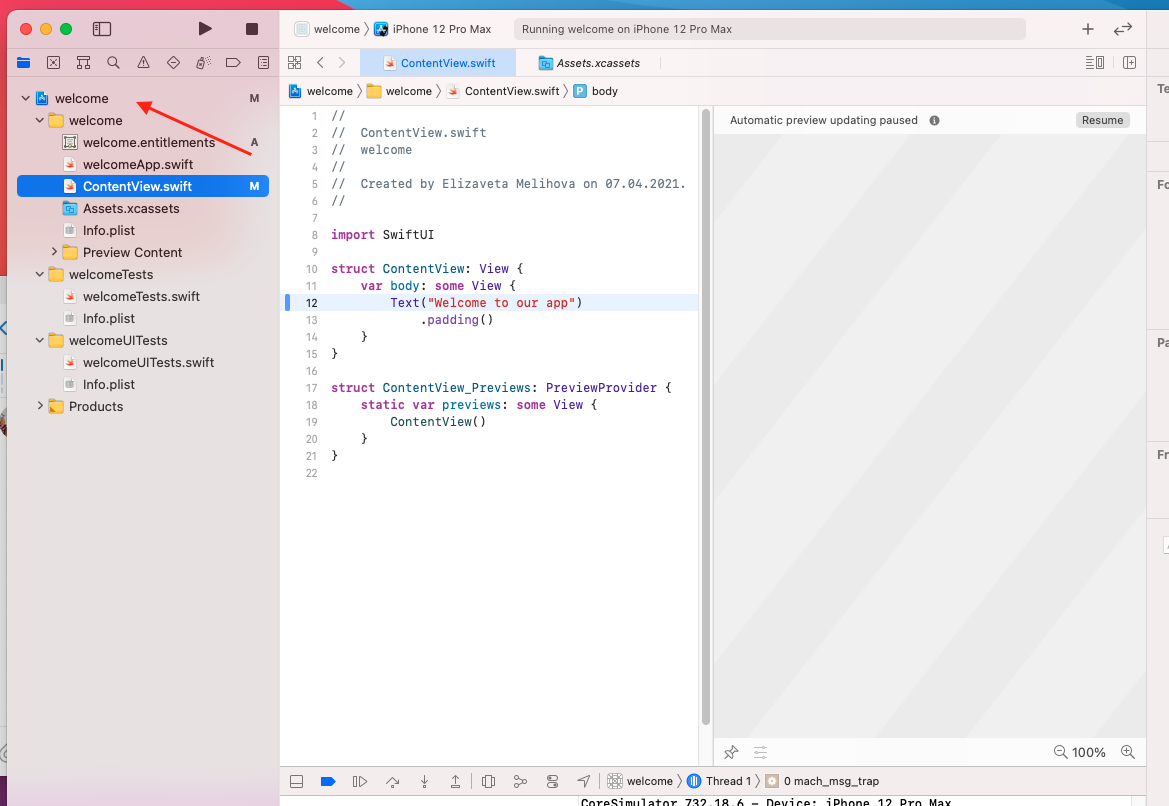
Open the settings by clicking on the name of your app:
-
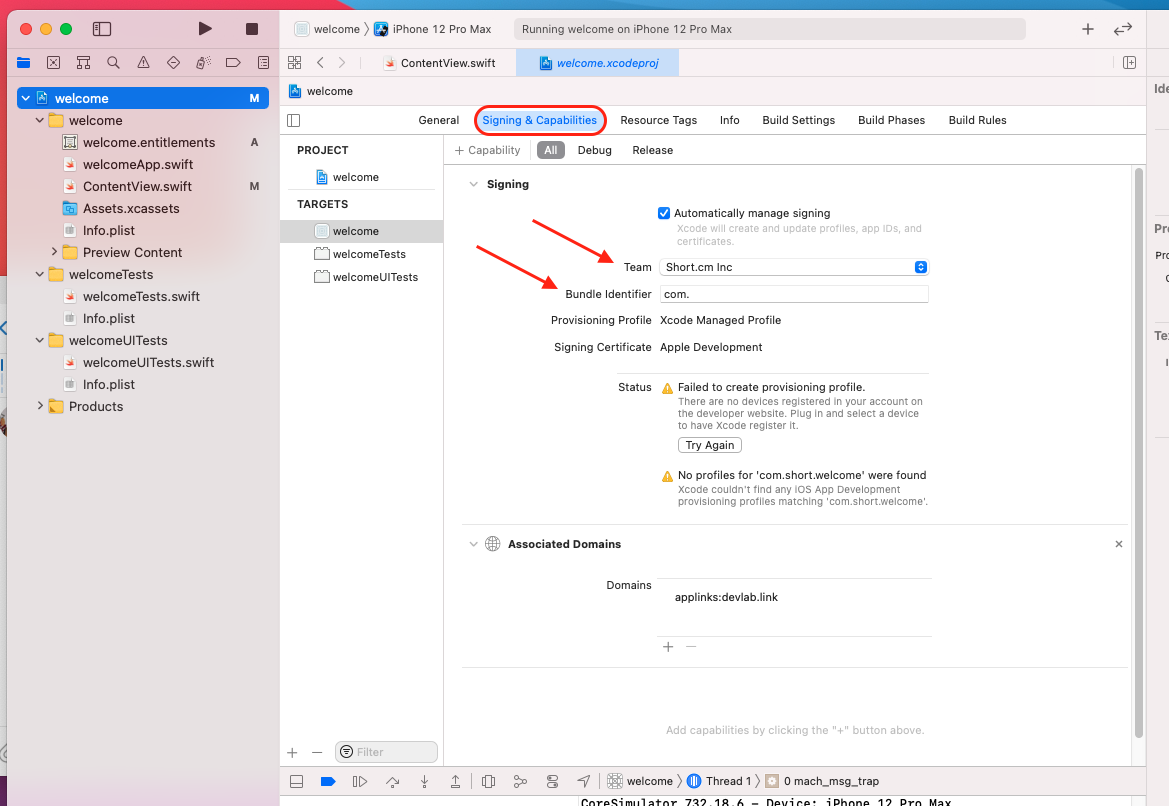
Choose Signing and Capabilities.
-
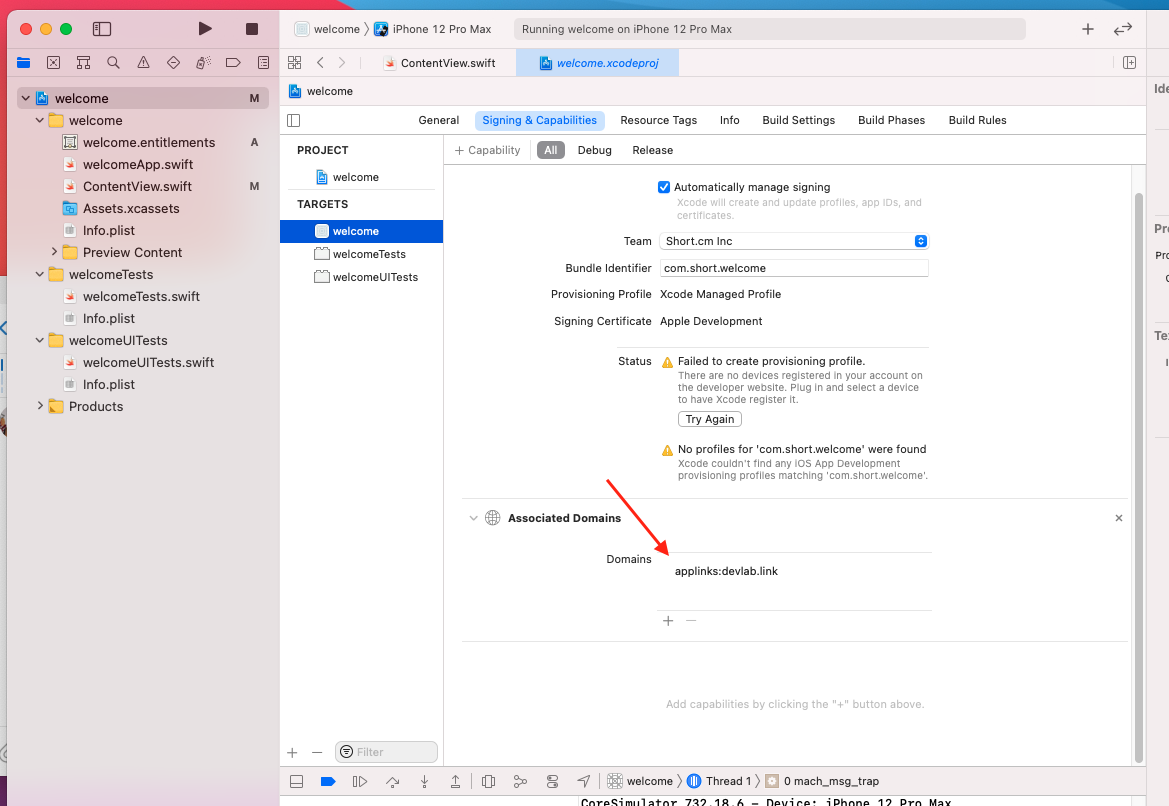
Select the Team of your Developer Account.
-
Specify BundleID.
-
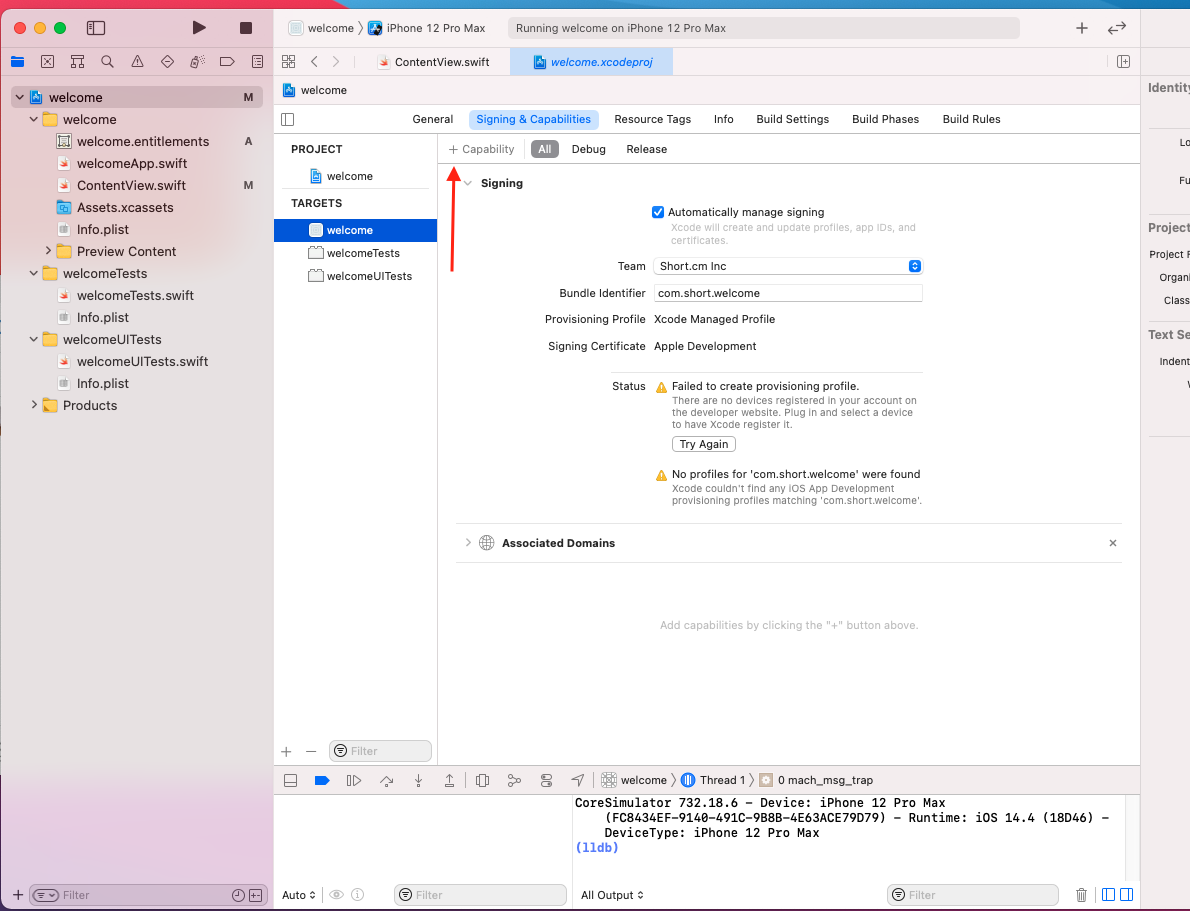
Click on Capability and add Associated Domains.
-
Add you short domain in the following format: applinks:yourshort.domain
-
Sign in to your Short.io account.
-
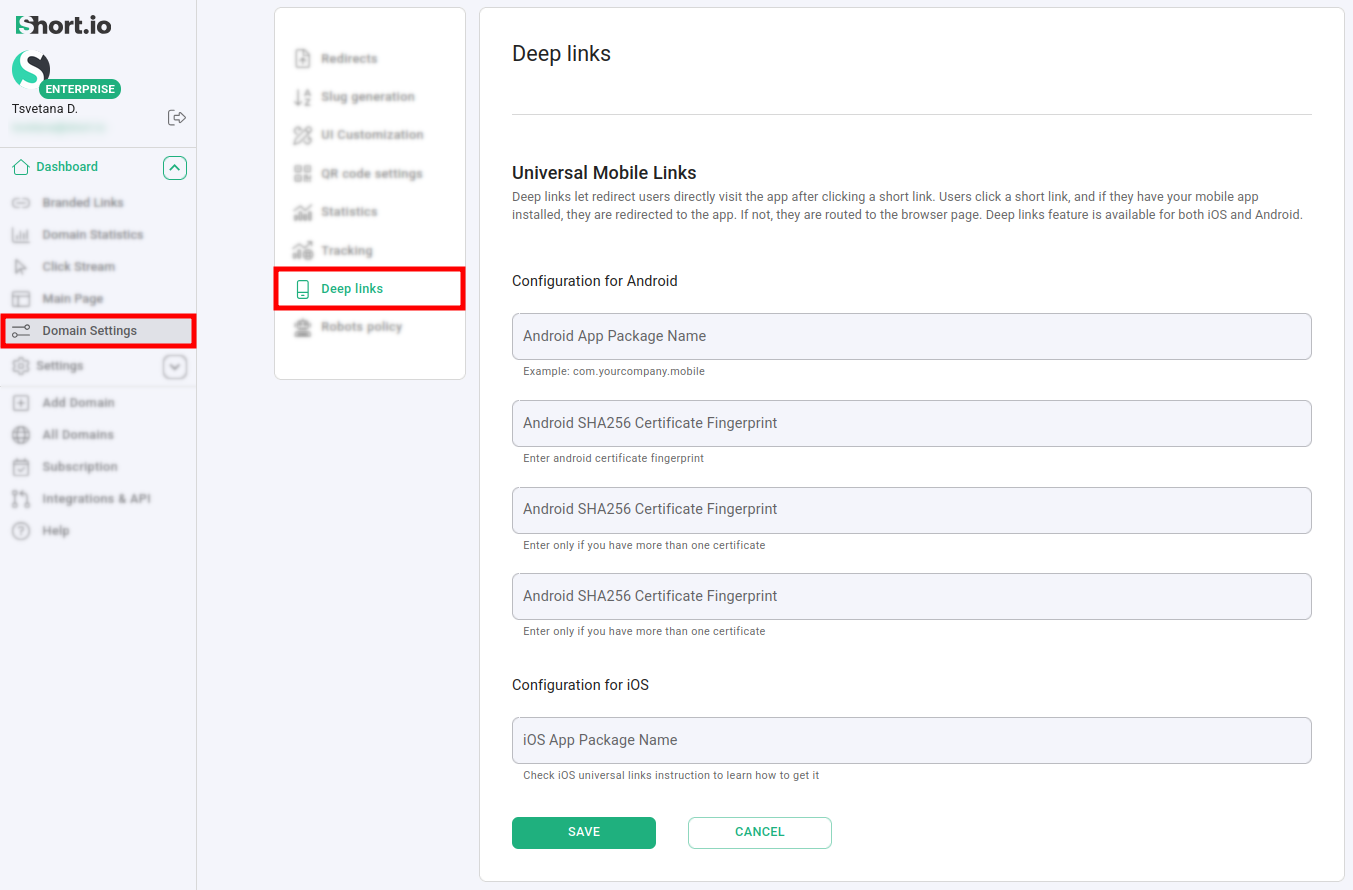
Open Domain Settings > Deep links for the short domain you have specified in Xcode:
-
In the iOS app Package Name field enter the Apple Bundle Identifier and click on Save:

Now your deep links are all set.
Where to find Apple Bundle Identifier
-
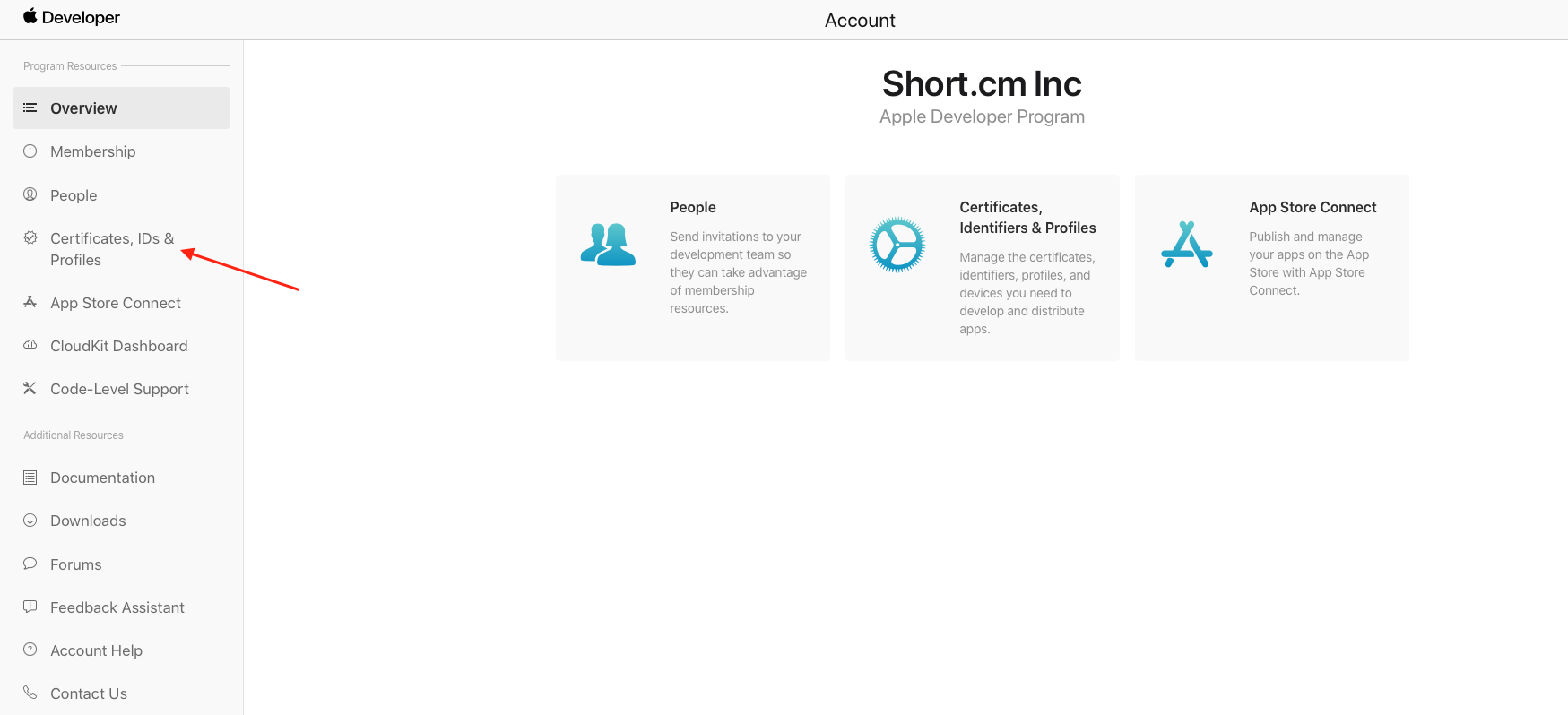
Open your Apple Developers account.
-
Choose Certificates, Identifiers & Profile.
-
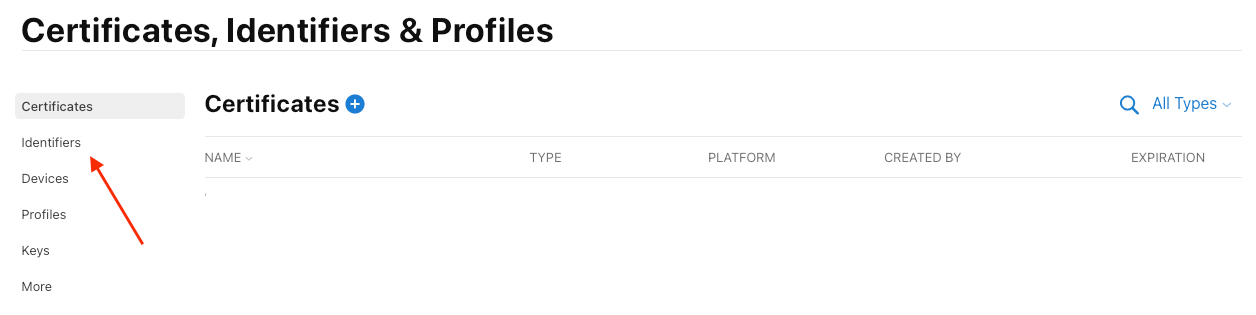
Open Identifiers:
-
Choose your app from the list.
-
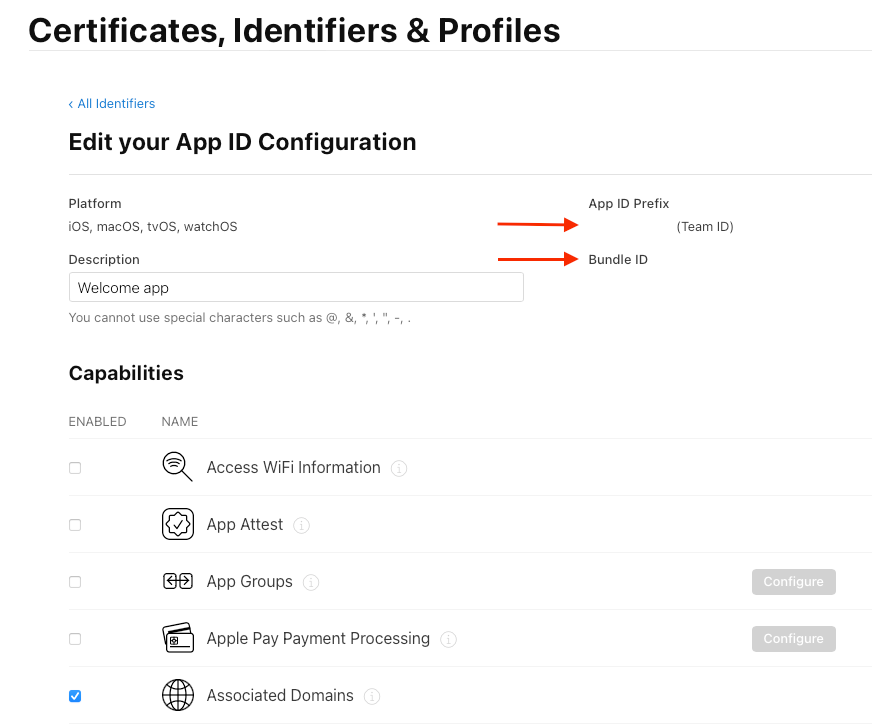
There you will see your BundleID and also TeamID:
Here is a video demonstration on how deep links work in practice: