# How to configure Short.io SSO via SSOCircle

Copy for LLM[View as Markdown](/articles/short.io-basics-and-security/sso/how-to-configure-short.io-sso-via-ssocircle.md)

**Short.io** supports Single Sign-On (**SSO**) integration with SSOCircle.

Note

*SSO* is available on the **Enterprise Plan.**

## Before you begin[​](#before-you-begin "Direct link to Before you begin")

You need to create a **Team** in **Short.io** before setting up SSO. Follow the instructions in this [article](/articles/features/teams/how-to-create-a-team.md).

## How to configure SSO with SSOCircle[​](#how-to-configure-sso-with-ssocircle "Direct link to How to configure SSO with SSOCircle")

### SSOCircle settings[​](#ssocircle-settings "Direct link to SSOCircle settings")

1. Sign in to your [SSOCircle](https://www.ssocircle.com) account.

2. Navigate to **Manage Metadata**:
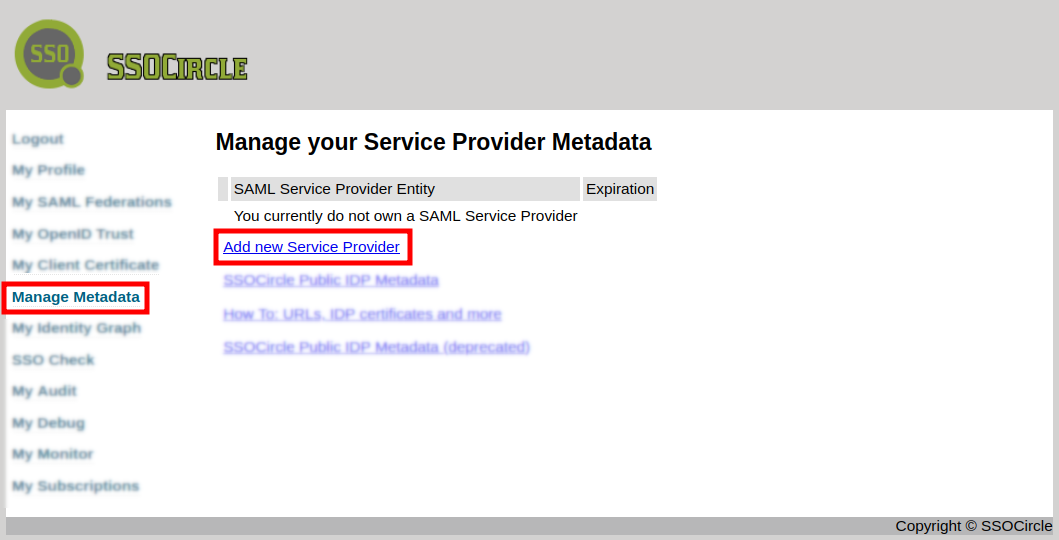
   ![SSOCircle Manage Metadata page with Add new Service Provider link highlighted](/assets/images/sso-how-to-configure-short.io-sso-via-ssocircle-screenshotfrom2025-02-1211-25-22-662bc884-42469c70be683872cbd377e35a357d08.png)

3. Click on **Add new Service Provider**.

4. In the next screen:

   * enter **short.io** as FQDN

   * select **Firstname**

   * click on the link named "**here"** to build your **SAML Metadata**
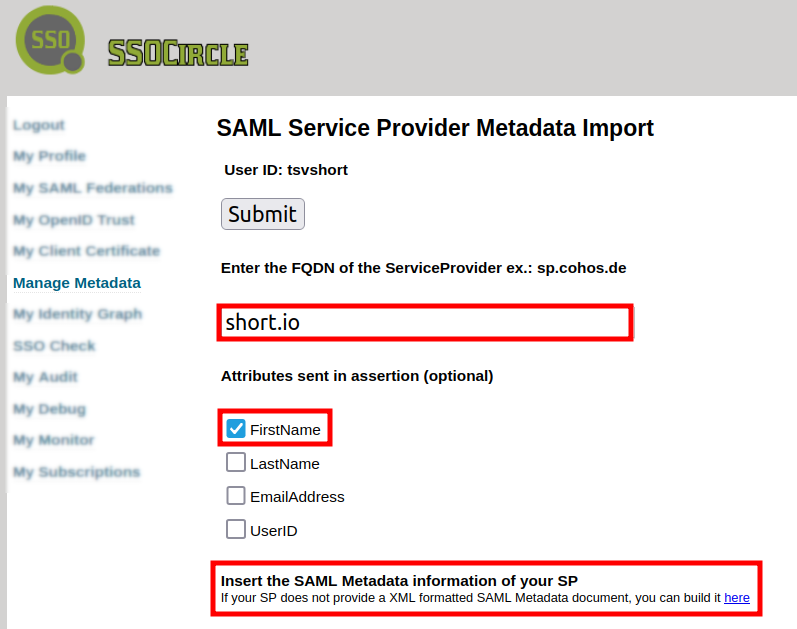
   ![SAML Metadata Import with FQDN, FirstName attribute, and build metadata link highlighted](/assets/images/sso-how-to-configure-short.io-sso-via-ssocircle-screenshotfrom2025-02-1211-43-52-844d2bf2-39f1ffc7a9f2669e720a3a9186a7e30d.png)

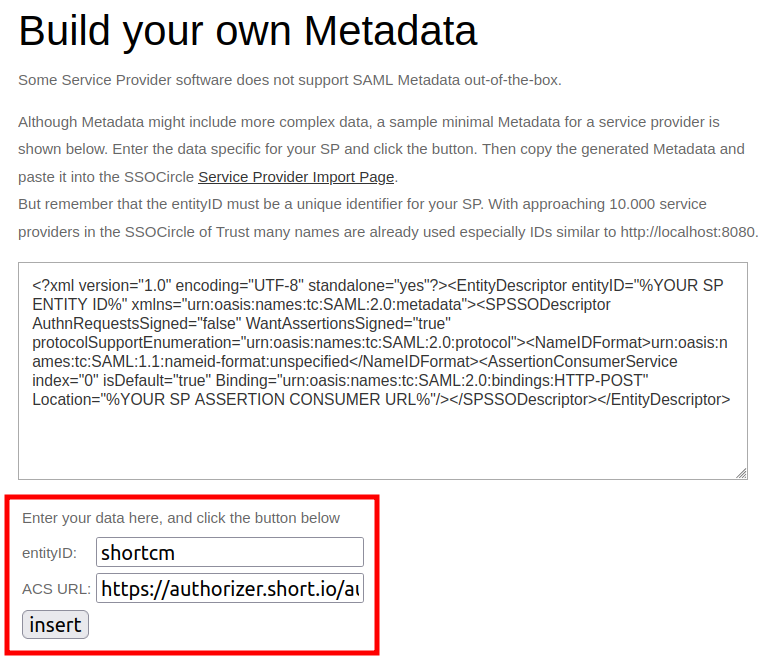
5. A new **Build your own Metadata** dialog is opened. Enter **shortcm** as **entityID** and **\[<https://authorizer.short.io/auth/saml/>`<yourcompanyname](https://authorizer.short.io/auth/saml/<yourcompanyname)\>`** as **ACS URL**:

   ![Build your own Metadata dialog with entityID and ACS URL fields filled in](/assets/images/sso-how-to-configure-short.io-sso-via-ssocircle-screenshotfrom2025-02-1218-36-54-dbf71d66-1a49b64672afff3d0fd73600f3c20e15.png)

6. Click on **Insert**.

7. Copy the generated XML metadata:
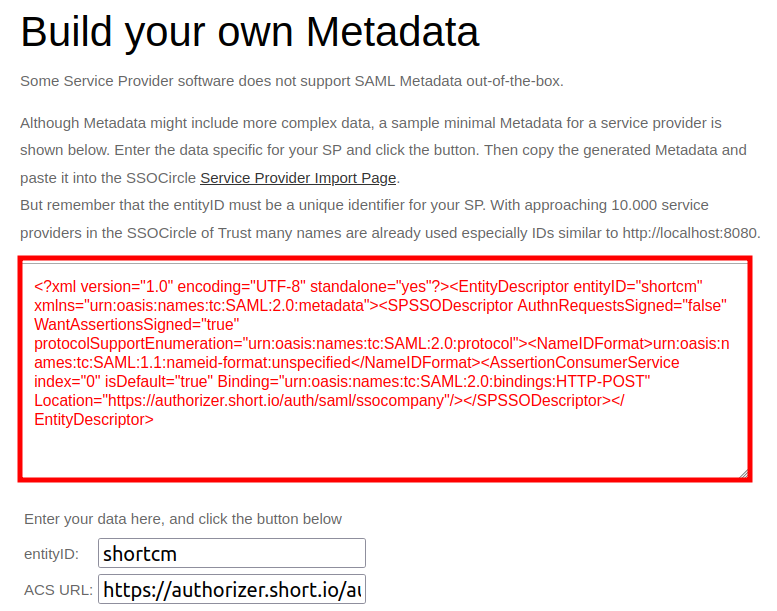
   ![Generated XML metadata highlighted for copying](/assets/images/sso-how-to-configure-short.io-sso-via-ssocircle-screenshotfrom2025-02-1218-37-08-7d97f62f-b3636bb55541531d9d57169d6f6036e3.png)

8. Return to the **Manage Metadata** screen and paste the XML code in the text panel:
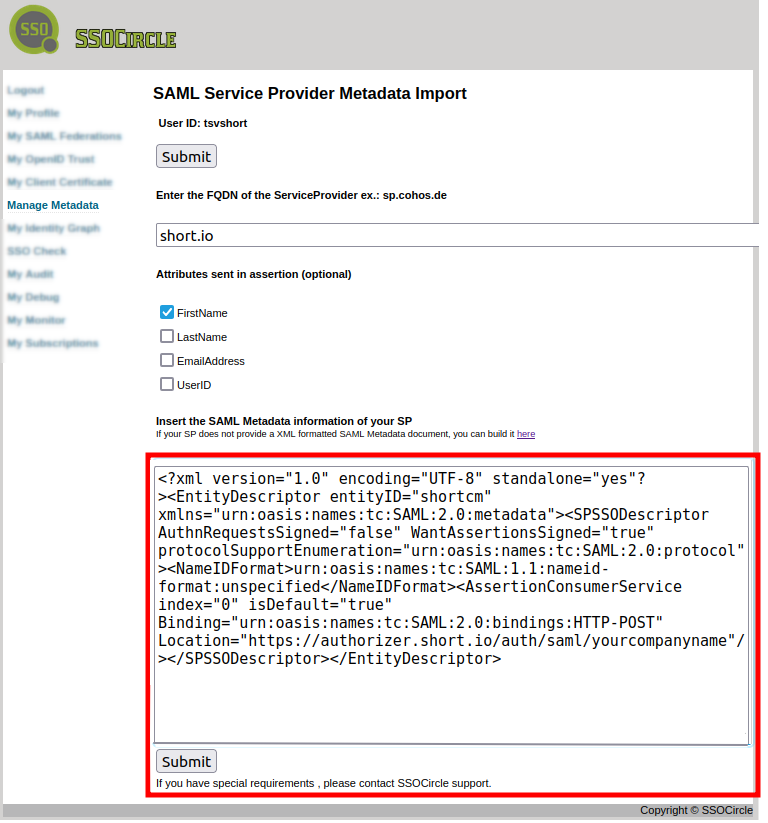
   ![Manage Metadata page with XML metadata pasted in the text panel](/assets/images/sso-how-to-configure-short.io-sso-via-ssocircle-screenshotfrom2025-02-1211-47-04-157e7ed8-a96dee2a2e7014b9ce5c2440a7d50c67.png)

9. Click on **Submit**. The metadata is successfully imported:
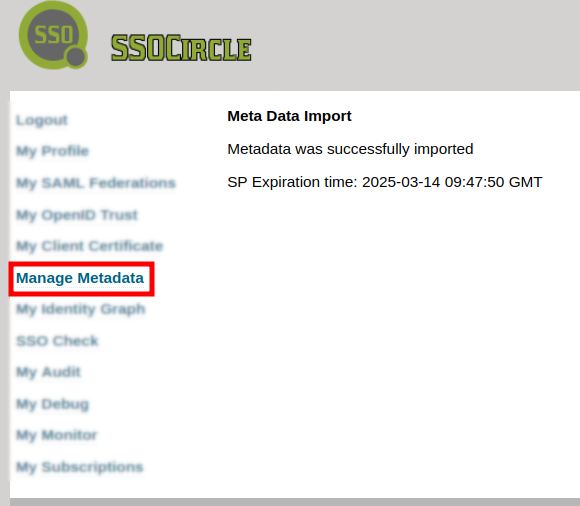
   ![Metadata successfully imported confirmation with Manage Metadata link highlighted](/assets/images/sso-how-to-configure-short.io-sso-via-ssocircle-screenshotfrom2025-02-1211-48-22-78ed23f5-b54129f6f13f2609d3287a955c6bf5b2.png)

10. Click again on **Manage Metadata**.

11. Click on **How to: URLs, IDP certificates and more:**
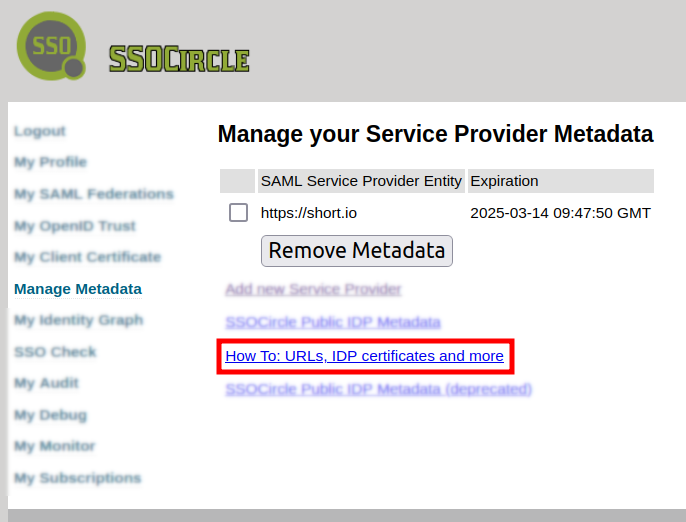
    ![Manage Metadata with URLs, IDP certificates and more link highlighted](/assets/images/sso-how-to-configure-short.io-sso-via-ssocircle-screenshotfrom2025-02-1211-49-08-1f889aa9-7d97821bb4ea6f2cd707f25d07b1ec07.png)

12. You are redirected to the **Public IDP Configuration** section. Copy the values of the **Issuer** and **SSO Service HTTP POST** fields and save them in a text document:
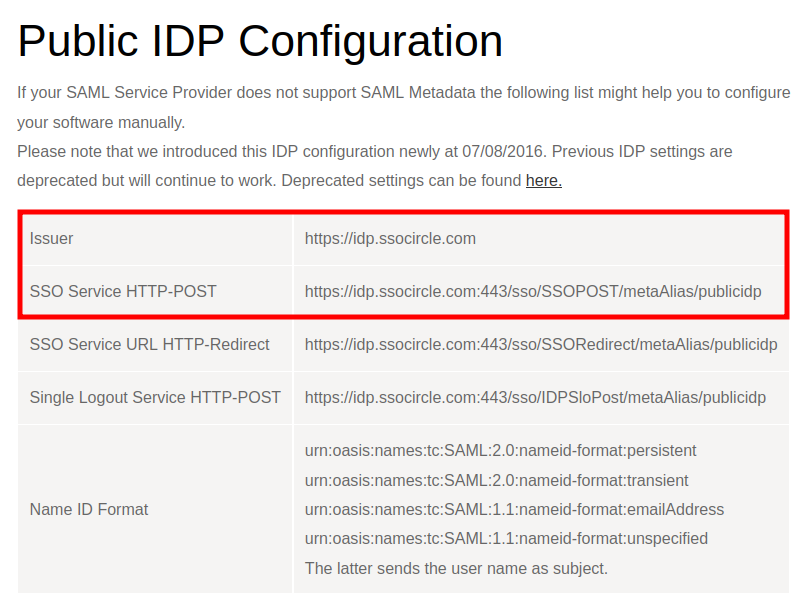
    ![Public IDP Configuration with Issuer and SSO Service HTTP POST fields highlighted](/assets/images/sso-how-to-configure-short.io-sso-via-ssocircle-screenshotfrom2025-02-1214-16-05-ac5757dc-6211f21a0421be82bfe61d7e404c90c4.png)

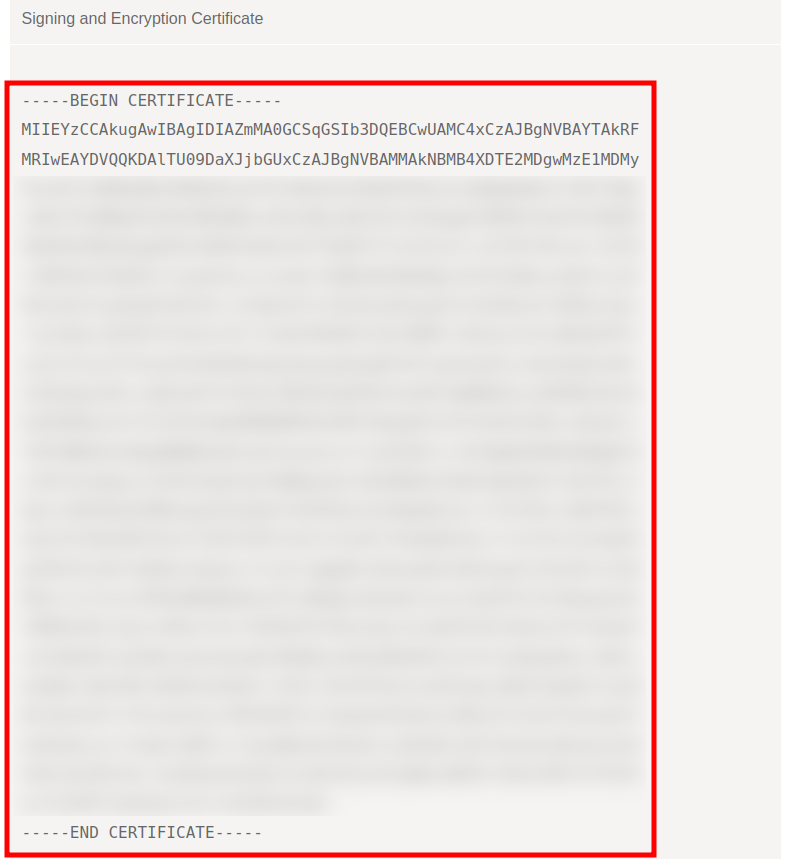
13. Copy the content of the **Signing and Encryption Certificate** and save it in a separate text document:
    ![Signing and Encryption Certificate content highlighted for copying](/assets/images/sso-how-to-configure-short.io-sso-via-ssocircle-screenshotfrom2025-02-1212-33-07-26157bb9-99e8c00b708c2b3bb6cc1b43d5d7b510.png)

### Short.io settings[​](#shortio-settings "Direct link to Short.io settings")

1. Sign in to your **[Short.io](https://short.io/)** account.

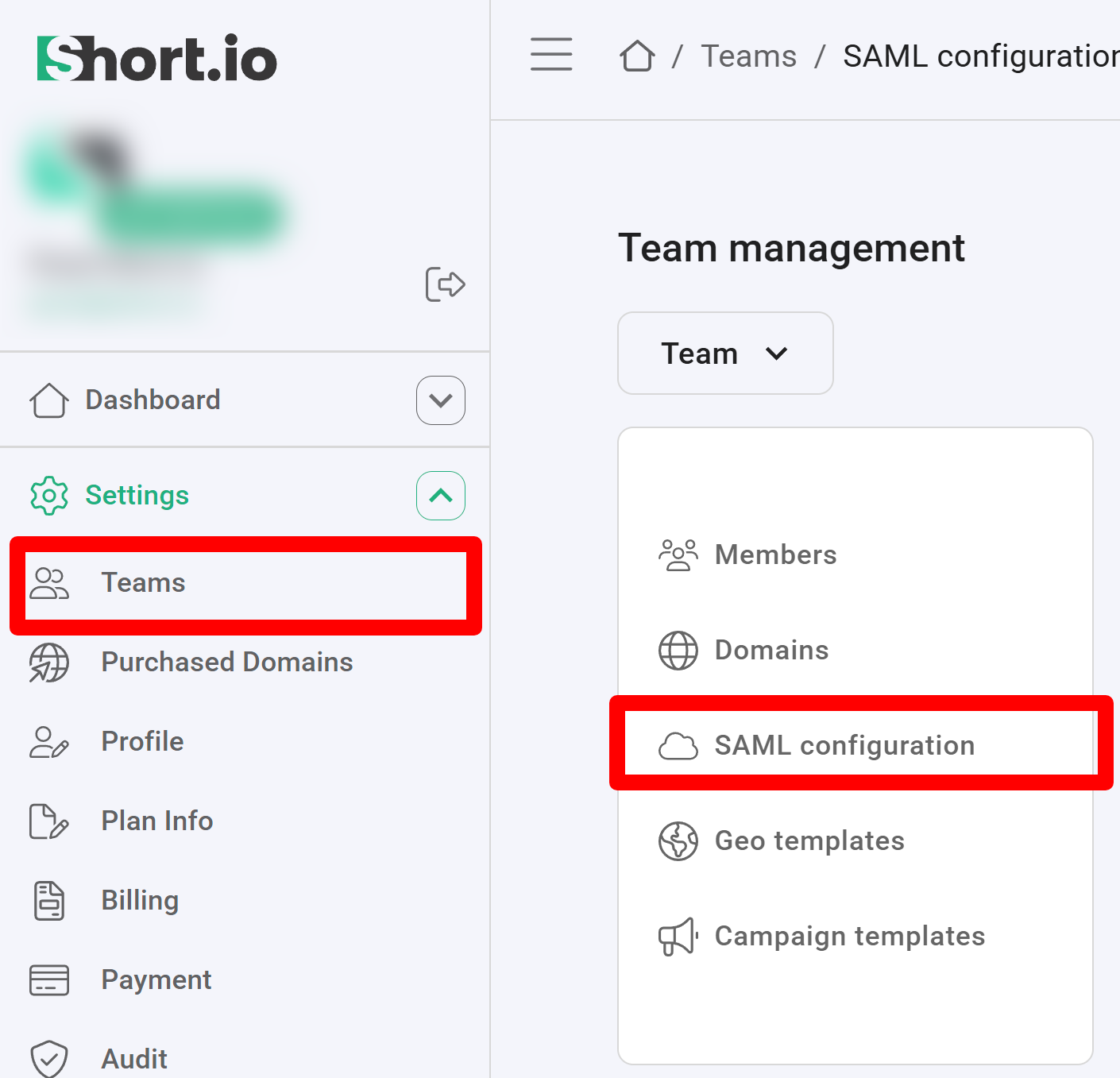
2. Navigate to the **Settings** and click on **Teams:**
   ![Short.io Settings with Teams and SAML configuration options highlighted](/assets/images/sso-how-to-configure-short.io-sso-via-ssocircle-image-78eb0675-1a5ebc1ee362fd5b01529ec6648c548e.png)

3. Click on your team and then click **SAML Configuration**.

4. In the next screen:

   * enable the **SAML configuration**:

     ![SAML configuration section with Config enabled toggle](/assets/images/sso-how-to-configure-short.io-sso-via-ssocircle-screenshotfrom2024-10-2914-23-12-b4104189-4b27278abacf031e1e68f57722abd1c6.png)

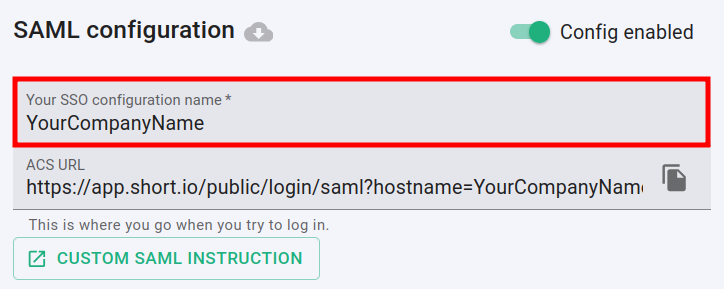
   * enter the name of your company in the SSO configuration field:
     ![SAML configuration with SSO configuration name field highlighted](/assets/images/sso-how-to-configure-short.io-sso-via-ssocircle-screenshotfrom2024-10-2914-23-46-515fe636-7aa68b6b663dbd1e49fdbc0ce7538fef.png)

   * paste the **SSO Service HTTP POST** value which you copied from the **Public IDP Configuration** into the **Entry point URL** field:

     ![Entry Point URL field with SSOCircle SSO Service HTTP POST URL](/assets/images/sso-how-to-configure-short.io-sso-via-ssocircle-screenshotfrom2025-02-1212-45-03-d4e51837-732d90f47fffe6876aad74862c6bedff.png)

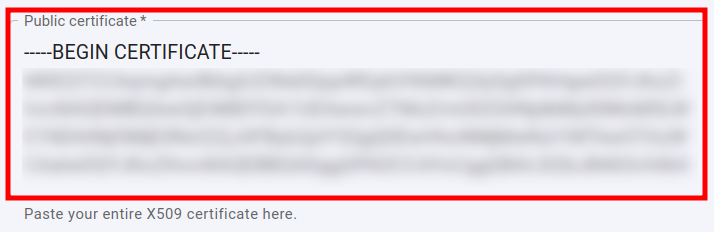
   * paste the content of the certificate which you copied from the **Public IDP Configuration** into the **Public certificate** field:
     ![Public certificate field with X509 certificate content pasted](/assets/images/sso-how-to-configure-short.io-sso-via-ssocircle-screenshotfrom2024-11-0715-27-432-f66302c5-fdb19f6a0b8a91ef8b3d42d4849237c3.png)

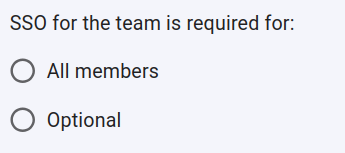
   * you can specify whether or not the SSO is required for **All members** of the team or is **Optional**:
     ![SSO requirement options for the team with All members and Optional choices](/assets/images/sso-how-to-configure-short.io-sso-via-ssocircle-screenshotfrom2024-11-0715-41-54-bda52a76-0f505ab9b2edff2a912e6c19115980ea.png)

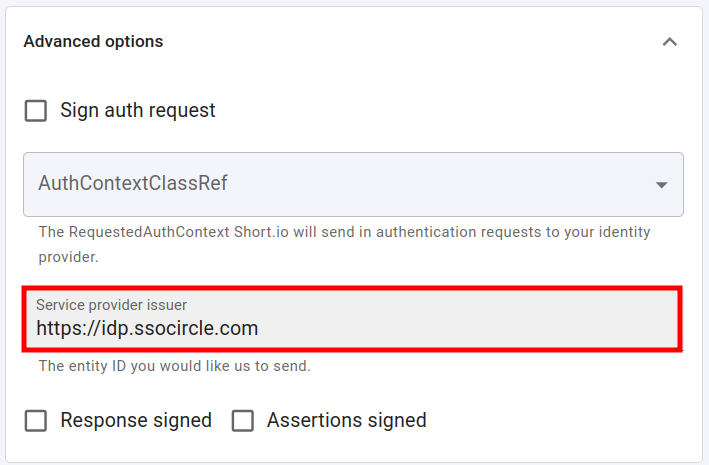
   * expand the **Advanced options** and paste the **Issuer** value which you copied from the **Public IDP Configuration** into the **Service provider issuer** field:
     ![Advanced options with Service provider issuer field highlighted](/assets/images/sso-how-to-configure-short.io-sso-via-ssocircle-screenshotfrom2025-02-1212-45-22-e77b6324-77b6b8645714a45433f7c49dccb50c24.png)

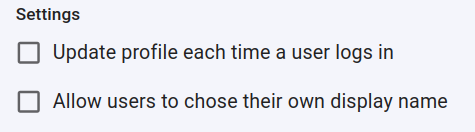
   * you can determine if a profile should be updated each time the user logs in,

     and if the users are allowed to chose their own display name:
     ![Profile update and display name settings checkboxes](/assets/images/sso-how-to-configure-short.io-sso-via-ssocircle-screenshotfrom2024-11-0715-42-33-0246aaa4-b7d65993a38f233f8f7a17b3b2a03df9.png)

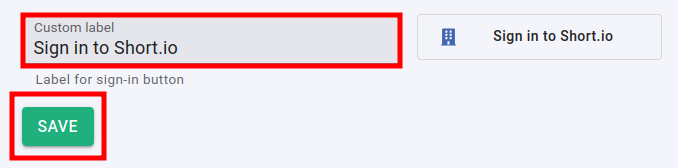
   * you can change the appearance of the **Sign in** button by adding a custom label:
     ![Custom label field for Sign in button with Save button highlighted](/assets/images/sso-how-to-configure-short.io-sso-via-ssocircle-screenshotfrom2025-02-0711-48-05-f08566c8-5ce455a66058bf1f98252e6682e26f01.png)

5. Click on **Save** to confirm.

You can now [use the Single Sign-On](/articles/short.io-basics-and-security/sso/general-single-sign-on-sso-set-up-instructions.md#how-to-log-in-to-shortio-using-sso) with **Short.io**.

Note

The **Short.io** team configures SSO within 24 hours.

In case you need further assistance, please contact the **Short.io** support team at <support@short.io>.