# How to configure deep links in Android app and Short.io

Copy for LLM[View as Markdown](/articles/integrations-and-extensions/mobile-deep-links/how-to-configure-deep-links-in-android-app-and-short.io.md)

**Short.io** provides mobile deep linking for **Android** and **[IOS](/articles/integrations-and-extensions/mobile-deep-links/how-to-set-up-deep-links-for-ios.md)** apps. *For example*, when users click a short link that is correctly configured in your Android app, they will be redirected to the app, if it is installed. If the application is not installed, the URL will be opened in their browser.

Note

Deep linking is available starting from the **Team Plan**.

## **Requirements for using Android application links**[​](#requirements-for-using-android-application-links "Direct link to requirements-for-using-android-application-links")

* Active short domain

* Android 6.0 or later

## **How to configure deep links**[​](#how-to-configure-deep-links "Direct link to how-to-configure-deep-links")

### Android Manifest settings[​](#android-manifest-settings "Direct link to Android Manifest settings")

1. Open the **AndroidManifest.xml** file of your application:
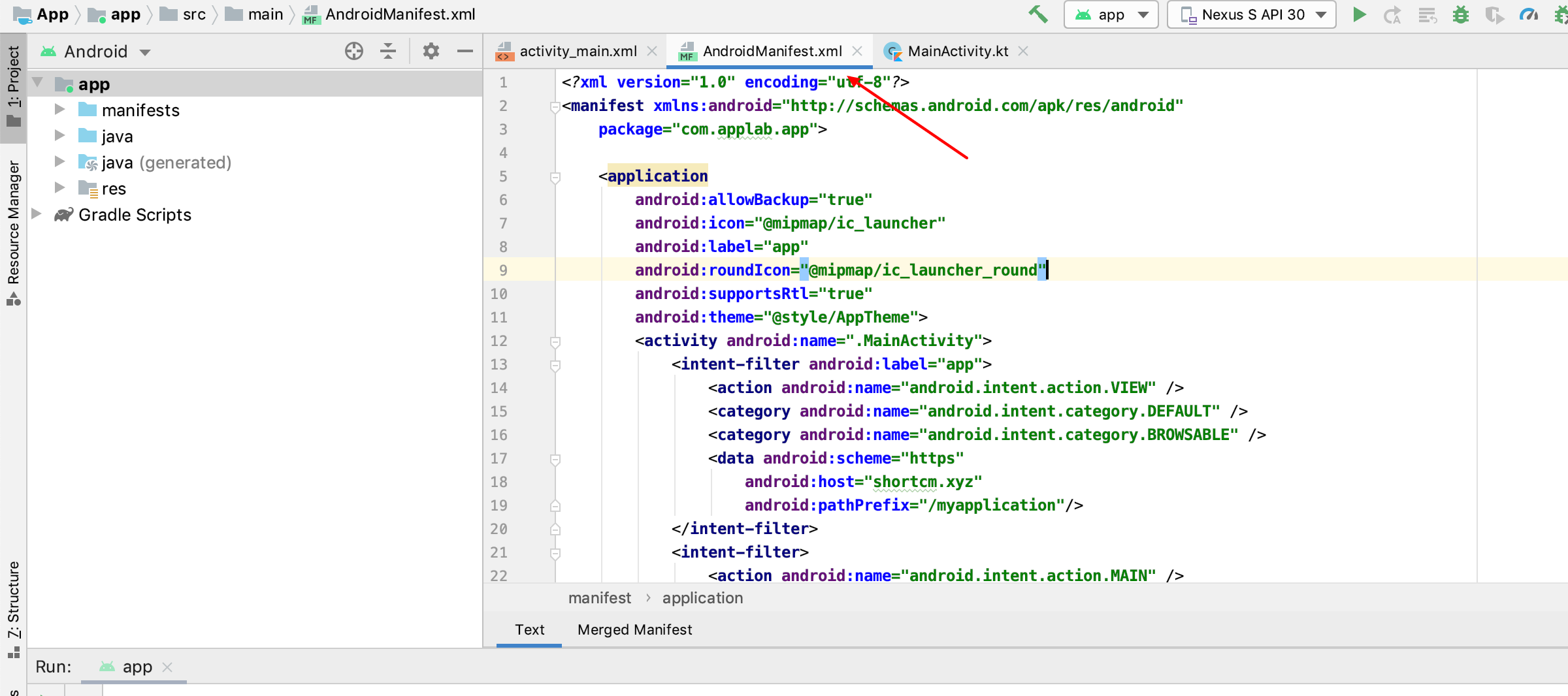
   ![Android Studio with AndroidManifest.xml intent filters](/assets/images/mobile-deep-links-how-to-configure-deep-links-in-android-app-and-short.io-manifest-a76d147d-009477aa14926b63a4e056d2edc6c1de.png)

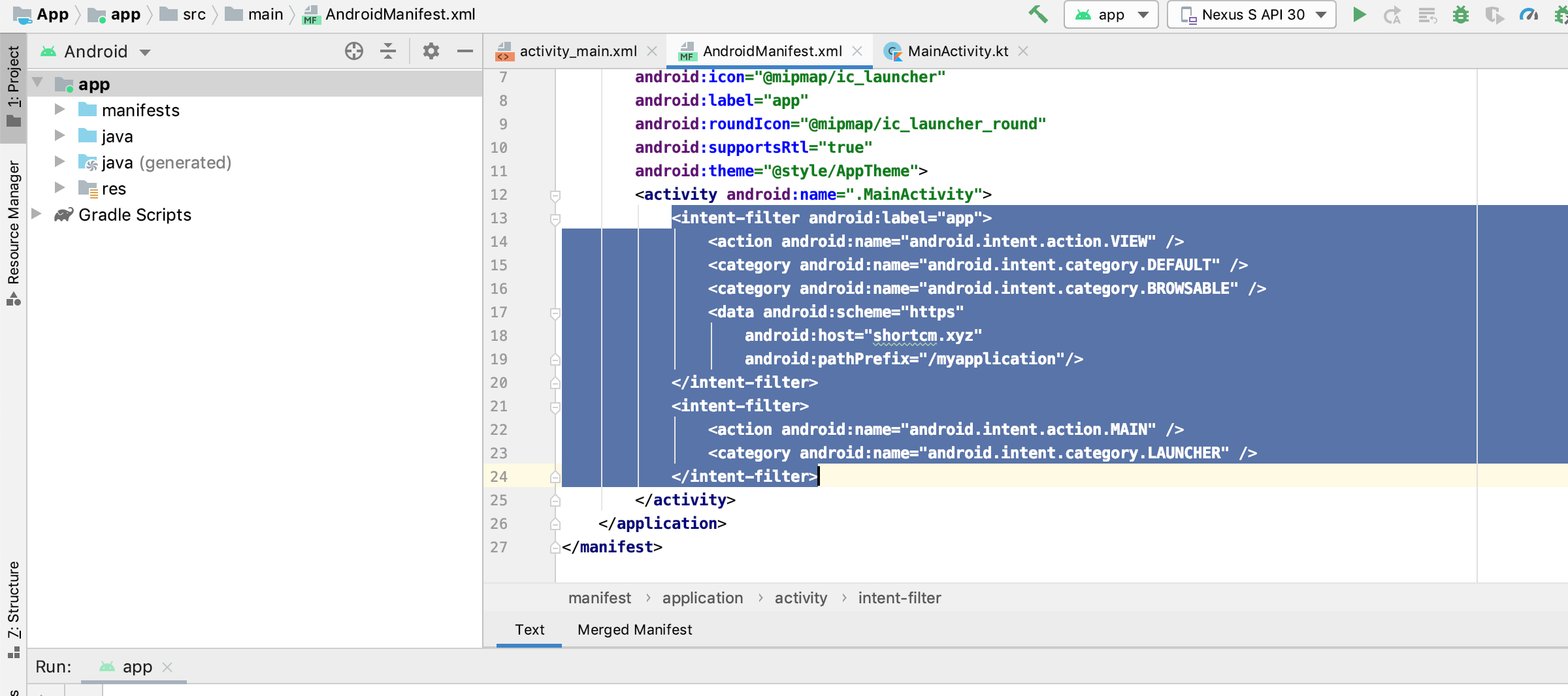
2. Inform the Android system that the link must be opened in the application, not on the website by adding intent filters to the manifest between `<**activity**\>`:

   ```
   `<action android:name="android.intent.action.VIEW" />  
   <category android:name="android.intent.category.DEFAULT" />  
   <category android:name="android.intent.category.BROWSABLE" />  
   <data android:scheme="https"  
    android:host="shortcm.xyz" <!-- SHORT DOMAIN -->  
   <!-- Any path. You can also remove the line below, if you want to configure deep links for the whole short domain, not a particular short link -->  
    android:pathPrefix="/myapplication"/>  
   <!-- Any path. You can also remove the line above, if you want to configure deep links for the whole short domain, not a particular short link -->   
   </intent-filter>  
   <intent-filter>  
   <action android:name="android.intent.action.MAIN" />  
   <category android:name="android.intent.category.LAUNCHER" />  
   </intent-filter>`
   ```

   ![AndroidManifest.xml with intent filter code highlighted](/assets/images/mobile-deep-links-how-to-configure-deep-links-in-android-app-and-short.io-screenshot2020-06-19at111354am-db016f4b-bb70d5b511a242c702dbc1d151d7907e.png)

### Android MainActivity commands[​](#android-mainactivity-commands "Direct link to Android MainActivity commands")

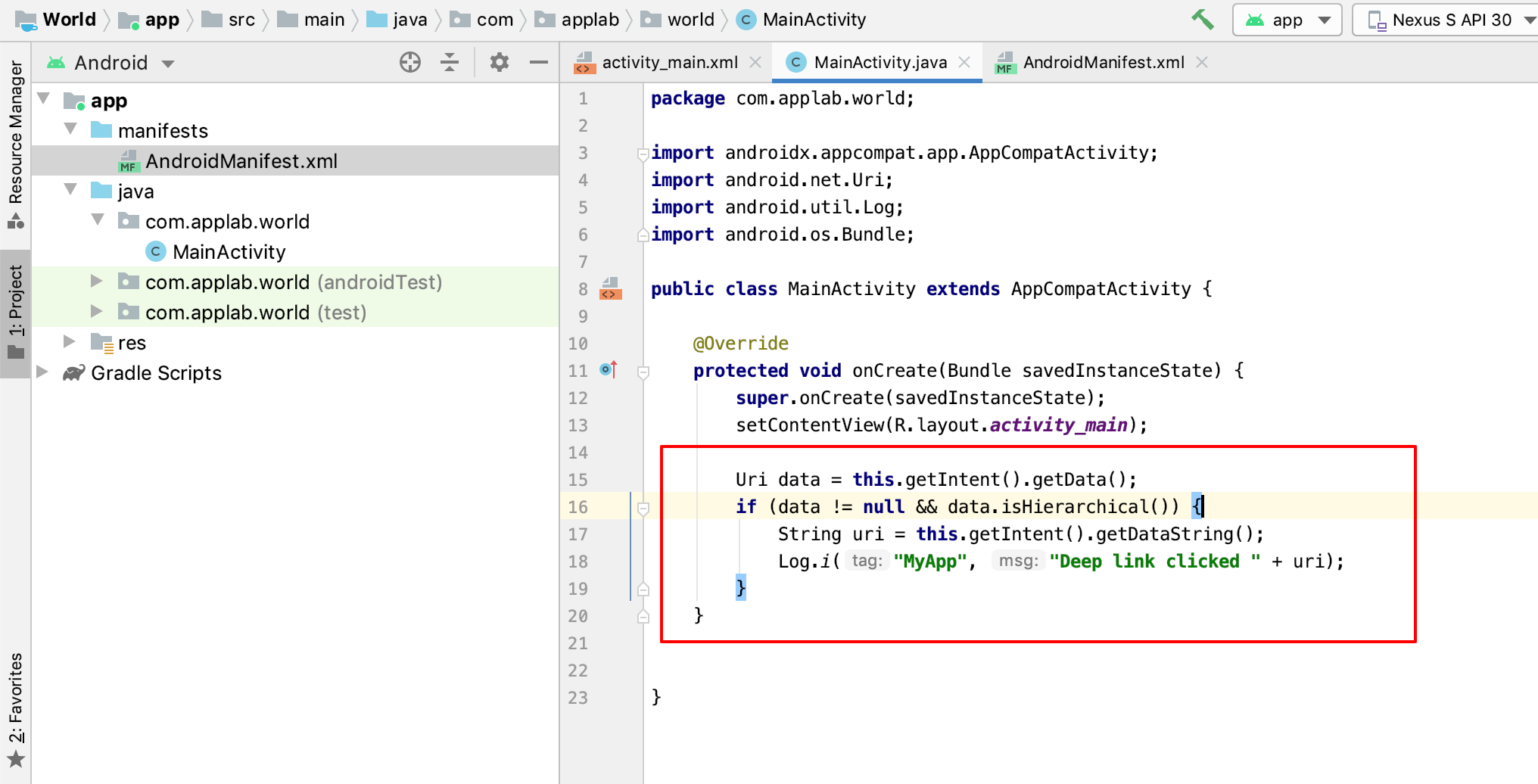
To process deep links in the application, add these lines to the **MainActivity.kt/.java** or any other **Activity** file.

Note

Ensure that you include ***import android.net.Uri*** if it has not been added previously.

### Kotlin[​](#kotlin "Direct link to Kotlin")

```
`val data: Uri? = this.intent.data  
if (data != null && data.isHierarchical()) \{  
val uri = this.intent.dataString  
 Log.i("MyApp", "Deep link clicked $uri")  
}`
```
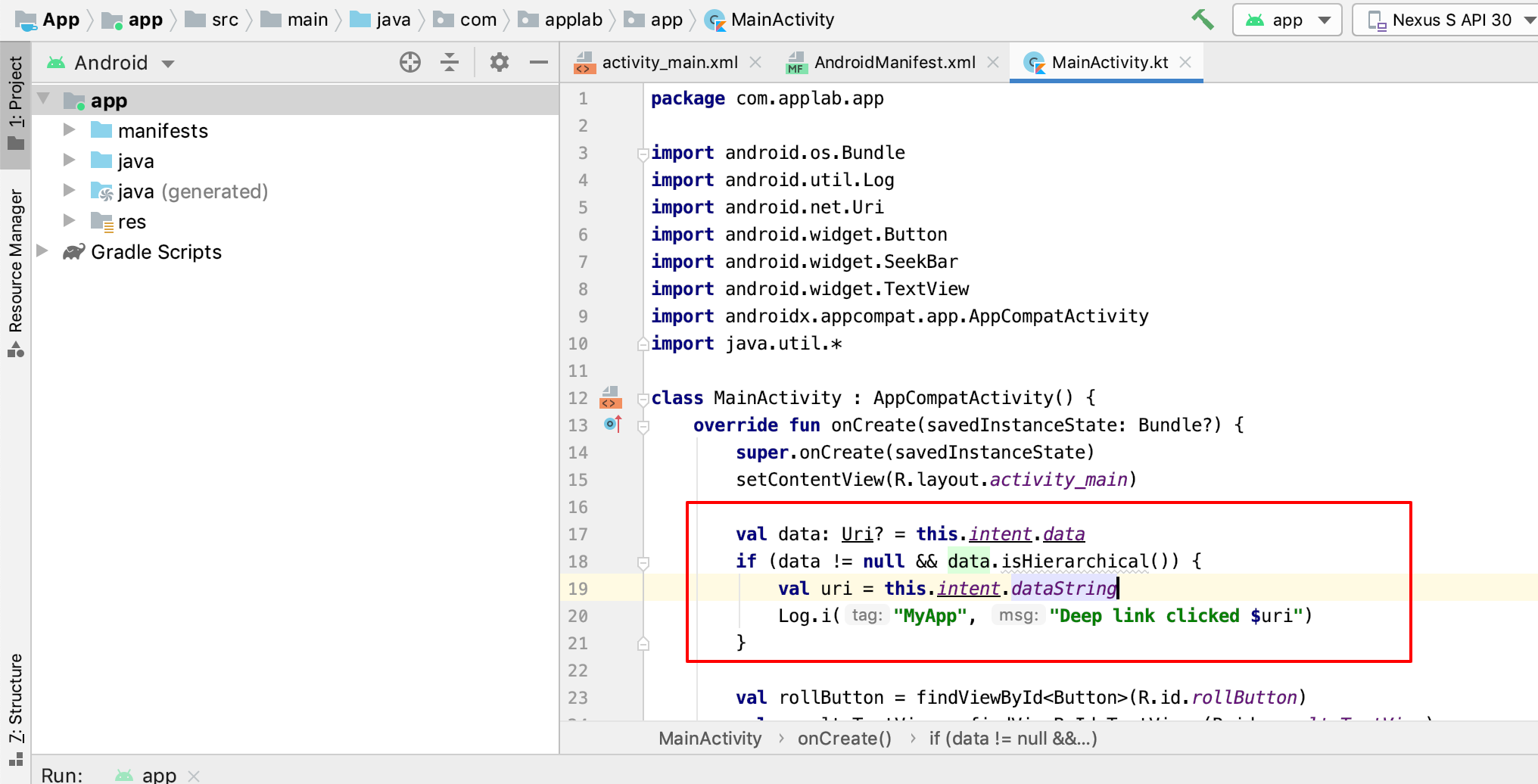
![Android Studio MainActivity.kt with deep link code](/assets/images/mobile-deep-links-how-to-configure-deep-links-in-android-app-and-short.io-activity-ade89a07-fd1439fe0b56a87132f0f0c391dc4af0.png)

### Java[​](#java "Direct link to Java")

```
`Uri data = this.getIntent().getData();if (data != null && data.isHierarchical()) \{ String uri = this.getIntent().getDataString(); Log.i("MyApp", "Deep link clicked " + uri);}`
```
![Android Studio MainActivity.java with deep link code](/assets/images/mobile-deep-links-how-to-configure-deep-links-in-android-app-and-short.io-java-d523dee2-9bb6eb03c3d14c0b32aaabca3e32334f.png)

## Configure deep links on Short.io[​](#configure-deep-links-on-shortio "Direct link to Configure deep links on Short.io")

1. Sign in to your [Short.io](https://short.io/) account.

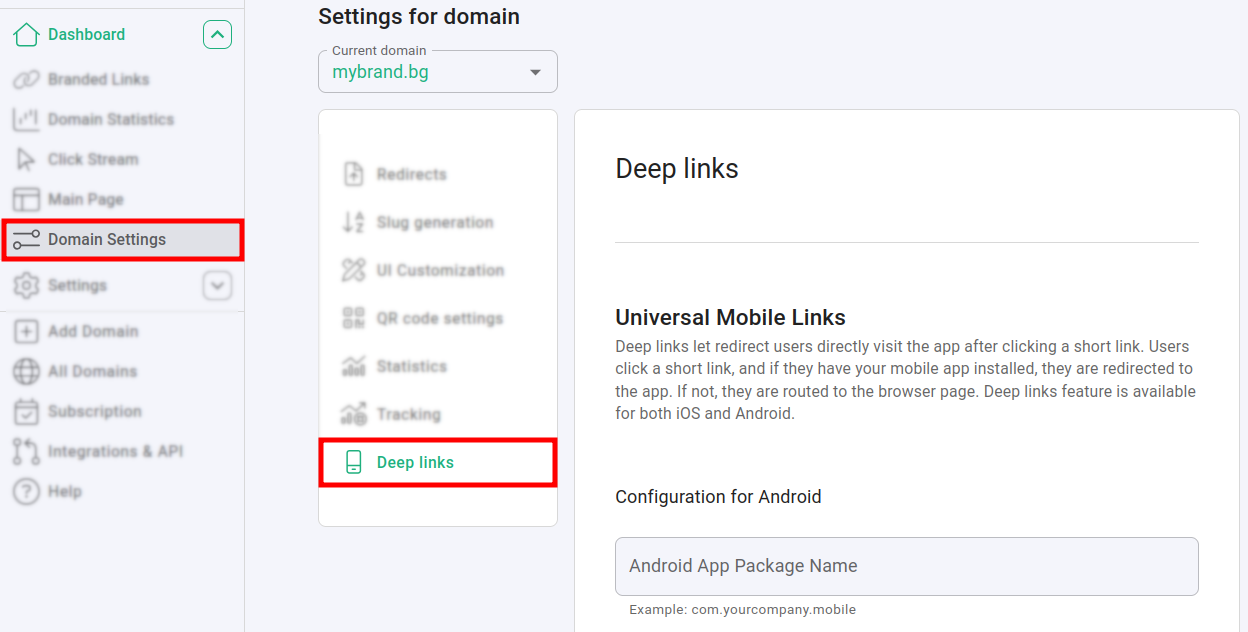
2. Navigate to **Domain Settings** > **Deep links**:
   ![Short.io Domain Settings Deep links configuration page](/assets/images/mobile-deep-links-how-to-configure-deep-links-in-android-app-and-short.io-screenshotfrom2025-03-1315-46-11-8ee5dd24-3e71cc1c0390854725566afd21e95a8e.png)

3. In the **Configuration for Android** panel fill in the following details and click on **Save** to confirm:

   * **Android App Package Name**

   * **Android SHA256 Certificate Fingerprint**

![Short.io Android deep links form with package name and SHA256](/assets/images/mobile-deep-links-how-to-configure-deep-links-in-android-app-and-short.io-screenshotfrom2025-03-1316-06-13-b12c140d-3240946346d6f7dab67724e362a9595c.png)

You can find information on how to locate the **App** **Package Name** and the **Certificate Fingerprint** in this [article](/articles/integrations-and-extensions/mobile-deep-links/where-to-find-android-app-package-name-and-sha256-fingerprint-certificate.md).

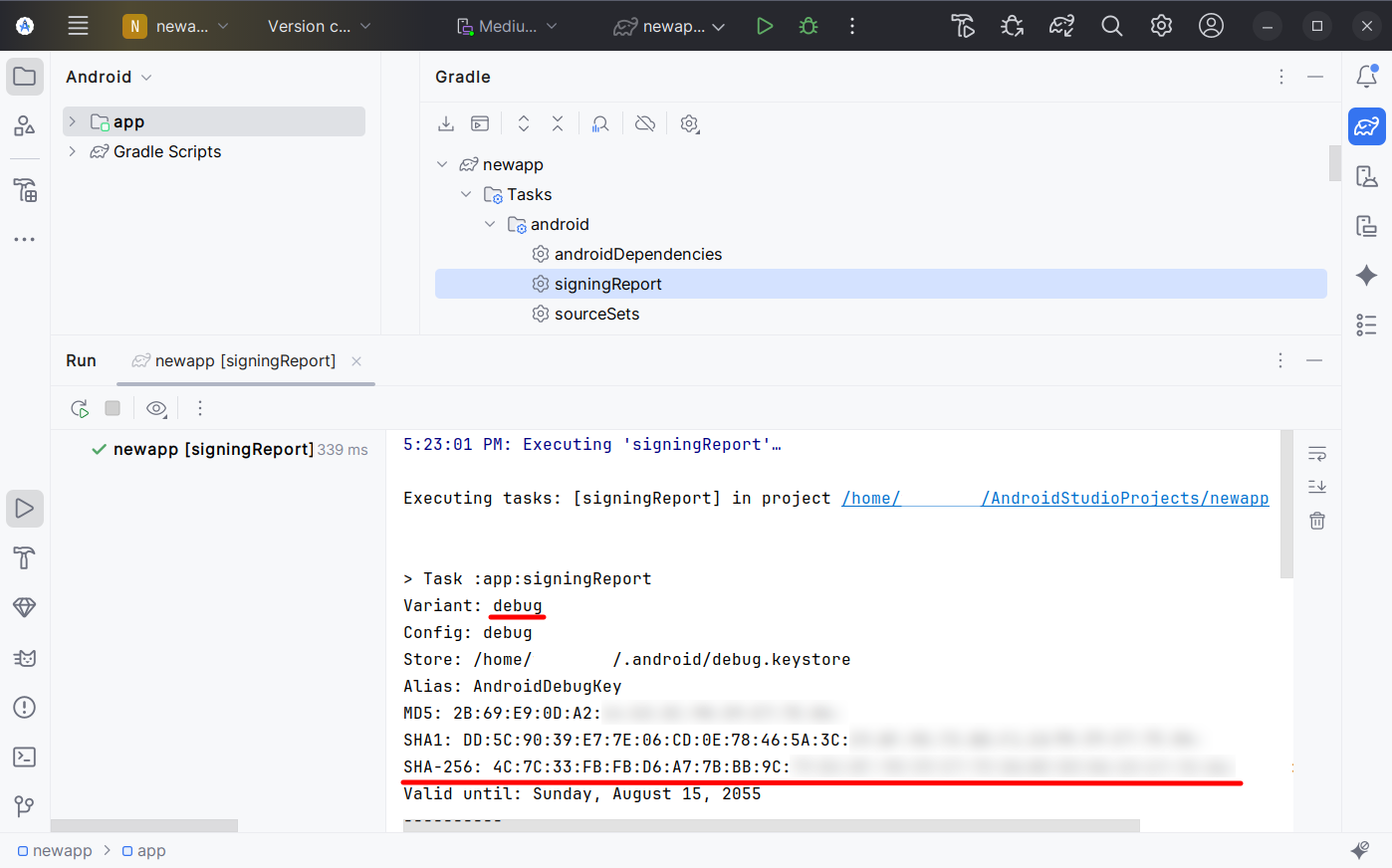
**Note**: The **debug** (in-dev) android application SHA-256 can sometimes be different from the **release** version. To make in-dev app automatically pick up URLs, you need to get its SHA-256 using the "*gradle signingReport"* command

as demonstrated below:

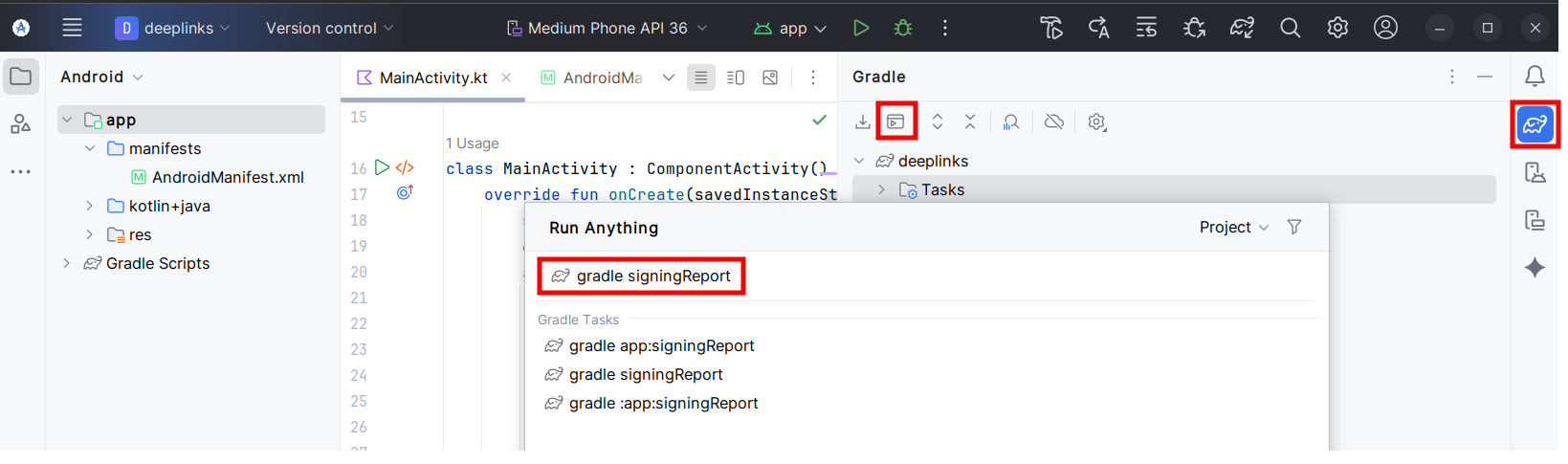
From Android Studio click on the **Gradle** icon ![Gradle icon](data:image/png;base64,iVBORw0KGgoAAAANSUhEUgAAACoAAAAtCAIAAABXpG60AAAAA3NCSVQICAjb4U/gAAAE2UlEQVRYheWYe0yVZRzHf8/7vJdz43gOKMI5lKB5hOQAsRTvcYY61h+lzRwysqw03Wpr3bZctCZtWZrNtBU0s81UtOaNIsUOiLciEt2hLUDTmlwiCAw5vJfzXvrjnJ0L5wIo5+DW96+z5zzP83l+1z3vg1hOgIkTMYHs/z2eDB6SFahrln5wiG2dcs+AMi6YKXpkMRFLs0ibFRPIN46GpV5Xv1Jaybd1yONCDZbFTJQVMclGFALf1a+88Bl3yzk+FoeTQYvKN6rcJ/DFXlag9CAfbTYA3HIqpQd5WYEAfF2z1NYZLZ8PU1unXNcsBeDtzWJs2P44H76lPUam++N8+L7oR91fbpxf6sXUeA8uRNu5SxEIVs6j8zMphoLzv4n763kpvGHjj9++Trsow7NtThq5IJ18qcLpksKc9c4YaholG4mphhDLCQQNbeJzuwdLPhp0/CHlTidL8plw+4zNeosJF+ZS82eRM5Kwd7ClXbrYIp5oFDr7ZAB4eY/T+9fWI+yBV3T5mdReO39XeFM8sXmVeu5Mz/zOPrmrX8YEmBOI9BScnoKfKWDqml0VNdyNbl+ozQkEACQbw/p4tPh3itQ5aeTNXvnwBb7WIfYMBDCW51BPLmAKsiiblbI7XF9fEH7/S5p9P35jpQoAWCFsSY8Wn5qIXRIUbb8dnEQd/8h77fz+en7lPHqtjVmWTS3LpoZNuCt8noWkSaAwPDSd/PlqiN6sYdCcB8jvm1xHfhQKc2mblUqchP7+VzHHE2lTCbvDdef4xQ9SW9dqKOz57cWraVSSz1y6JjZdFzcsZ4qXMHaH6819Q1WNQlWjAADZqbh8k25gSKm5EhY/QuHdN5koK1ZjBLu+42QFlsz2HDc1kdjzonb9MubRhykAqKjhD50Xum8FJMSWYg1BwLZj7G32TmP/2gq1hkHlp7h9Z3hbJpU5Da8rYHQqVLSYoTD81CrurOIAYIhXPjzOelfNNOGPn9cmxKHqS8Kpy2FNHwFvMeH5s8ibvfKXtTwAfFXPv/eUZlOhys37pJqvPOe5NfgrJ43c8axGp0KnLru2HGaDtx0tfmk2BQDfXBTcTbu22bV25+CiDJIV4PQVl3/teaXXoA+e1uhUaK+d//QkF5k9Aj4rFQPAhRaf91o7pNaOMO0bAADWLGYMWnS8QRgNGyKn3rQpWBChvddjpU6FEBo+R8Mgwm+Px+fSLgkqakK32GBFsj5OjQaGFFmBjBS8eZV6lhkLIhxrEHZWsS4JZiThzavU1mlYlKC6Sdh+lEsyosl6dOWGGDIuY8YDgAJKfBzatV6r16Dr3VLiJGL1Qpom4cBZfvcGbUIc+rNHNmjRY3NoNY0ar4oA0NIeKTpjwDs5ZYqeOPm2HgAqz/E7TnBGLTr0etyKPHpFHg0A3/4ibDnE6lTowKs6b6/tvT2GS1sk/Bd2bvVChsRwrUv6/DQPAP1OZdtR9on5NAAMssruag4ABjnl/SNsySMMAIgSnPk1UqEPk+8rZ8lbQ6NfNi46+67mnvnAJmJ7EjfOx4zXBhV1NOXG+fDpKTE1343zIQus43/pjiA3zoe3WbHFFCMHWEyEzYoD8ASCsjWMIfoZYNCisjWM+4klwNxkIyrfqLKYo+gDi5nwPm1A8NsOTOzTUox1z3S9CdF/h0vlIaufvP0AAAAASUVORK5CYII=) and then on **Execute Gradle Task** icon ![Execute Gradle Task icon](data:image/png;base64,iVBORw0KGgoAAAANSUhEUgAAABgAAAAWCAIAAABVH8vfAAAAA3NCSVQICAjb4U/gAAABYklEQVQ4jWP8/uMXAzUAE1VMoaZBLMicN2/eXb9x+8ePnwS1cXCwa2qoiogIwUUY4WH0+PGz6bMWi4oIcnJyEjTo+/fvr9+8z0yLlZWVQjdo2YoNf//9jY0KJtIvi5etZWZijooIgHARYfTp02cJMVEiTWFgYJAQE/306TOciwijt2/fvX//4e69h0Qa9P79h3///mExiI2djZeHV1lJjkiD7t5j/PwFm4t4eXiUleRcXewYGBjef/jIxsrCzc2Nz6Q9h5Cdz4JVzcRJc//8/evsaGVna8HMzEyMA7EnyK/fvhkaaB88fKq7b8bVq7fIN4iBgcFAX7u8NFNbS33B4lV79x0h3yAGBoZXL9/cf/CIjY1NVESYoEHYw4iBgWHb9n2PnzwzNNCJjw3l5+Ml0yApSXFmZqbszHh5ORmCRqAbxMfH++LVawi7MD+VoM4Xr17zIbmUBpmWgVrFCIVg8BW1ACiRklpnjcFaAAAAAElFTkSuQmCC) to display the **Run Anything** dialog:
![Android Studio Run Anything dialog with gradle signingReport](/assets/images/mobile-deep-links-how-to-configure-deep-links-in-android-app-and-short.io-screenshotfrom2025-09-0913-48-16-5d7161d5-efff6b34bc99312fabe7a73a3b2af742.png)

Then type ***gradle signingReport*** and select it from the list. Your signing results for **Debug** and **Release** versions will be generated:
![Android Studio Gradle signingReport output with SHA-256](/assets/images/mobile-deep-links-how-to-configure-deep-links-in-android-app-and-short.io-image-d51a41fa-59674d0f7e4207eebef222000b52a122.png)

## Run your app[​](#run-your-app "Direct link to Run your app")

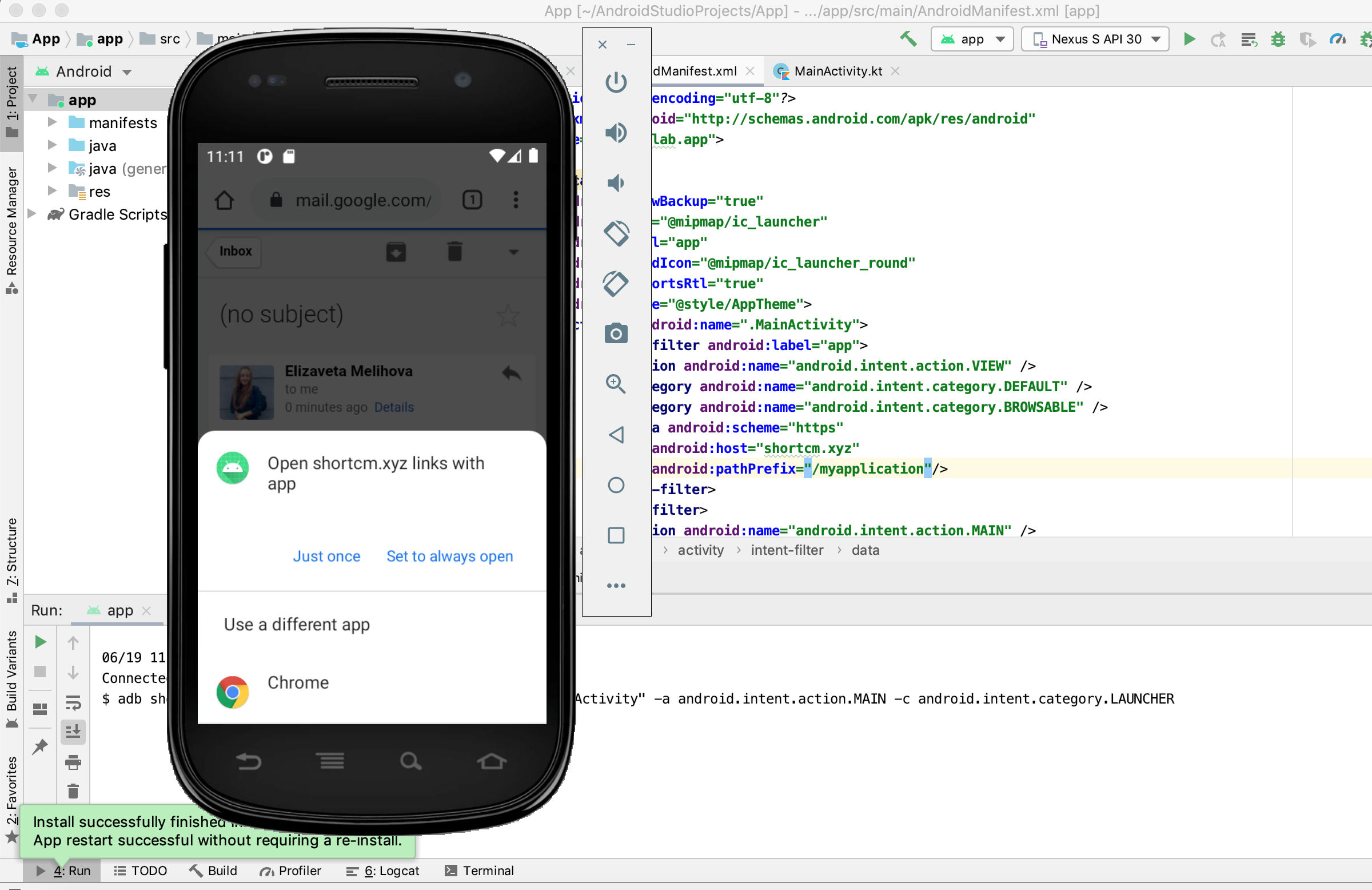
Run the Android Studio emulator and follow the link you have specified in the **AndroidManifest:**

```
`<data android:scheme="https"  
 android:host="shortcm.xyz"  
 android:pathPrefix="/myapplication"/>`
```

In the above case the link is: <https://shortcm.xyz/myapplication>

If the link does not exist, you will get an error message. Send a link via email and browse it from an emulator. You will have the option to open the short link using either a web browser or your application:
![Android emulator showing deep link open dialog](/assets/images/mobile-deep-links-how-to-configure-deep-links-in-android-app-and-short.io-screenshot2020-06-19at111118am-6a159dd8-e820b7cd6ecf2ff5940659d33e24c69e.png)

Watch a video guide on how **Short.io** deep links work:

[![Video guide on how Short.io deep links work](https://img.youtube.com/vi/E82zzEdnMhk/mqdefault.jpg)](https://www.youtube.com/watch?v=E82zzEdnMhk)